
This language version is being prepared. The Japanese version is shown for now.
テキスト:装飾
テキストの装飾は、基本のフチ・影・線・背景(テキストの背面)に加えて、Pro機能の装飾も選べます。フチで文字を強調し、影で奥行きを出し、線や背景(テキストの背面)、蛍光ペン、3D文字などで読みやすさやアクセントを加えます。
PC画面での操作
このページの操作画像はPC版です。中央で対象を選ぶと上部ツールが切り替わり、詳しい設定は左に開きます。右のレイヤー一覧は対象の選択と重なり順、下部は保存状態・作品サイズ・表示倍率を確認する場所です。項目が見えない場合は上部の「…」を確認します。
このページでできること
テキストレイヤーの装飾の設定で、フチ・影・線・背景(テキストの背面)やPro機能の装飾を追加し、それぞれの詳細を調整できます。
操作手順
-
テキストレイヤーを選ぶ
プレビューまたはレイヤー一覧で、装飾したいテキストレイヤーを選びます。
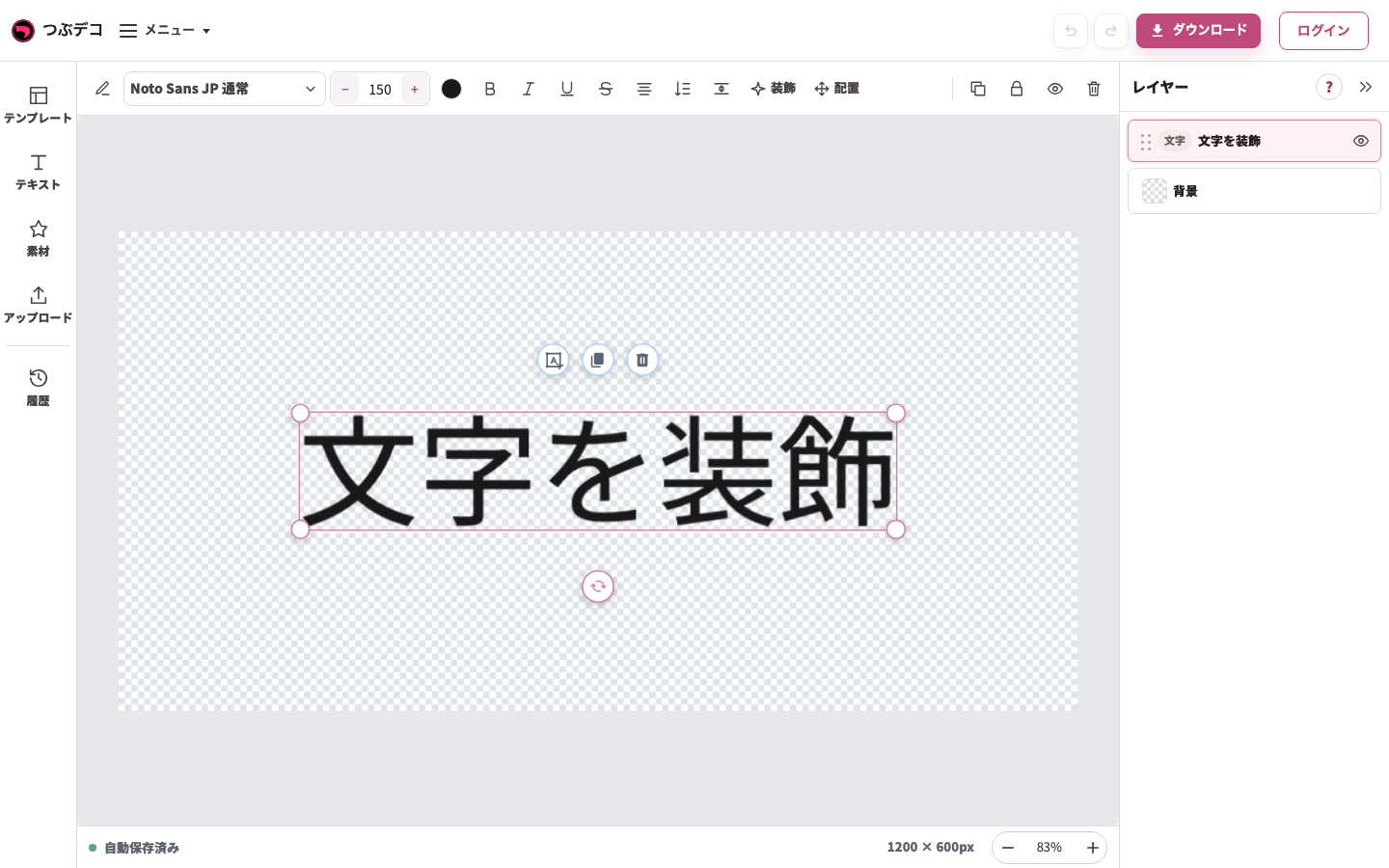
操作後:初期テキストを1回クリックして選択。中央の枠と上部の文字用ツールが現れています。 
拡大:操作後:初期テキストを1回クリックして選択。中央の枠と上部の文字用ツールが現れています。 -
装飾の設定を開く
編集ツールで「装飾」を開きます。
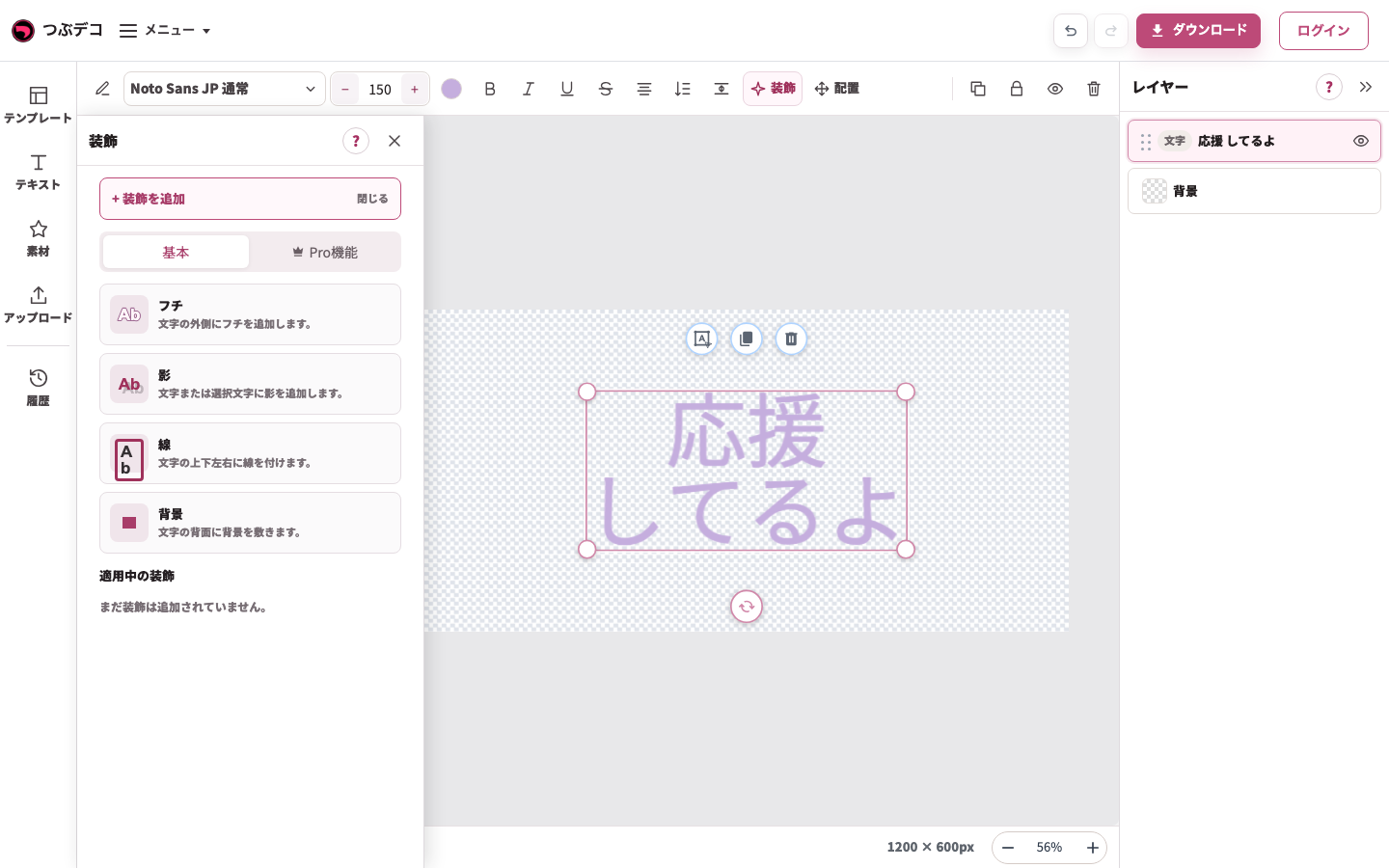
上部「装飾」→左「装飾を追加」。テキスト向けのフチ・影・線・背景を選べます。 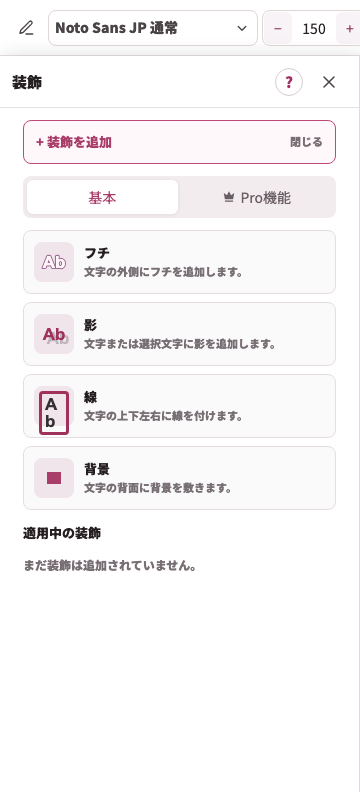
拡大:上部「装飾」→左「装飾を追加」。テキスト向けのフチ・影・線・背景を選べます。 -
「装飾を追加」をクリックする
「基本」ではフチ、影、線、背景の中から追加したい装飾を選びます。「Pro機能」ではProで使える装飾を確認できます。
上部「装飾」→左「装飾を追加」。テキスト向けのフチ・影・線・背景を選べます。
拡大:上部「装飾」→左「装飾を追加」。テキスト向けのフチ・影・線・背景を選べます。 -
追加した装飾を調整する
適用中の装飾を開き、色、太さ、位置、余白などを少しずつ調整します。
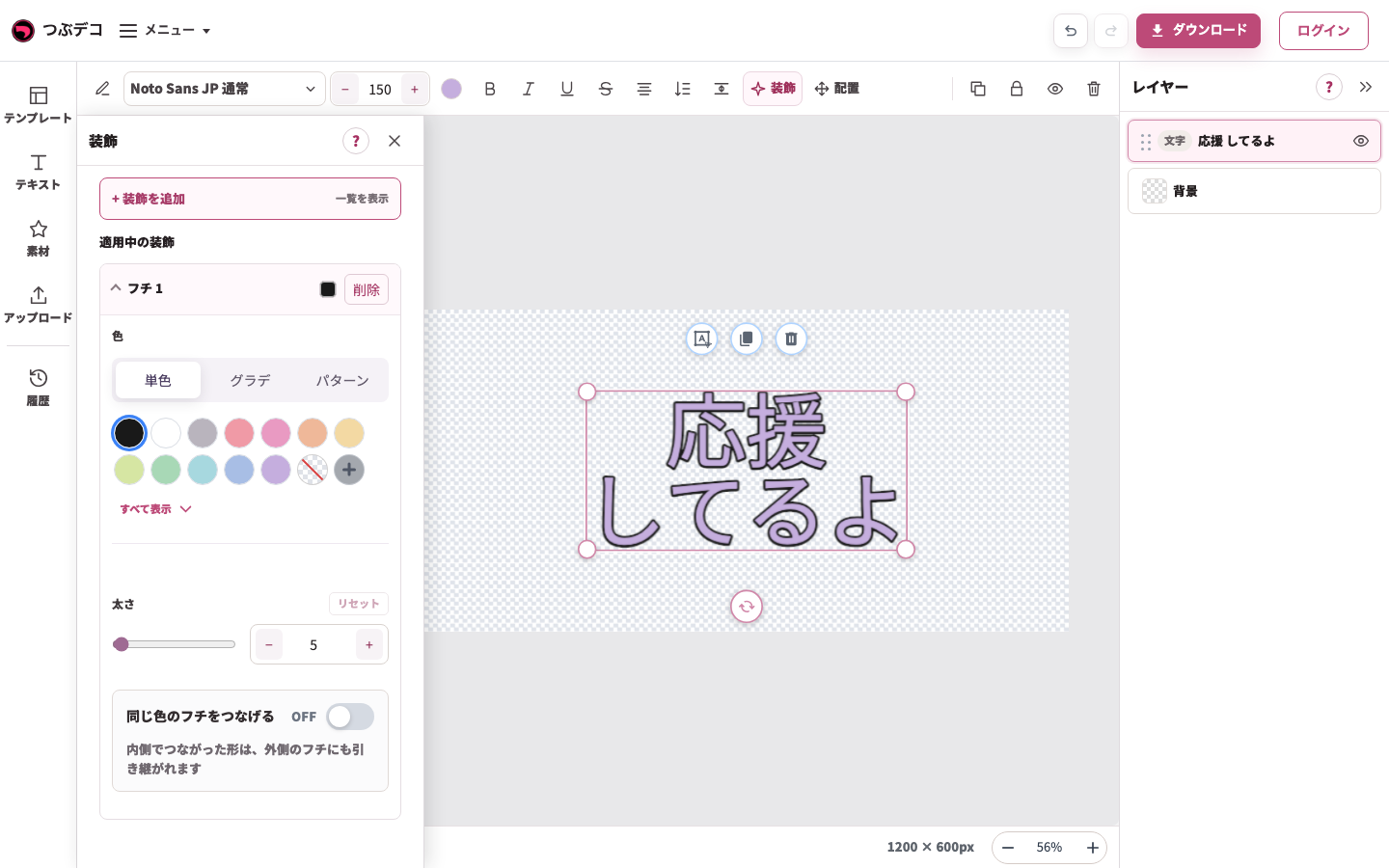
フチを追加して黒を選択。左の色・太さの設定と、中央のテキストに付いた黒いフチを確認します。 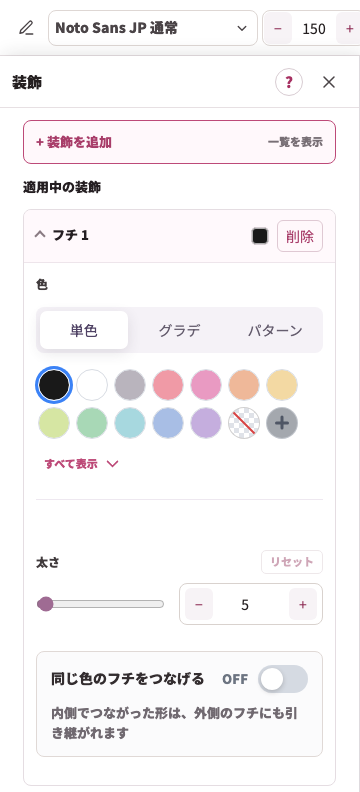
拡大:フチを追加して黒を選択。左の色・太さの設定と、中央のテキストに付いた黒いフチを確認します。 -
必要なら複数の装飾を重ねる
同じ種類を複数追加したり、フチと影を組み合わせたりできます。近いレイヤーのフチをなじませたいときは、フチの「同じ色のフチをつなげる」を使います。不要な装飾は削除できます。
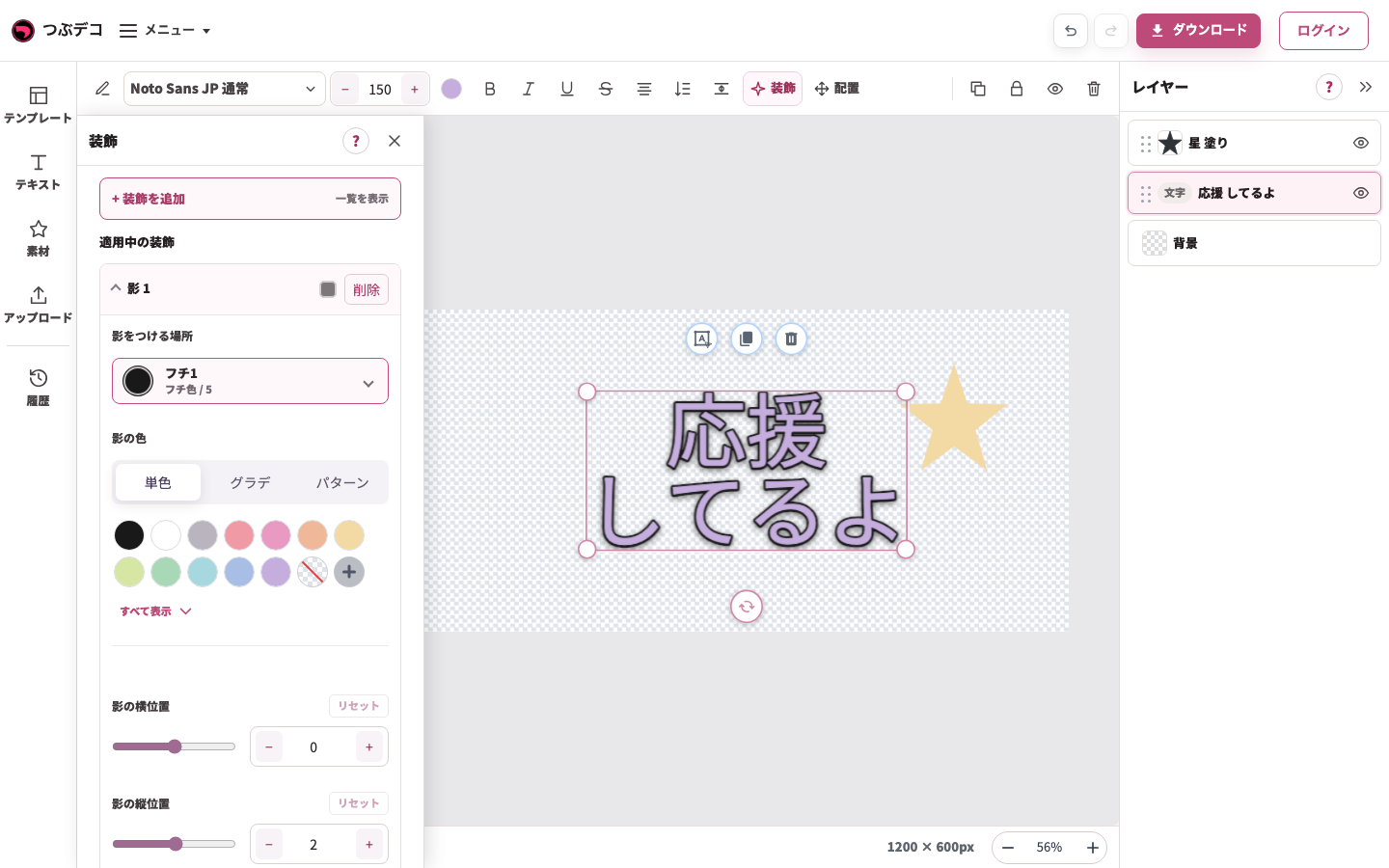
同じテキスト作品に影を追加した設定例。色・位置・ぼかしを中央の結果と見比べます。 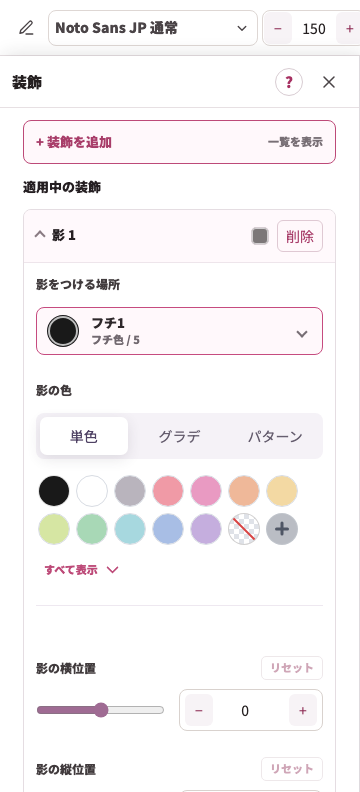
拡大:同じテキスト作品に影を追加した設定例。色・位置・ぼかしを中央の結果と見比べます。
フチ
| Item | Description |
|---|---|
| 色 | フチの色を選びます。単色とグラデーションを使えます。 |
| 太さ | フチの幅を1〜300の範囲で調整します。 |
| 同じ色のフチをつなげる | 近くにあるレイヤーの同じ色のフチを、ひと続きに見えるようになじませます。フチが複数ある場合は、一番外側のフチだけが対象です。 |
影
| Item | Description |
|---|---|
| 影をつける場所 | 「自動」「文字のみ」「背景」「フチ1」などから選びます。「自動」では、背景があるときは背景、背景がないときは一番外側のフチ、どちらもないときは文字に影が付きます。 |
| 影の色 | 影の色を選びます。 |
| 影の横位置 | 影を左右へずらします。-100〜100の範囲で調整します。 |
| 影の縦位置 | 影を上下へずらします。-100〜100の範囲で調整します。 |
| 影のぼかし | 影の輪郭の柔らかさを0〜100の範囲で調整します。 |
線
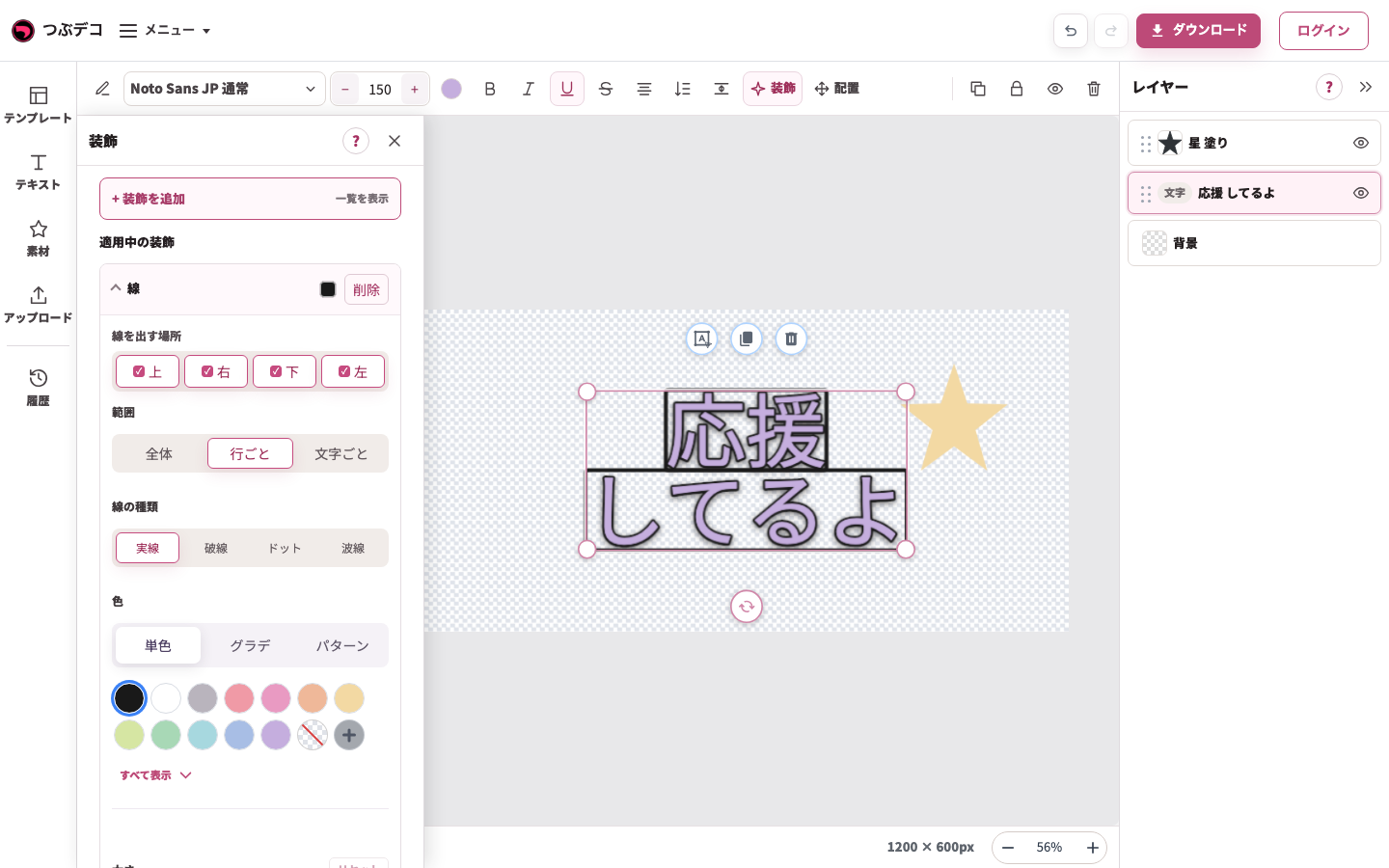
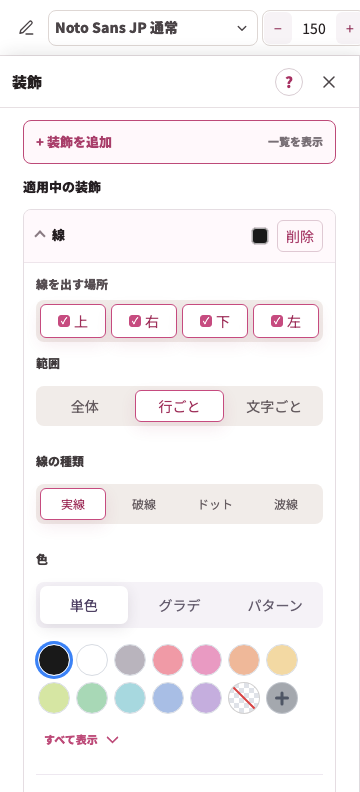
| Item | Description |
|---|---|
| 線を出す場所 | 上・右・下・左から、線を出す辺を選びます。複数選択できます。 |
| 範囲 | 全体・行ごと・文字ごとから、線をどの単位で付けるかを選びます。 |
| 線の種類 | 実線・破線・ドット・波線から選びます。 |
| 色 | 線の色を選びます。 |
| 太さ | 線の太さを1〜40の範囲で調整します。 |
| 余白 | 文字と線の間隔を0〜80の範囲で調整します。 |
| 横位置 | 線を左右へずらします。-50〜50の範囲で調整します。 |
| 縦位置 | 線を上下へずらします。-50〜50の範囲で調整します。 |
| 丸み | 線の角の丸さを0〜50の範囲で調整します。 |
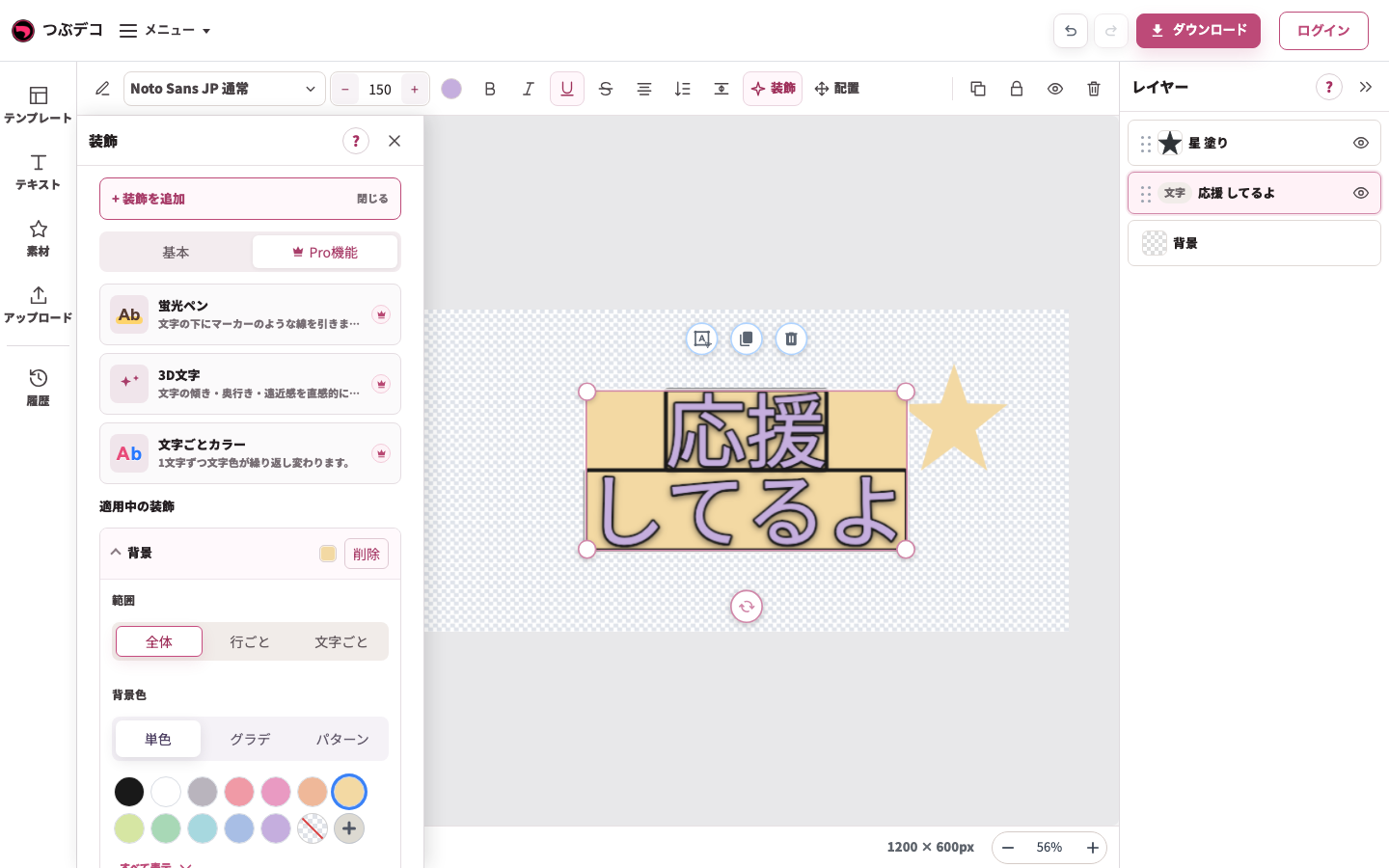
背景(テキストの背面)
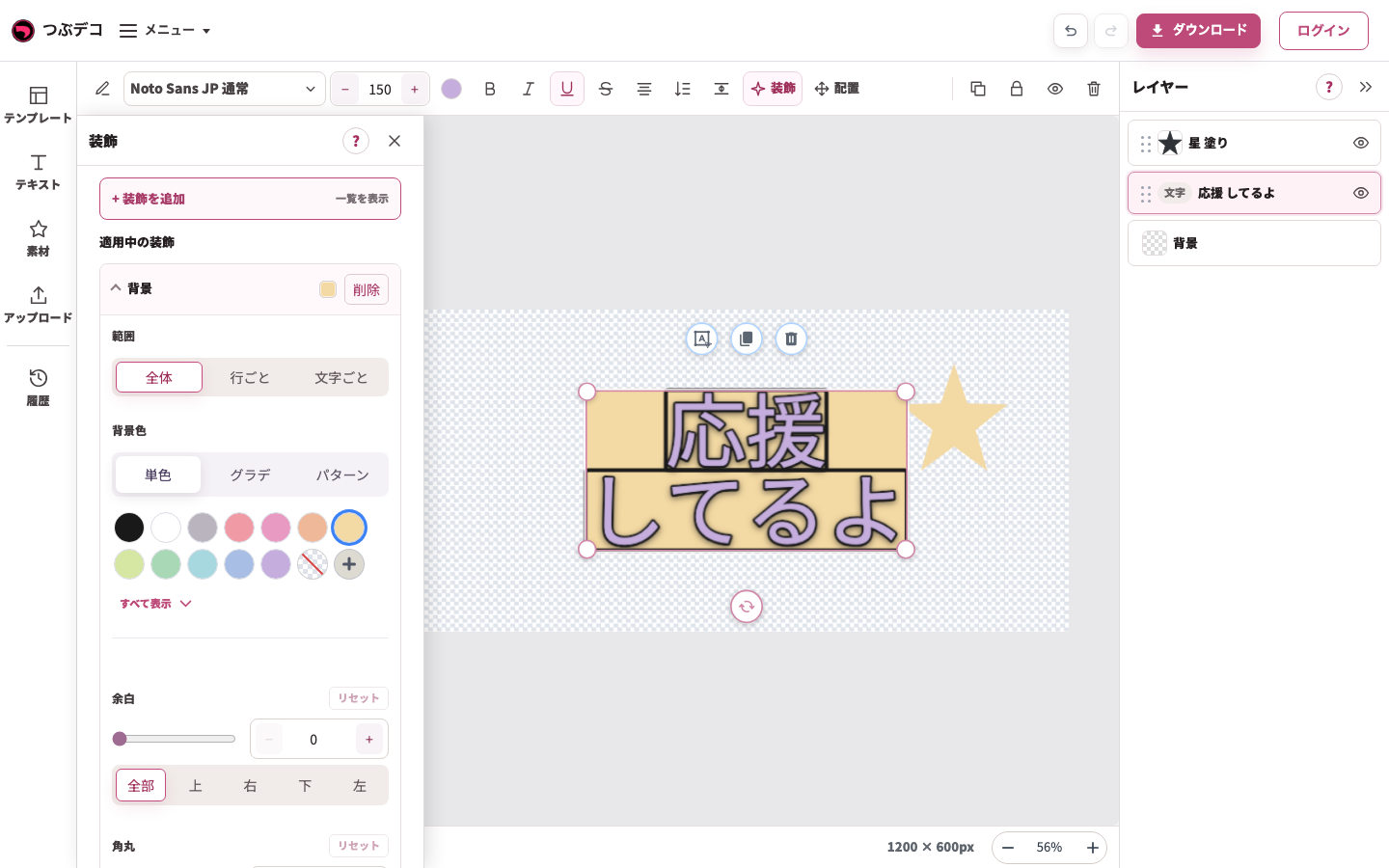
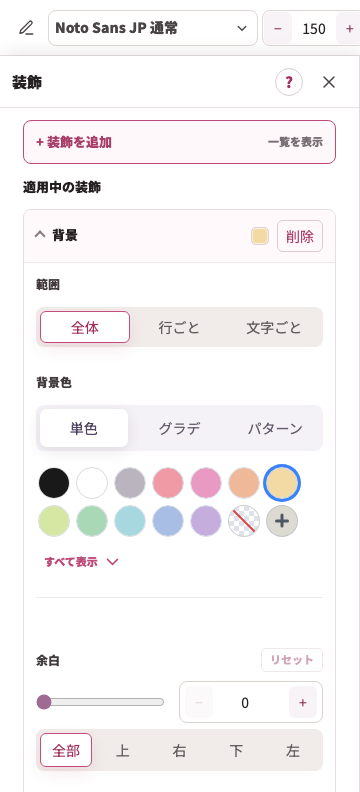
| Item | Description |
|---|---|
| 範囲 | 全体・行ごと・文字ごとから、背景をどの単位で敷くかを選びます。 |
| 背景色 | 文字の背面に敷く色を選びます。単色とグラデーションを使えます。 |
| 余白 | 文字と背景の間隔を0〜80の範囲で調整します。 |
| 角丸 | 背景の角の丸さを0〜100の範囲で調整します。「範囲」が「文字ごと」の場合は、100にすると1文字ずつの背景を丸くできます。 |
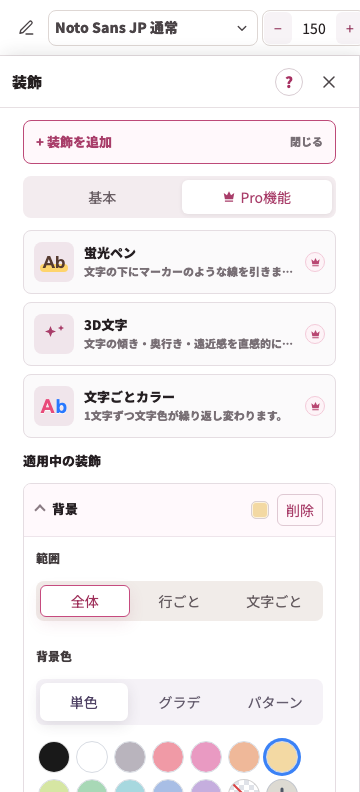
Pro機能
| Item | Description |
|---|---|
| 蛍光ペン | 文字の下にマーカーのような線を引きます。色、太さ、位置、透明度、丸みを調整できます。 |
| 3D文字 | 文字に奥行きと遠近感を付け、立体的に見せます。「奥行きをつける場所」で自動・文字・背景・フチを選び、上下の傾き、左右の傾き、奥行きの方向と長さ、奥行きの色、陰影、ぼかし影を調整できます。 |
| 文字ごとカラー | 1文字ずつ文字色を繰り返し変えます。色の順番、行ごとの繰り返し、空白の扱いを調整できます。 |
| 王冠マーク | Pro機能の装飾に表示されます。未利用の場合は選ぶとProの内容を確認できます。 |
確認ポイント
- 文字の基本装飾は4種類ですが、素材・画像の装飾はフチと影だけです。
- Pro機能の装飾は「装飾を追加」の「Pro機能」から確認できます。
- 線は下だけを選ぶと下線風、上下左右を選ぶと囲み線風にできます。
- 背景(テキストの背面)の余白を広げると、背景が大きくなります。
困ったとき
装飾が強すぎる場合は、太さや余白を下げます。影が見えない場合は、横位置・縦位置・ぼかしを少しずつ調整してください。