
This language version is being prepared. The Japanese version is shown for now.
アップロード:画像を追加する
パソコンでは画面左、
PC画面での操作
このページの操作画像はPC版です。中央で対象を選ぶと上部ツールが切り替わり、詳しい設定は左に開きます。右のレイヤー一覧は対象の選択と重なり順、下部は保存状態・作品サイズ・表示倍率を確認する場所です。項目が見えない場合は上部の「…」を確認します。
このページでできること
左メニューの「アップロード」から端末の画像を選んで追加する流れを確認できます。
操作手順
-
左の「アップロード」を開く
PC画面左の「アップロード」をクリックします。画像を選ぶパネルが出ます。
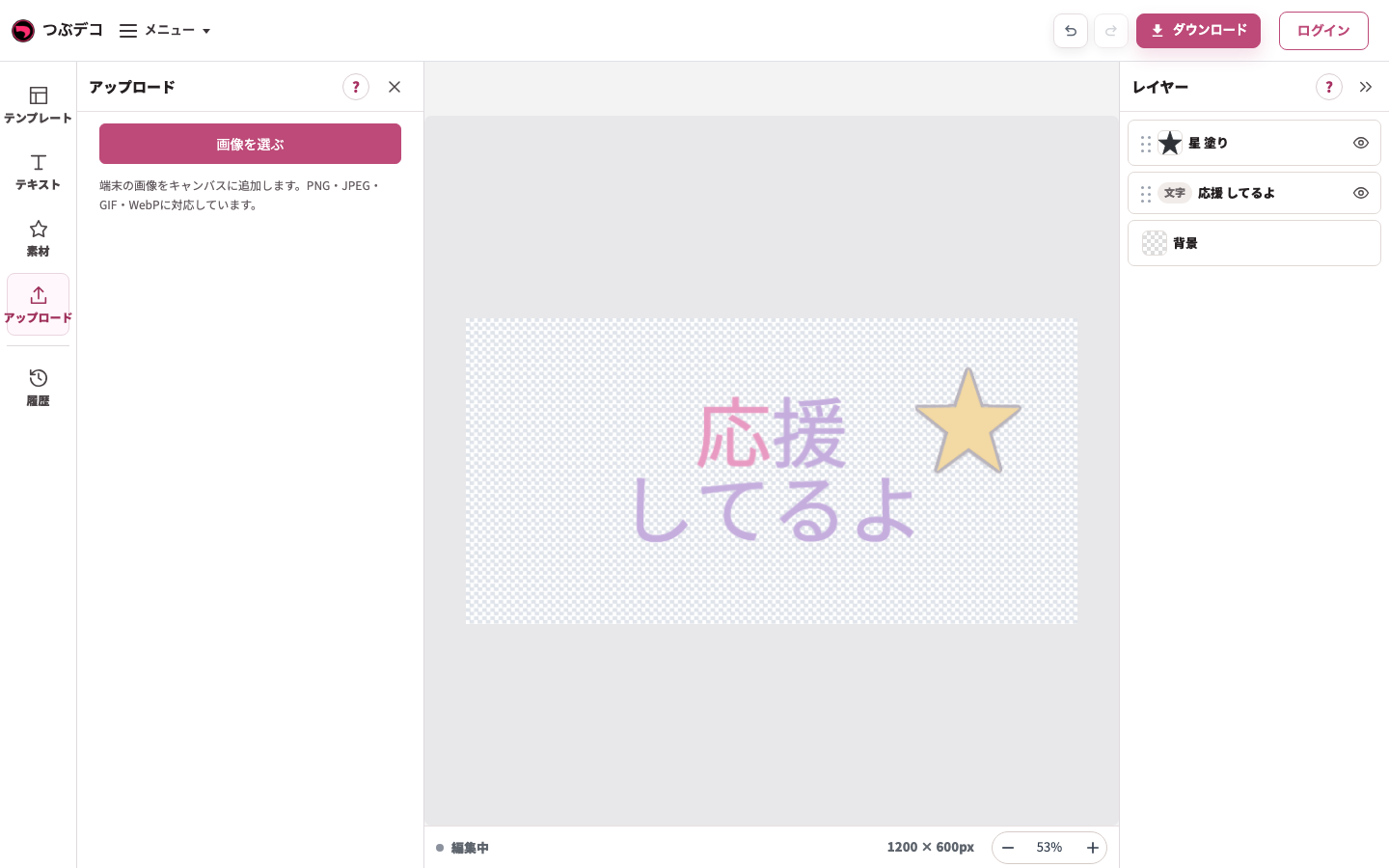
左のアップロードパネル。「画像を選ぶ」からPC内の画像を追加します。 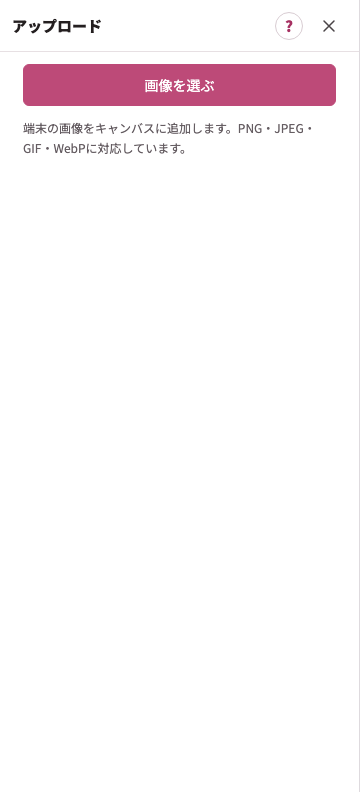
拡大:左のアップロードパネル。「画像を選ぶ」からPC内の画像を追加します。 -
「画像を選ぶ」でファイルを指定する
PC内の画像を選びます。PNG・JPEG・GIF・WebPに対応します。例では個人情報のない検証用PNGを使います。
左のアップロードパネル。「画像を選ぶ」からPC内の画像を追加します。
拡大:左のアップロードパネル。「画像を選ぶ」からPC内の画像を追加します。 -
追加された画像を確認する
中央に画像が増え、右の一覧にも画像名が現れます。追加後は画像を選んだ状態になります。
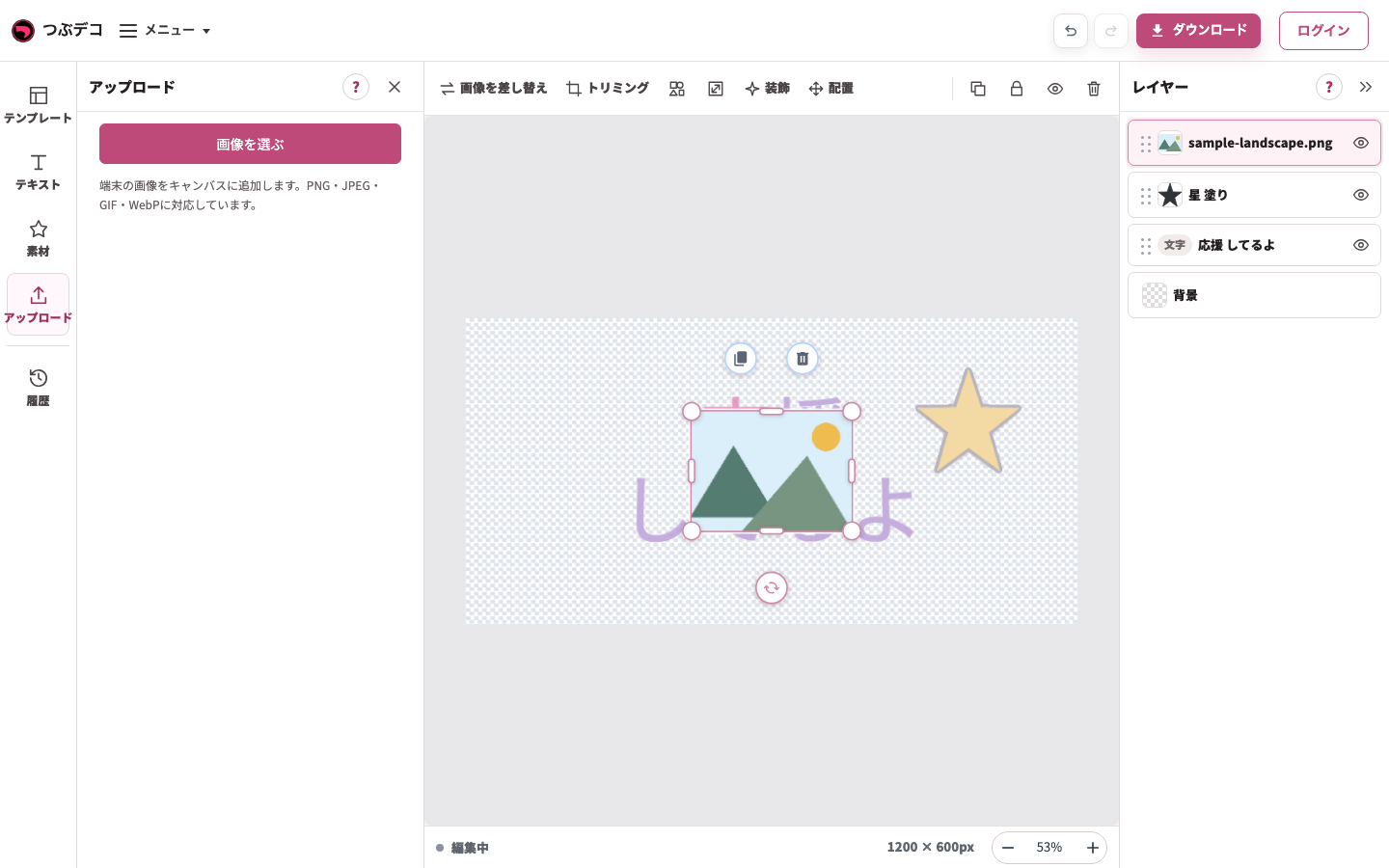
追加後:検証用の山のPNGが同じ作品に増え、右の一覧に画像名が出ています。 -
画像用の上部ツールで調整する
パネルを閉じ、トリミング・形・サイズを整えます。画像をドラッグして位置を変え、文字や素材との重なりを確認します。
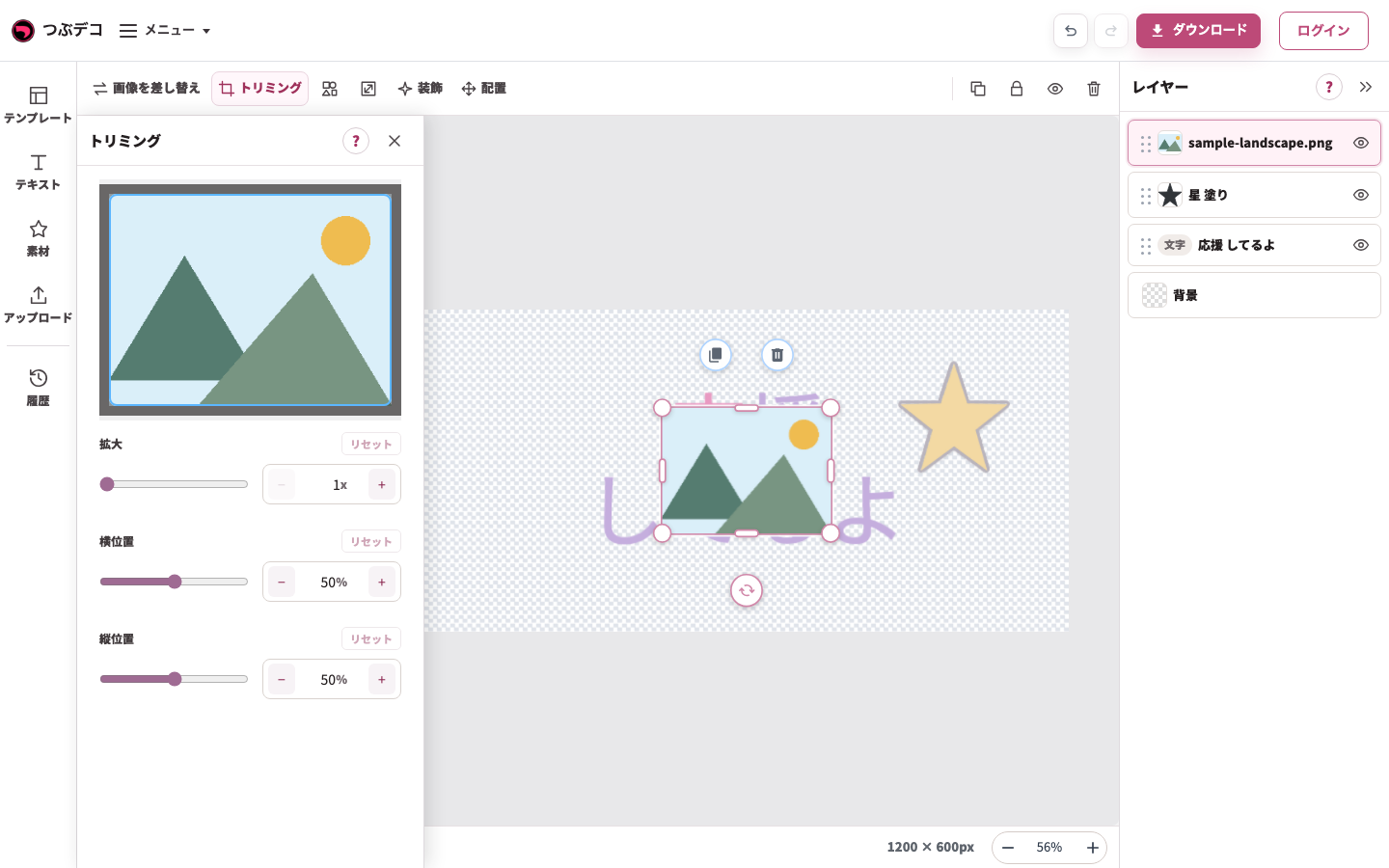
画像のトリミングパネル。拡大・横位置・縦位置で表示する範囲を変えられます。 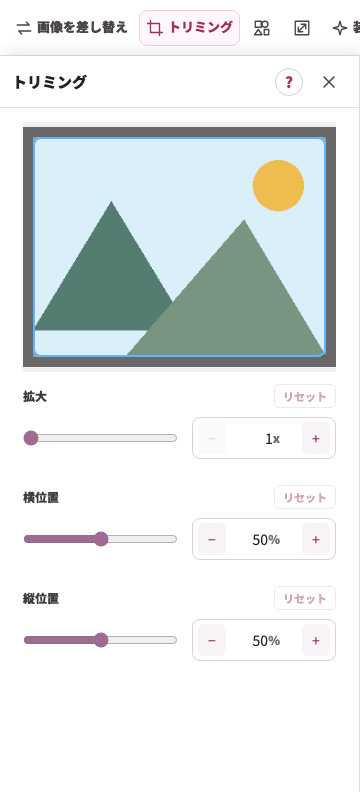
拡大:画像のトリミングパネル。拡大・横位置・縦位置で表示する範囲を変えられます。 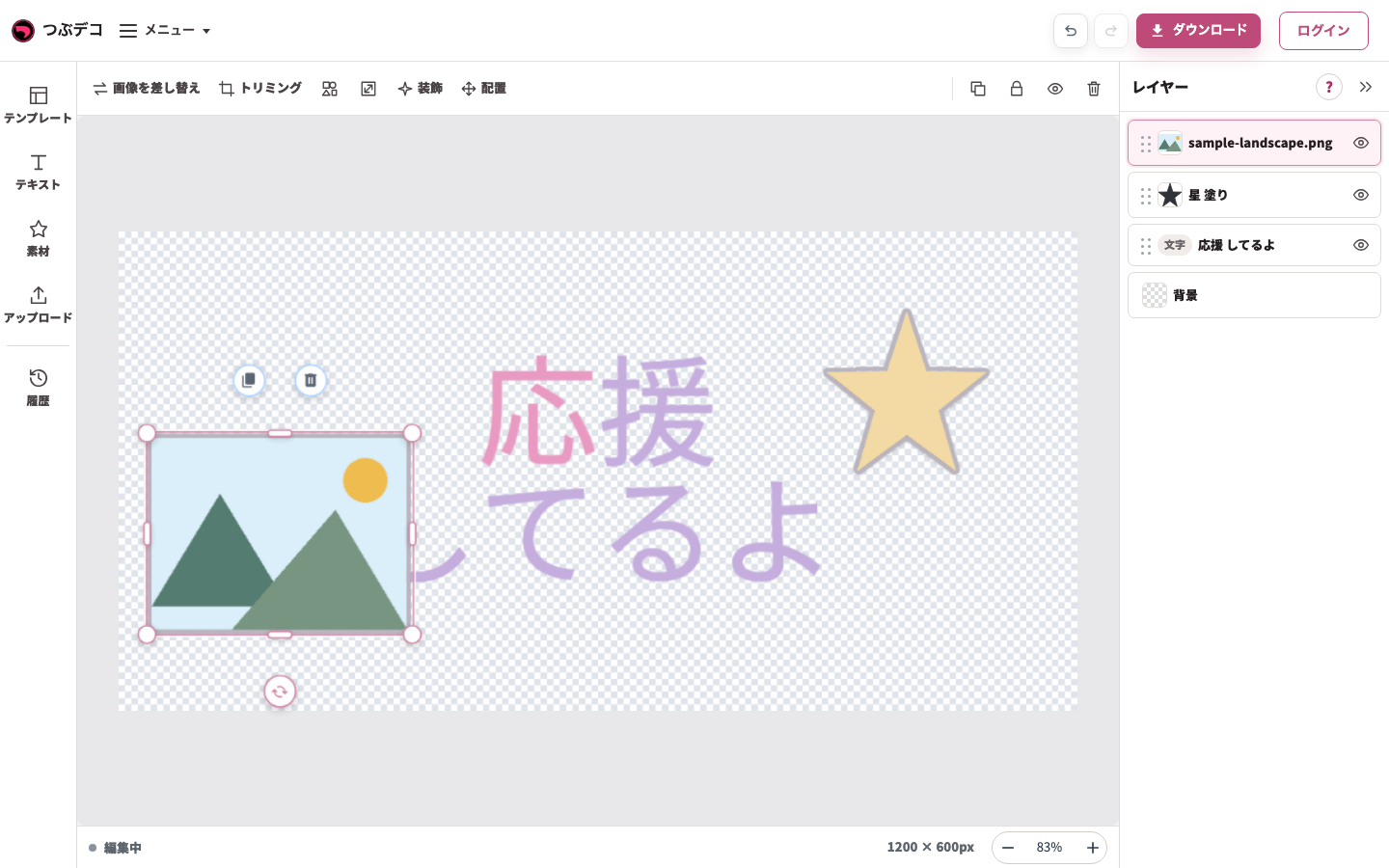
ドラッグ後:選択中の山の画像を文字の左側へ移動した状態。端が切れていないか確認が必要です。
設定項目一覧
| Item | Description |
|---|---|
| 画像を追加 | 端末のファイル選択画面を開きます。 |
| 対応形式 | JPEG、PNG、GIF、WebPを選べます。 |
| 複数選択 | 複数の画像を選ぶと、それぞれ画像レイヤーとして追加されます。 |
| 画像を差し替え | 配置済みの画像を別の画像に差し替えます。 |
確認ポイント
- 大きい画像は読み込みに時間がかかる場合があります。
- 追加した画像は、画像を選択して編集ツールの「画像を差し替え」から差し替えられます。
- ファイル選択画面は端末やブラウザによって見た目が異なります。
困ったとき
画像が追加できない場合は、ファイル形式がJPEG、PNG、GIF、WebPのいずれかか確認してください。