
This language version is being prepared. The Japanese version is shown for now.
テンプレートの選び方
テンプレートは、文字画像のデザインの土台です。あらかじめ用意されたデザインを選んで、すぐに作成を始められます。
PC画面での操作
このページの操作画像はPC版です。中央で対象を選ぶと上部ツールが切り替わり、詳しい設定は左に開きます。右のレイヤー一覧は対象の選択と重なり順、下部は保存状態・作品サイズ・表示倍率を確認する場所です。項目が見えない場合は上部の「…」を確認します。
このページでできること
テンプレートを探して選ぶ方法、作りたい種類から新しく作り始める方法、別のテンプレートへ切り替えた後に文字を確認する流れを確認できます。セットになったテンプレートの開き方も確認できます。
操作手順
-
「テンプレート」を開く
作成画面の左メニューから「テンプレート」を開きます。「テンプレートを検索」欄にキーワードを入力してテンプレートを絞り込めます。種類別の一覧を開きたいときは、用途別の「まとめて作る」ページから「エディターで作る」を選びます。検索欄に文字が入っているときは、×ボタンで検索ワードを消せます。
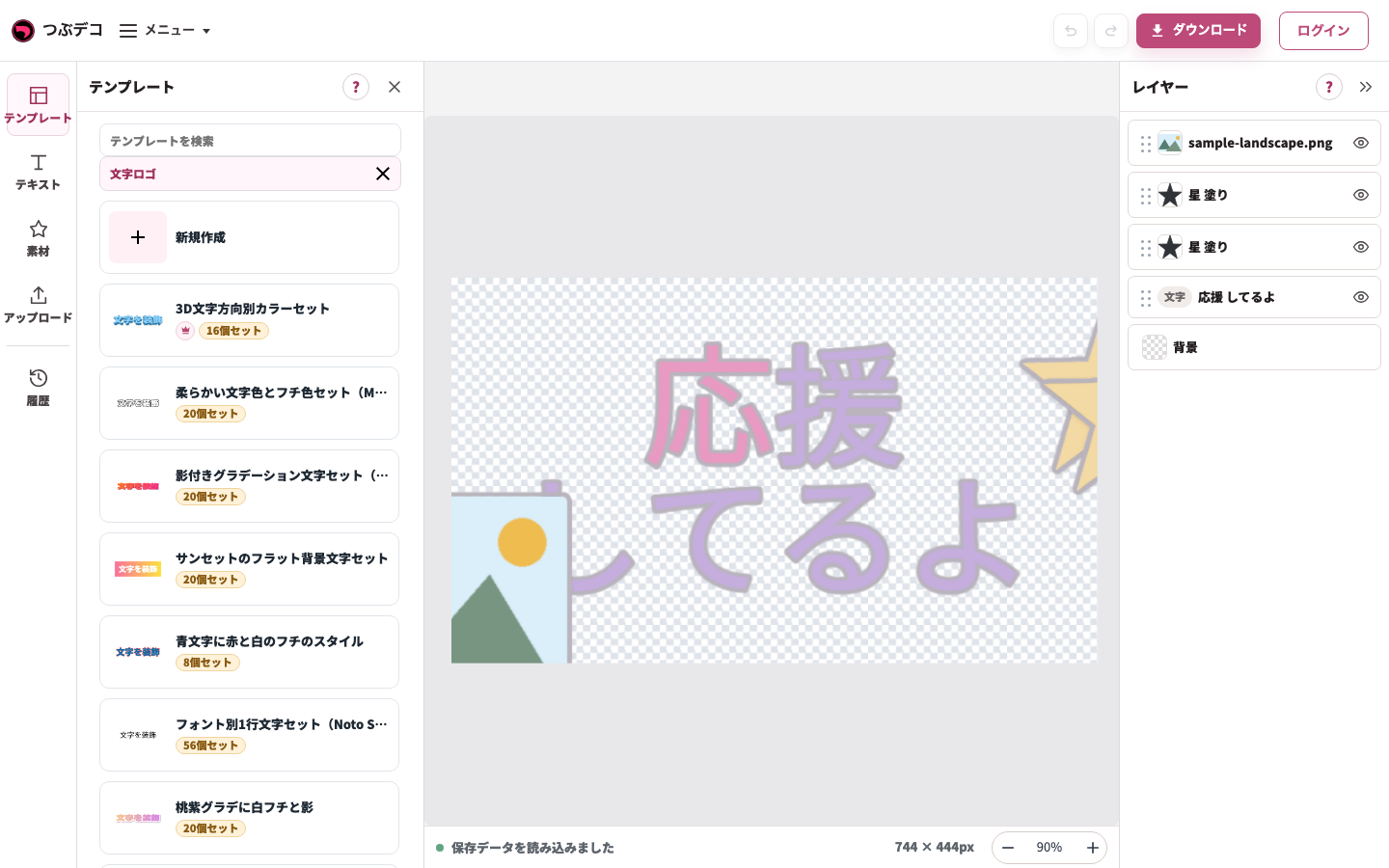
左のテンプレート一覧。中央の作業中の作品を確認しながら、使うデザインを探します。 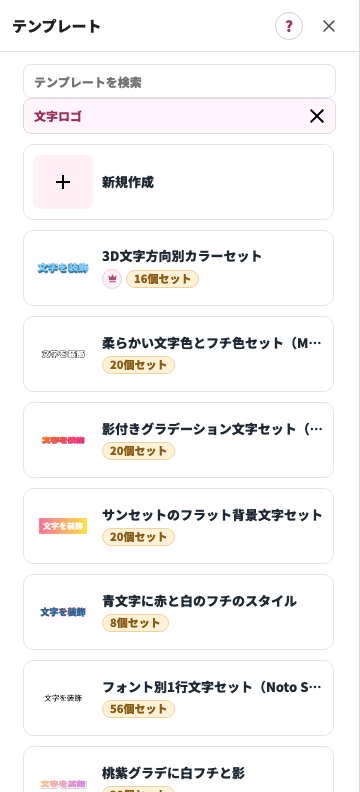
拡大:左のテンプレート一覧。中央の作業中の作品を確認しながら、使うデザインを探します。 -
必要なら「新規作成」から始める
一覧に「新規作成」がある場合は、その種類の初期画面を開けます。文字ロゴの確認例では「ロゴのタイトル」がある1080×1080pxで始まりました。白紙化や500×500pxへの変更は不要です。
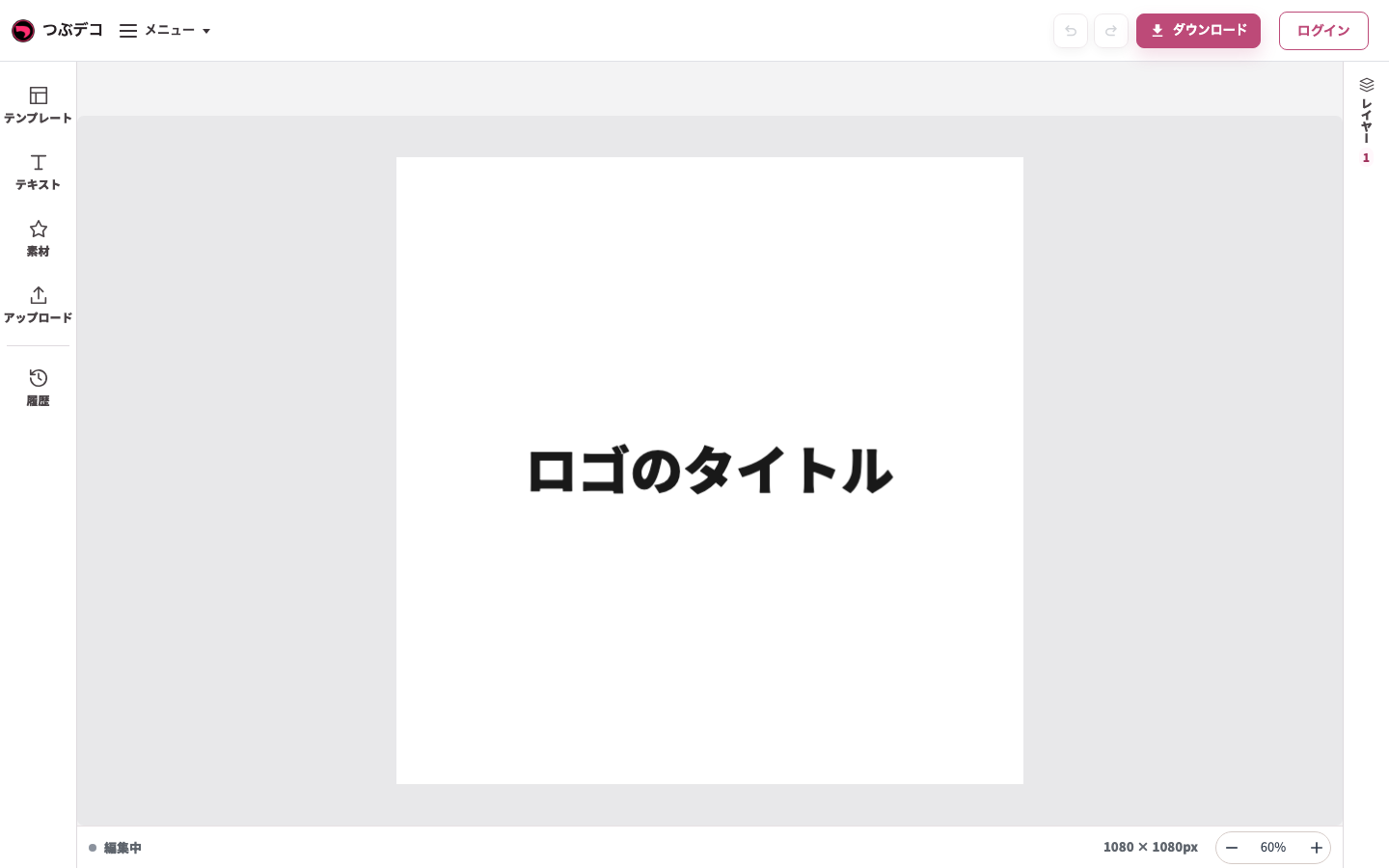
テンプレート一覧の新規作成から開いた文字ロゴの画面。初期テキストがある1080×1080pxの状態です。白紙や500×500pxを前提にしません。 -
サムネイルをクリックする
一覧のサムネイルをクリックすると、中央のプレビューにすぐ反映されます。気に入ったデザインをそのまま使えます。
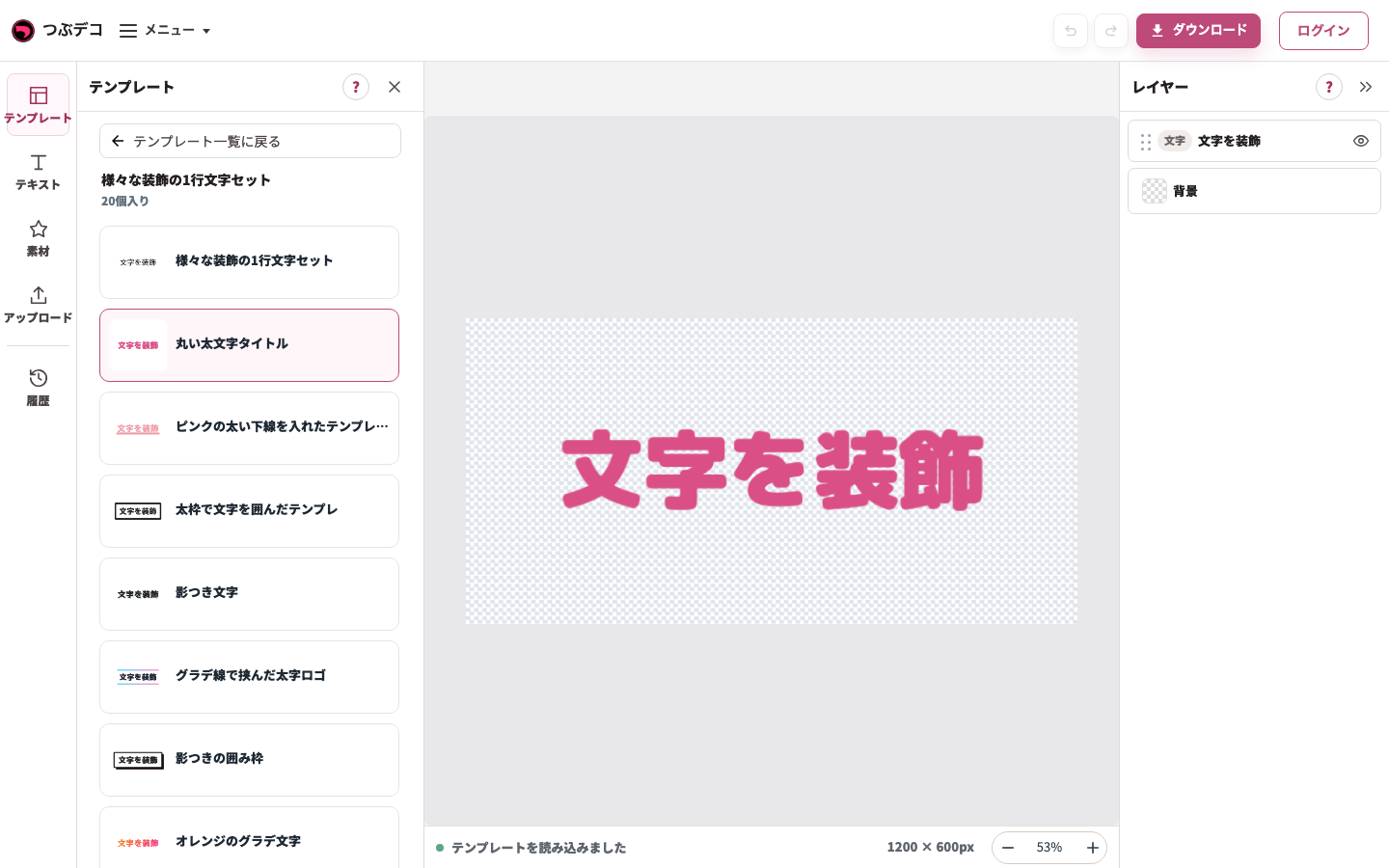
切替後の例:選んだテンプレートに変わり、初期テキストに戻っています。入力した文字の保持を前提にせず確認します。 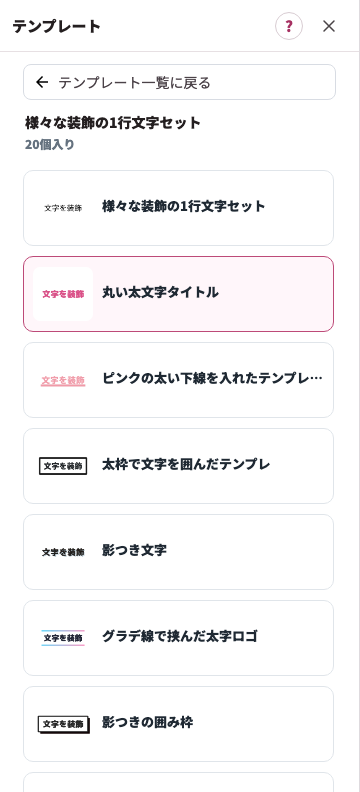
拡大:切替後の例:選んだテンプレートに変わり、初期テキストに戻っています。入力した文字の保持を前提にせず確認します。 -
セットのテンプレートを開く
「○個セット」のサムネイルをクリックすると、収録デザインの一覧へ切り替わります。この例は20個セットです。「テンプレート一覧に戻る」で通常の一覧へ戻れます。素材パックでだけ使えるまとめて保存は、下の設定項目一覧で区別して説明します。
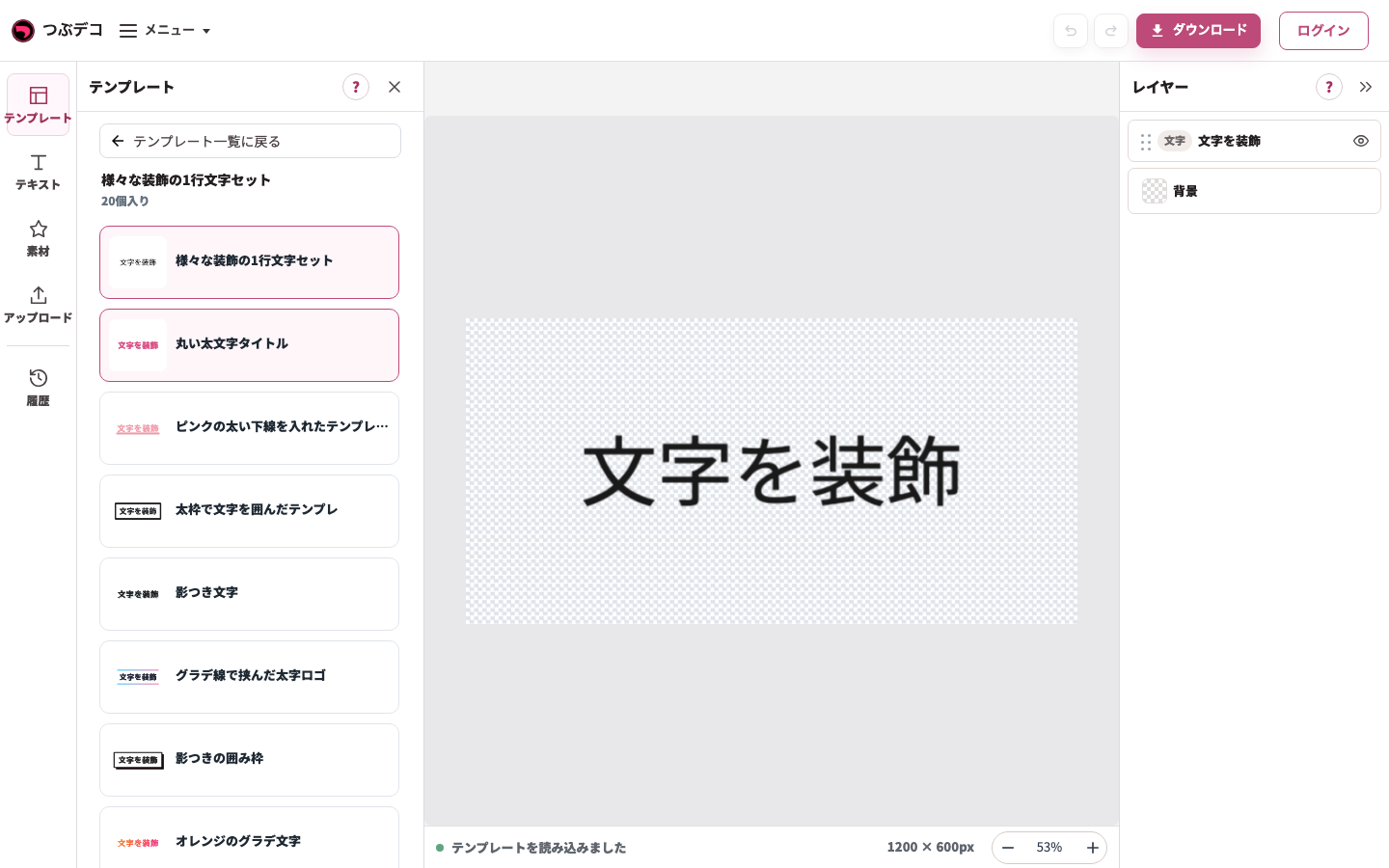
20個セットを開いた一覧。収録デザインから1つを選べます。 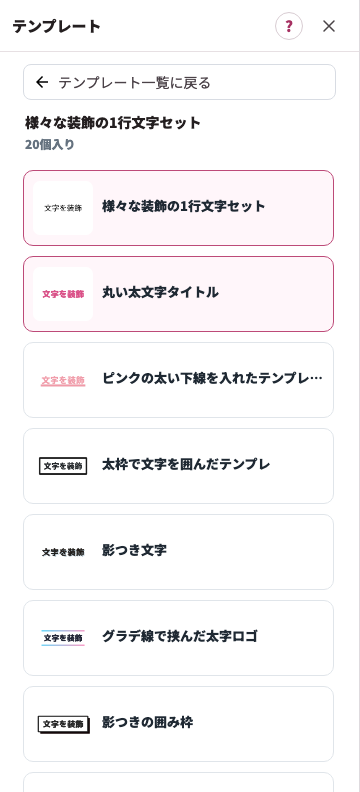
拡大:20個セットを開いた一覧。収録デザインから1つを選べます。 -
文字を入力して確認する
中央のテキストを1回クリックして選び、同じテキストをもう1回クリックして直接編集します。Enterで改行し、外側の灰色クリックで入力を終えます。選んだテンプレートと文字の見え方を確認します。
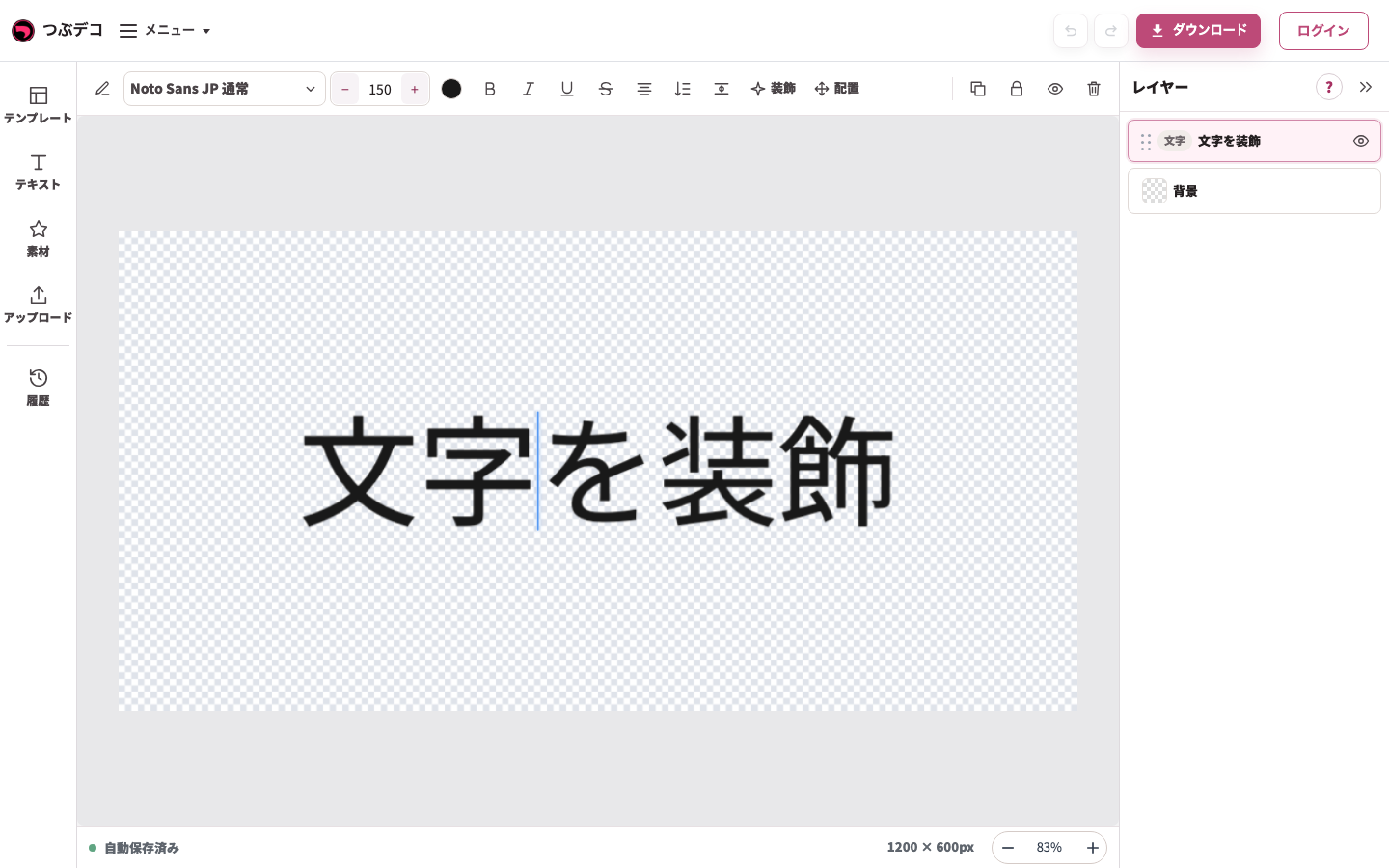
操作後:同じテキストをもう1回クリックすると、文字の位置に入力カーソルが現れます。 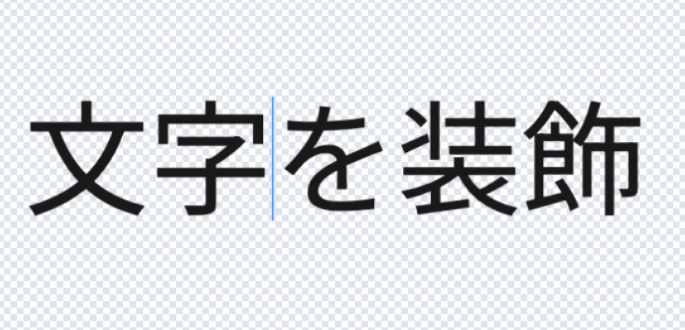
拡大:操作後:同じテキストをもう1回クリックすると、文字の位置に入力カーソルが現れます。 -
テンプレートを変更する
左の一覧から別のサムネイルをクリックすると切り替えられます。今回の確認では文字が初期内容へ戻りました。残したい作品を先に保存し、切替後の文字・追加要素を確認して必要な内容を入力し直します。
切替後の例:選んだテンプレートに変わり、初期テキストに戻っています。入力した文字の保持を前提にせず確認します。
拡大:切替後の例:選んだテンプレートに変わり、初期テキストに戻っています。入力した文字の保持を前提にせず確認します。 -
履歴から再開する
左メニューの「履歴」を開くと、過去に作成した内容のサムネイルが表示されます。クリックするとその状態から編集を再開できます。
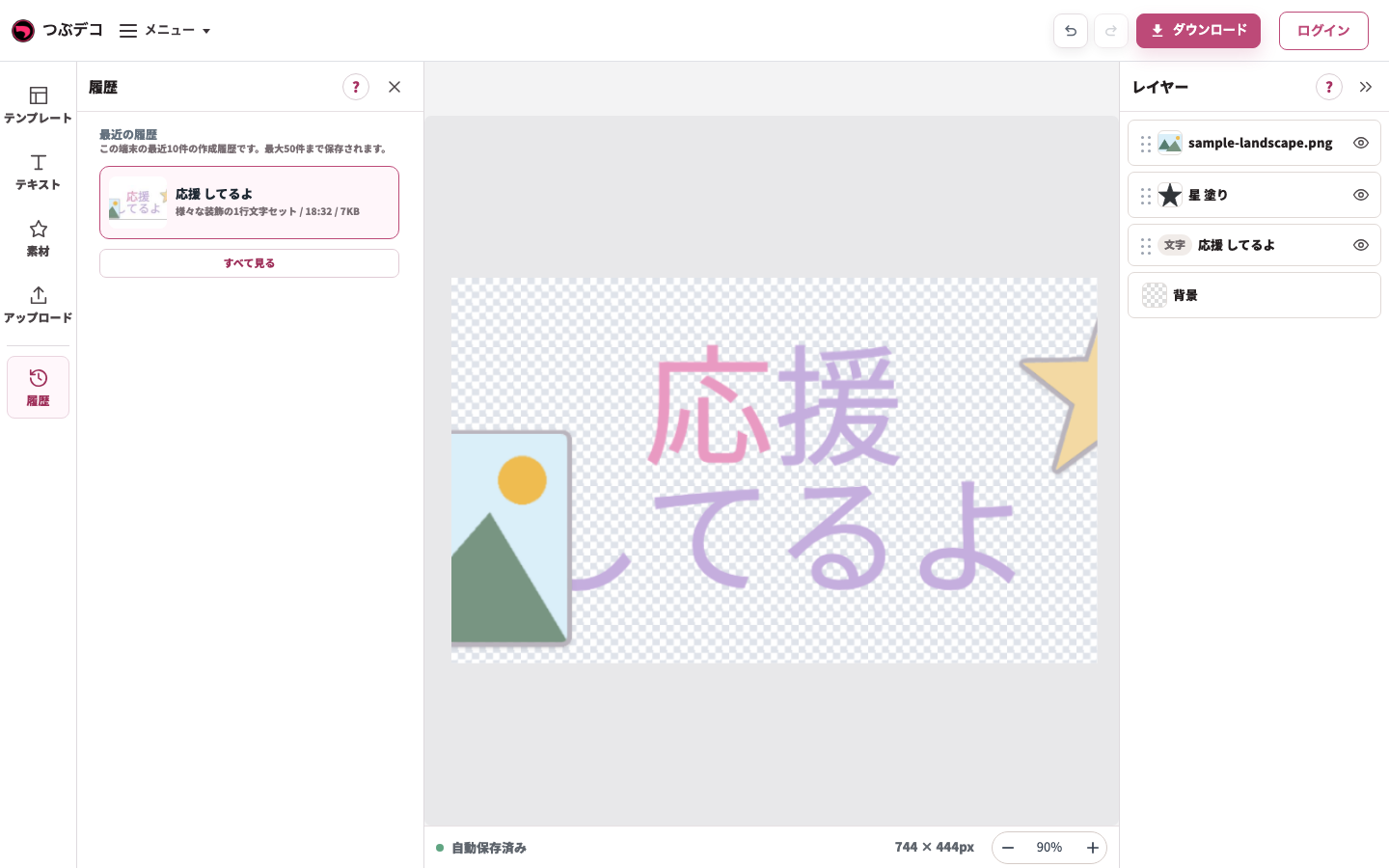
左の履歴に同じ作品のサムネイルが表示。内容を確認して編集を再開します。 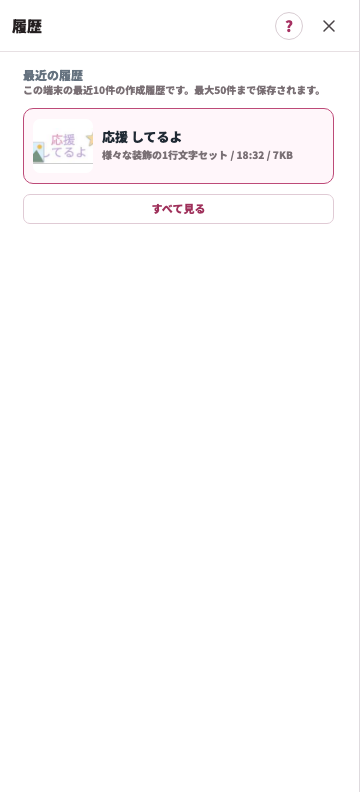
拡大:左の履歴に同じ作品のサムネイルが表示。内容を確認して編集を再開します。
設定項目一覧
| Item | Description |
|---|---|
| テンプレートを検索 | キーワードでテンプレートを絞り込みます。検索欄に文字が入っているときは、×ボタンで検索ワードを消せます。 |
| 種類別の作成画面 | 用途別の「まとめて作る」ページから「エディターで作る」を選ぶと、その種類の作成画面を開けます。 |
| 新規作成 | 開いている作成画面の種類に合わせて、テンプレートを使わず新しく作り始めます。 |
| テンプレート一覧 | サムネイルをクリックしてデザインを選びます。 |
| 王冠マーク | Proで利用できるテンプレートに表示されます。選ぶと購入案内が開き、利用できる内容や参考換算額を確認できます。実際の請求は日本円です。 |
| ○個セット | 複数のテンプレートがまとまったセットです。クリックするとセット内の一覧を開けます。 |
| 素材をまとめてダウンロード | 利用できる素材パックの収録素材をまとめて保存する設定を開きます。PNGまたはJPEG、保存サイズを選べます。 |
| 一括ダウンロード形式 | PNG(透過)またはJPEG(白背景)を選びます。 |
| 一括ダウンロード保存サイズ | 素材を保存するサイズを選びます。Pro専用のサイズにはPro表示が付きます。 |
| この設定でダウンロード | 選んだ形式と保存サイズで、素材パックの収録素材をまとめて保存します。 |
| さらに読み込む | 表示しきれていないテンプレートを続けて読み込みます。 |
| 最近の履歴 | 過去に作成した内容から編集を再開します。 |
確認ポイント
- テンプレートのサムネイルには、実際の文字やデザインがプレビューされています。
- 種類別の作成画面では、一覧の先頭に「新規作成」が表示される場合があります。
- セットのテンプレートでは、セット内のテンプレートを個別に選べます。
- 素材パックを開いたときは、利用できる素材パックで収録素材をPNGまたはJPEGでまとめて保存できます。
- 王冠マークが付いたテンプレートは、ログインや購入が必要な場合があります。
- 文字数が多い場合は、横長レイアウトのテンプレートを選ぶと見切れにくくなります。
- テンプレートの背景色や文字色は、後から「テキスト」の設定や「背景」で変更できます。まずはレイアウトの形で選んでください。
困ったとき
「テンプレートを検索」欄にキーワードを入力すると、関連するテンプレートを絞り込めます。テンプレートが見当たらない場合は、×ボタンで検索ワードを消すか、用途別の「まとめて作る」ページから「エディターで作る」を開いて試してみてください。セット内の一覧を見ている場合は、「テンプレート一覧に戻る」で通常の一覧へ戻れます。
素材パックのまとめて保存について
利用できる素材パックに「素材をまとめてダウンロード」が表示されます。保存設定でPNGまたはJPEGと保存サイズを選びます。通常の文字テンプレートのセットには表示されません。