
This language version is being prepared. The Japanese version is shown for now.
要素の追加
PCでは左の「テキスト」「素材」「アップロード」から要素を増やします。中央のテキストの書き換えと、別の要素の追加を区別します。
操作手順
-
今あるテキストを変えるか、追加するか決める
初期テキストの書き換えは中央の直接編集で行います。別のテキスト・素材・画像を増やすときに、左メニューを使います。追加すると右の一覧にも新しい要素が増えます。
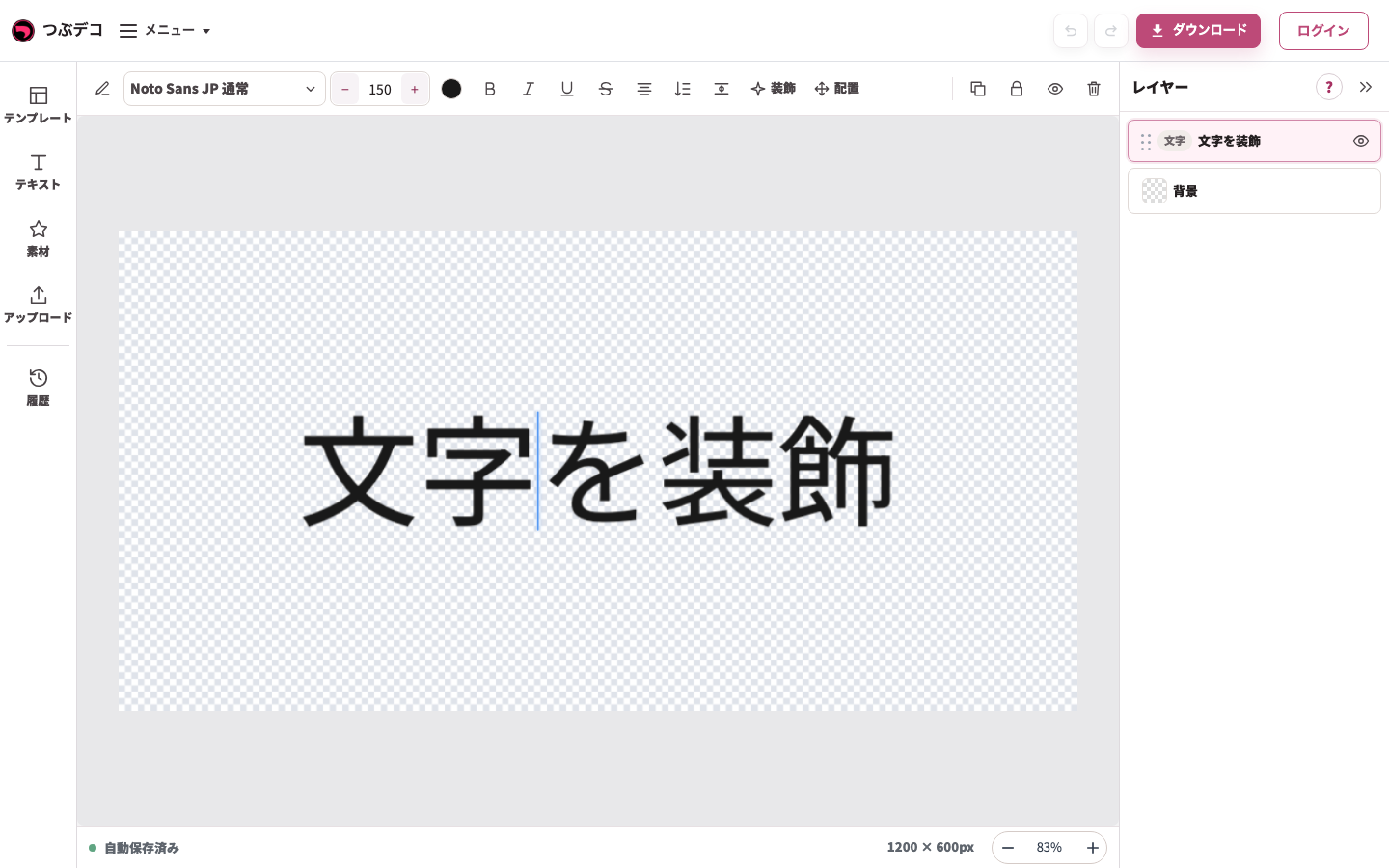
操作後:同じテキストをもう1回クリックすると、文字の位置に入力カーソルが現れます。 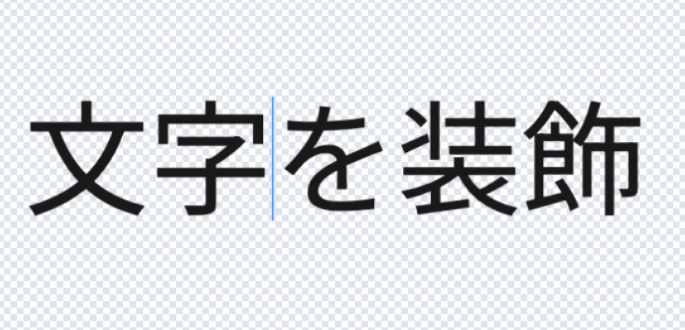
拡大:操作後:同じテキストをもう1回クリックすると、文字の位置に入力カーソルが現れます。 -
テキストを追加する
左の「テキスト」を開き、「新しい文字」に内容を入れて「追加」を押します。文字方向は追加前に選べます。追加された文字が選択されます。
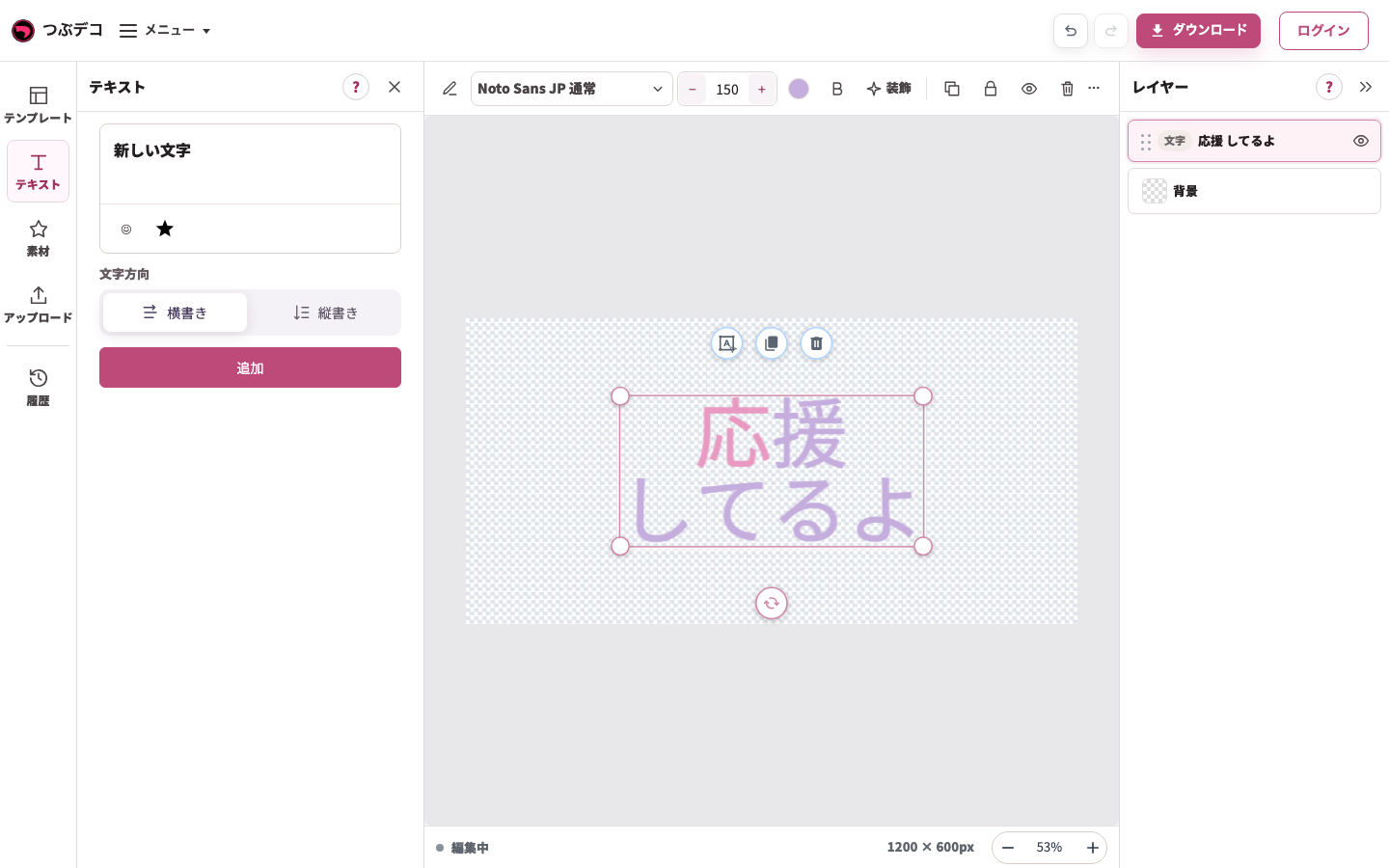
左のテキストは新しいテキストを追加するパネル。中央の既存テキストの直接編集と区別します。 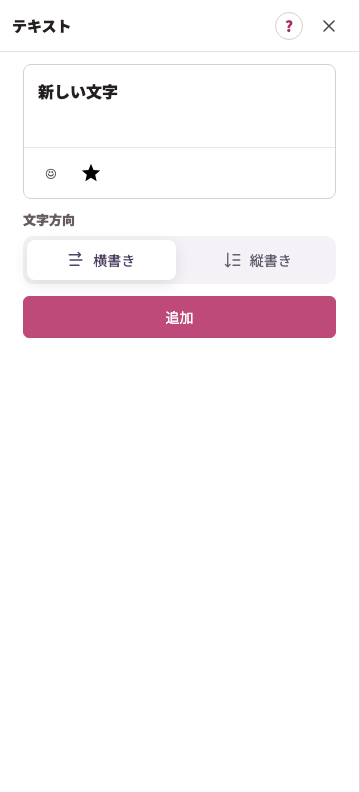
拡大:左のテキストは新しいテキストを追加するパネル。中央の既存テキストの直接編集と区別します。 -
素材を追加する
左の「素材」を開き、検索や一覧から素材をクリックします。例では「星」を検索し「星 塗り」を選びます。追加後はパネルを閉じ、上部ツールで色やサイズを整えます。
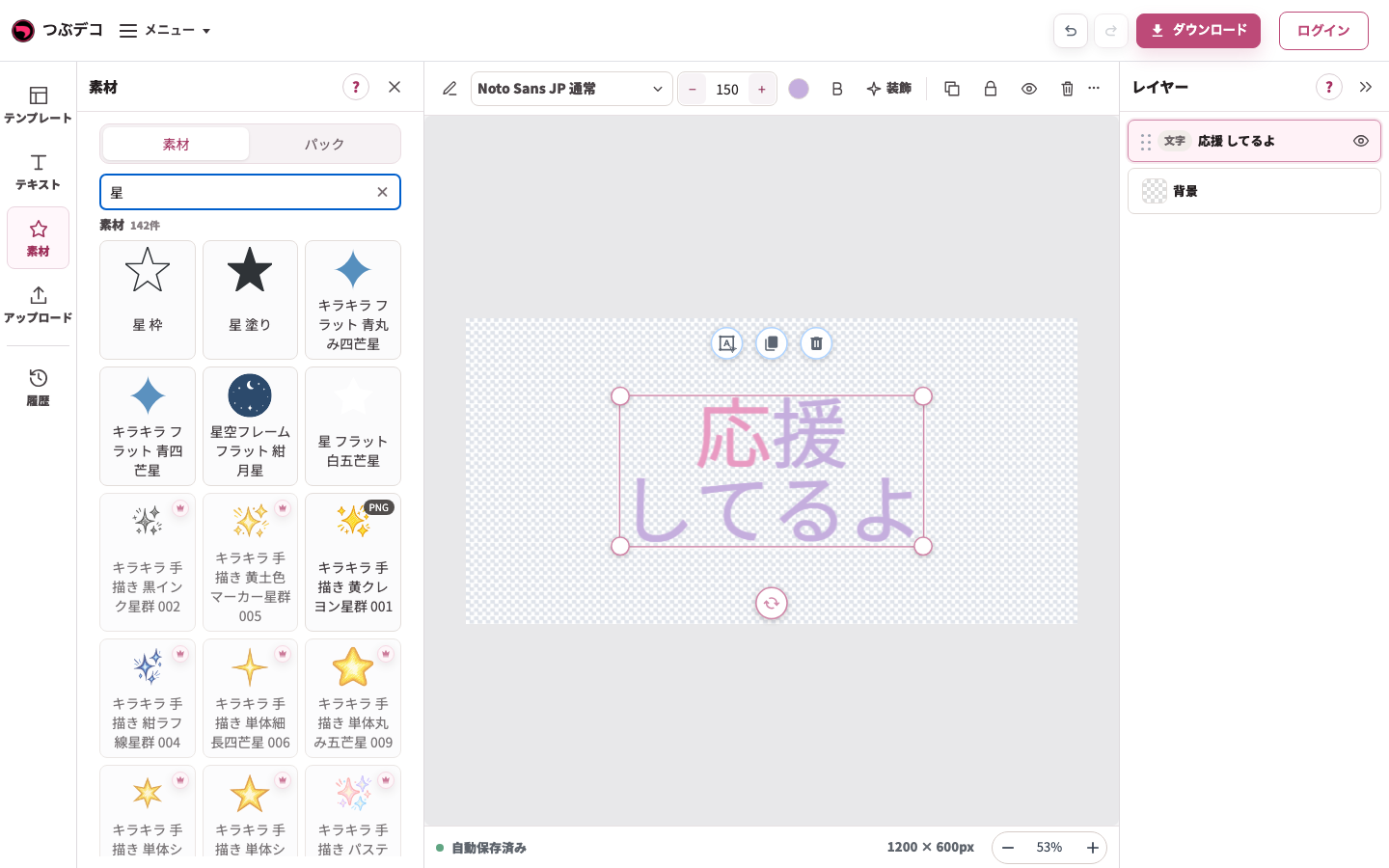
素材検索「星」の結果。中央の既存テキストを残したまま、追加する素材を選びます。 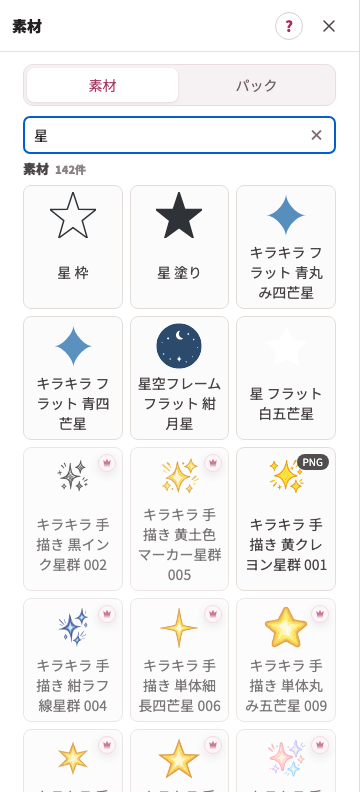
拡大:素材検索「星」の結果。中央の既存テキストを残したまま、追加する素材を選びます。 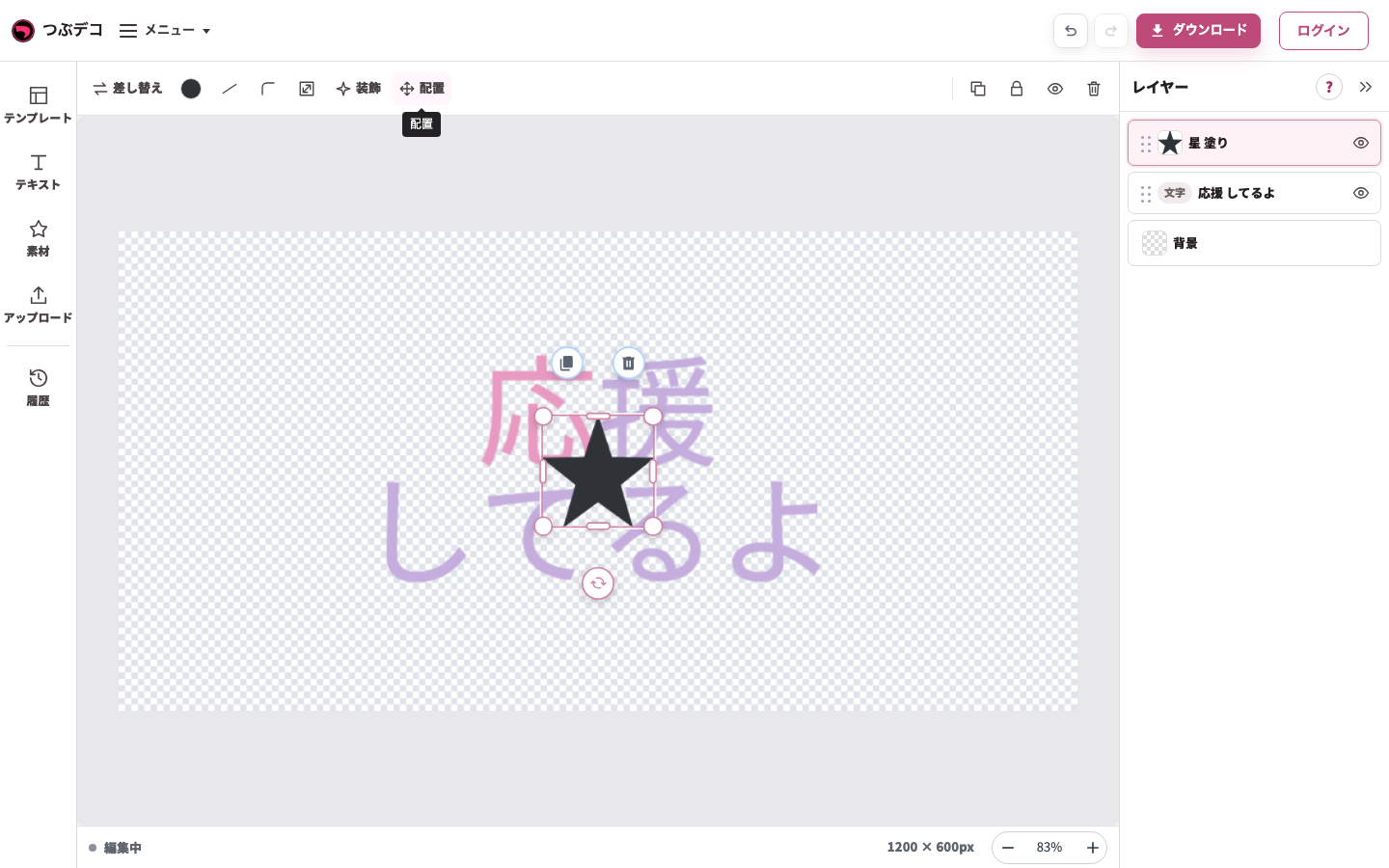
星の選択状態:上部に色・線・角丸・サイズ・装飾・配置が出ます。表示項目は素材により異なります。 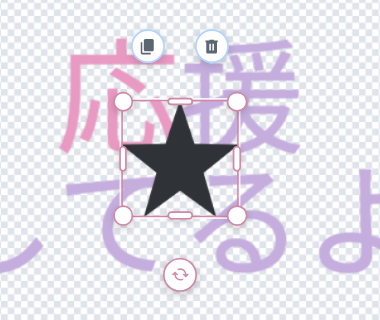
拡大:星の選択状態:上部に色・線・角丸・サイズ・装飾・配置が出ます。表示項目は素材により異なります。 -
画像を追加する
左の「アップロード」を開き「画像を選ぶ」からPC内の画像ファイルを選びます。追加された画像を選択し、上部のトリミング・形・サイズなどを使います。
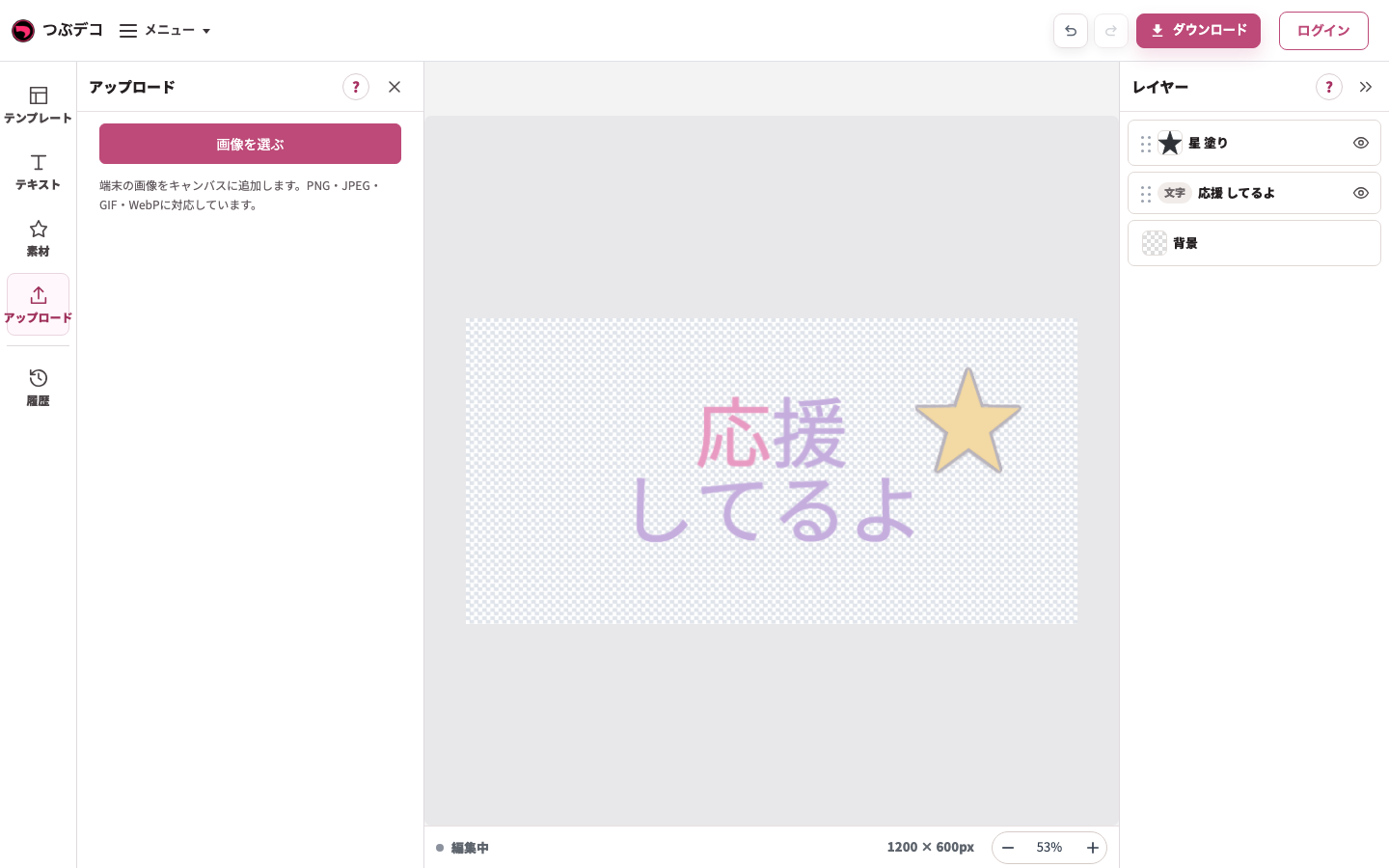
左のアップロードパネル。「画像を選ぶ」からPC内の画像を追加します。 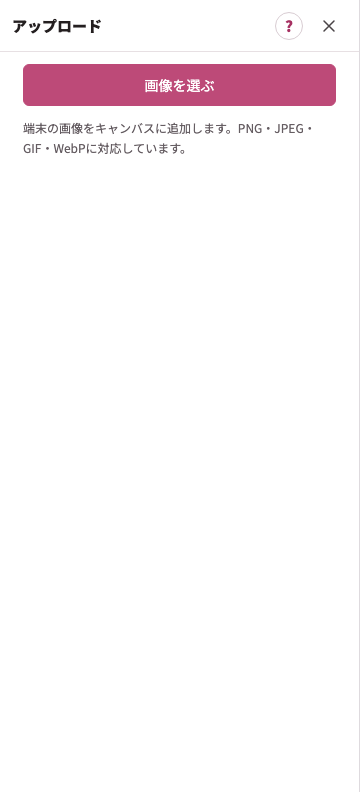
拡大:左のアップロードパネル。「画像を選ぶ」からPC内の画像を追加します。 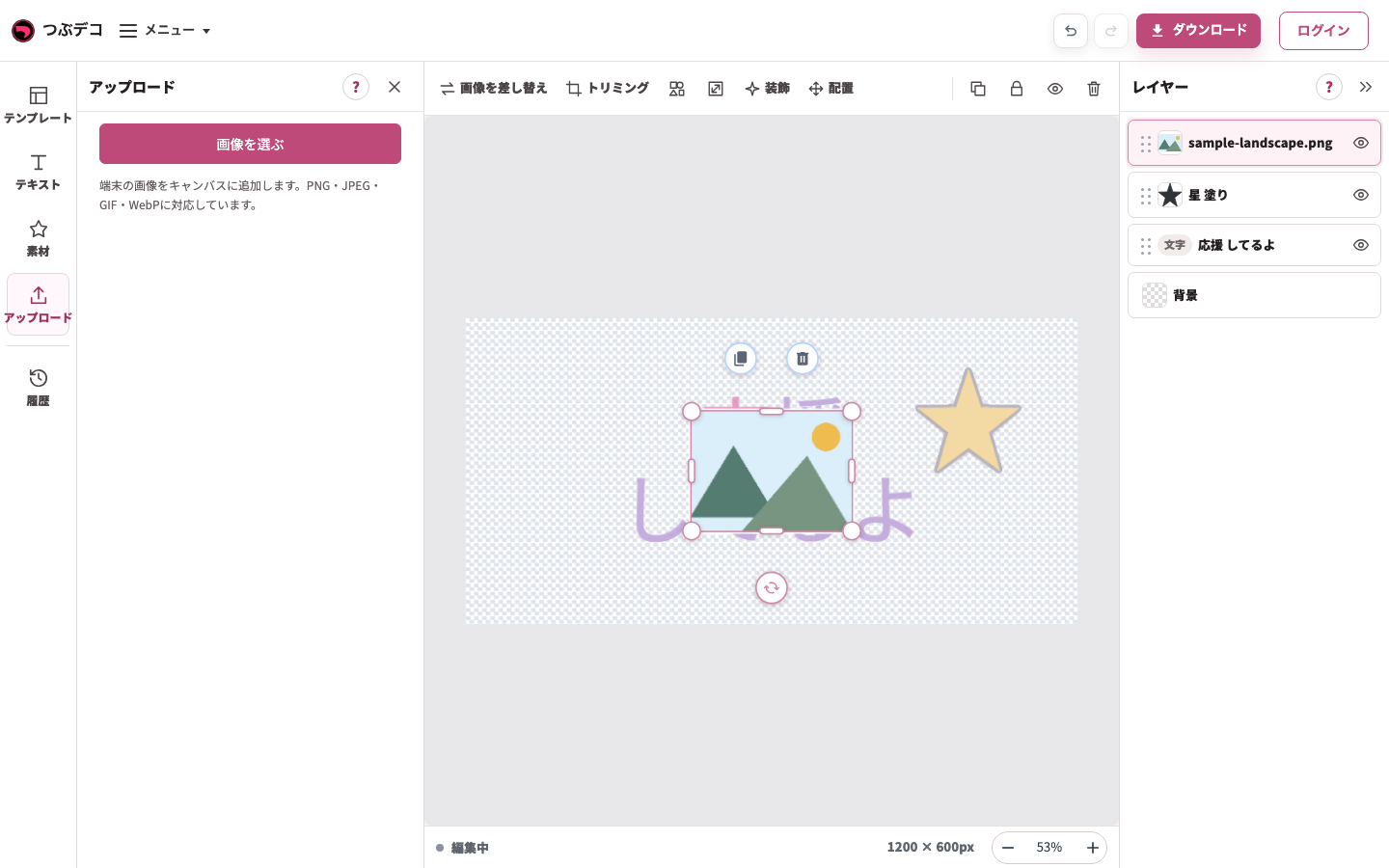
追加後:検証用の山のPNGが同じ作品に増え、右の一覧に画像名が出ています。 -
追加した要素を移動・複製する
作品上の要素をドラッグすると位置を変えられます。上部の「複製」で同じ要素を増やせます。重なっている場合は複製後に少しドラッグして分けます。
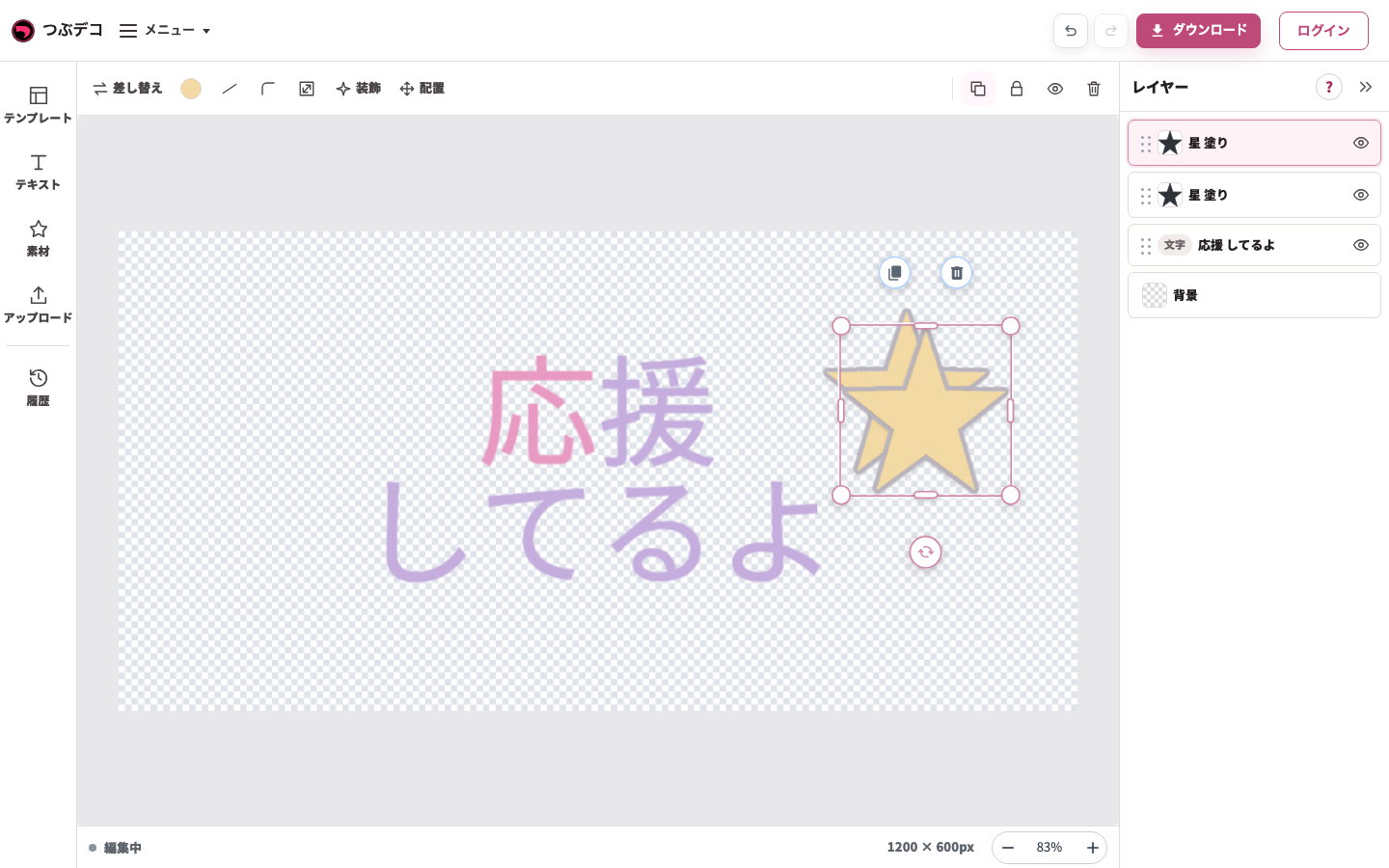
複製後:右の一覧に同じ星が2つあります。作品上では同じ場所に重なっています。 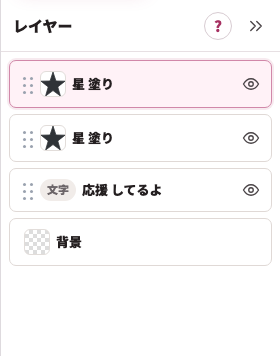
拡大:複製後:右の一覧に同じ星が2つあります。作品上では同じ場所に重なっています。 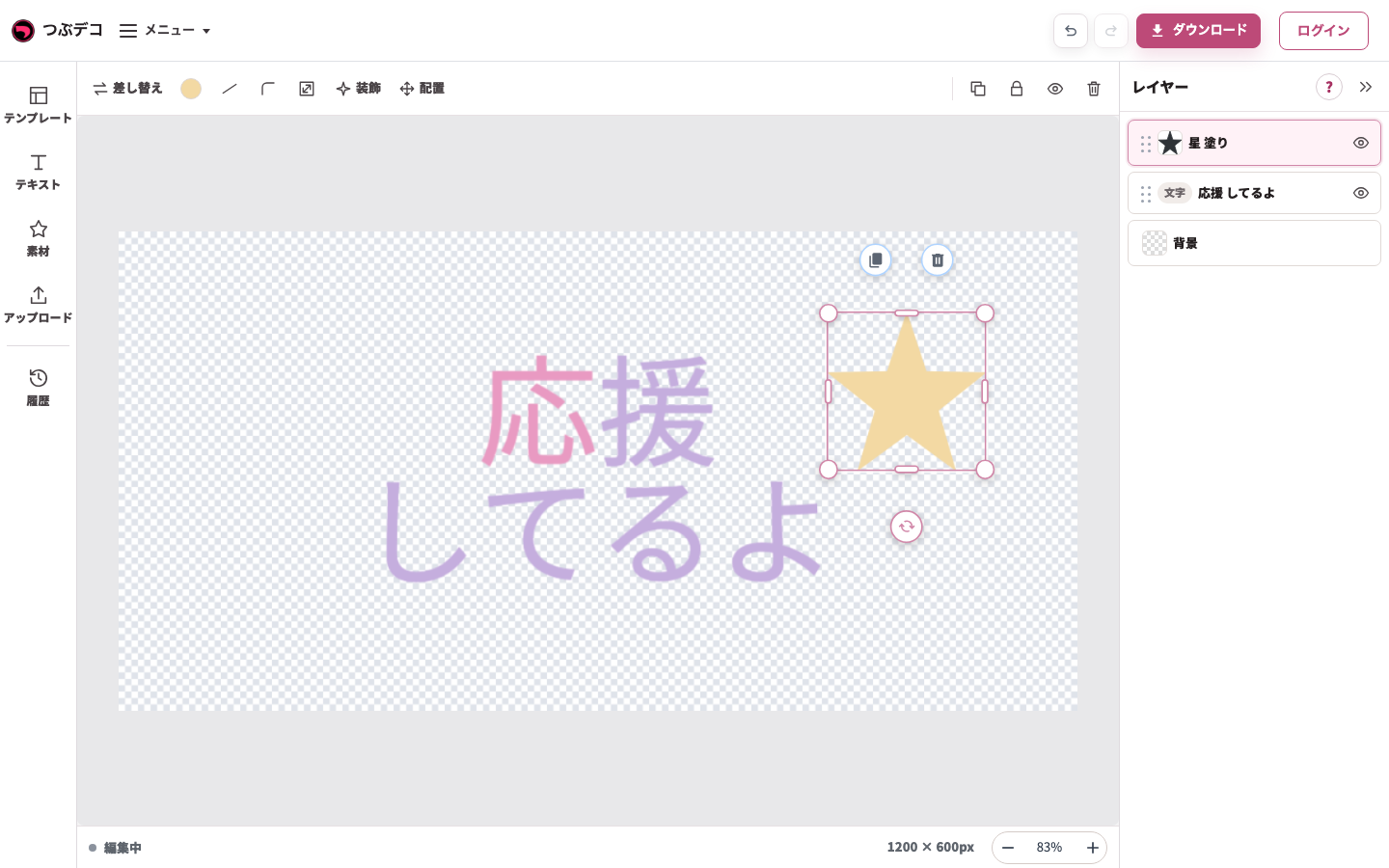
移動後:同じ星を文字の右上へドラッグしました。レイヤーの順番を変える操作とは別です。 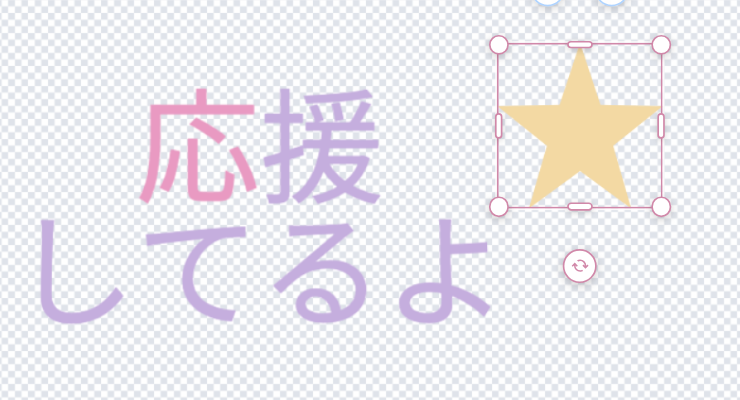
拡大:移動後:同じ星を文字の右上へドラッグしました。レイヤーの順番を変える操作とは別です。