
This language version is being prepared. The Japanese version is shown for now.
プレビューの確認
画面中央のプレビューエリアで、作成中の画像をリアルタイムに確認できます。プレビュー上でレイヤーをクリックして移動させることもできます。
PC画面での操作
このページの操作画像はPC版です。中央で対象を選ぶと上部ツールが切り替わり、詳しい設定は左に開きます。右のレイヤー一覧は対象の選択と重なり順、下部は保存状態・作品サイズ・表示倍率を確認する場所です。項目が見えない場合は上部の「…」を確認します。
このページでできること
プレビューの確認、表示倍率の変更、レイヤー選択、配置の設定での位置調整を確認できます。
操作手順
-
中央の作品と外側を見分ける
作品の範囲の外側は灰色です。透明な背景は市松模様で表示されます。要素が作品の端で切れていないか確認します。
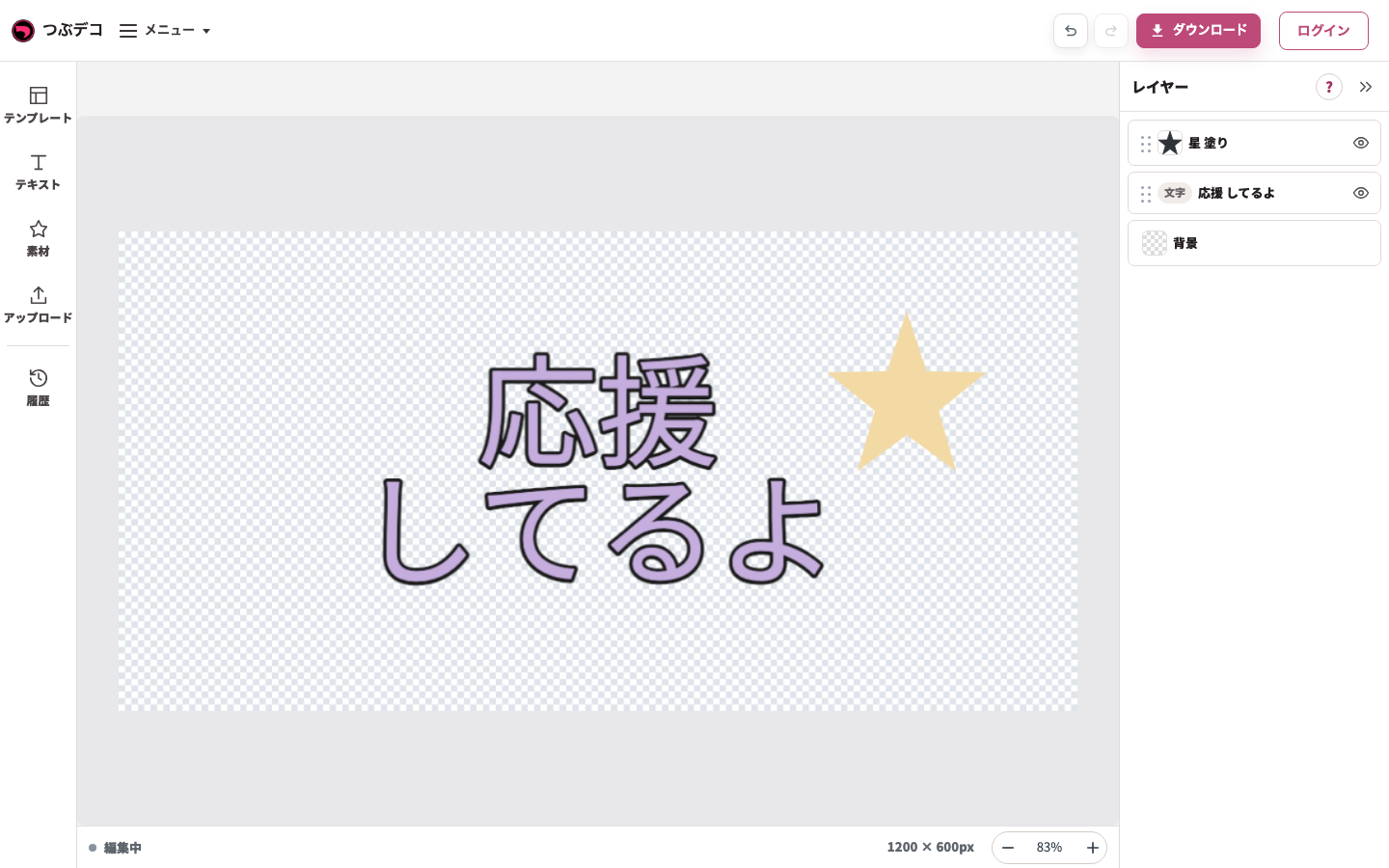
確認状態:灰色の外側クリックで選択を解除。文字と星が作品の範囲内に収まっています。 
拡大:確認状態:灰色の外側クリックで選択を解除。文字と星が作品の範囲内に収まっています。 -
下部の倍率を調整する
下部の−/+で見る大きさを変えます。倍率は画面での表示だけに影響し、保存画像の寸法は変えません。
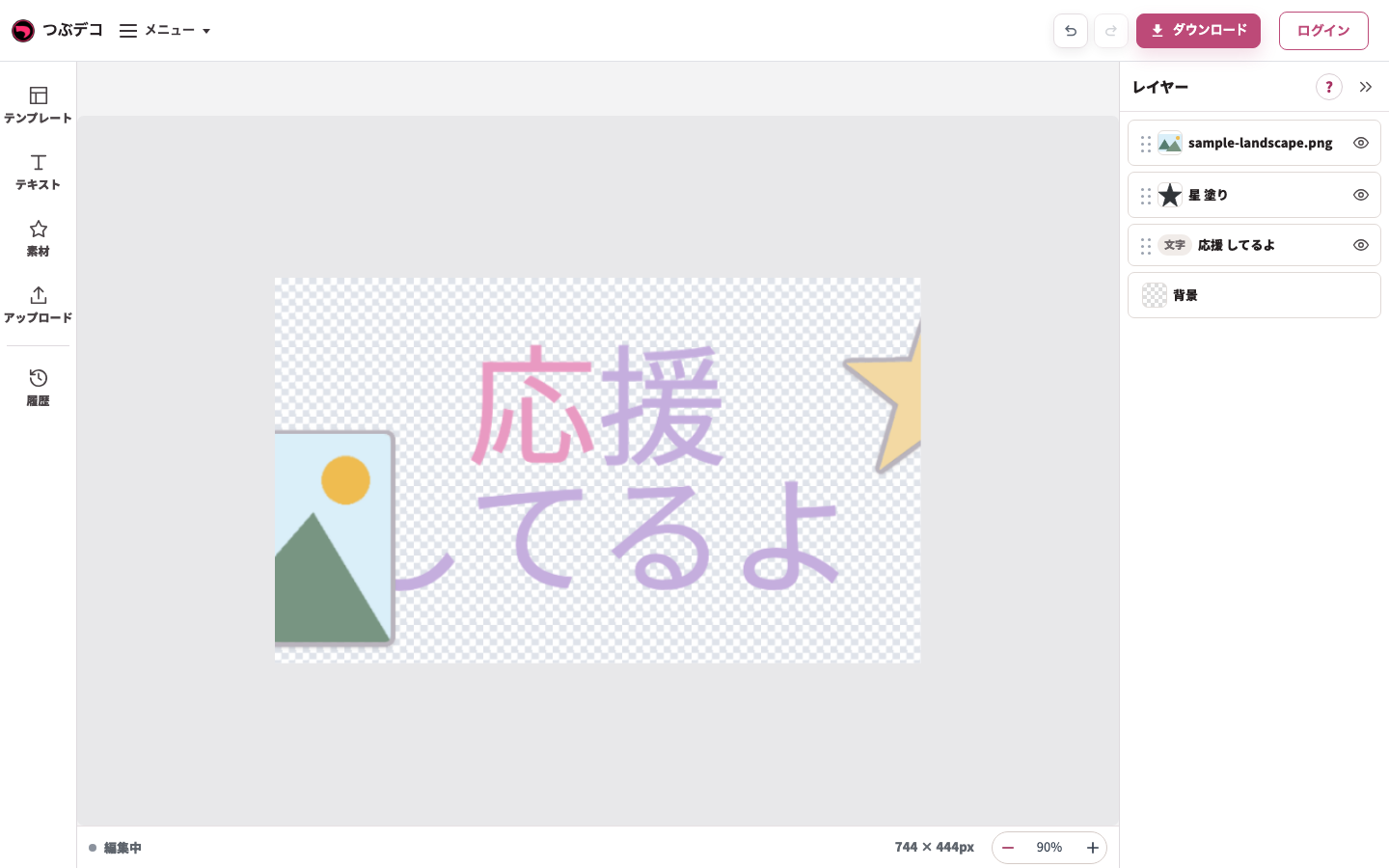
下部の倍率で見える大きさを変更。倍率は保存画像の寸法を変えません。 -
対象を選びドラッグする
中央の要素を1回クリックして選び、押したまま移動します。位置を確認したら灰色の外側をクリックして選択を外します。
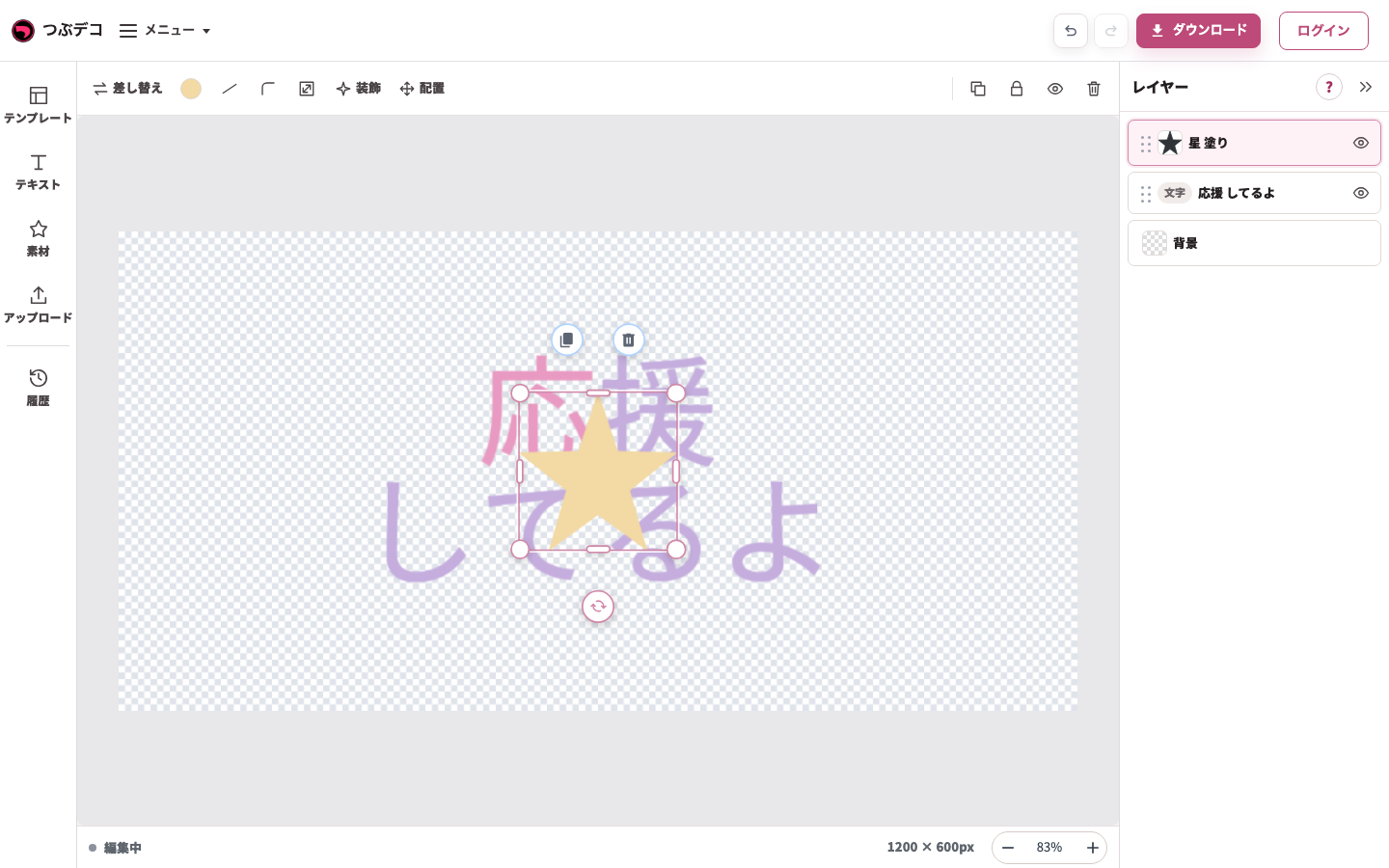
移動前:中央に重なった星を選択。枠内の星を押したまま動かします。 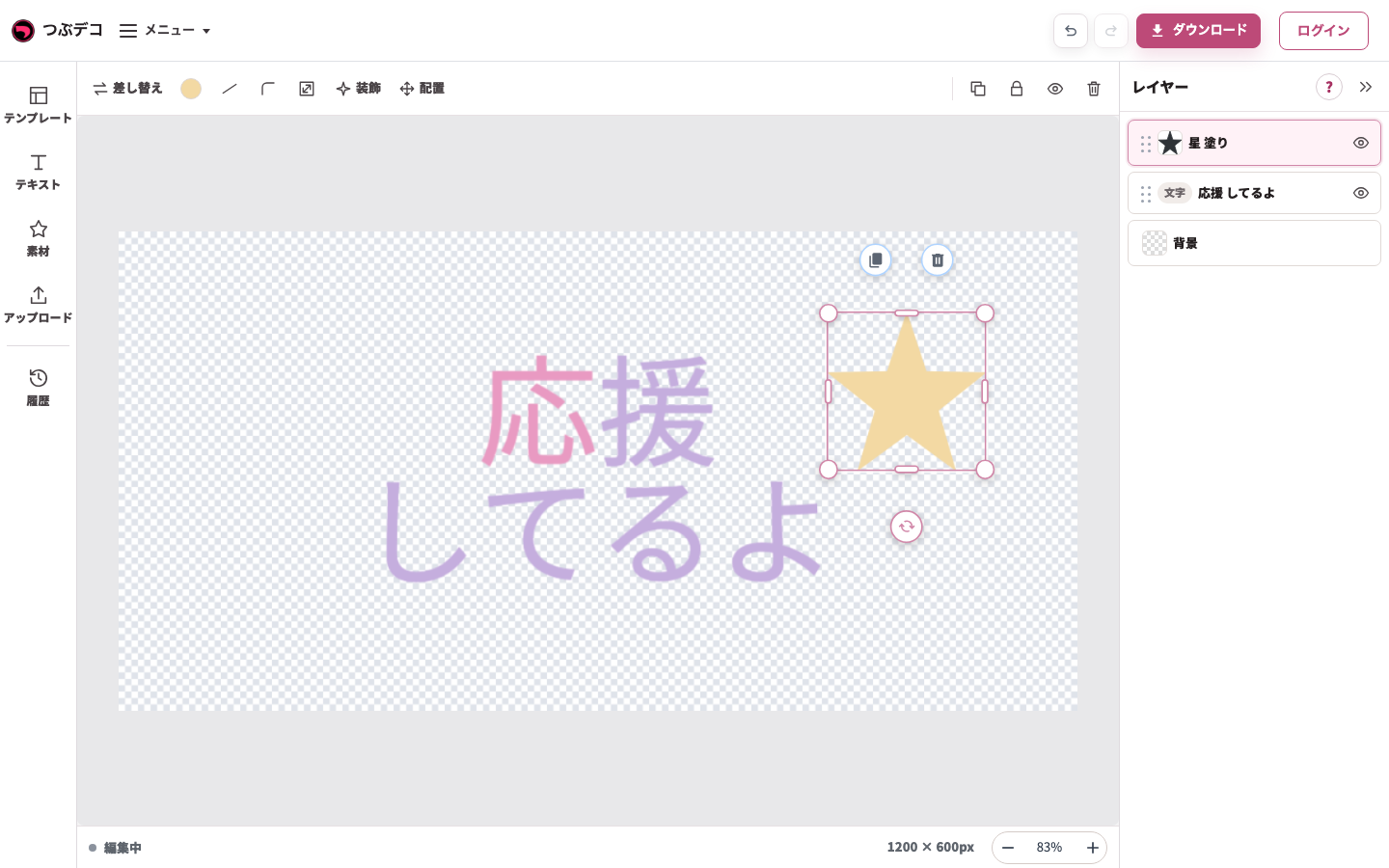
移動後:同じ星を文字の右上へドラッグしました。レイヤーの順番を変える操作とは別です。 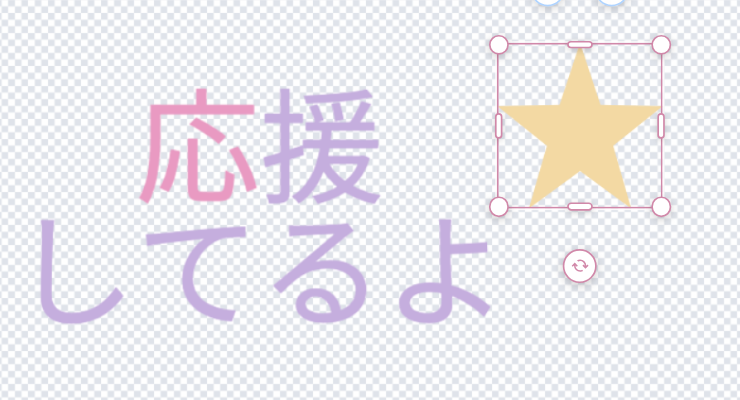
拡大:移動後:同じ星を文字の右上へドラッグしました。レイヤーの順番を変える操作とは別です。 -
選択枠を外して完成を確認する
文字が読めること、素材・画像が隠れていないこと、端が切れていないことを確認します。書き出し前の確認として毎回使います。
確認状態:灰色の外側クリックで選択を解除。文字と星が作品の範囲内に収まっています。
拡大:確認状態:灰色の外側クリックで選択を解除。文字と星が作品の範囲内に収まっています。
設定項目一覧
| Item | Description |
|---|---|
| プレビュー | 作成中の見た目を確認します。 |
| 表示倍率 | 画面上の表示を拡大・縮小します。書き出し画像のサイズは変わりません。 |
| 画像サイズ表示 | 書き出される画像の実際のサイズを確認できます。 |
| レイヤー選択 | プレビュー上のテキスト・素材・アップロード画像をクリックして選択します。 |
キーボード操作
| Item | Description |
|---|---|
| 矢印キー | 選択中のレイヤーを少しずつ移動します。Shiftキーを押しながら使うと大きく移動します。 |
| Delete / Backspace | 選択中のレイヤーを削除します。 |
| Ctrl / Command + C | 選択中のレイヤーをコピーします。 |
| Ctrl / Command + X | 選択中のレイヤーを切り取ります。 |
| Ctrl / Command + V | コピーまたは切り取ったレイヤーを貼り付けます。 |
| Ctrl / Command + D | 選択中のレイヤーを複製します。 |
| Ctrl / Command + A | ロックされていないレイヤーをすべて選択します。 |
| Esc | レイヤーや文字ごとの選択を解除します。 |
| Ctrl / Command + +、- | プレビューの表示倍率を拡大・縮小します。 |
| Ctrl / Command + 0 | プレビューの表示倍率を画面に合わせます。 |
確認ポイント
- 「画像サイズ 〇〇 × 〇〇px」が書き出される画像の実際のサイズです。
- 表示倍率を変えても、保存される画像の大きさは変わりません。
- 文字入力欄などにカーソルがあるときは、通常の文字入力が優先されます。
困ったとき
レイヤーがプレビュー上で見えない場合は、「レイヤー」でそのレイヤーが非表示になっていないか確認してください。
元に戻す・やり直す
上部の「元に戻す」で直前の編集を取り消し、「やり直す」で取り消した編集を戻します。操作できないボタンは薄く表示されます。