
This language version is being prepared. The Japanese version is shown for now.
保存と再編集
下部の自動保存は編集を続けるための保存、ダウンロードは完成画像のファイル保存です。この2つを区別します。履歴の保持は利用するブラウザや保存データの状態に依存します。
PC画面での操作
このページの操作画像はPC版です。中央で対象を選ぶと上部ツールが切り替わり、詳しい設定は左に開きます。右のレイヤー一覧は対象の選択と重なり順、下部は保存状態・作品サイズ・表示倍率を確認する場所です。項目が見えない場合は上部の「…」を確認します。
このページでできること
作業中の内容を保持し、履歴から再編集し、必要に応じて最初から作り直す流れを確認できます。
操作手順
-
下部の自動保存状態を見る
編集後は下部の表示が「編集中」から「自動保存済み」へ変わります。編集を続けるための保存状態です。PNGファイルのダウンロードとは別です。
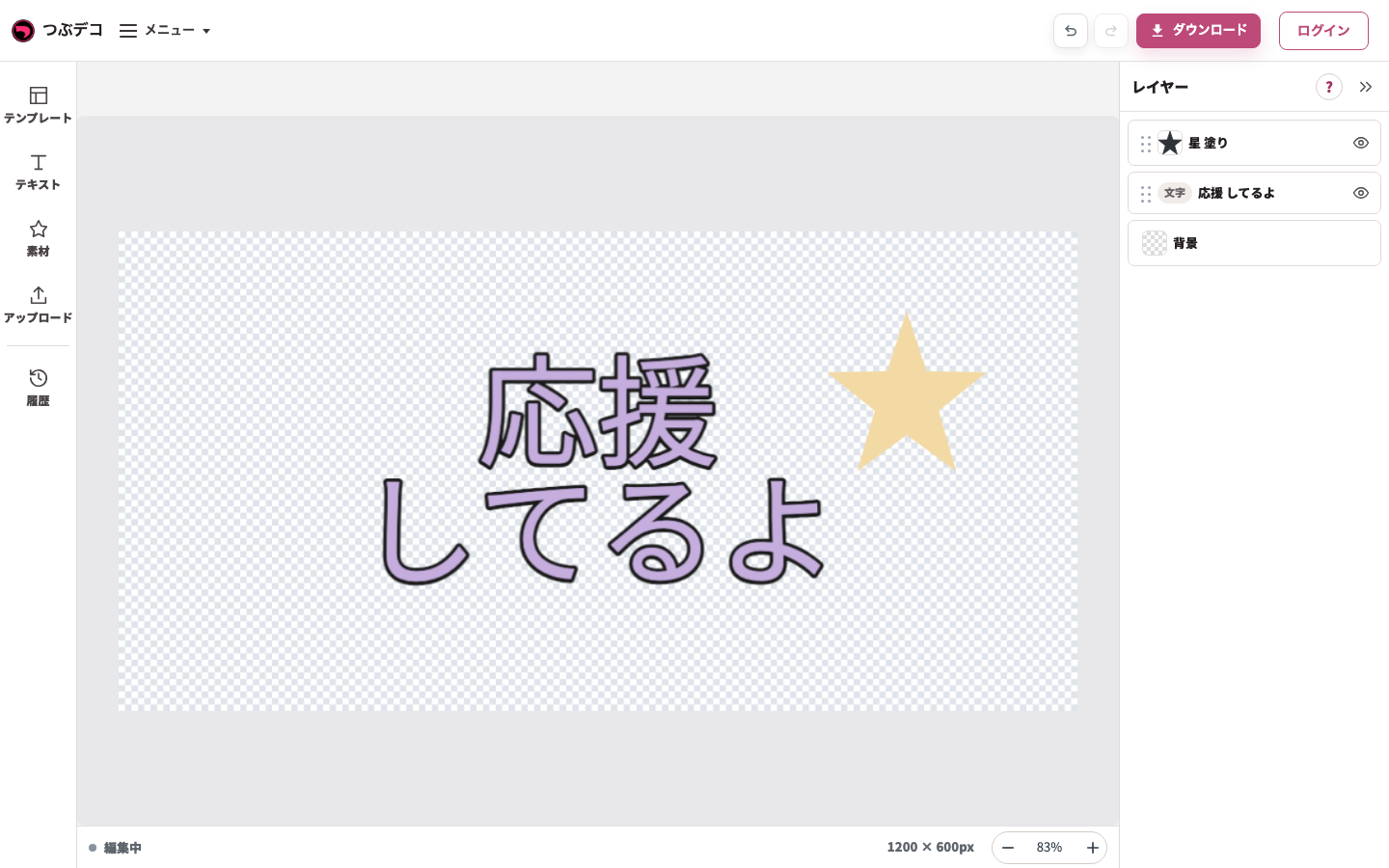
確認状態:灰色の外側クリックで選択を解除。文字と星が作品の範囲内に収まっています。 
拡大:確認状態:灰色の外側クリックで選択を解除。文字と星が作品の範囲内に収まっています。 -
履歴から同じ作品を再開する
左の「履歴」を開き、目的のサムネイルをクリックします。同じブラウザ内に残る履歴から編集を再開できます。
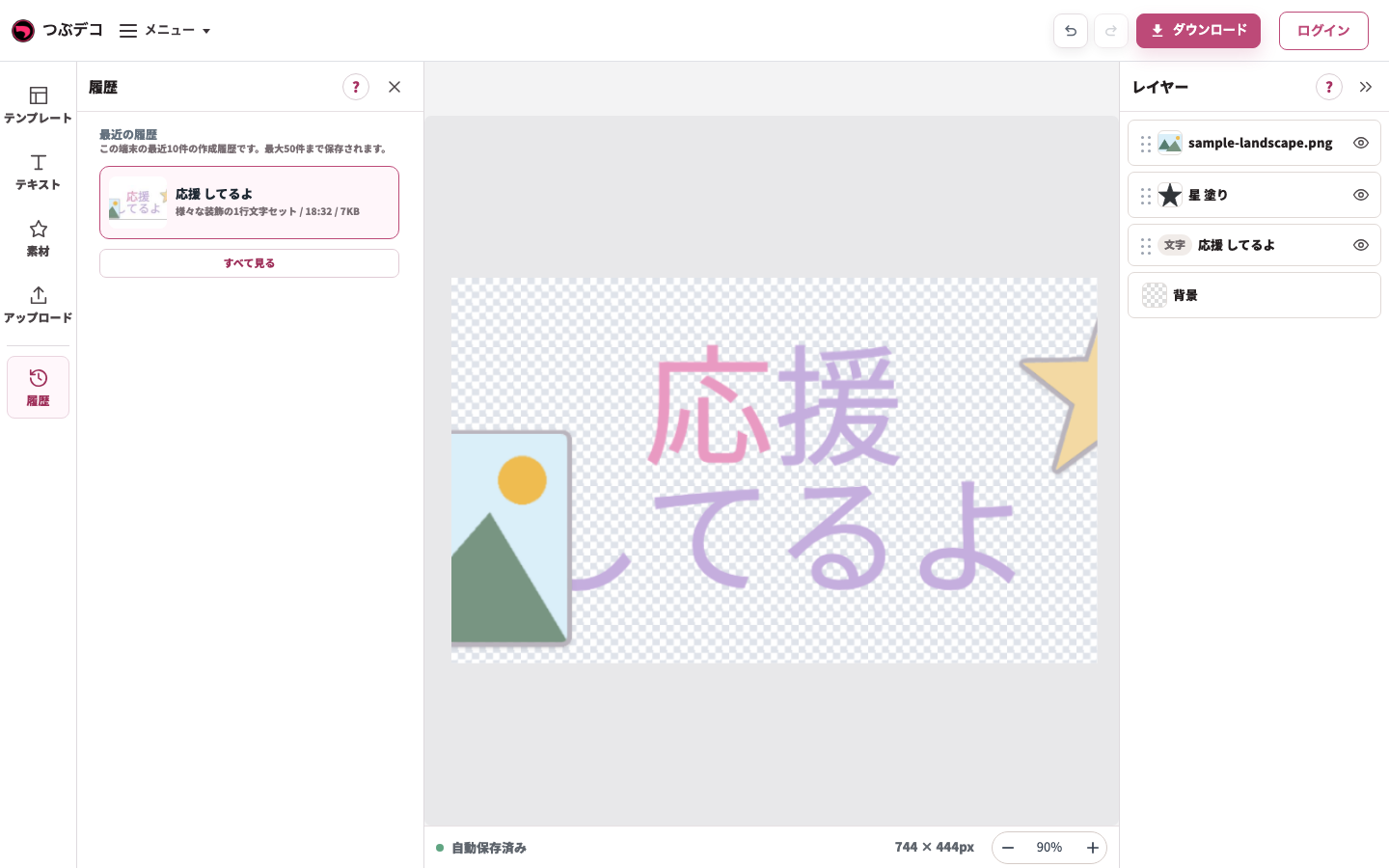
左の履歴に同じ作品のサムネイルが表示。内容を確認して編集を再開します。 
拡大:左の履歴に同じ作品のサムネイルが表示。内容を確認して編集を再開します。 -
画像ファイルも保存する
作品ができたら上部の「ダウンロード」からPNGなどをPCへ保存します。ブラウザの履歴だけに頼らず、使う画像をファイルとして残します。
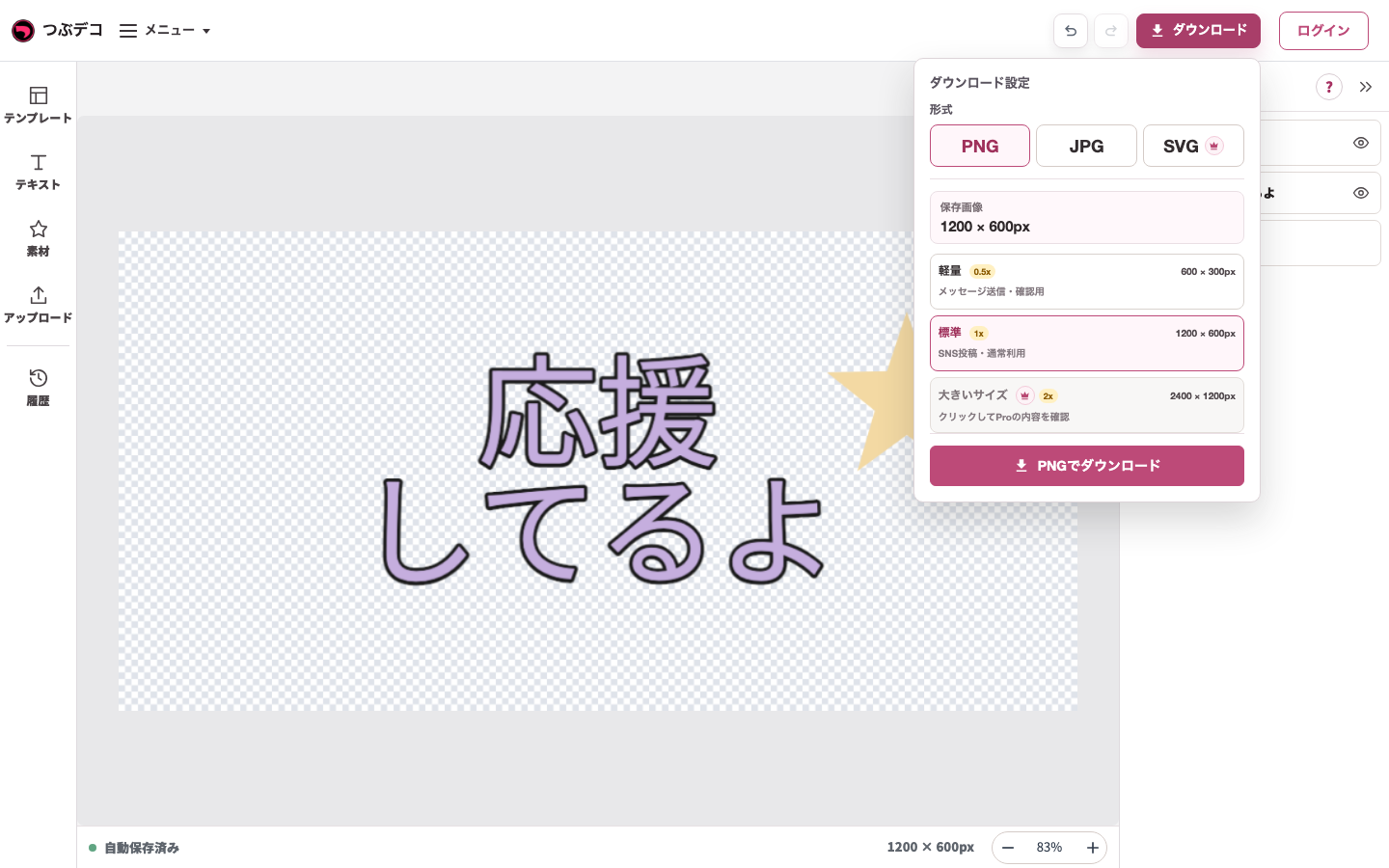
上部ダウンロードで開いた設定。PNG・標準1x、保存画像1200×600pxを確認して保存します。 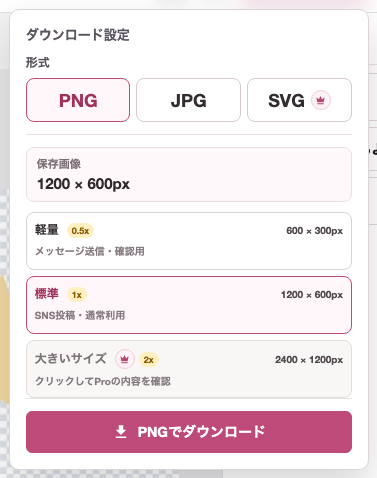
拡大:上部ダウンロードで開いた設定。PNG・標準1x、保存画像1200×600pxを確認して保存します。
設定項目一覧
| Item | Description |
|---|---|
| 自動復元 | 直近の作業内容をブラウザ内に保持します。 |
| 最近の履歴 | 過去の作成内容を呼び出して再編集します。 |
| テンプレートの変更 | 別のデザインを選び、文字を入力し直して作成します。 |
確認ポイント
- 「履歴」はブラウザのローカルに保存されます。別のブラウザや端末からは引き継がれません。
- 書き出した画像ファイルは再編集できません。続きを作業する可能性がある場合は、書き出す前に状態を確認してください。
困ったとき
ブラウザのキャッシュや履歴を消去すると、保存中のデータが失われることがあります。大事な作成物は画像として書き出しておくことをおすすめします。