
This language version is being prepared. The Japanese version is shown for now.
アップロードした画像を編集する
端末の画像を追加して選ぶと、形やサイズを調整する編集ツールが表示されます。画像の装飾にはフチと影を使えます。
PC画面での操作
このページの操作画像はPC版です。中央で対象を選ぶと上部ツールが切り替わり、詳しい設定は左に開きます。右のレイヤー一覧は対象の選択と重なり順、下部は保存状態・作品サイズ・表示倍率を確認する場所です。項目が見えない場合は上部の「…」を確認します。
このページでできること
アップロード、トリミング・形・サイズ、装飾の3つの入口を確認できます。
操作手順
-
PC内の画像を追加する
左の「アップロード」から「画像を選ぶ」を押し、画像ファイルを選びます。例では検証用の山の画像を同じテキスト作品へ追加します。
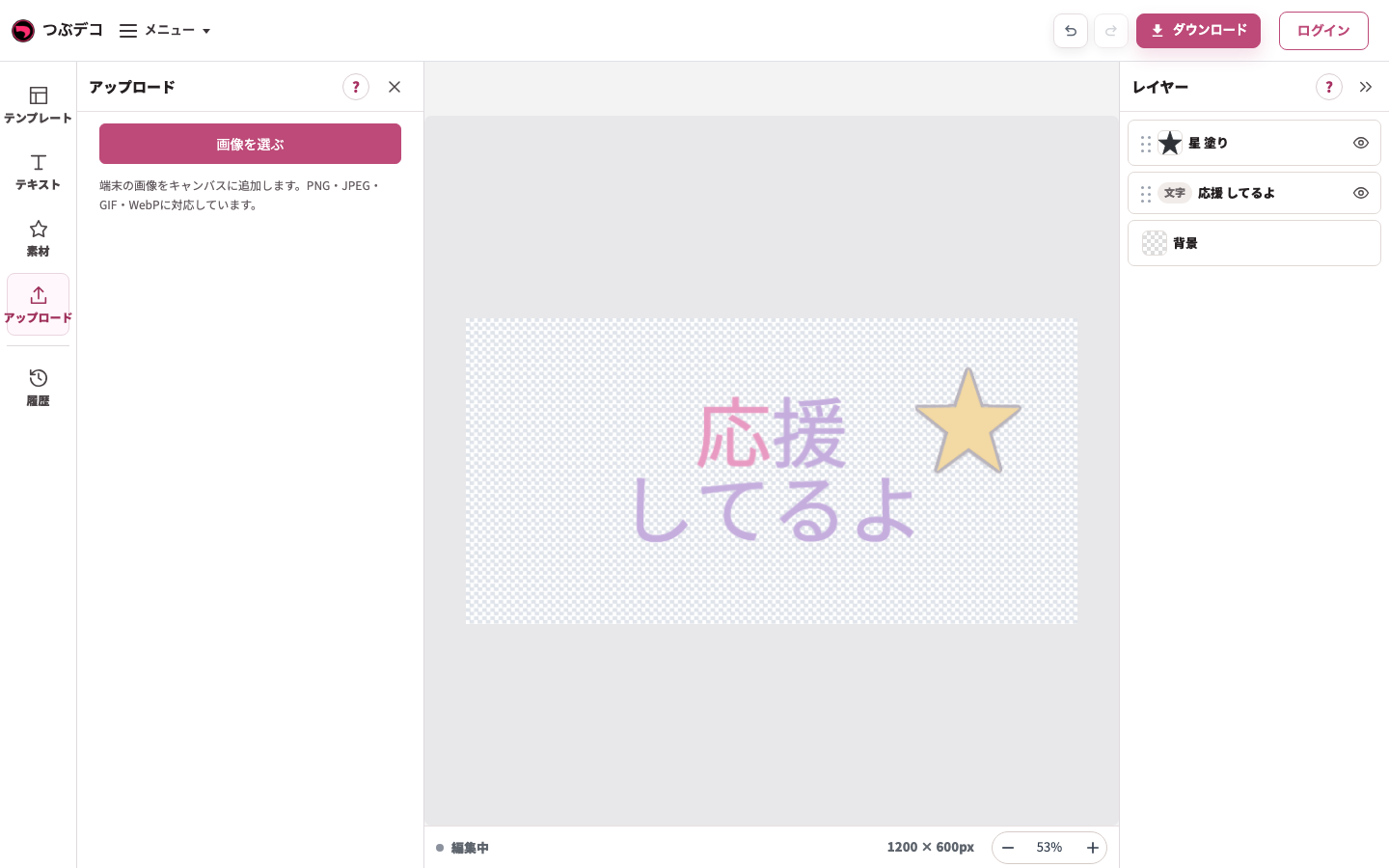
左のアップロードパネル。「画像を選ぶ」からPC内の画像を追加します。 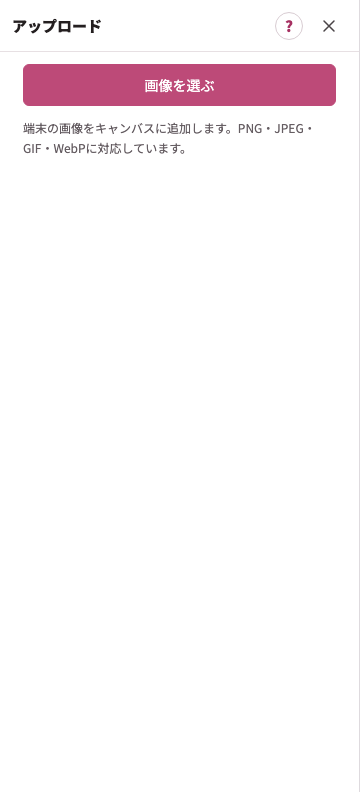
拡大:左のアップロードパネル。「画像を選ぶ」からPC内の画像を追加します。 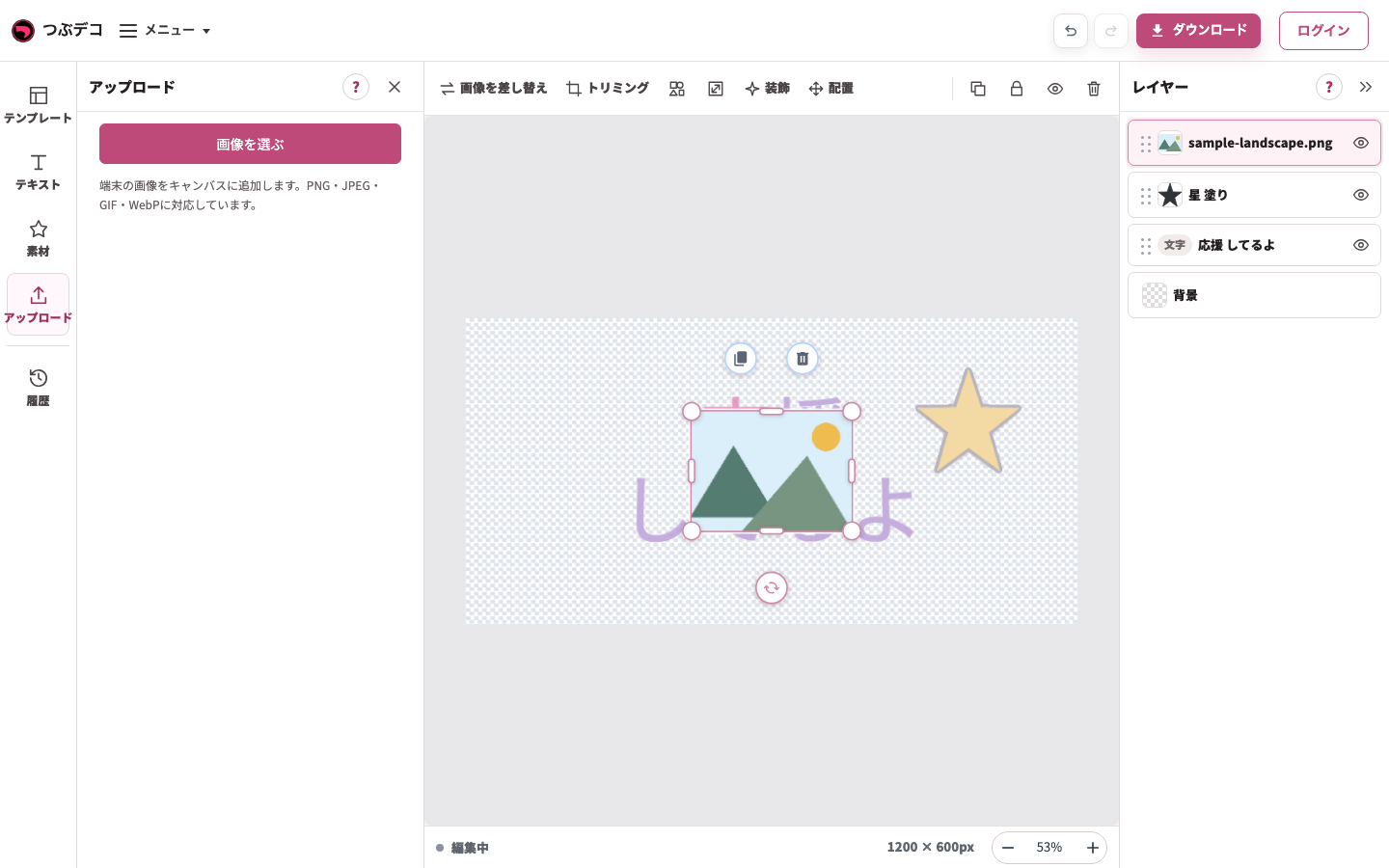
追加後:検証用の山のPNGが同じ作品に増え、右の一覧に画像名が出ています。 -
画像の形とサイズを整える
画像を選び、上部の「トリミング」「形・角丸」「サイズ」を使います。画像全体を見せるか、一部分を見せるかを決めます。
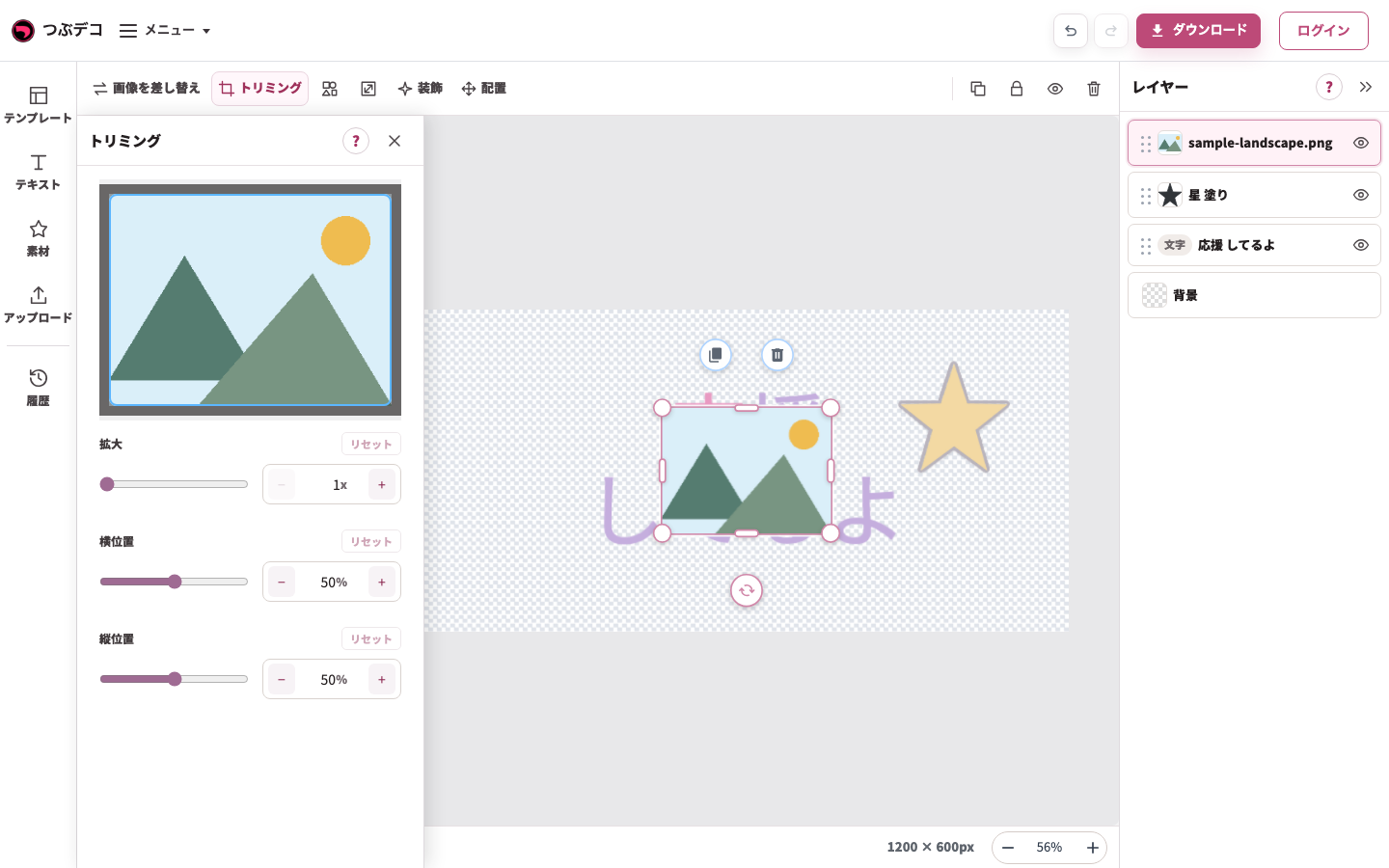
画像のトリミングパネル。拡大・横位置・縦位置で表示する範囲を変えられます。 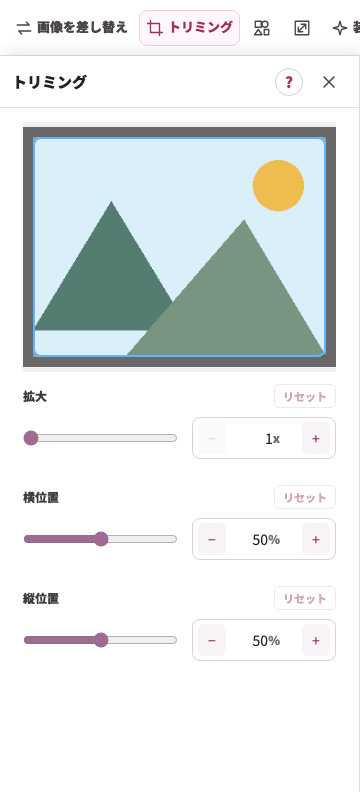
拡大:画像のトリミングパネル。拡大・横位置・縦位置で表示する範囲を変えられます。 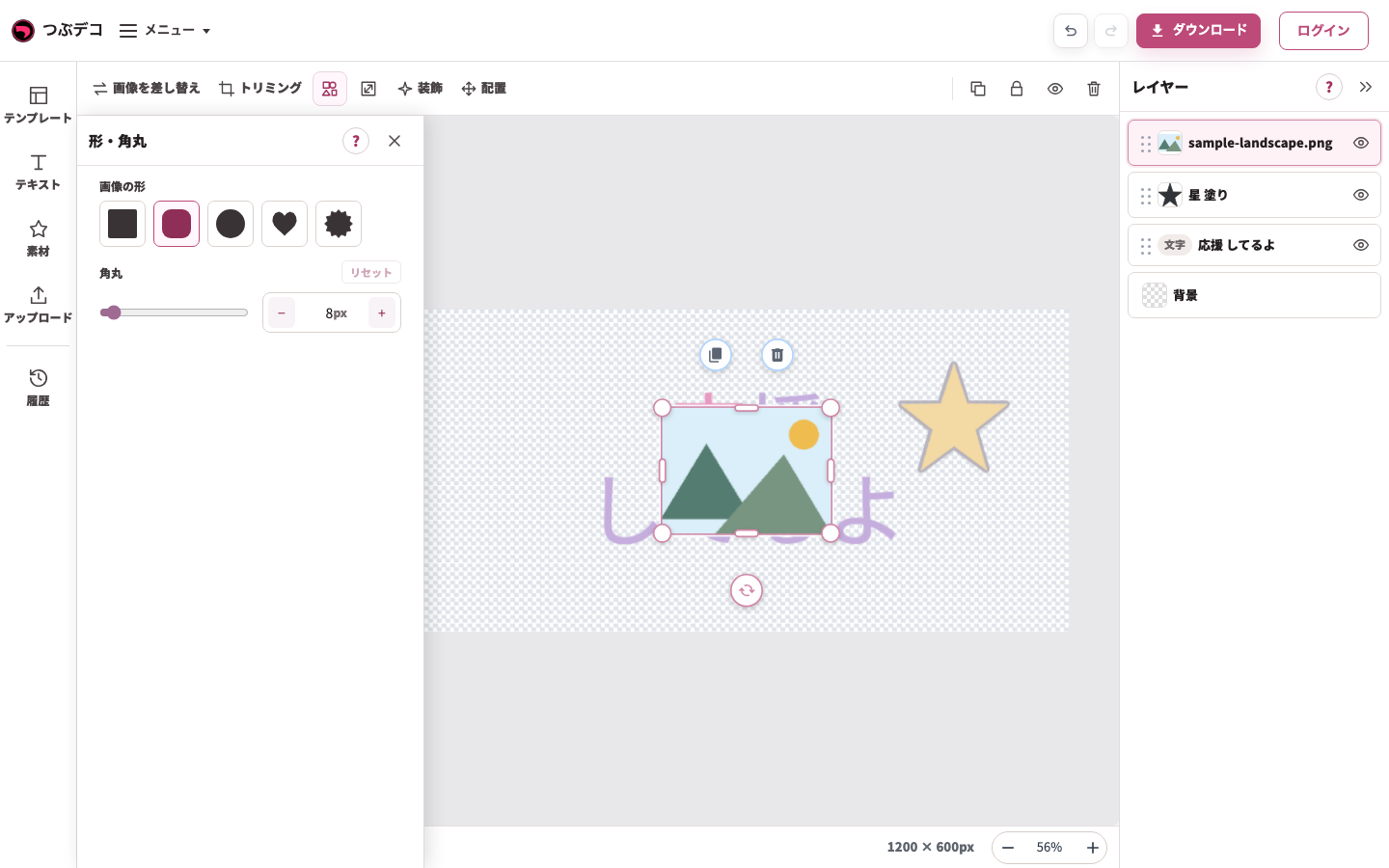
画像の形・角丸パネル。四角・丸・ハートなどの形を選びます。 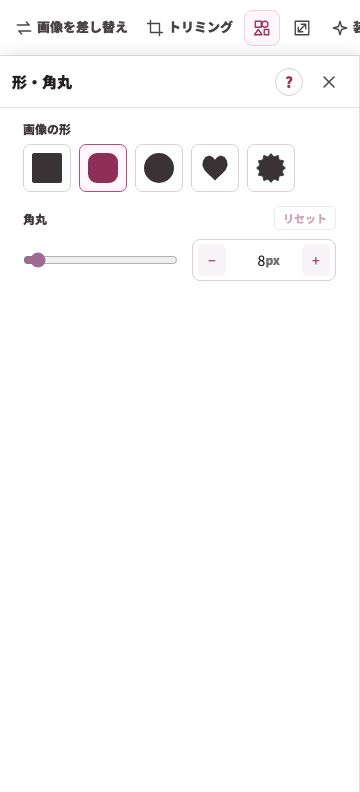
拡大:画像の形・角丸パネル。四角・丸・ハートなどの形を選びます。 -
フチや影を加える
画像を選んだまま上部の「装飾」を開きます。画像向けのフチ・影を追加できます。
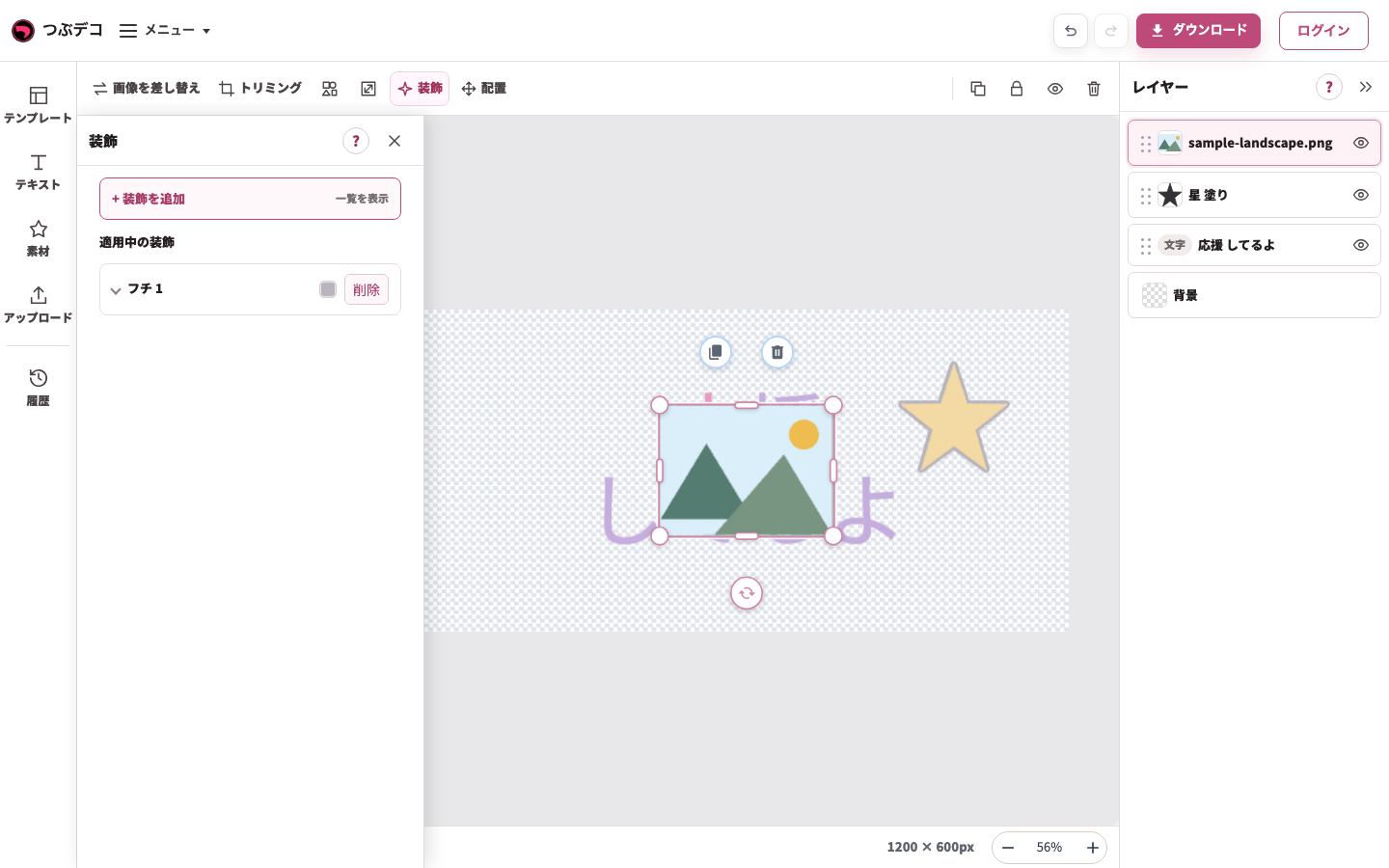
画像のフチの設定。中央の画像の周囲に付いたフチを確認します。 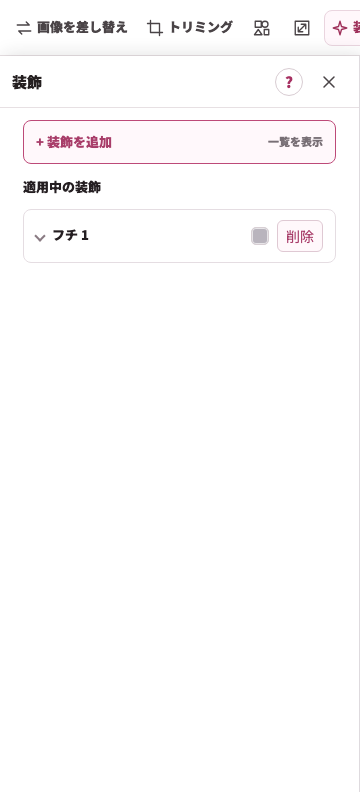
拡大:画像のフチの設定。中央の画像の周囲に付いたフチを確認します。 -
配置を整える
画像をドラッグし、文字や素材が隠れない位置に置きます。画面の表示倍率を変えても、保存画像の寸法は変わりません。
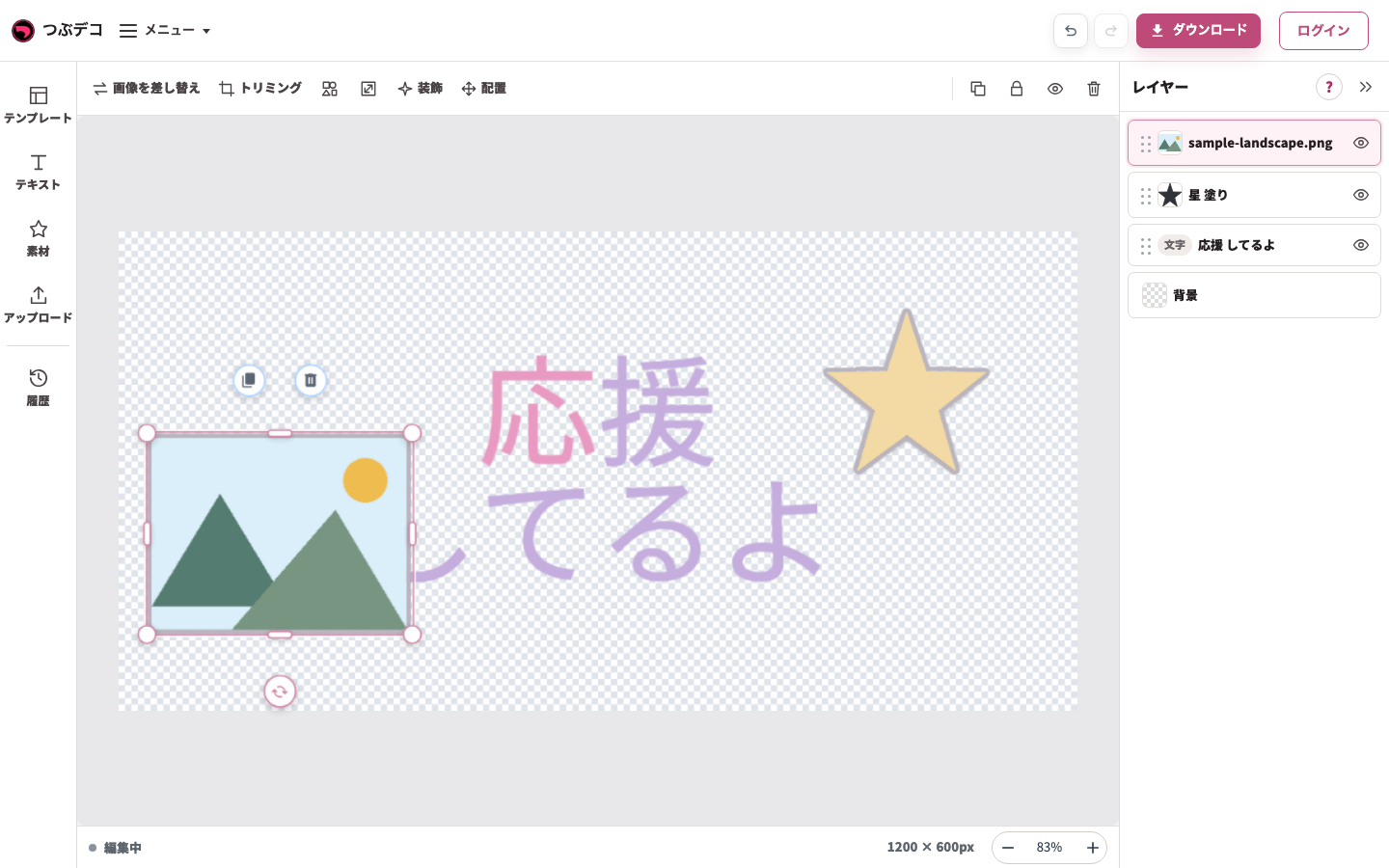
ドラッグ後:選択中の山の画像を文字の左側へ移動した状態。端が切れていないか確認が必要です。
装飾の違い
| Item | Description |
|---|---|
| テキスト | フチ、影、線、背景(テキストの背面)を使えます。文字ごと装飾で選んだ文字だけに色やサイズを変えることもできます。 |
| 素材 | フチ、影を使えます。線と背景(テキストの背面)は素材には表示されません。 |
| 画像 | フチ、影を使えます。線と背景(テキストの背面)は画像には表示されません。 |
設定項目一覧
| Item | Description |
|---|---|
| 画像を追加 | 端末の画像ファイルを選び、新しい画像レイヤーとして配置します。 |
| トリミング・形・角丸・サイズ | 画像の形とサイズを調整できます。 |
| 装飾 | 画像の外側にフチを追加し、画像に影を追加できます。 |
| 配置 | 位置、回転、重なり順を調整します。 |
確認ポイント
- 画像を選ぶと編集ツールが表示され、「画像を差し替え」や「トリミング」を使えます。
- 画像の装飾はフチと影のみです。
- 複数の画像をまとめて選ぶと、それぞれ新しい画像レイヤーとして追加されます。
困ったとき
画像が見えない場合は、レイヤー一覧で非表示になっていないか、他のレイヤーの背面に隠れていないか確認してください。