
This language version is being prepared. The Japanese version is shown for now.
画像の書き出し(ダウンロード)
作成した内容を画像ファイルとして保存できます。画面上部の「ダウンロード」ボタンからいつでも書き出せます。
PC画面での操作
このページの操作画像はPC版です。中央で対象を選ぶと上部ツールが切り替わり、詳しい設定は左に開きます。右のレイヤー一覧は対象の選択と重なり順、下部は保存状態・作品サイズ・表示倍率を確認する場所です。項目が見えない場合は上部の「…」を確認します。
このページでできること
保存画像サイズを確認し、倍率と形式を選んで画像ファイルとして保存できます。SVGを使える場合は、画像を埋め込むかどうかも選べます。
操作手順
-
「ダウンロード」ボタンをクリックする
画面上部の「ダウンロード」ボタンをクリックすると、「ダウンロード設定」が開きます。
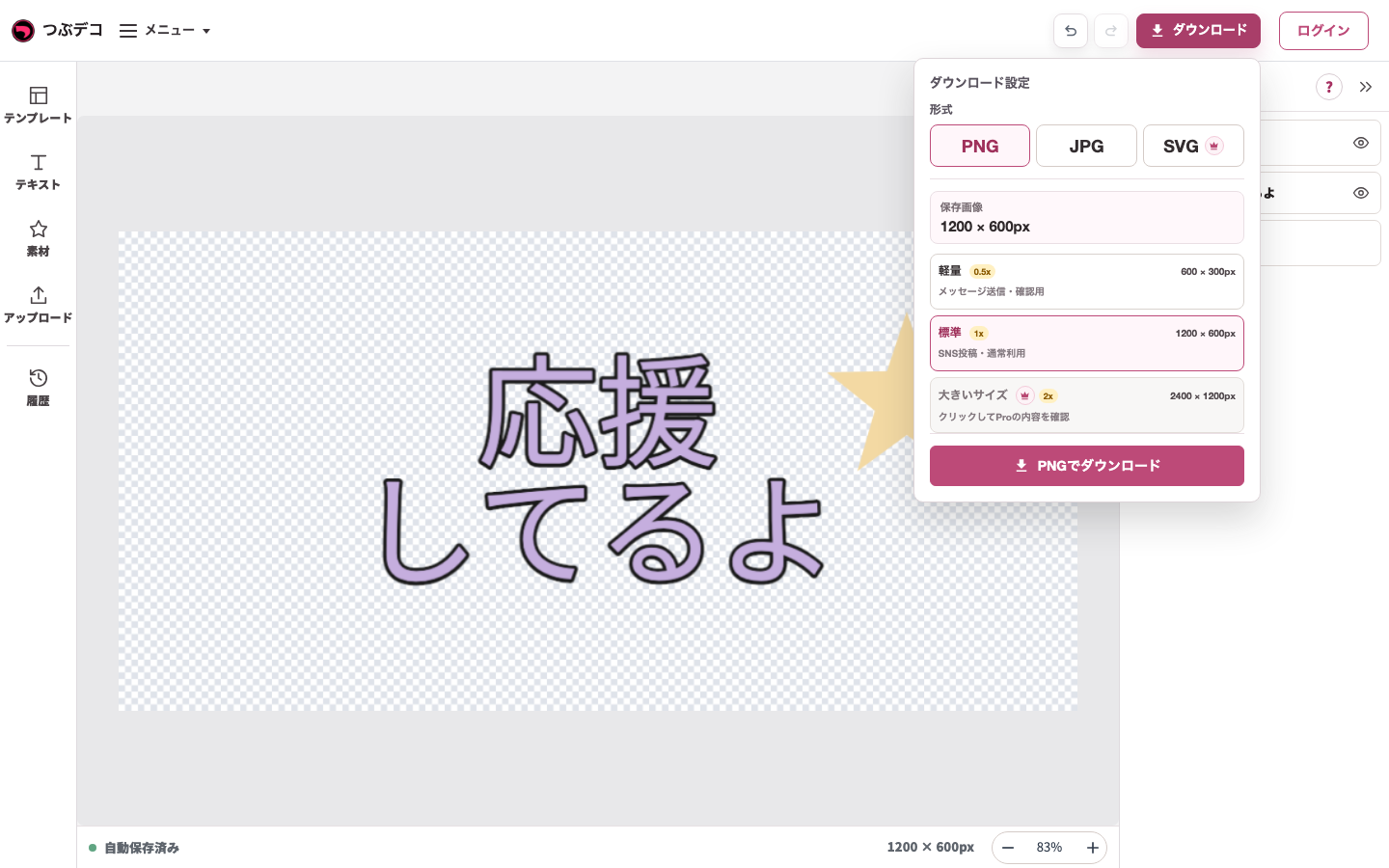
上部ダウンロードで開いた設定。PNG・標準1x、保存画像1200×600pxを確認して保存します。 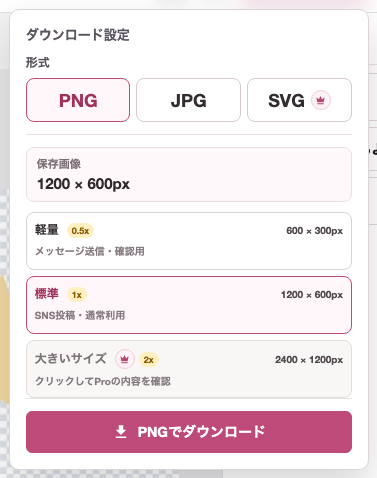
拡大:上部ダウンロードで開いた設定。PNG・標準1x、保存画像1200×600pxを確認して保存します。 -
保存サイズを確認する
「保存画像」に書き出されるサイズが表示されます。保存サイズは「軽量(0.5x)」「標準(1x)」「大きいサイズ(2x)」から選べます。大きいサイズはProで使えます。
上部ダウンロードで開いた設定。PNG・標準1x、保存画像1200×600pxを確認して保存します。
拡大:上部ダウンロードで開いた設定。PNG・標準1x、保存画像1200×600pxを確認して保存します。 -
ファイル形式を選んでダウンロードする
「PNG」「JPG」「SVG」から形式を選んでダウンロードします。背景を透明にしたい場合はPNGを選んでください。JPGは背景が白になります。SVGは拡大して使いたいときに向いています。
上部ダウンロードで開いた設定。PNG・標準1x、保存画像1200×600pxを確認して保存します。
拡大:上部ダウンロードで開いた設定。PNG・標準1x、保存画像1200×600pxを確認して保存します。 -
SVGの詳細を選ぶ
SVGでは「カッティング・印刷用(パスのみ)」を選ぶと、文字や図形などの切りやすい形だけを書き出せます。「画像を埋め込む」をOFFにすると、写真やアップロード画像などを含めずに保存できます。
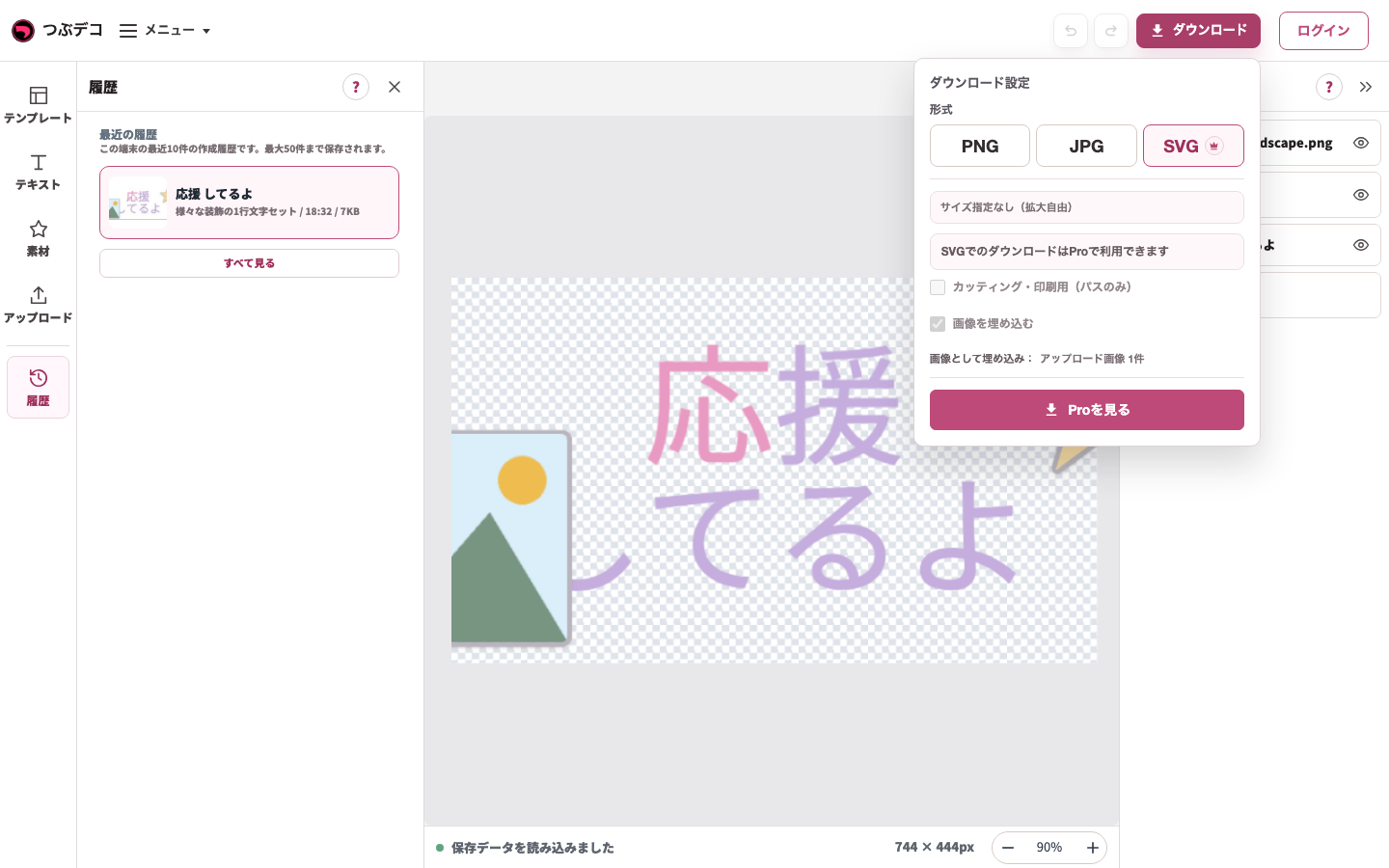
SVG設定の例。Proの利用状態により設定や保存の案内が変わります。 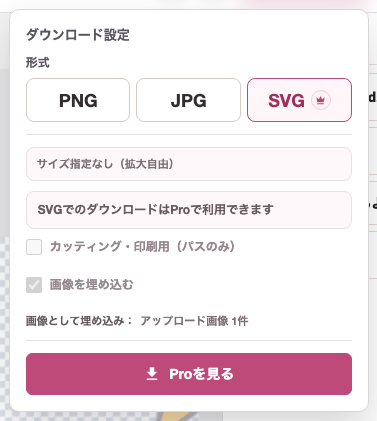
拡大:SVG設定の例。Proの利用状態により設定や保存の案内が変わります。 -
購入案内が出たら内容を確認する
Proが必要なデザイン・素材・SVG・大きいサイズは、利用状態によって案内が表示されます。「Proを見る」で対象機能と利用条件を確認してください。SVGの設定や保存は、その機能を利用できる状態で使います。
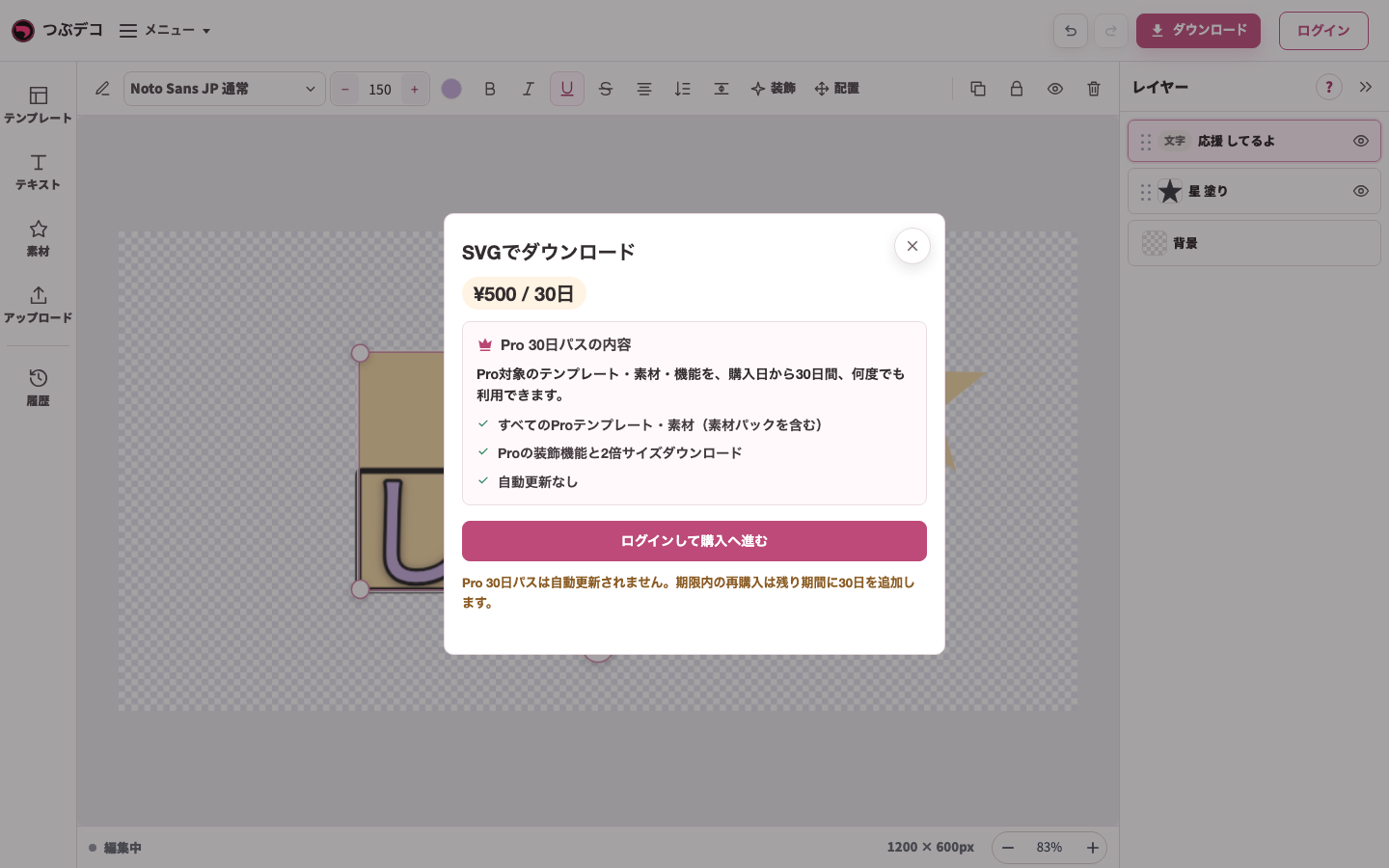
SVGのPro案内を閲覧した状態。利用内容を確認できます。ログイン・購入・課金は実行していません。
設定項目一覧
| Item | Description |
|---|---|
| 保存画像 | 書き出される画像サイズを表示します。 |
| 保存サイズ | 軽量(0.5x)、標準(1x)、大きいサイズ(2x)から選びます。大きいサイズはProで使えます。 |
| PNG | 背景の透過を使いたい場合に向いています。 |
| JPG | 背景が白の画像として保存されます。 |
| SVG | 拡大しても粗くなりにくい形式で保存します。Proで使えます。 |
| カッティング・印刷用(パスのみ) | 文字や図形など、切りやすい形だけをSVGに保存します。画像やぼかしのある影などは出力されません。 |
| 画像を埋め込む | SVGに写真やアップロード画像などを含めるかどうかを選びます。OFFにすると、文字や図形などの部分だけを保存します。 |
確認ポイント
- SNSへの投稿にはPNG形式が適しています。背景色を設定している場合はどちらでも構いません。
- 写真やアップロード画像を使ったデザインをSVGで保存する場合は、「画像を埋め込む」をONにすると見た目を保ちやすくなります。
- カッティング用のデータが必要な場合は、SVGを選び、「カッティング・印刷用(パスのみ)」をONにします。
- ダウンロードした画像はブラウザの「ダウンロード」フォルダに保存されます。
- ダウンロードした画像ファイルから再編集はできません。後で続きを編集したい場合は、書き出す前に「履歴」に保存されていることを確認してください。
困ったとき
ダウンロードが始まらない場合は、ブラウザのポップアップブロック設定を確認してください。「ダウンロード」のメニューでも設定を開けます。