
This language version is being prepared. The Japanese version is shown for now.
アップロード画像:装飾
画像の装飾はフチと影の2種類です。画像の外側を目立たせたいときはフチ、少し浮かせたいときは影を使います。
PC画面での操作
このページの操作画像はPC版です。中央で対象を選ぶと上部ツールが切り替わり、詳しい設定は左に開きます。右のレイヤー一覧は対象の選択と重なり順、下部は保存状態・作品サイズ・表示倍率を確認する場所です。項目が見えない場合は上部の「…」を確認します。
このページでできること
画像の外側にフチを追加し、画像に影を追加できます。線と背景(テキストの背面)は画像では使いません。
操作手順
-
画像を選ぶ
作品上の画像または右の一覧で画像名を選びます。文字や素材を選んだ状態と区別します。
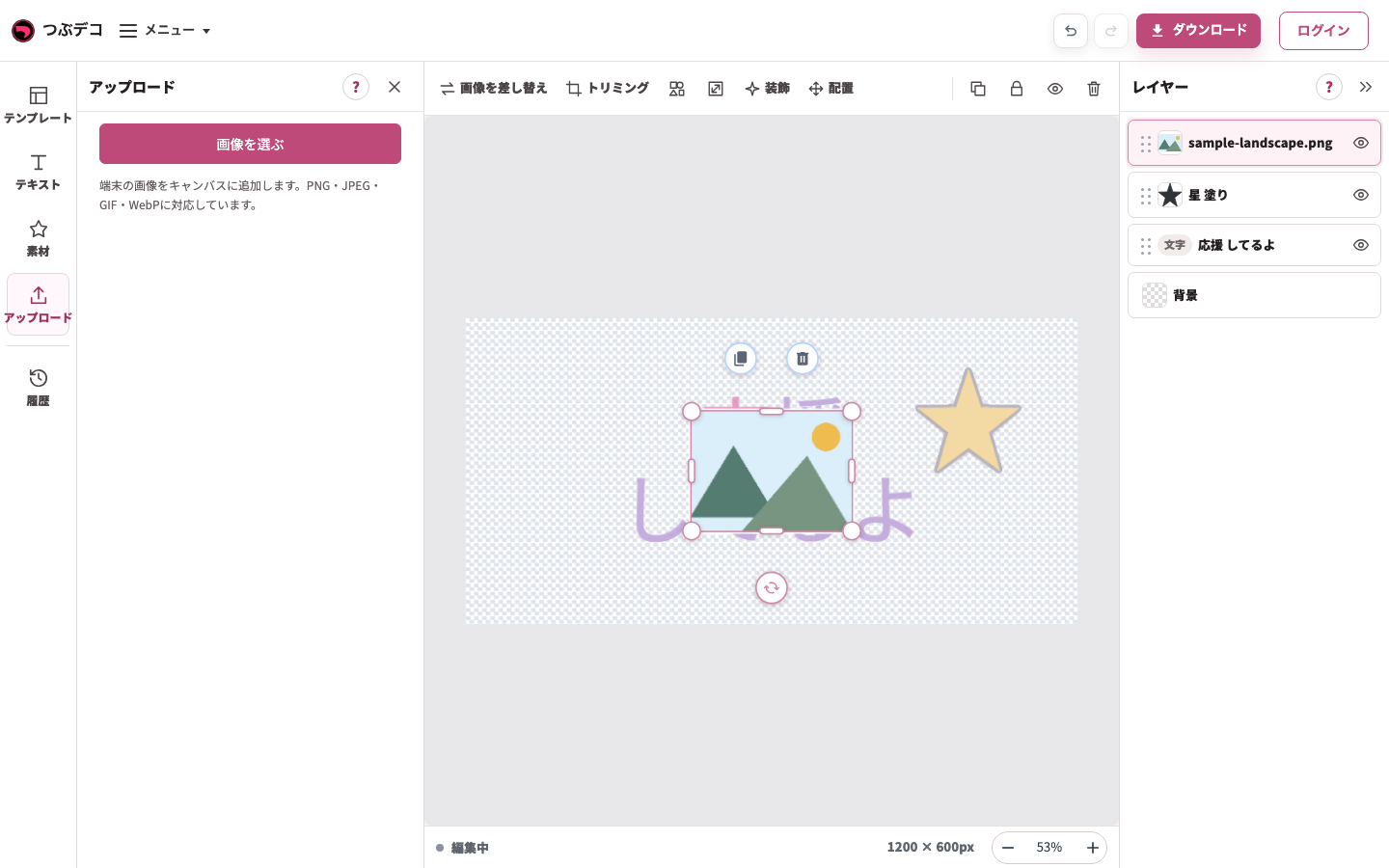
追加後:検証用の山のPNGが同じ作品に増え、右の一覧に画像名が出ています。 -
上部の「装飾」を開く
左に画像用の装飾パネルが現れます。「装飾を追加」からフチ・影を選びます。
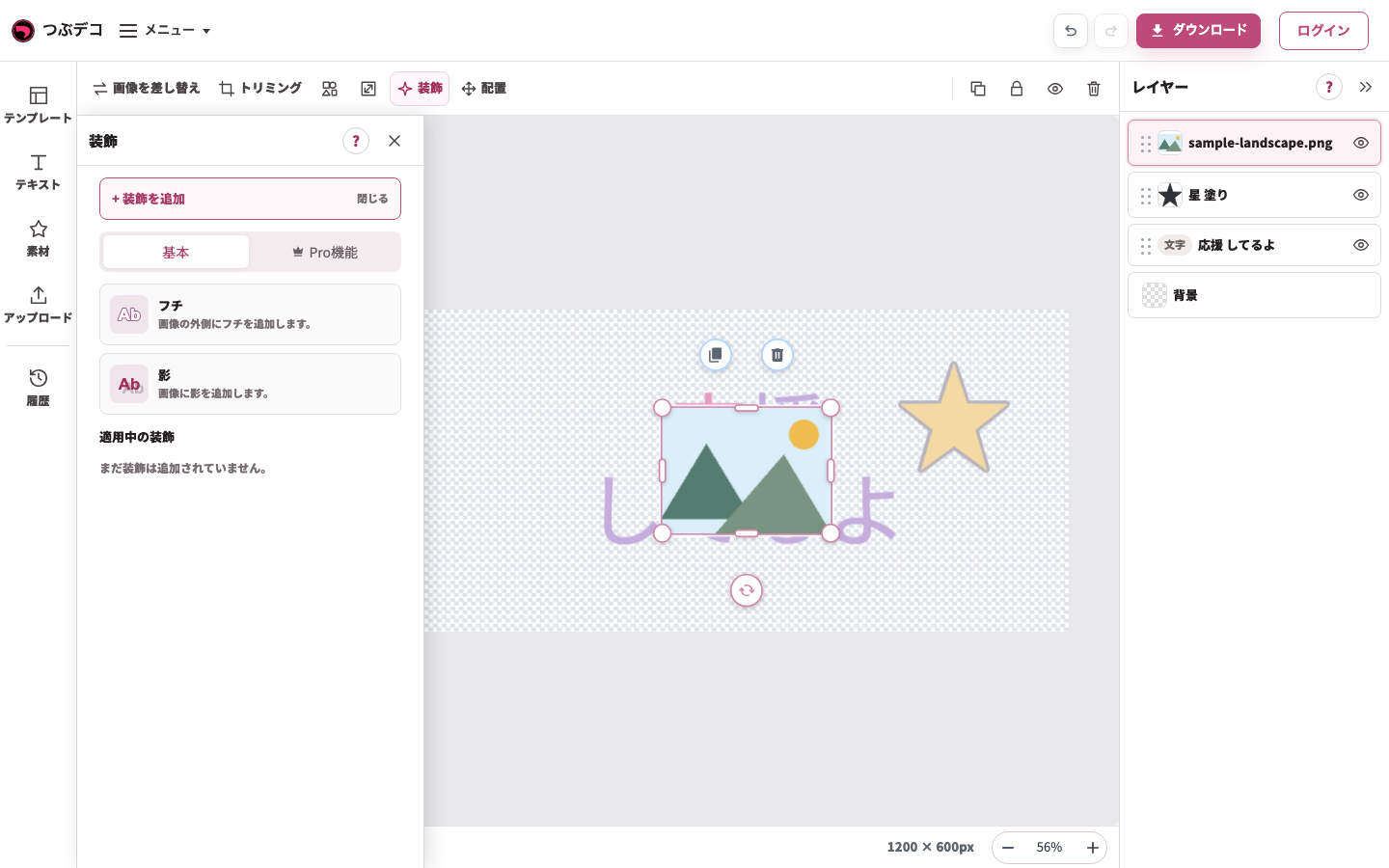
画像を選んだ装飾一覧。フチ・影から選び、画像の輪郭や見え方を整えます。 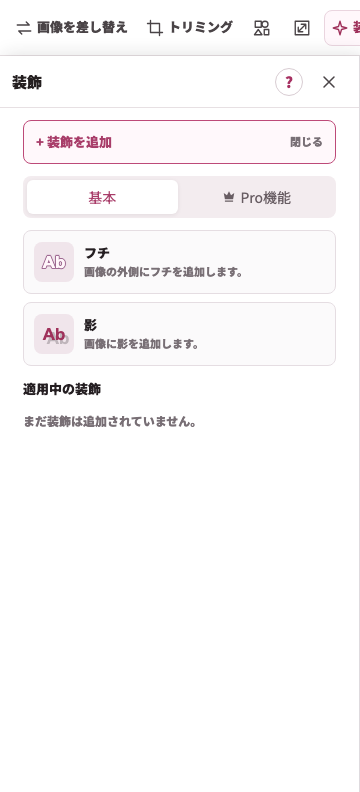
拡大:画像を選んだ装飾一覧。フチ・影から選び、画像の輪郭や見え方を整えます。 -
フチや影の詳細を整える
色・太さ・位置・ぼかしを中央の画像と見比べて調整します。画像の形を変えるとフチの輪郭も変わります。
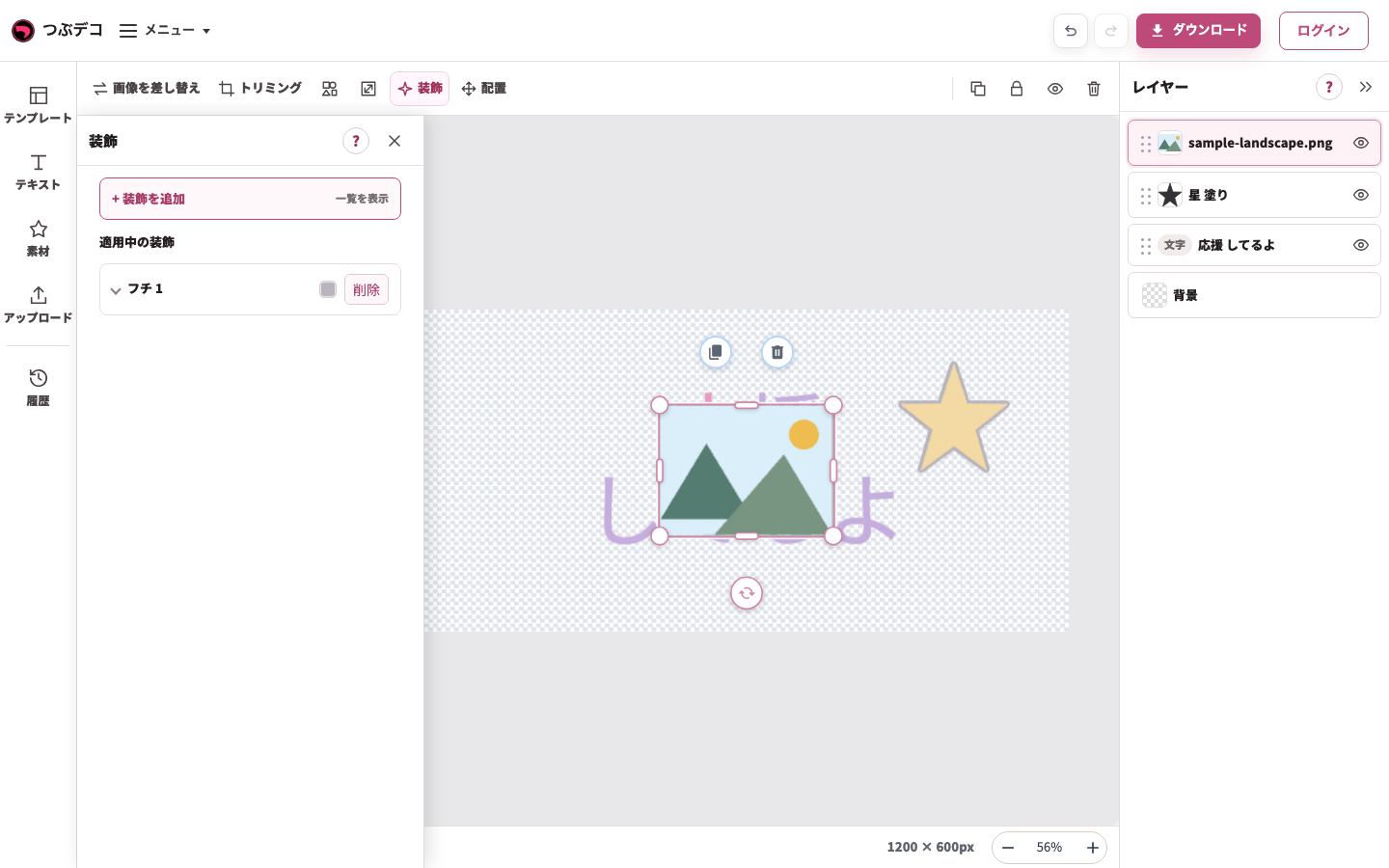
画像のフチの設定。中央の画像の周囲に付いたフチを確認します。 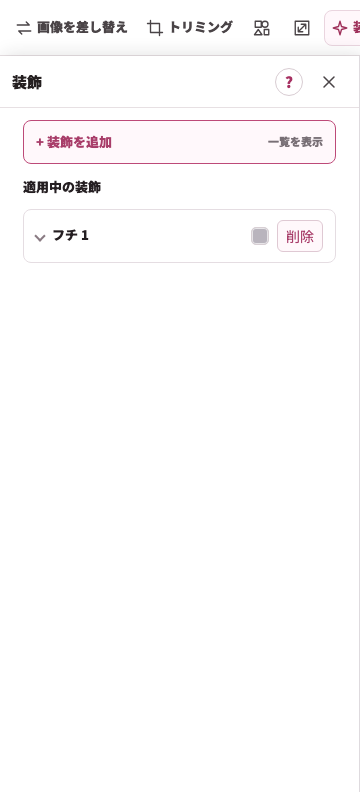
拡大:画像のフチの設定。中央の画像の周囲に付いたフチを確認します。 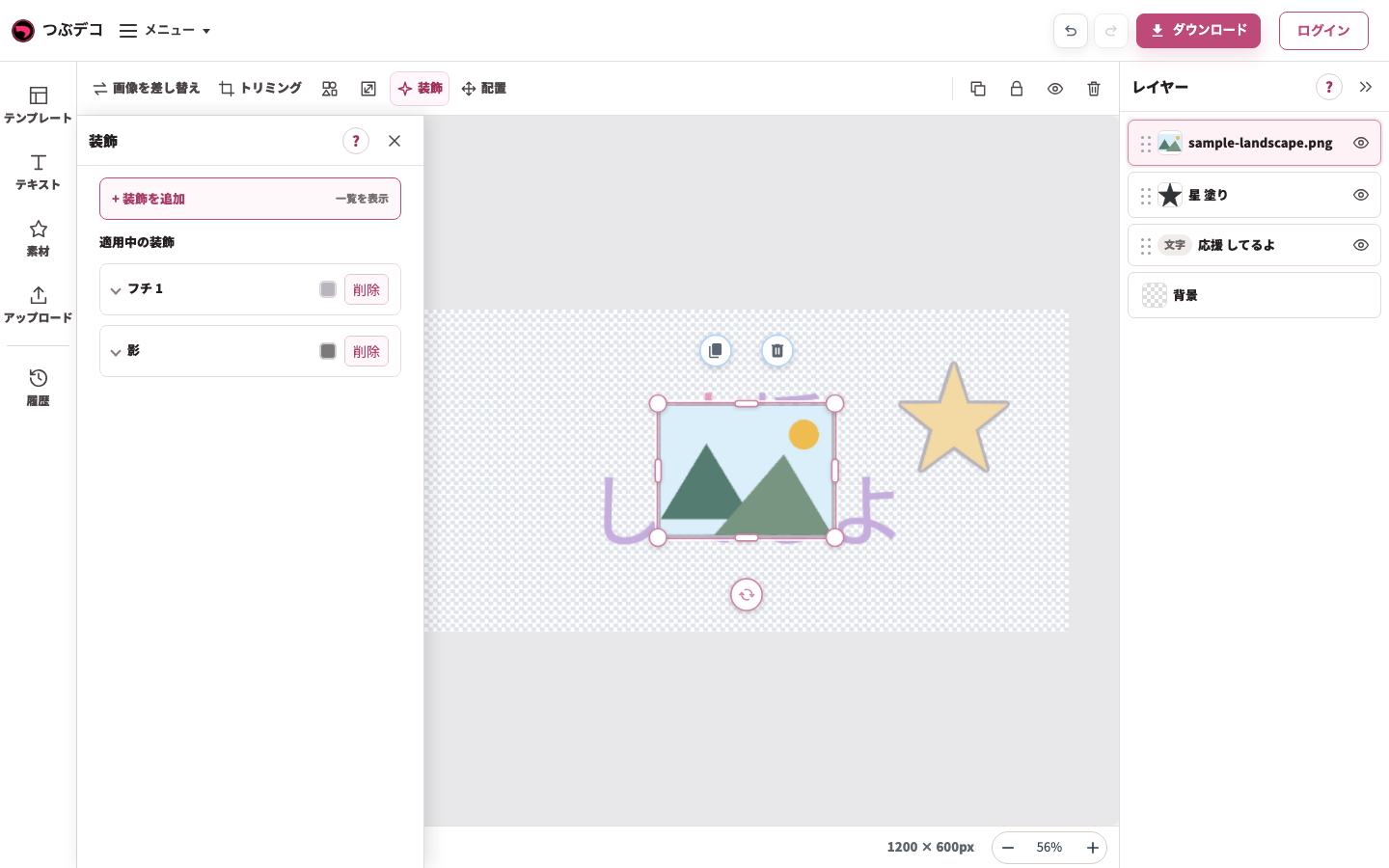
画像の影の設定。文字の影とは別に、画像を対象として調整します。 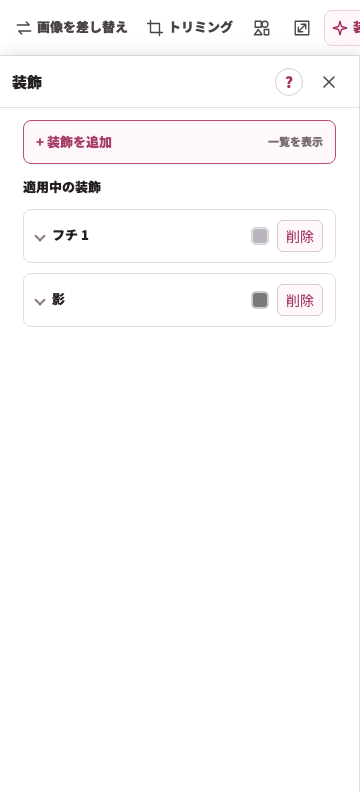
拡大:画像の影の設定。文字の影とは別に、画像を対象として調整します。 -
全体のバランスを確認する
パネルを閉じて灰色の余白をクリックします。選択枠を外し、画像・文字・素材が作品内に収まることを確認します。
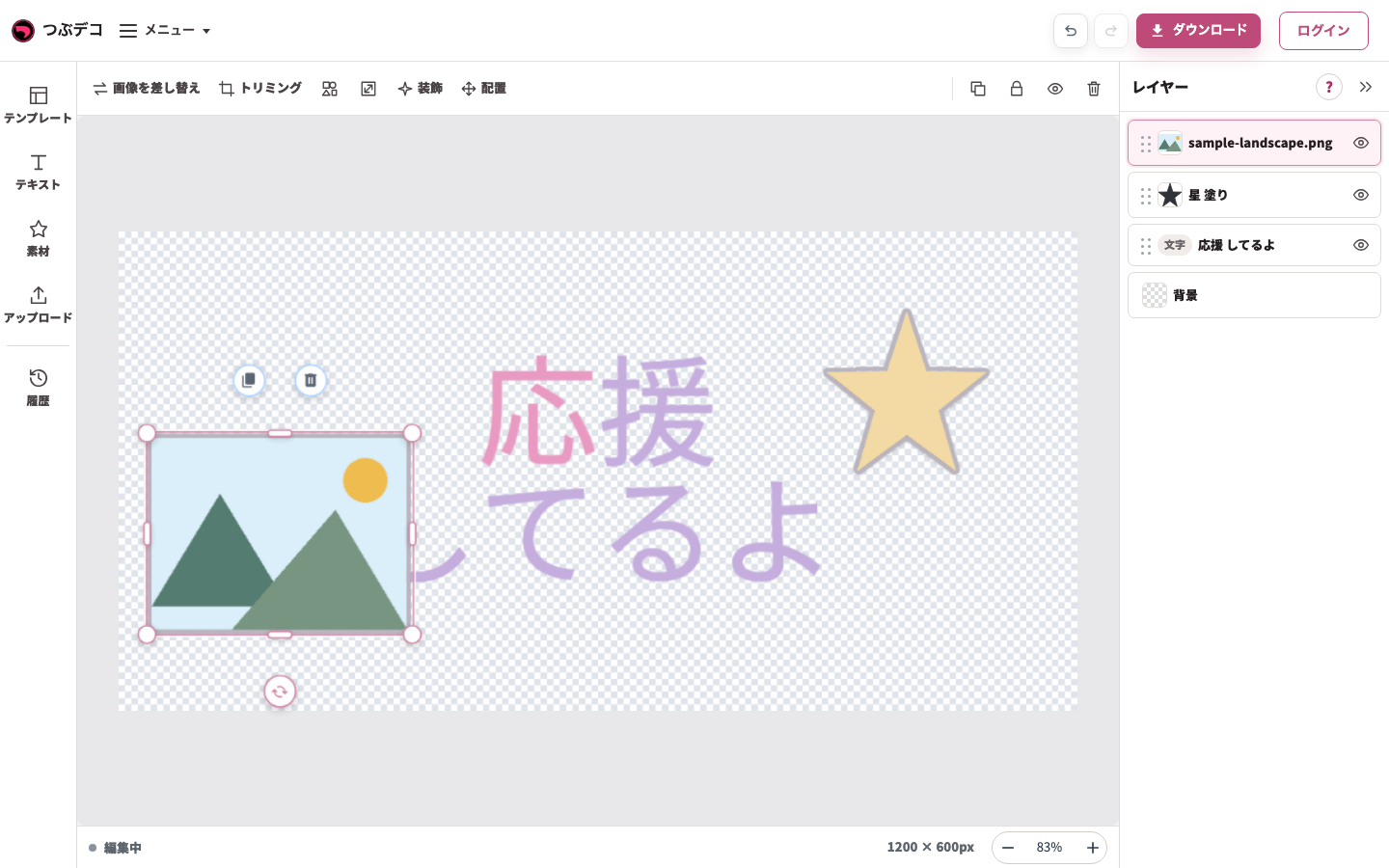
ドラッグ後:選択中の山の画像を文字の左側へ移動した状態。端が切れていないか確認が必要です。
設定項目一覧
| Item | Description |
|---|---|
| フチ | 画像の外側にフチを追加します。色、太さ、同じ色のフチをつなげる設定を調整できます。太さは1〜300の範囲で調整できます。フチが複数ある場合は、一番外側のフチだけが対象です。 |
| 影 | 画像に影を追加します。色、横位置、縦位置、ぼかしを調整できます。 |
確認ポイント
- 画像の装飾はフチと影のみです。
- テキスト用の線や背景(テキストの背面)は、画像の装飾メニューには表示されません。
- 丸やハートなどの形を選んでいる場合、フチもその形に沿って表示されます。
- 複数の画像や文字・素材を近づけたときは、「同じ色のフチをつなげる」でフチの重なりを自然に見せられます。
困ったとき
画像の輪郭が分かりにくい場合はフチを追加します。影が強すぎる場合は、ぼかしや位置を下げて調整してください。