User Guide / History and Re-editing

History and Re-editing

The text image creation tool has a “Recent history” feature, so you can load data you created before and resume editing.

What you can do on this page

You can learn how to resume from Recent history, understand autosave, and create multiple images by changing text in the same design.

How to use the Recent history tab

  1. Open the “Recent history” tab in the left panel

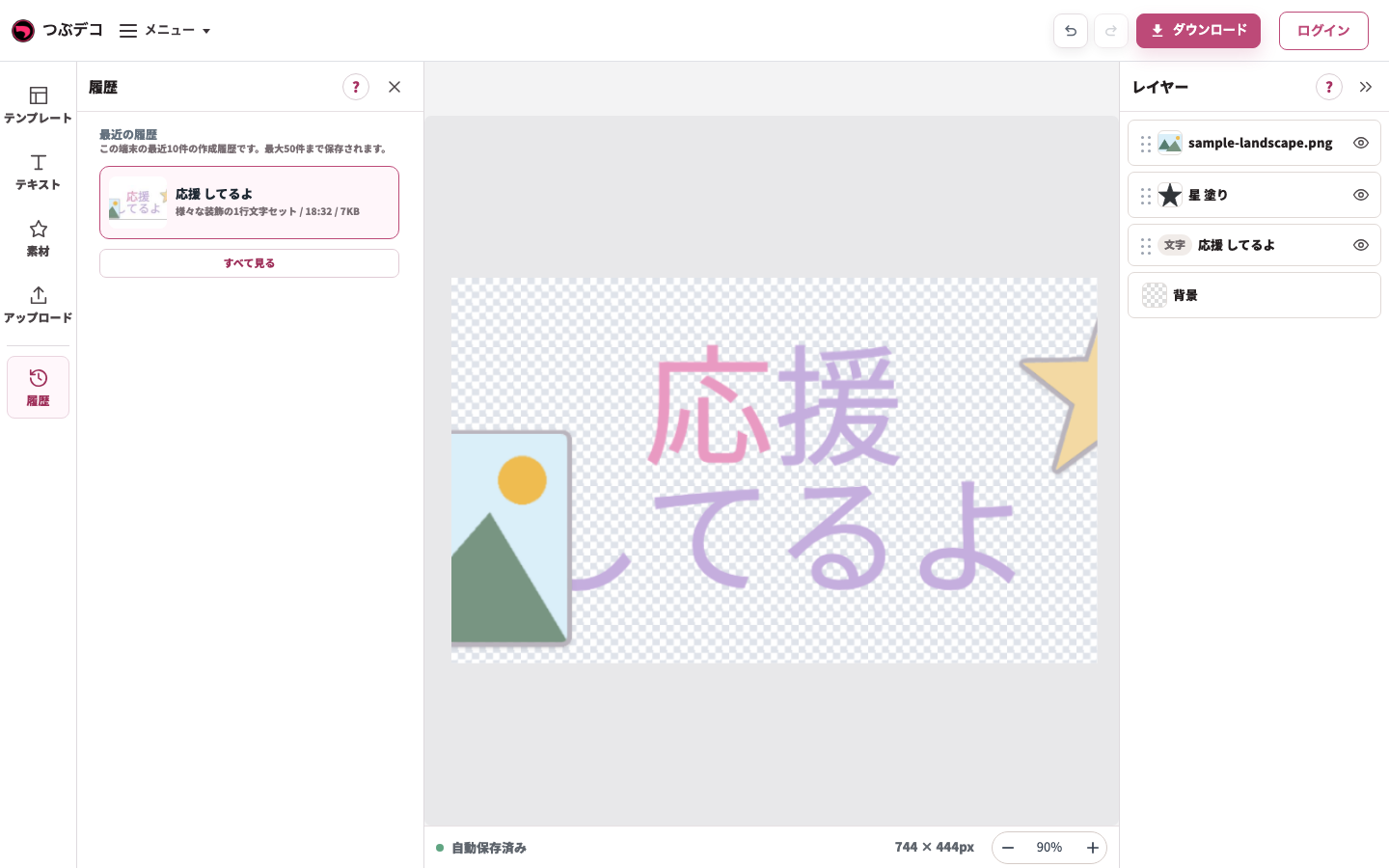
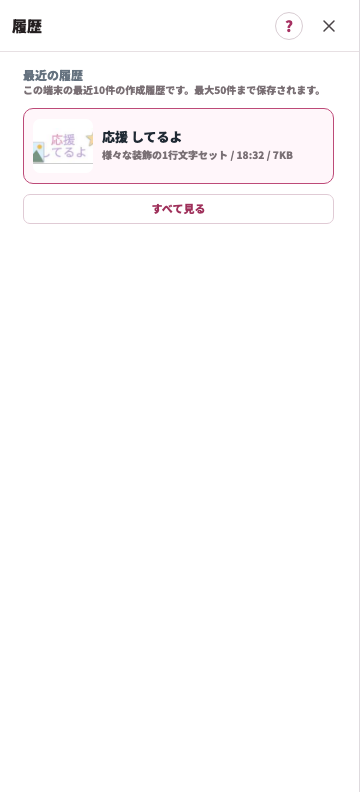
    Click “Recent history” from the tabs on the left side of the creation screen. Content you have created so far appears as a thumbnail list.

  2. Click the history item you want to resume

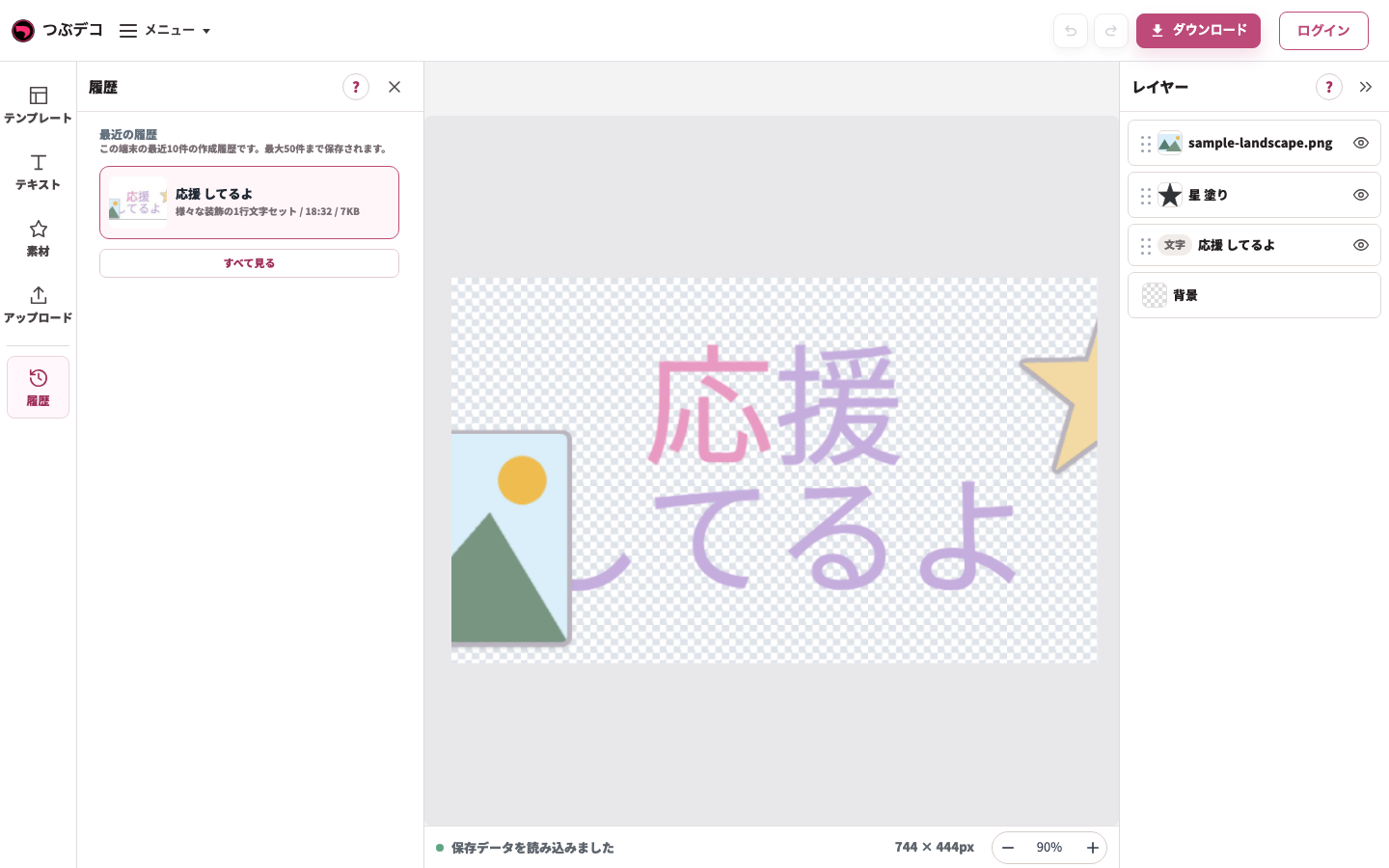
    Click a thumbnail to restore the text, decorations, template, and other settings from that point. The content you are currently editing is overwritten, so download it first if needed.

  3. Continue editing and download

    From the restored state, you can change text, add decorations, and download as usual.

How autosave works

  1. Autosaved after each action

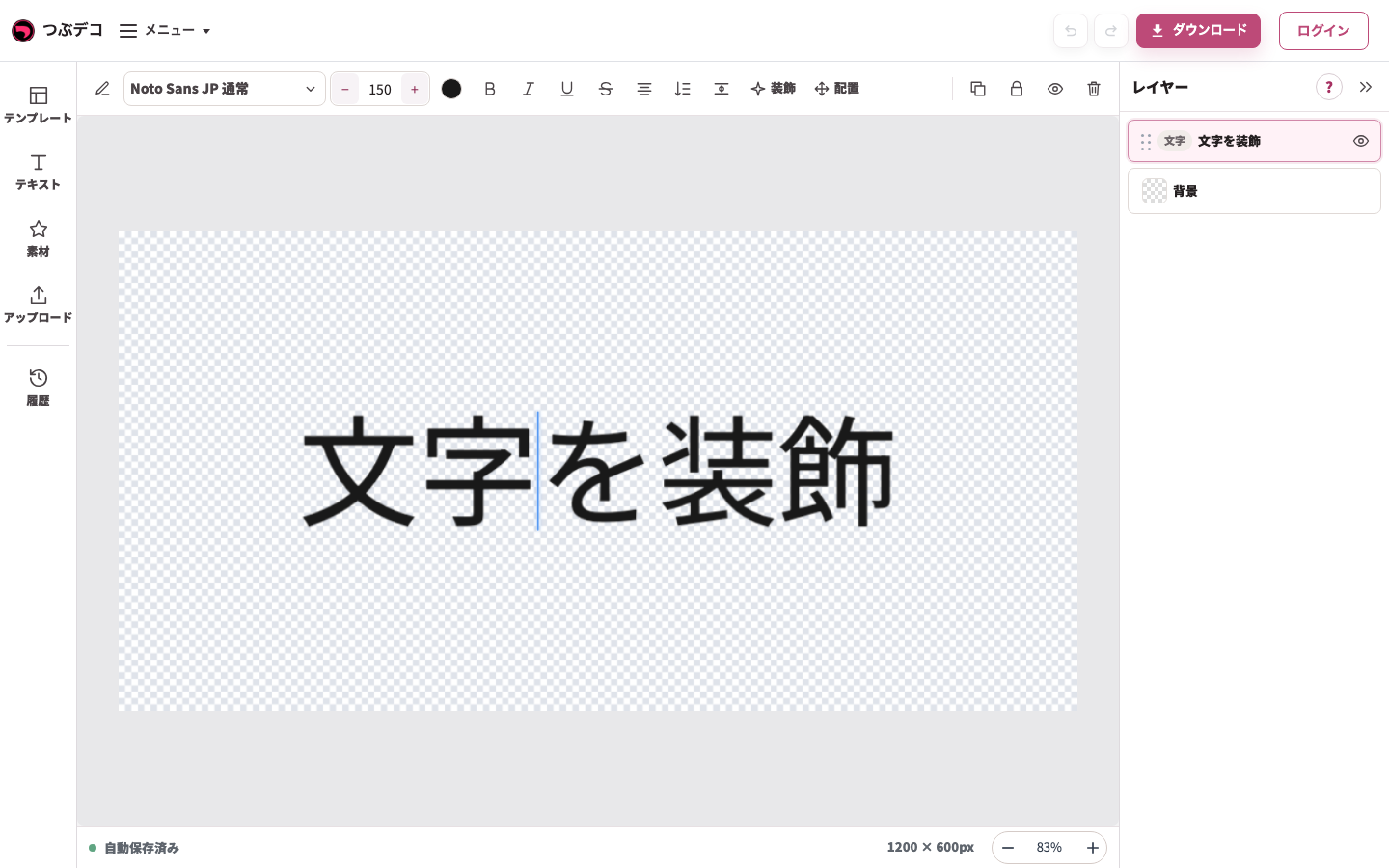
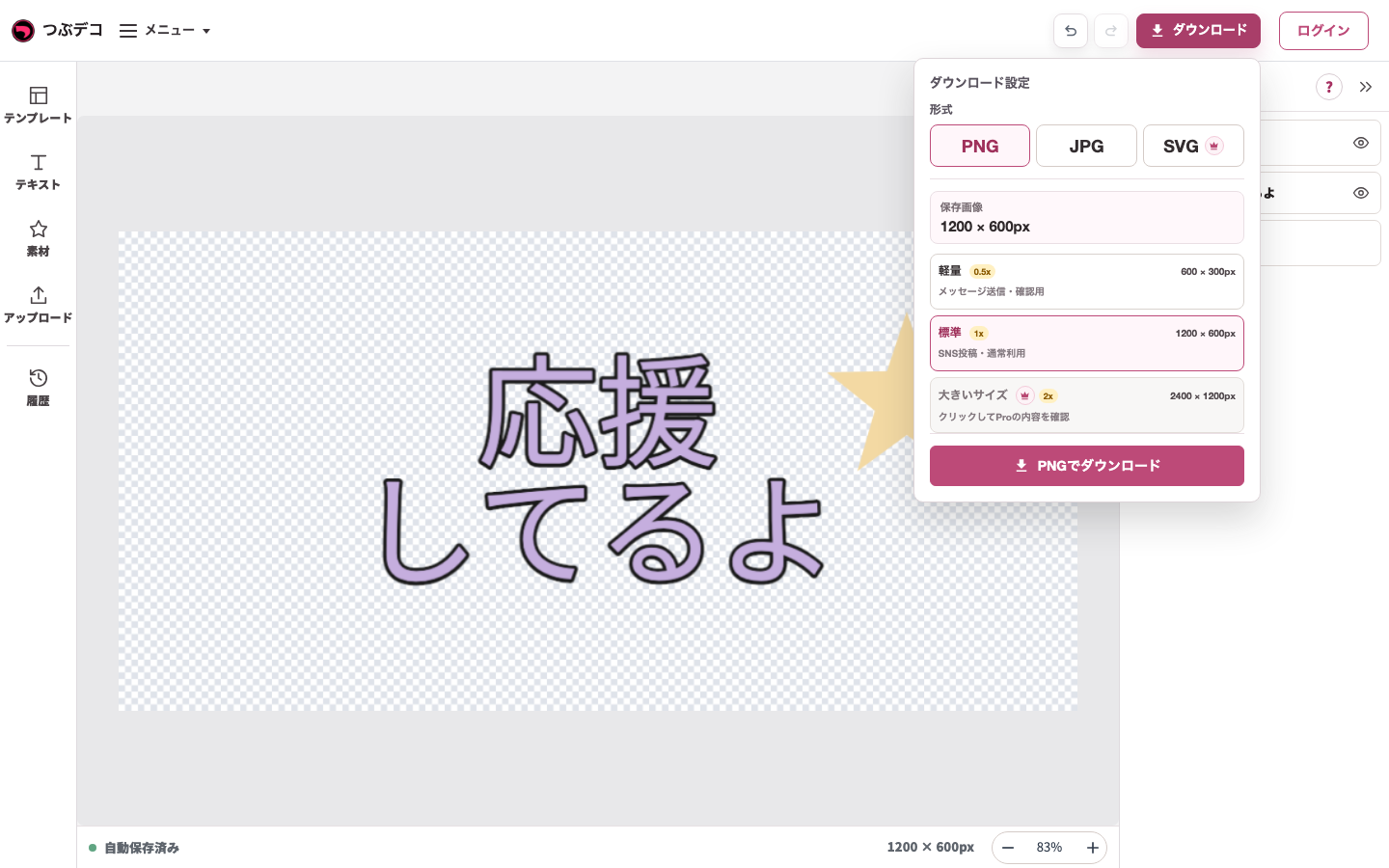
    Creation data is autosaved in the browser each time you enter text, change a template, add a decoration, or perform another action.

  2. Restored even after reloading the page

    Even if you reload the browser by mistake, the latest work is restored automatically. You can also resume from the state when you last closed it.

  3. Multiple history items are kept

    Multiple past creation data items are kept as history with thumbnails. This is useful when you want to return to an earlier state.

New creation and resetting content

  1. Choose “New creation” from the menu

    Click the menu icon (☰) on the screen and choose “New creation” to clear the current input and create from the beginning.

  2. Click “OK” in the confirmation dialog

    A confirmation dialog saying “Discard the current content and start a new creation?” appears. If there is no problem, choose “OK.”

  3. Choose a template and start again

    After clearing, the template list appears. Choose a new template and enter text from the beginning.

Create multiple images by changing text in the same design

  1. Download the original design

    First download and save the image in its current state.

  2. Change only the text and download again

    If you change only the text, you can quickly make an image with different text using the same template and decorations. You can also use “Undo (↩)” to return to the previous state.

List of setting items

ItemDescription
recent history Choose past creation content from thumbnails and resume.
Autosaved Saves creation content in the browser after each action.
Create New Clears the current input and starts creating from the beginning.
Undo Undoes the most recent change.

Check points

  • History is saved in the browser, so it does not appear in another browser or on another device.
  • If you delete all browser cache or browsing history, saved creation history may also be deleted.
  • Downloaded image files cannot be re-edited.
  • History may not be saved in private browsing or incognito mode.

When you are in trouble

If history is not shown or has disappeared, check whether your browser cache or cookies were deleted. History may not be saved in private browsing or incognito mode. If history still does not appear, try reloading the page once.