
This language version is being prepared. The Japanese version is shown for now.
アップロード:トリミング・形・サイズ
画像のトリミング・形・サイズでは、画像の形とサイズを調整できます。必要に応じてトリミングし、四角・角丸四角・丸・ハート・シール型から形を選びます。
PC画面での操作
このページの操作画像はPC版です。中央で対象を選ぶと上部ツールが切り替わり、詳しい設定は左に開きます。右のレイヤー一覧は対象の選択と重なり順、下部は保存状態・作品サイズ・表示倍率を確認する場所です。項目が見えない場合は上部の「…」を確認します。
このページでできること
画像の変更、トリミング、幅高さ連動、幅、高さ、画像の形、角丸を調整できます。
操作手順
-
画像を選ぶ
作品上の画像または右の一覧の画像名をクリックします。画像用のツールバーに切り替わります。
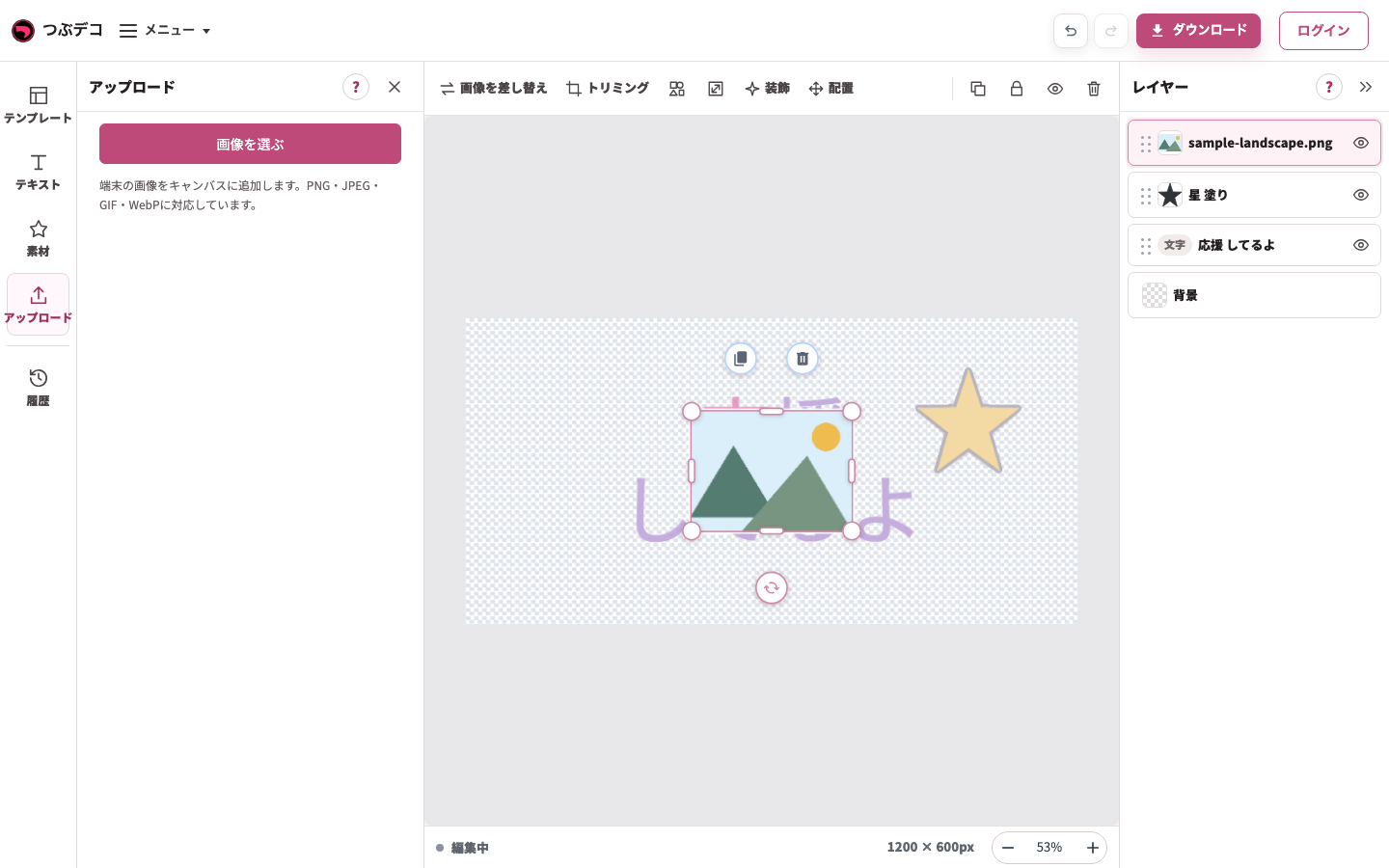
追加後:検証用の山のPNGが同じ作品に増え、右の一覧に画像名が出ています。 -
トリミングで表示範囲を決める
上部の「トリミング」を開き、表示範囲を調整します。元画像を交換したい場合は「差し替え」を使います。
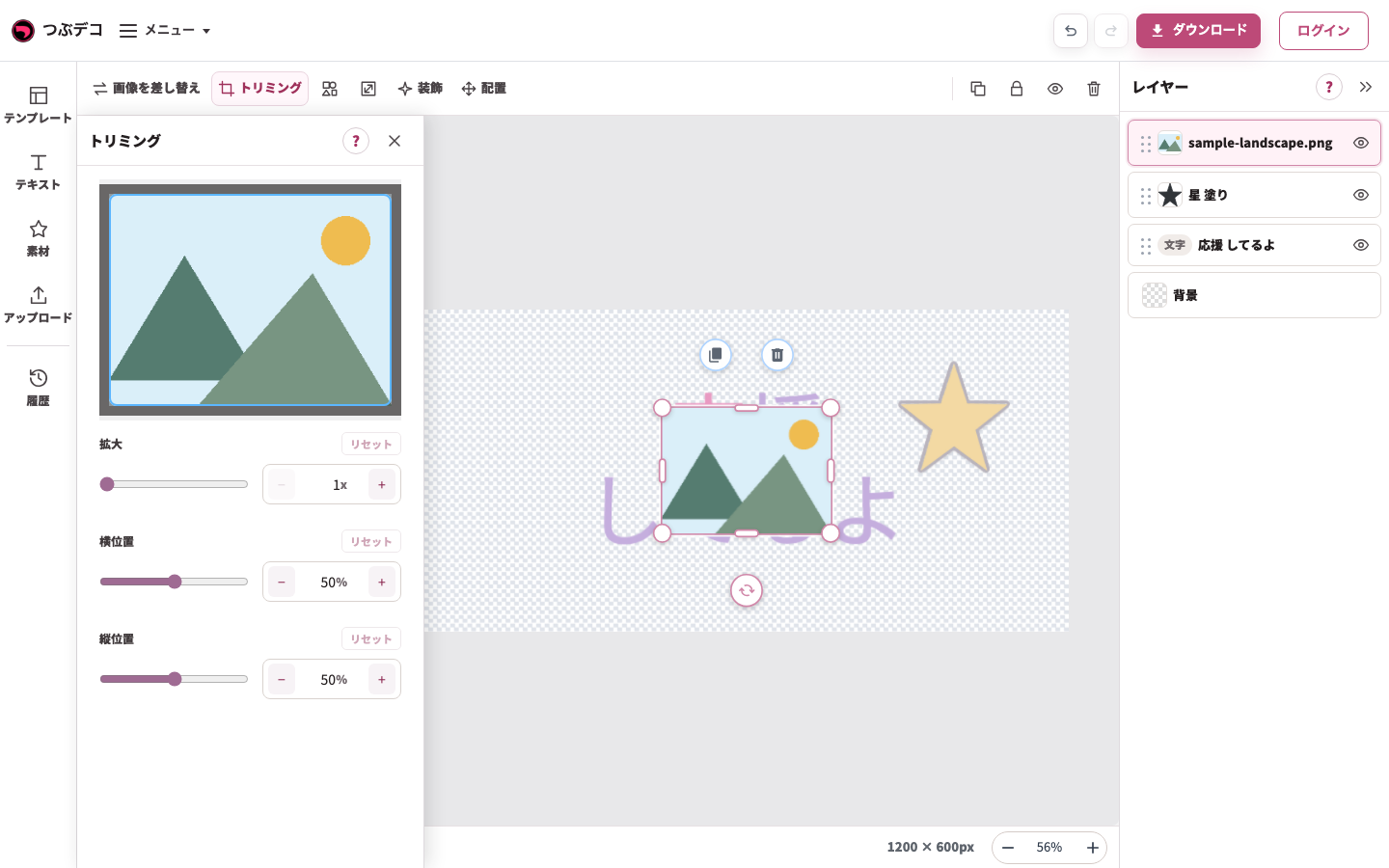
画像のトリミングパネル。拡大・横位置・縦位置で表示する範囲を変えられます。 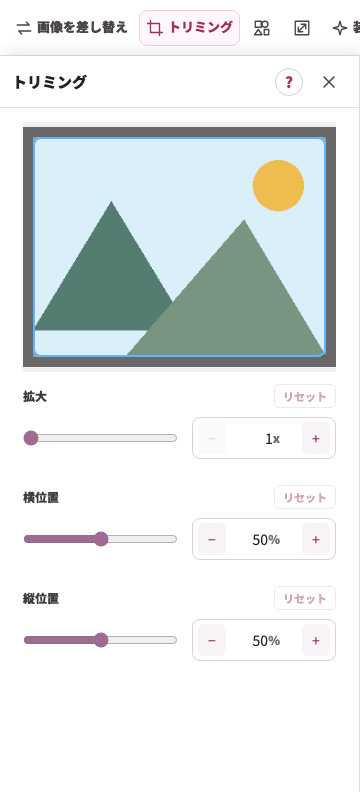
拡大:画像のトリミングパネル。拡大・横位置・縦位置で表示する範囲を変えられます。 -
形・角丸を選ぶ
上部の「形・角丸」で四角・角丸四角・丸・ハート・シール型を選びます。角丸が使える形では丸みも調整できます。
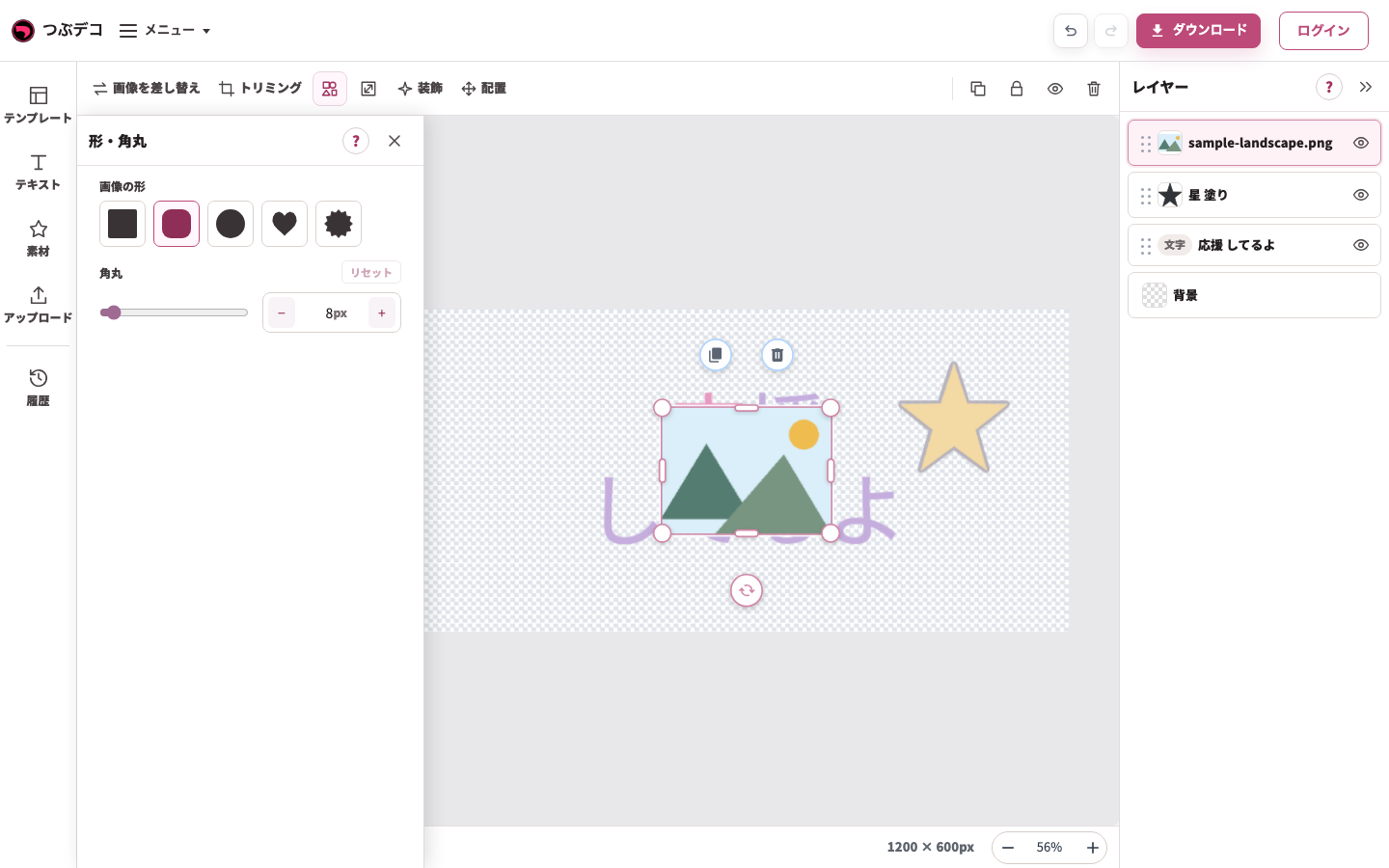
画像の形・角丸パネル。四角・丸・ハートなどの形を選びます。 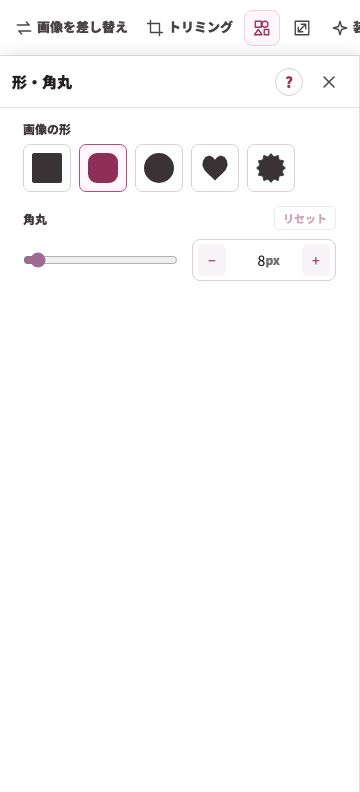
拡大:画像の形・角丸パネル。四角・丸・ハートなどの形を選びます。 -
サイズを調整する
上部の「サイズ」で幅と高さを変えます。「幅高さ連動」をONにすると比率を保てます。中央で縦横の見え方を確認します。
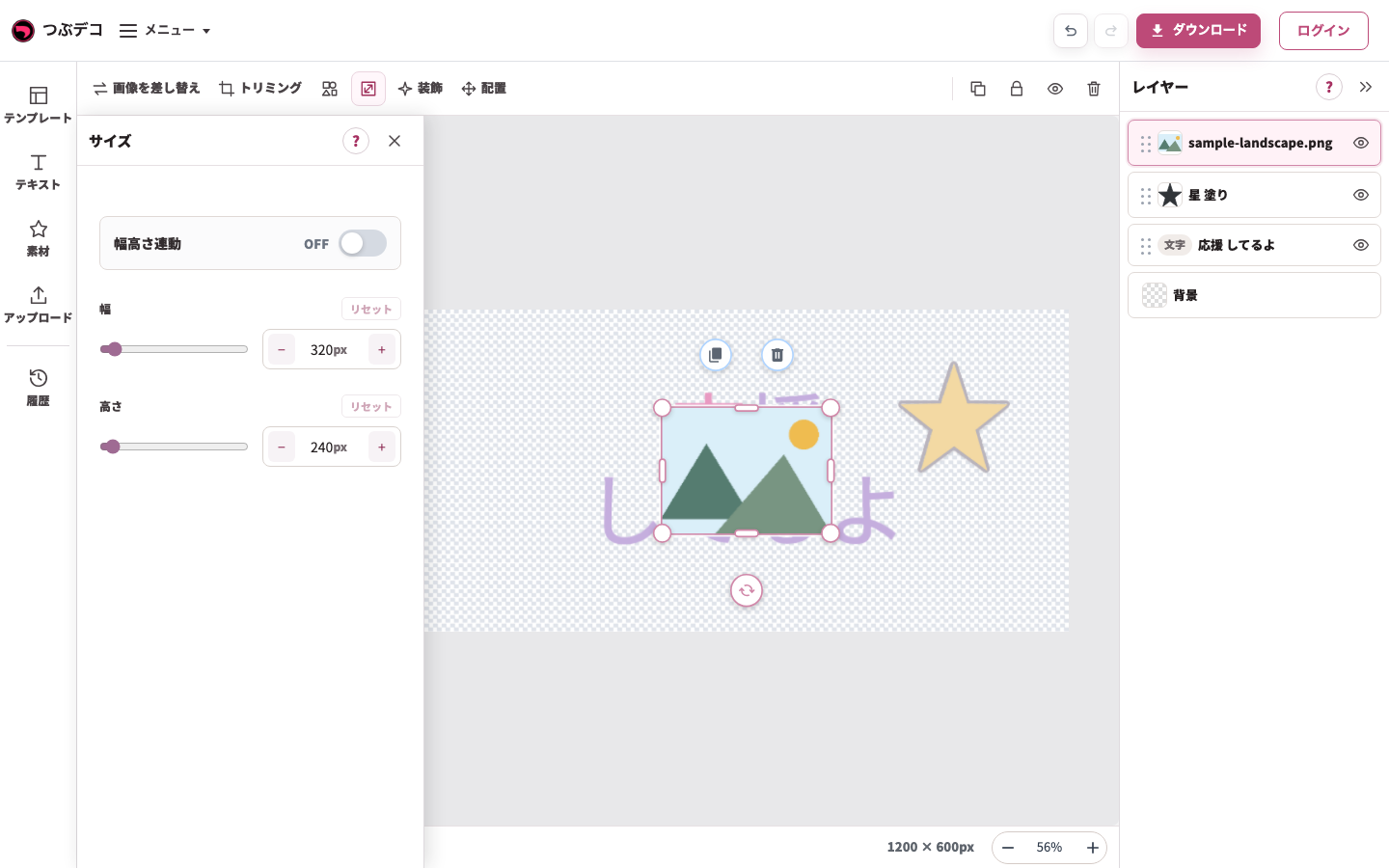
画像のサイズパネル。幅高さ連動と幅・高さを確認し、比率を崩さず調整します。 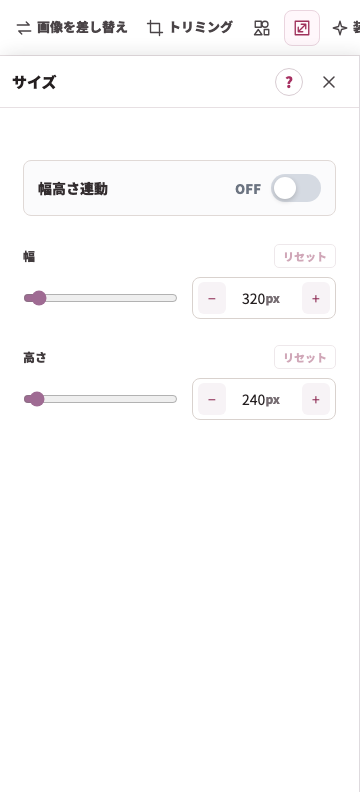
拡大:画像のサイズパネル。幅高さ連動と幅・高さを確認し、比率を崩さず調整します。
設定項目一覧
| Item | Description |
|---|---|
| 画像を差し替え | 別の画像に差し替えます。 |
| トリミング | 画像の表示範囲を調整します。 |
| 幅高さ連動 | 初期状態はOFFです。OFFでは幅と高さを別々に変更できます。ONにすると元の縦横比を保ってサイズ変更します。 |
| 幅 | 画像の横幅を調整します。 |
| 高さ | 画像の高さを調整します。 |
| 形・角丸 | 四角、角丸四角、丸、ハート、シール型から選びます。 |
| 角丸 | 角丸四角などで角の丸さを調整します。 |
確認ポイント
- 「幅高さ連動」がOFFのときは幅と高さを別々に変更できます。ONにすると画像の比率を保てます。
- 丸やハートなどの形を選ぶと、画像の見える範囲が変わります。
- トリミング後も、配置の設定で位置や回転を調整できます。
困ったとき
画像が縦横に伸びて見える場合は、「幅高さ連動」をONにして調整し直してください。OFFでは幅と高さを別々に変更できます。必要な部分が隠れる場合はトリミングで表示範囲を直します。