
This language version is being prepared. The Japanese version is shown for now.
背景
作品の空白部分を選ぶと背景の編集ツールが表示され、背景色や透過を調整できます。「作品サイズ」から作品全体の大きさや余白を設定できます。
PC画面での操作
このページの操作画像はPC版です。中央で対象を選ぶと上部ツールが切り替わり、詳しい設定は左に開きます。右のレイヤー一覧は対象の選択と重なり順、下部は保存状態・作品サイズ・表示倍率を確認する場所です。項目が見えない場合は上部の「…」を確認します。
このページでできること
右の背景を選択し、背景色・透過を変えます。作品サイズは下部のサイズ表示から開き、内容に合わせる場合の余白を調整できます。
操作手順
-
右の「背景」を選ぶ
右のレイヤー一覧を開き「背景」をクリックします。上部に背景用の操作が現れます。灰色の外側クリックは選択解除なので、背景選択と区別します。
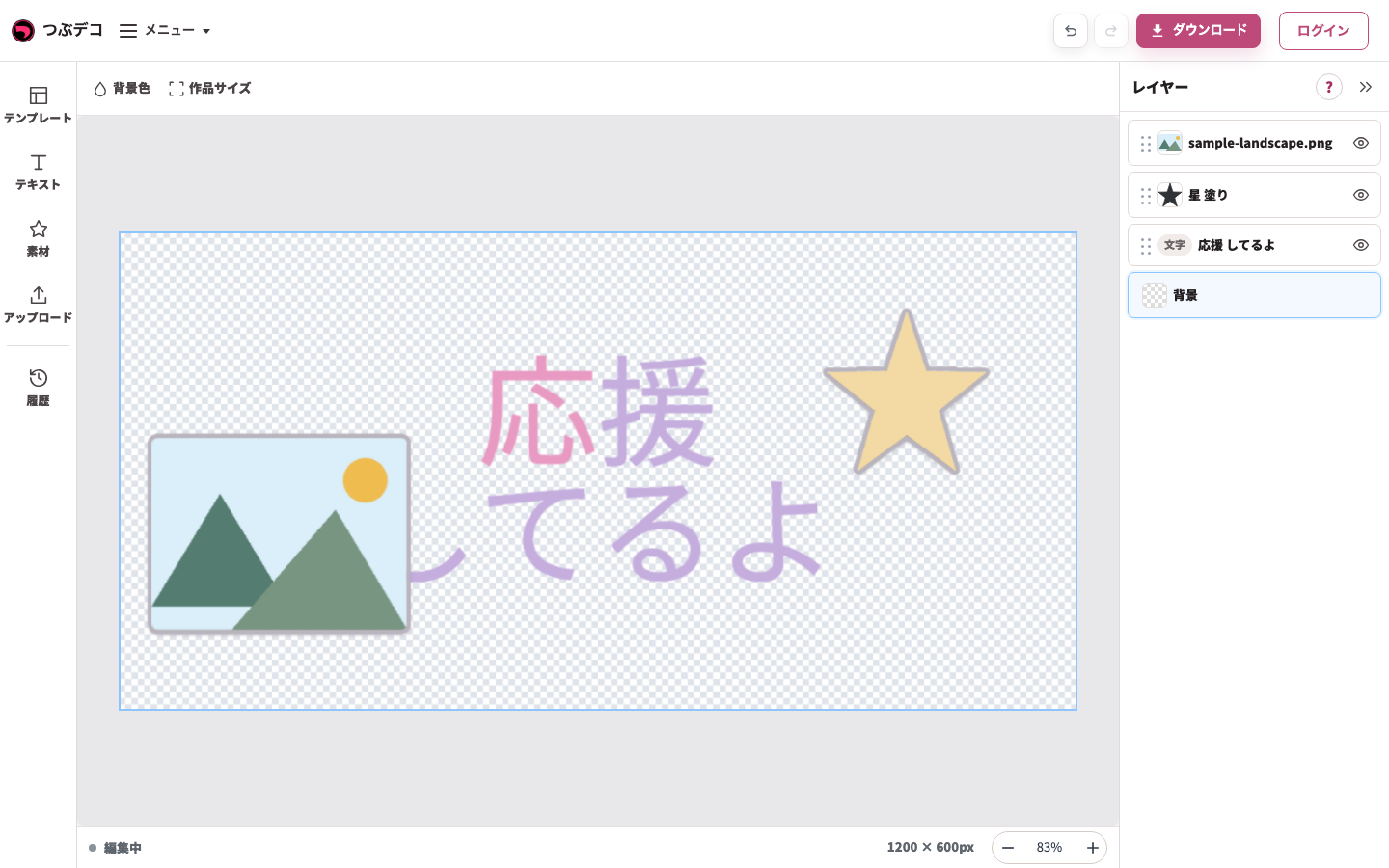
右の背景を選択した状態。上部は背景色・作品サイズへ切り替わります。 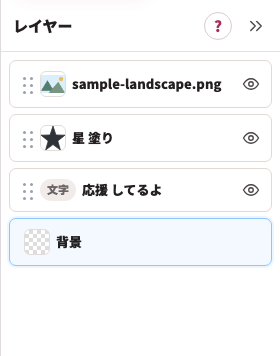
拡大:右の背景を選択した状態。上部は背景色・作品サイズへ切り替わります。 -
背景色を選ぶ
上部の背景色を開き、単色・グラデ・パターンから選びます。透過の市松模様と実際の背景色を見分けて確認します。
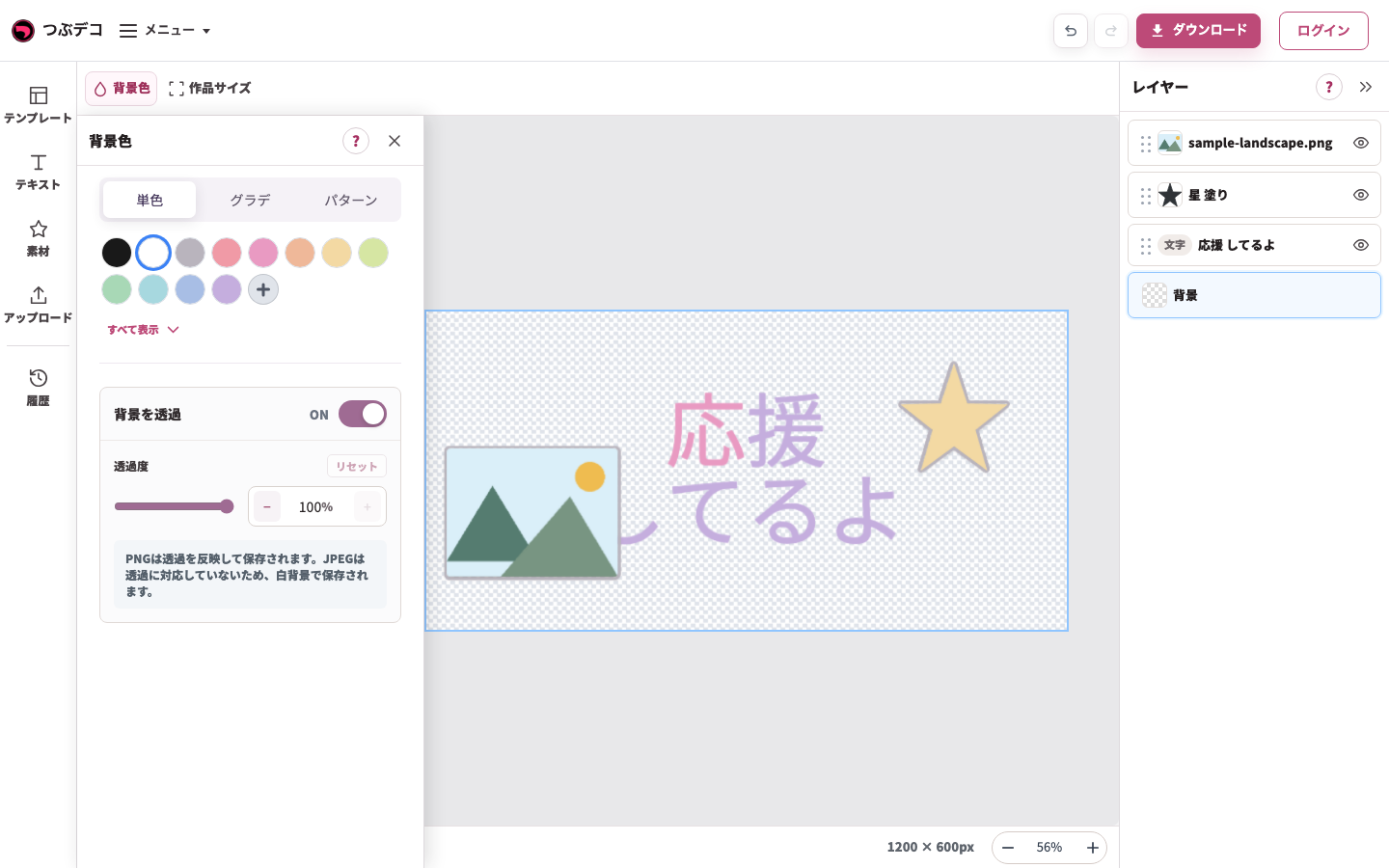
背景色パネル:背景を透過と透過度を確認。PNGは透過を保存でき、JPGは白背景になります。 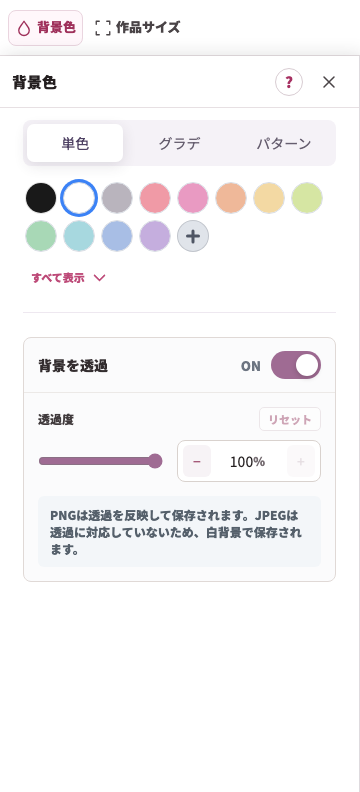
拡大:背景色パネル:背景を透過と透過度を確認。PNGは透過を保存でき、JPGは白背景になります。 -
透過を確認する
透明背景を使う場合は背景色の透明設定を確認し、書き出しはPNGを選びます。JPGは透過を保持できません。
背景色パネル:背景を透過と透過度を確認。PNGは透過を保存でき、JPGは白背景になります。
拡大:背景色パネル:背景を透過と透過度を確認。PNGは透過を保存でき、JPGは白背景になります。 -
下部の画像サイズを開く
下部の「1200×600px」などのサイズ表示をクリックします。「内容に合わせる」または「サイズ指定」を選び、用途に合う範囲を決めます。初期寸法を一律500×500へ変える必要はありません。
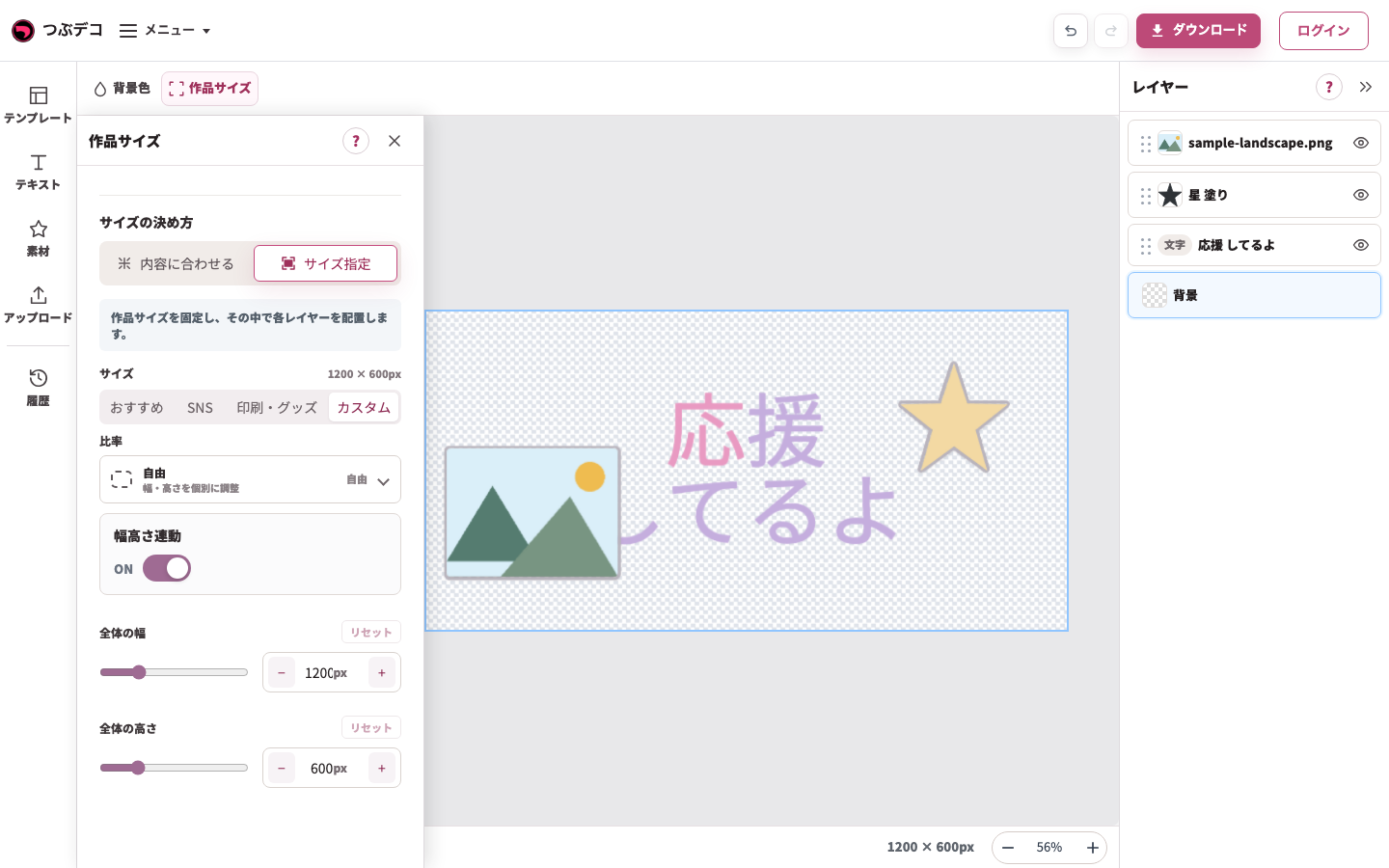
サイズ指定の設定例:初期の1200×600pxを確認。表示倍率とは別の画像自体の寸法です。 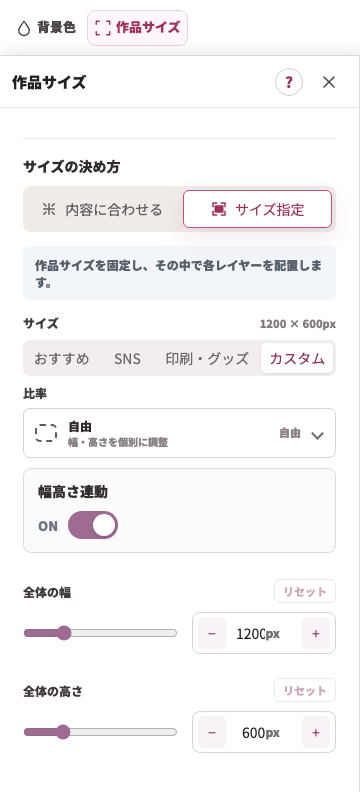
拡大:サイズ指定の設定例:初期の1200×600pxを確認。表示倍率とは別の画像自体の寸法です。 -
必要な余白を加える
内容に合わせる場合は余白を調整します。全部・上・右・下・左を選び、フチや素材が端で切れないようにします。
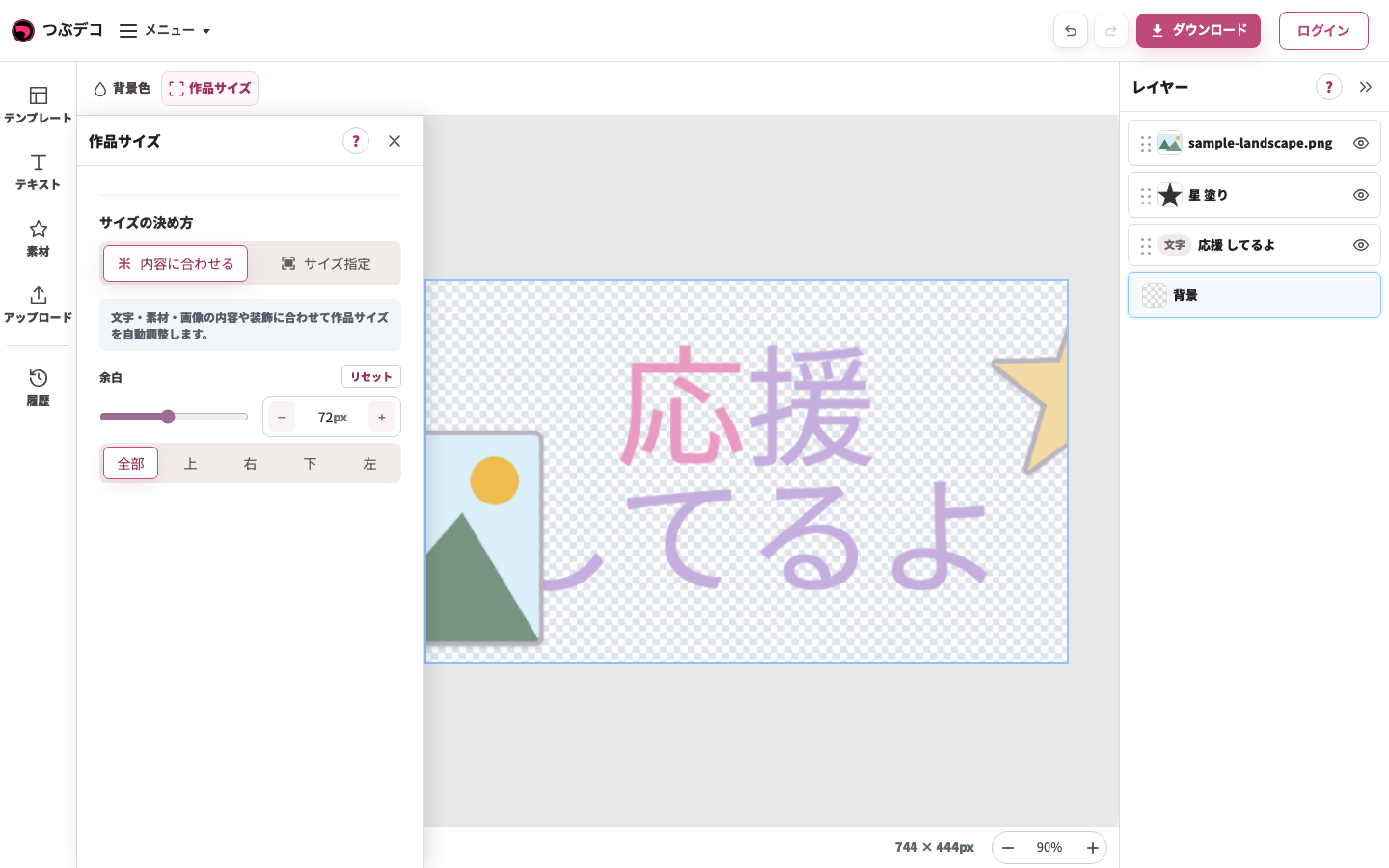
内容に合わせるへ切り替えた設定例。余白を全部・上・右・下・左で調整できます。配置によって端が切れないか確認します。 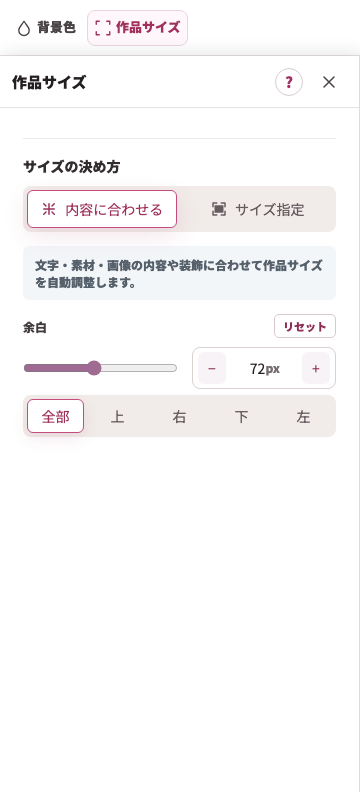
拡大:内容に合わせるへ切り替えた設定例。余白を全部・上・右・下・左で調整できます。配置によって端が切れないか確認します。
設定項目一覧
| Item | Description |
|---|---|
| 背景色 | 単色またはグラデーションで、作品全体の背景色を設定します。 |
| 背景を透過 | 背景の透過をON/OFFします。ONにすると透過度を調整できます。 |
| 全体サイズ | 内容に合わせる、またはサイズ指定を選びます。サイズ指定では、Instagram投稿、YouTubeサムネイル、X投稿、L判、2L判、スクエア、A4、A3、はがき、カード、うちわ向けなどから選べます。 |
| 余白 | 内容に合わせる場合に、全部・上・右・下・左の余白をpx単位で調整します。 |
確認ポイント
- 背景の編集ツールから端末画像を選ぶ操作はありません。
- 画像を作品に置く場合は、画面左の「アップロード」から追加します。
- 背景を透明にしたい場合は、背景を透過をONにして、書き出し時にPNGを選びます。
- 「内容に合わせる」では余白を広げるほど、作品全体の外側が広くなります。
- 印刷やステッカー用に作る場合は、「印刷・グッズ」からL判、2L判、スクエアなどを選ぶと、写真プリントやグッズ用の比率を使いやすくなります。
困ったとき
透明にしたはずの背景が白く見える場合は、JPEGで書き出していないか確認してください。画像を背景のように敷きたい場合は「画像を追加」で画像レイヤーを置き、レイヤー一覧で背面へ移動します。