
This language version is being prepared. The Japanese version is shown for now.
選択と直接編集
PCでテキストを選び、その場で内容を書き換える基本を説明します。選択は対象を決めること、直接編集はその文字を入力することです。
PC画面での操作
このページの操作画像はPC版です。中央で対象を選ぶと上部ツールが切り替わり、詳しい設定は左に開きます。右のレイヤー一覧は対象の選択と重なり順、下部は保存状態・作品サイズ・表示倍率を確認する場所です。項目が見えない場合は上部の「…」を確認します。
このページでできること
要素の選択、テキストの入力モード、選択解除、Tabキーによる要素の切り替えを確認できます。
選択状態と上部ツールバー
| Item | Description |
|---|---|
| 未選択 | 対象を変えるツールは出ません。左のテキスト・素材・アップロードは新しい要素を追加する入口です。 |
| テキスト選択 | 内容の編集、フォント、文字サイズ、色、書式、揃え、縦書き、文字間隔、装飾、配置の順に使います。詳しい項目はテキストのツールバーから調べます。 |
| 素材選択 | 素材によって差し替え・色・線・角丸・サイズ・装飾・配置が表示されます。線や角丸がない種類もあります。 |
| アップロード画像選択 | 画像の変更・トリミング・形・角丸・サイズ・装飾・配置を使います。画像を増やす左のアップロードとは別の操作です。 |
| 背景選択 | 右の背景を選ぶと、上部が背景色と作品サイズに切り替わります。 |
| 文字ごと選択・複数選択 | 選択した範囲や組み合わせに対応する項目だけが表示されます。文字ごと装飾は丸いAから対象の文字を選びます。 |
操作手順
-
テキストを1回クリックして選ぶ
中央のテキストを1回クリックします。変更する対象を決める操作です。文字に選択枠が付き、そのテキスト用のツールバーが作品の上に現れます。選択だけでは文字の内容は変わりません。
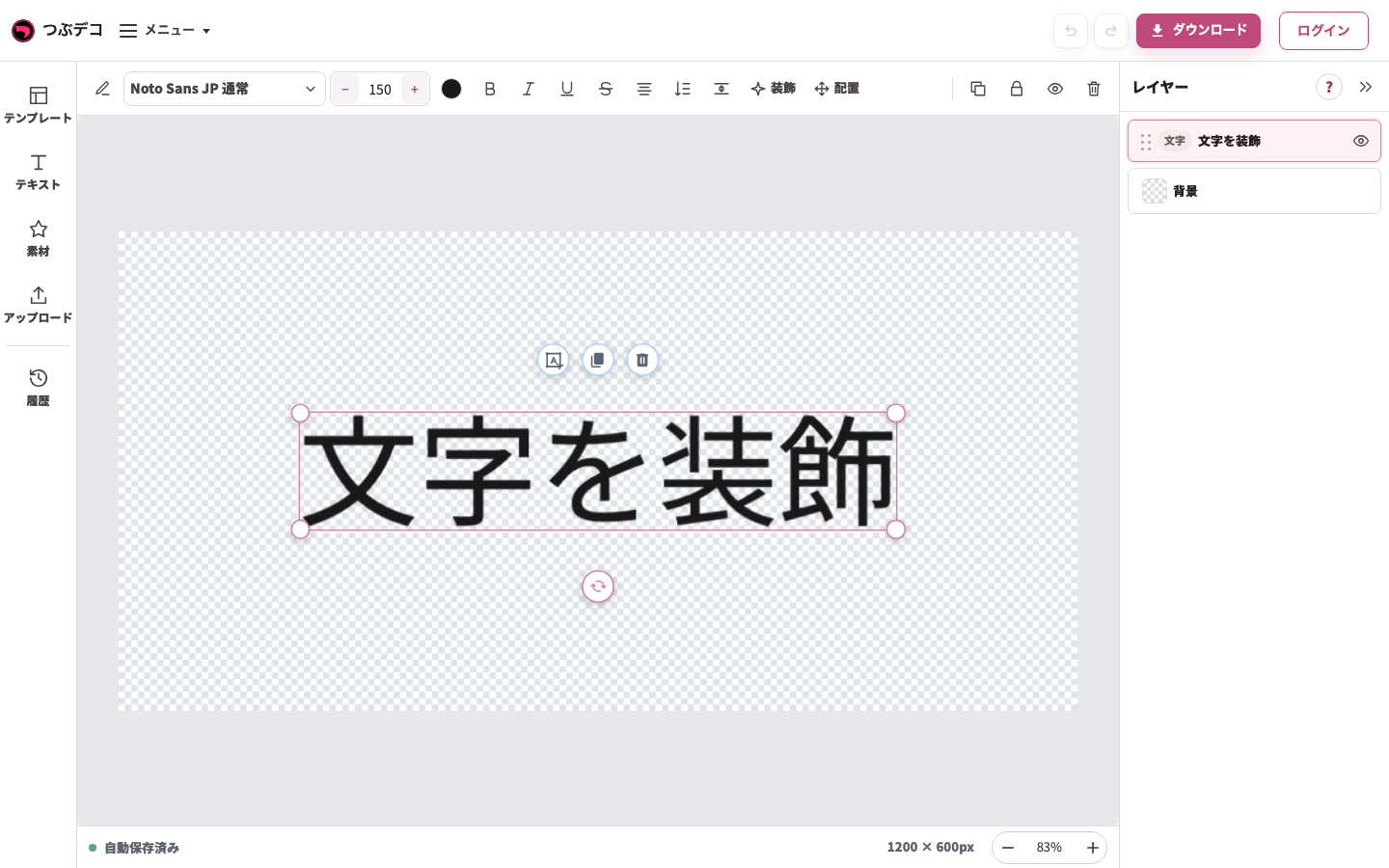
操作後:初期テキストを1回クリックして選択。中央の枠と上部の文字用ツールが現れています。 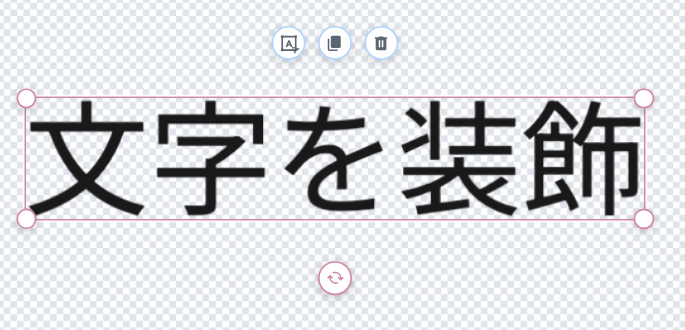
拡大:操作後:初期テキストを1回クリックして選択。中央の枠と上部の文字用ツールが現れています。 -
同じテキストをクリックして直接編集する
選択済みの同じテキストをもう1回クリックします。文字の位置に入力カーソルが出ます。無選択からダブルクリックしても直接編集に入れます。
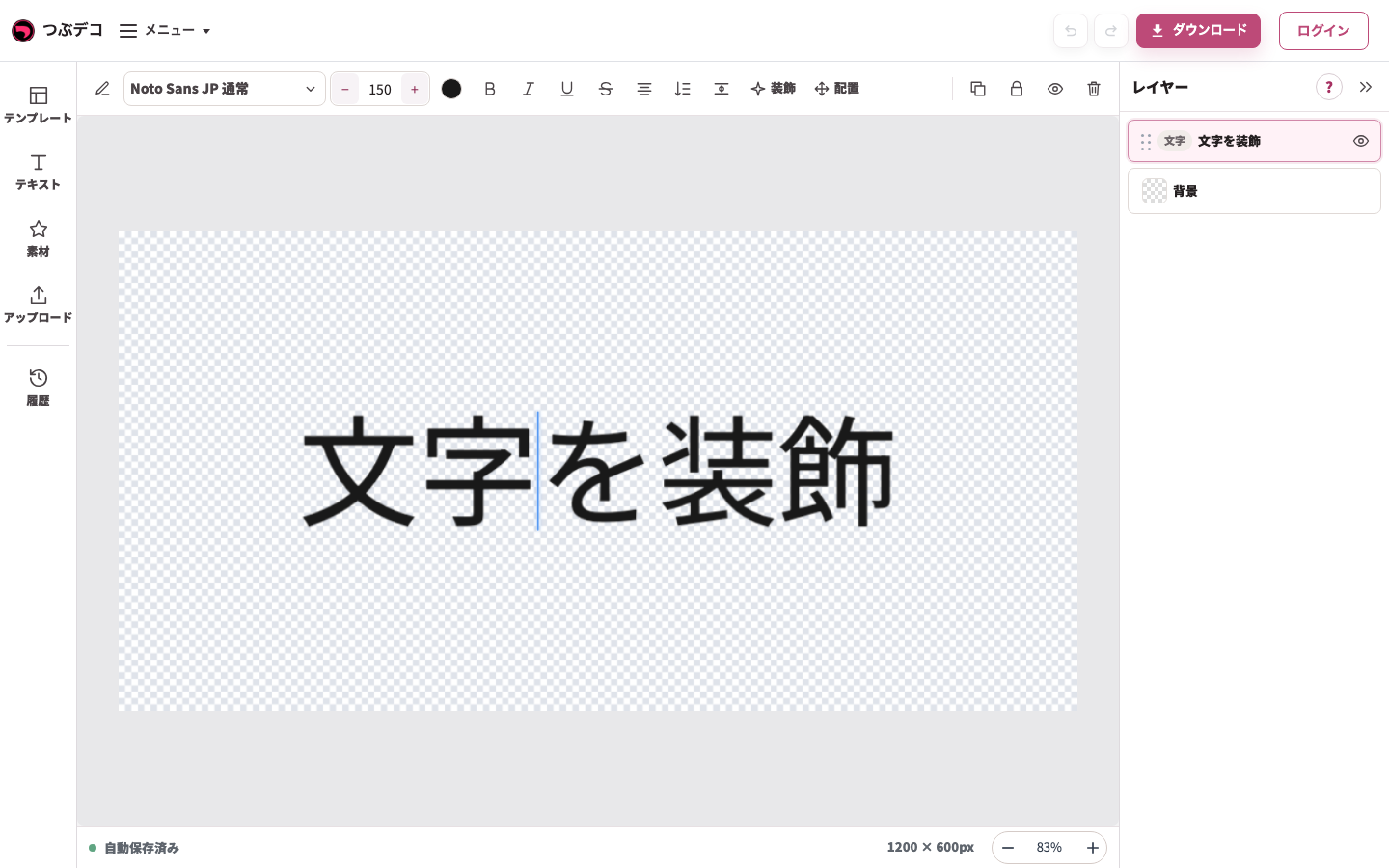
操作後:同じテキストをもう1回クリックすると、文字の位置に入力カーソルが現れます。 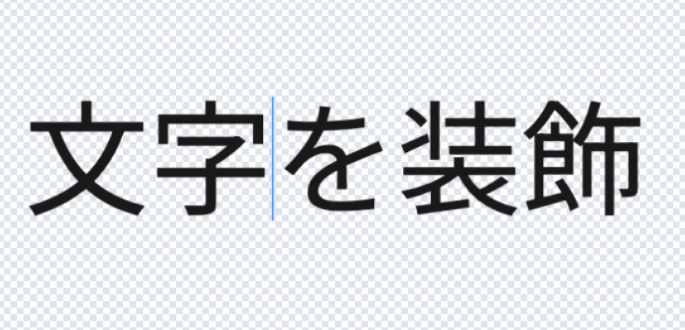
拡大:操作後:同じテキストをもう1回クリックすると、文字の位置に入力カーソルが現れます。 -
文字を書き換え、必要なら改行する
入力中にCtrl+A(MacはCommand+A)でこの文字の全文を選び、作りたい文字を入力します。Enterは改行です。例では「応援」のあとにEnterを押し、「してるよ」を続けます。
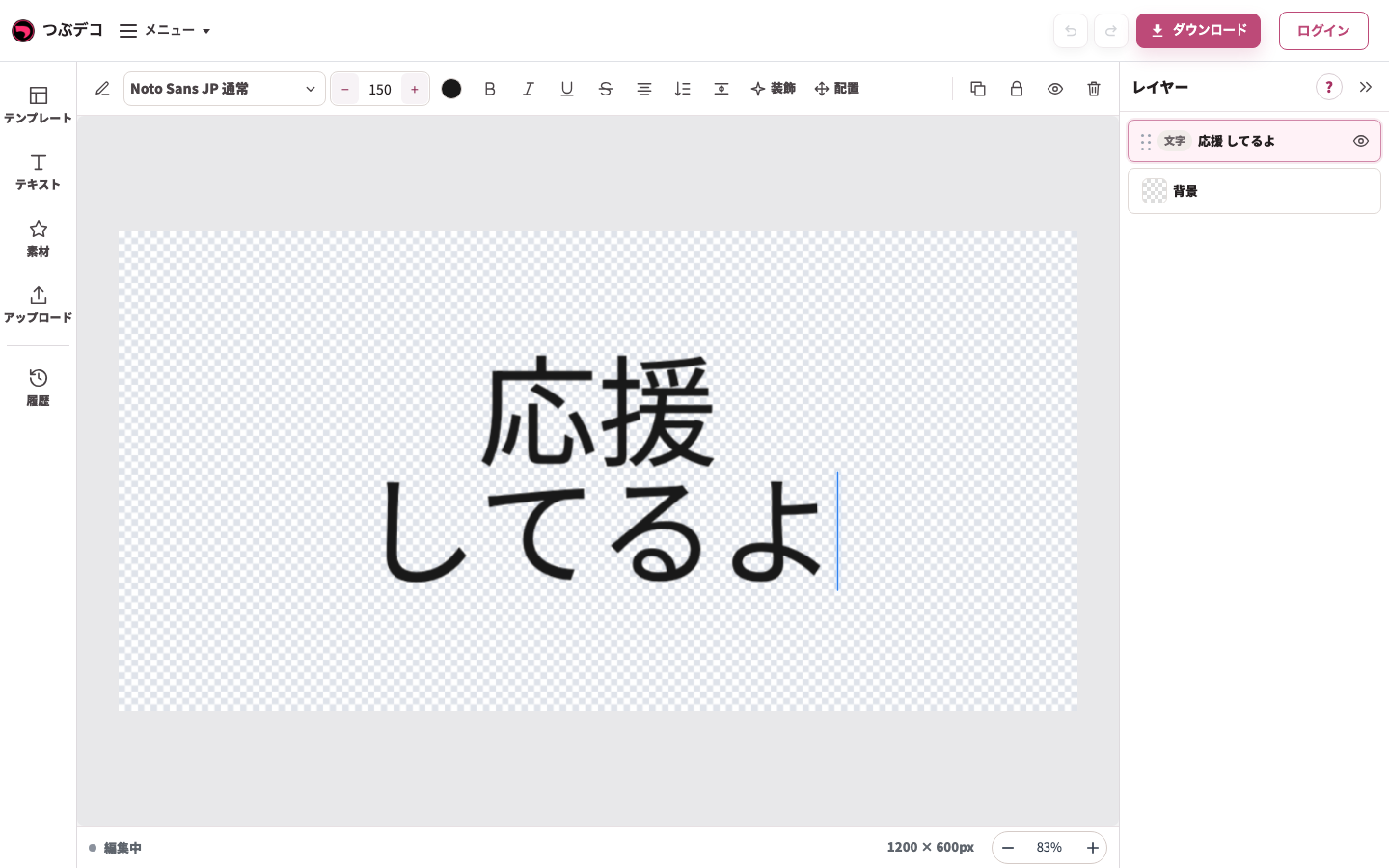
入力中:「応援」のあとにEnterで改行し、「してるよ」を入力。同じテキストの内容を変更しています。 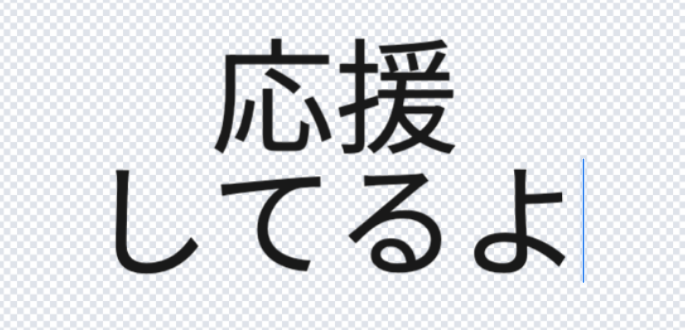
拡大:入力中:「応援」のあとにEnterで改行し、「してるよ」を入力。同じテキストの内容を変更しています。 -
灰色の余白で入力を終える
作品の外側にある灰色の余白をクリックします。変更した文字は残り、入力カーソルと選択枠が消えます。次の設定を変えるときは対象をもう一度選びます。
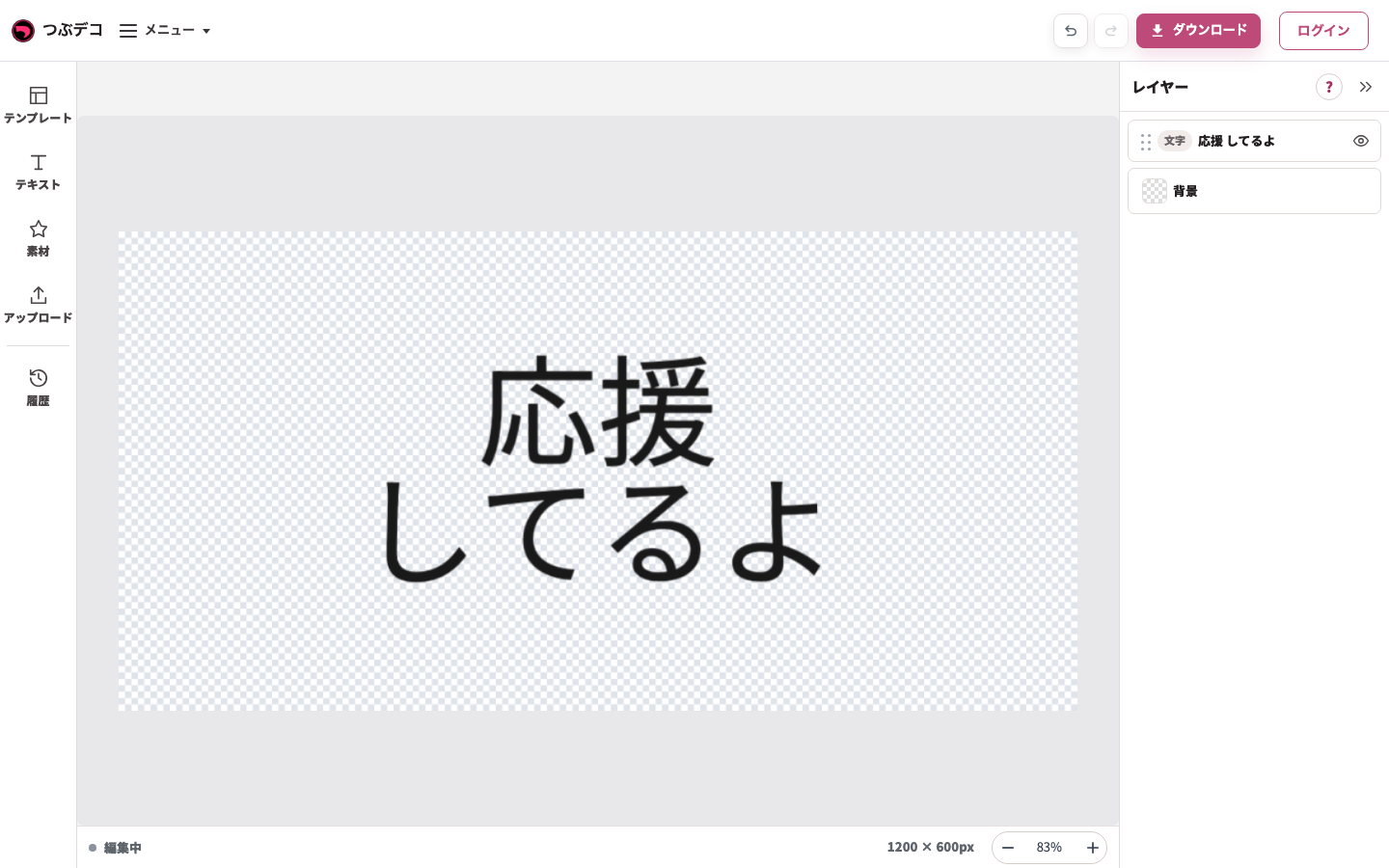
操作後:外側の灰色クリックで入力と選択が終了。変更した2行の文字は作品に残ります。 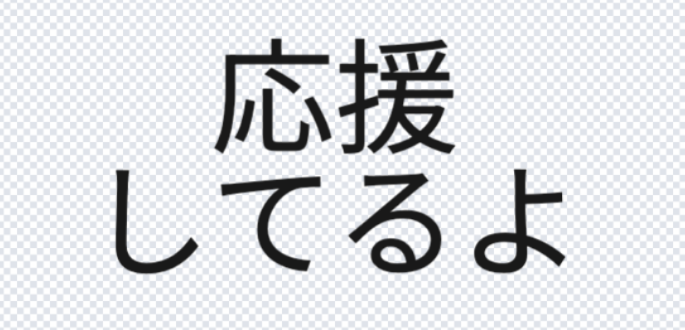
拡大:操作後:外側の灰色クリックで入力と選択が終了。変更した2行の文字は作品に残ります。 -
重なった要素を一覧から選ぶ
右端の「レイヤー」を開き、対象の名前をクリックします。隠れた要素や重なった要素も、名前を確認して選べます。
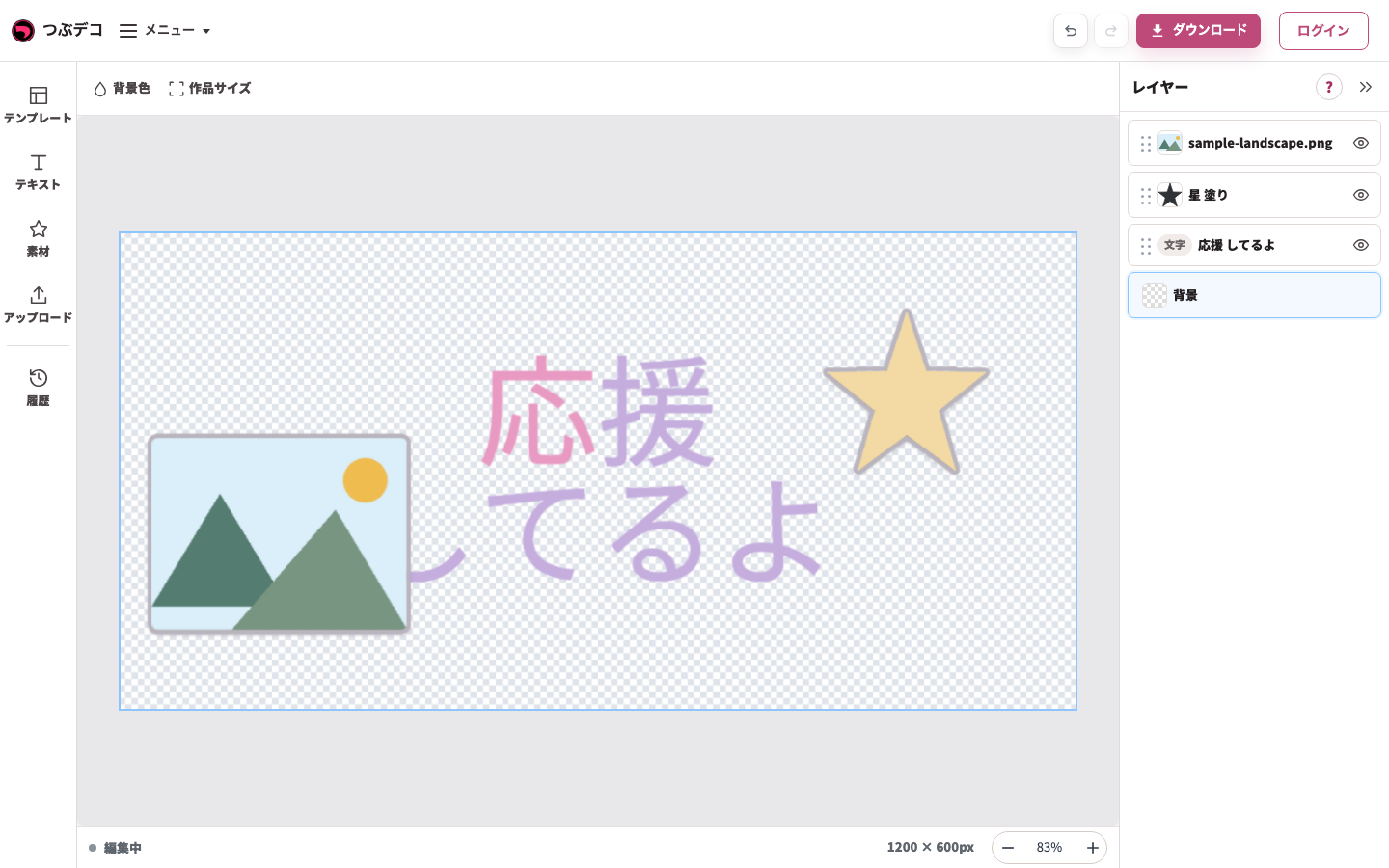
右の背景を選択した状態。上部は背景色・作品サイズへ切り替わります。 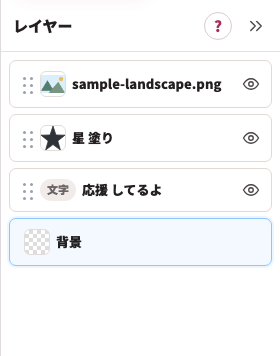
拡大:右の背景を選択した状態。上部は背景色・作品サイズへ切り替わります。 -
キーボードで選択や移動を補助する
作品上の要素を選択した状態でTabは次の要素、Shift+Tabは前の要素へ移ります。矢印キーで少しずつ移動できます。文字入力中は入力欄の操作が優先されます。
操作後:初期テキストを1回クリックして選択。中央の枠と上部の文字用ツールが現れています。
拡大:操作後:初期テキストを1回クリックして選択。中央の枠と上部の文字用ツールが現れています。
キーボード操作
| Item | Description |
|---|---|
| Enter | 直接編集中は改行します。入力を終えるときは作品外の灰色をクリックします。 |
| Escape | テキストの入力状態を終えて選択に戻る、または要素の選択や開いているパネルを解除・終了します。 |
| Tab | 作品上で要素を選択中に、次の要素を選びます。 |
| Shift+Tab | 作品上で要素を選択中に、前の要素を選びます。 |
| 矢印キー | 選択中の要素を少しずつ移動します。Shiftキーを押しながら使うと移動幅が大きくなります。 |
| Delete / Backspace | 選択中の要素を削除します。入力欄にカーソルがあるときは文字の削除が優先されます。 |
| Ctrl / Command+D | 選択中の要素を複製します。 |
| Ctrl / Command+C / X / V | 選択中の要素をコピー、切り取り、貼り付けします。 |
確認ポイント
- 選択した種類に合わせて編集ツールの項目が変わります。テキスト・素材・アップロード画像で表示内容は同じではありません。
- ロック中の要素は作品上で動かせません。レイヤー一覧から選び、編集ツールのロックを解除してください。
- キーボード操作の対象になるのは作品上で選択中の要素です。入力欄にカーソルがある場合は入力欄の操作が優先されます。
困ったとき
編集ツールが見つからないときは、作品上の要素を選び直してください。重なった要素やロック中の要素は、レイヤー一覧から選ぶと操作できます。
関連ページ
レイヤーの並び順、ロック、表示・非表示については「レイヤー」を確認してください。