
This language version is being prepared. The Japanese version is shown for now.
素材:色・線・角丸・サイズ
素材の色・線・角丸・サイズでは、素材の色、線、角丸、サイズを調整できます。まず色を決め、必要に応じて幅と高さを整えます。
PC画面での操作
このページの操作画像はPC版です。中央で対象を選ぶと上部ツールが切り替わり、詳しい設定は左に開きます。右のレイヤー一覧は対象の選択と重なり順、下部は保存状態・作品サイズ・表示倍率を確認する場所です。項目が見えない場合は上部の「…」を確認します。
このページでできること
素材の塗り、線、角丸、幅高さ連動、幅、高さを調整できます。素材によっては、素材内の色を個別に変えられる場合があります。
操作手順
-
素材を選ぶ
作品上の素材または右の一覧の素材名をクリックします。例では「星 塗り」を使い、上部に素材用ツールを表示します。
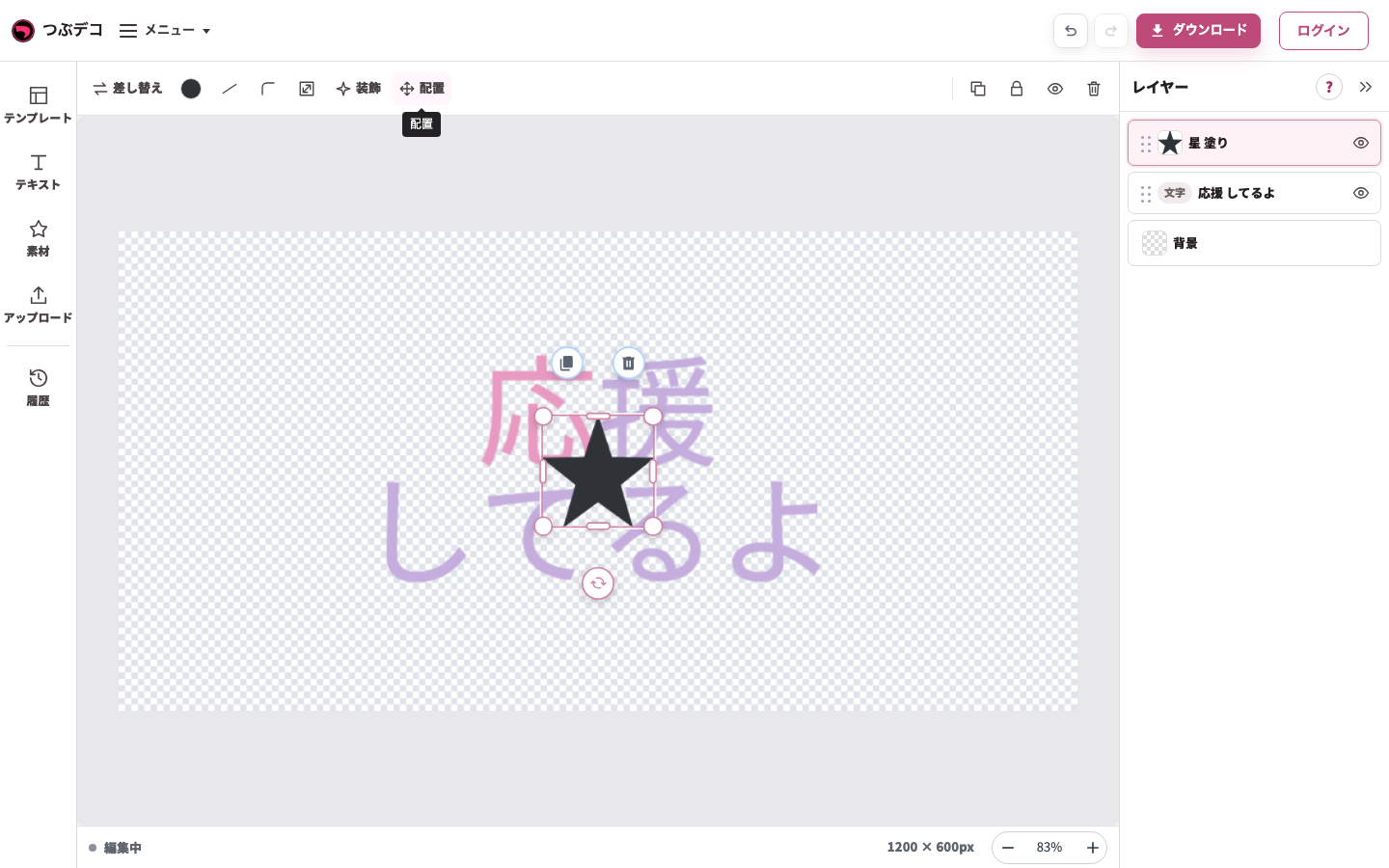
星の選択状態:上部に色・線・角丸・サイズ・装飾・配置が出ます。表示項目は素材により異なります。 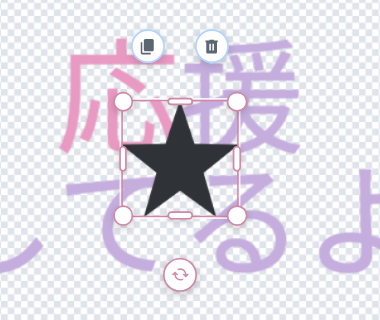
拡大:星の選択状態:上部に色・線・角丸・サイズ・装飾・配置が出ます。表示項目は素材により異なります。 -
色を選ぶ
上部の「色」をクリックし、左パネルで塗りの単色・グラデ・パターン・なしを選びます。例ではクリーム色にして、文字との区別をつけます。
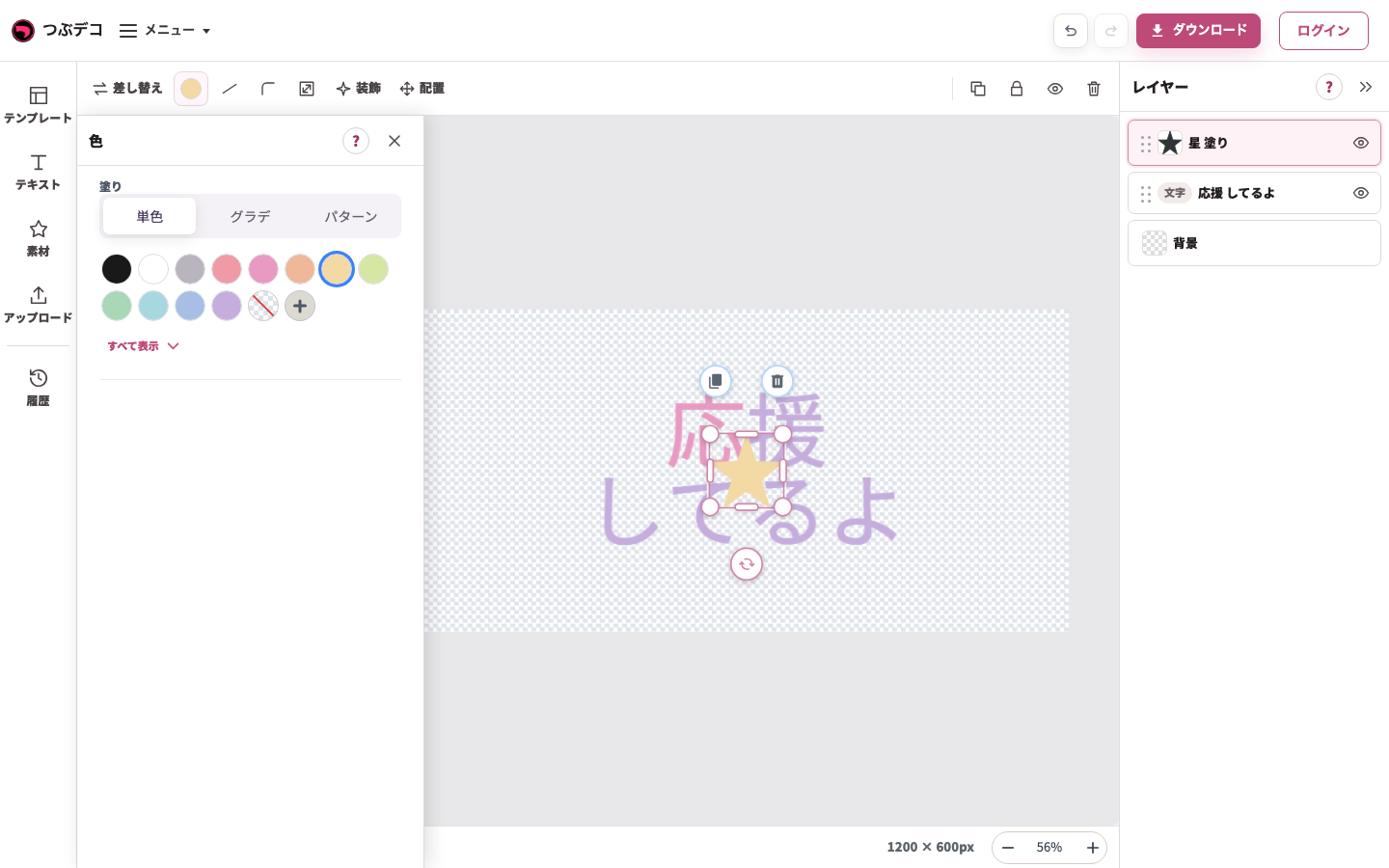
上部の素材色を開き、クリームを指定した状態。文字ではなく星が色変更の対象です。 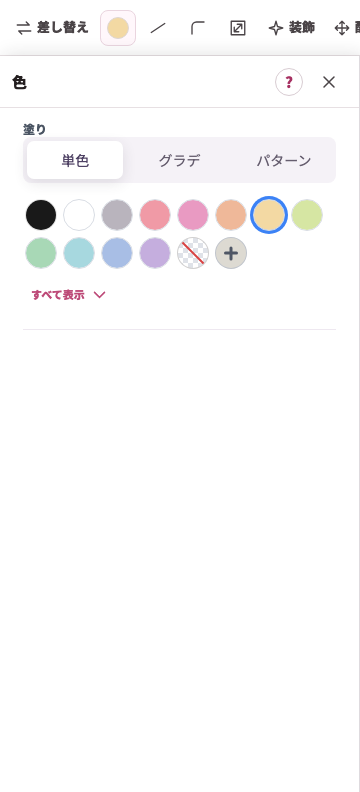
拡大:上部の素材色を開き、クリームを指定した状態。文字ではなく星が色変更の対象です。 -
線や角丸を調整する
対応した素材では上部の「線」「角丸」を使います。線の色・種類・太さを見ながら調整します。項目は素材の種類によって変わります。
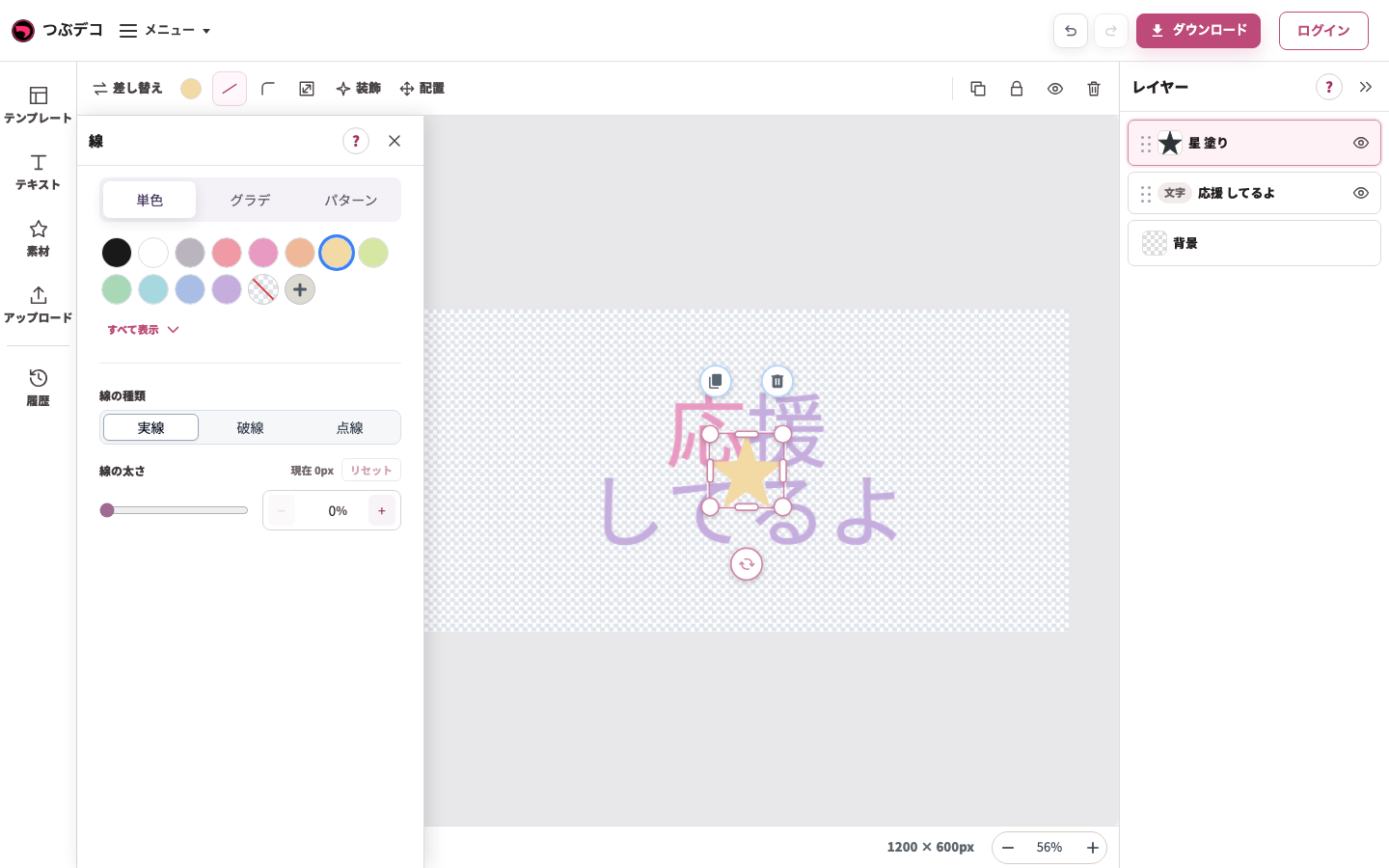
素材の線パネル。線の種類・色・太さを素材の輪郭と見比べて調整します。 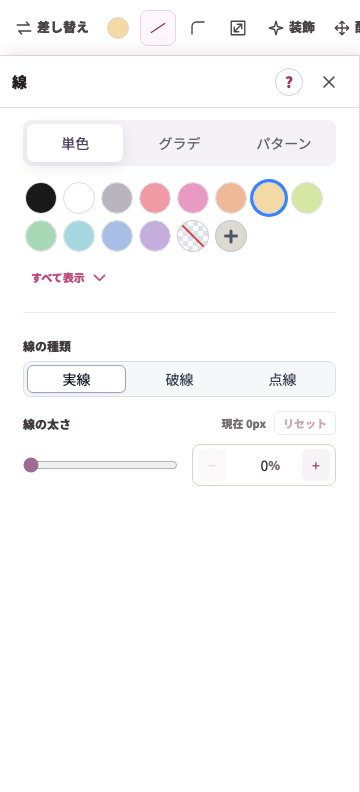
拡大:素材の線パネル。線の種類・色・太さを素材の輪郭と見比べて調整します。 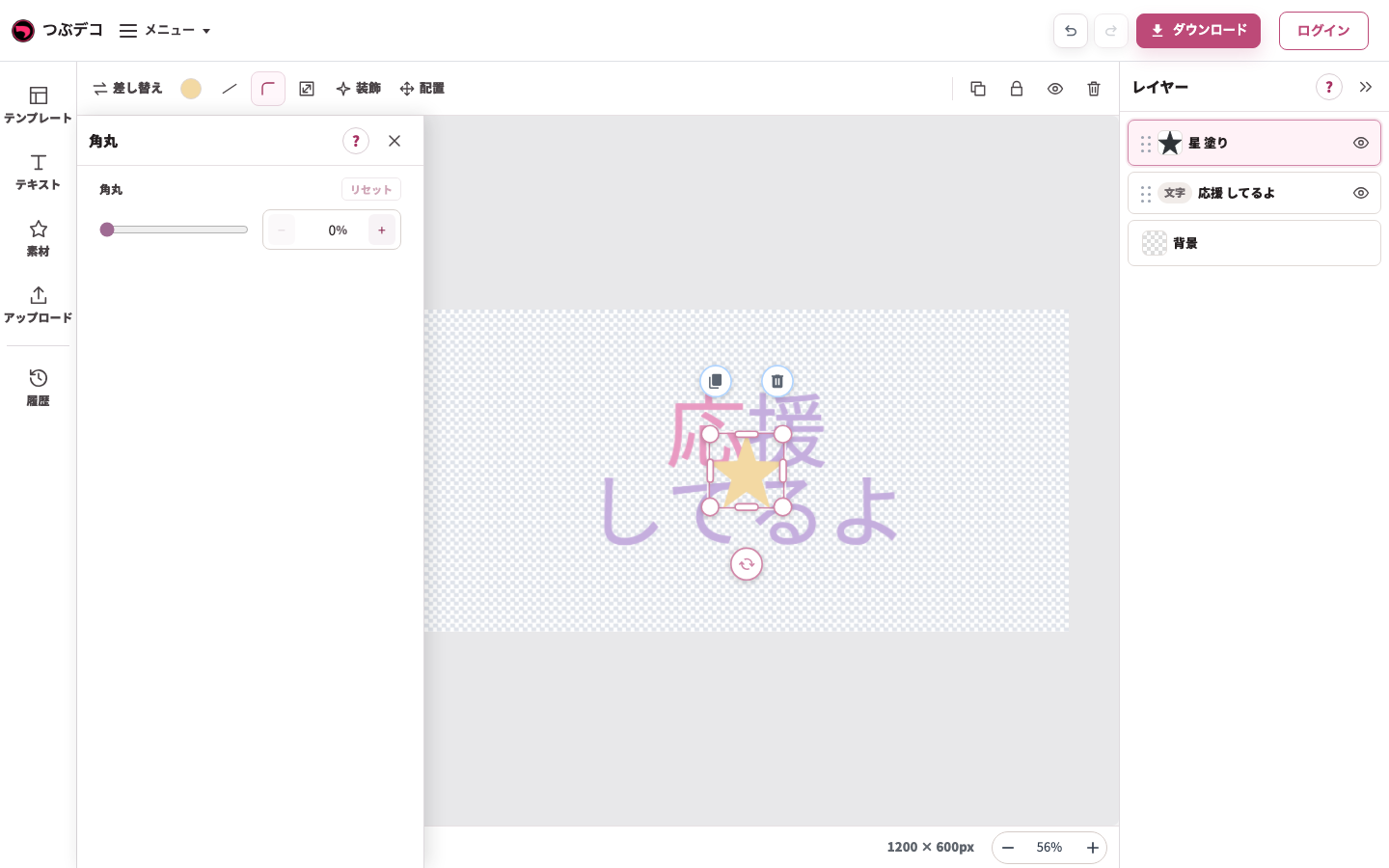
素材の角丸パネル。対応する図形の角の丸みを変えられます。 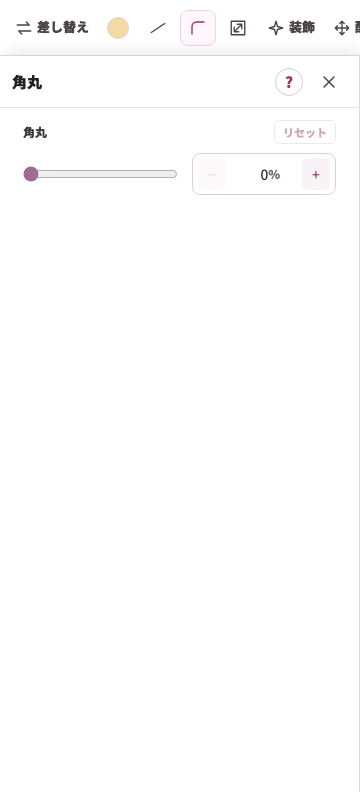
拡大:素材の角丸パネル。対応する図形の角の丸みを変えられます。 -
幅高さ連動とサイズを決める
上部の「サイズ」を開きます。「幅高さ連動」をONにすると比率を保ち、OFFにすると幅と高さを別々に変えられます。例では200px×200pxにしています。
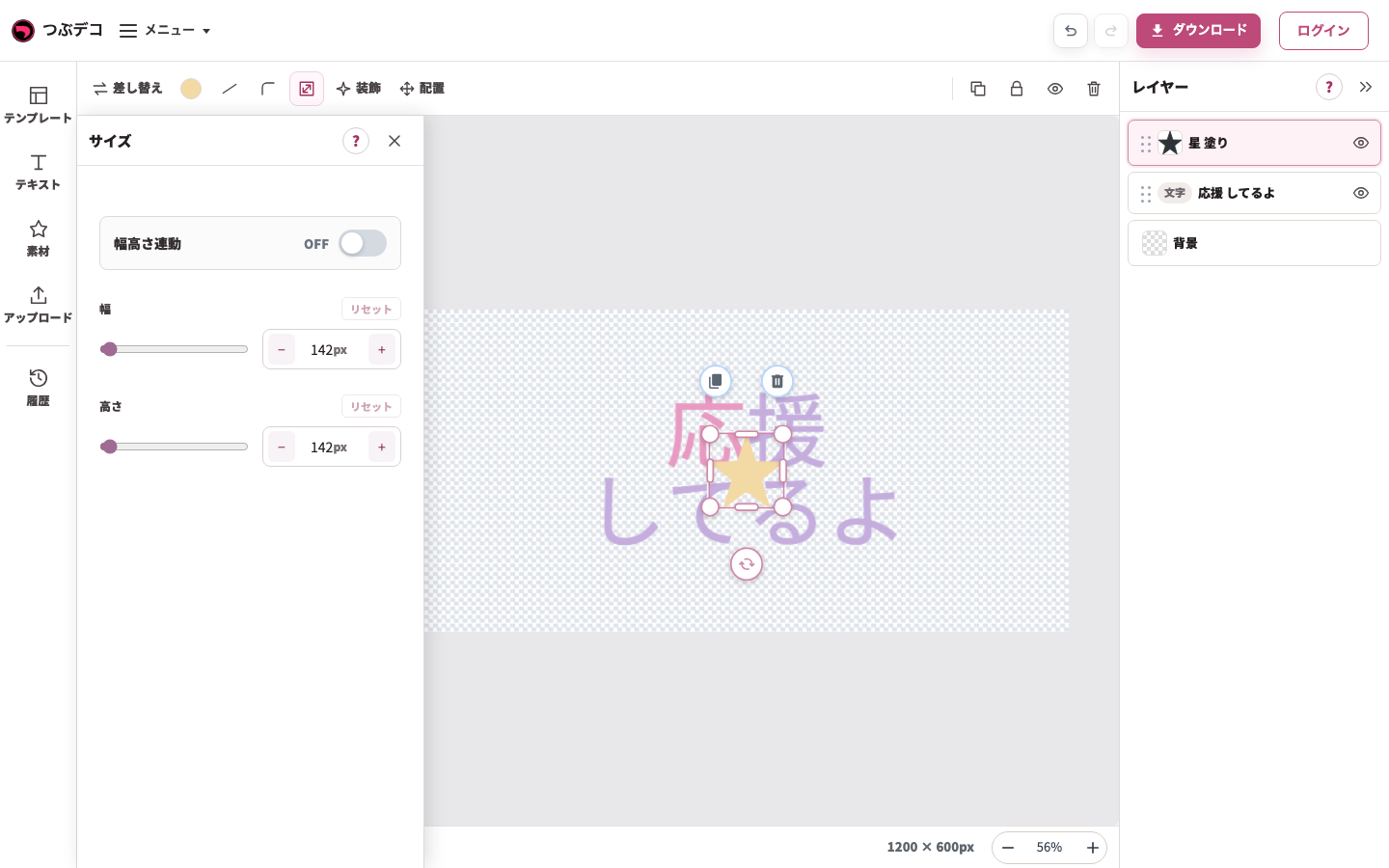
素材のサイズパネル。幅高さ連動と幅・高さの入力欄を使います。 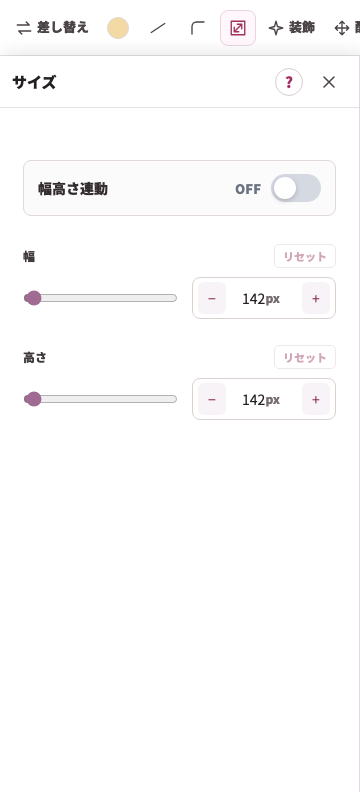
拡大:素材のサイズパネル。幅高さ連動と幅・高さの入力欄を使います。 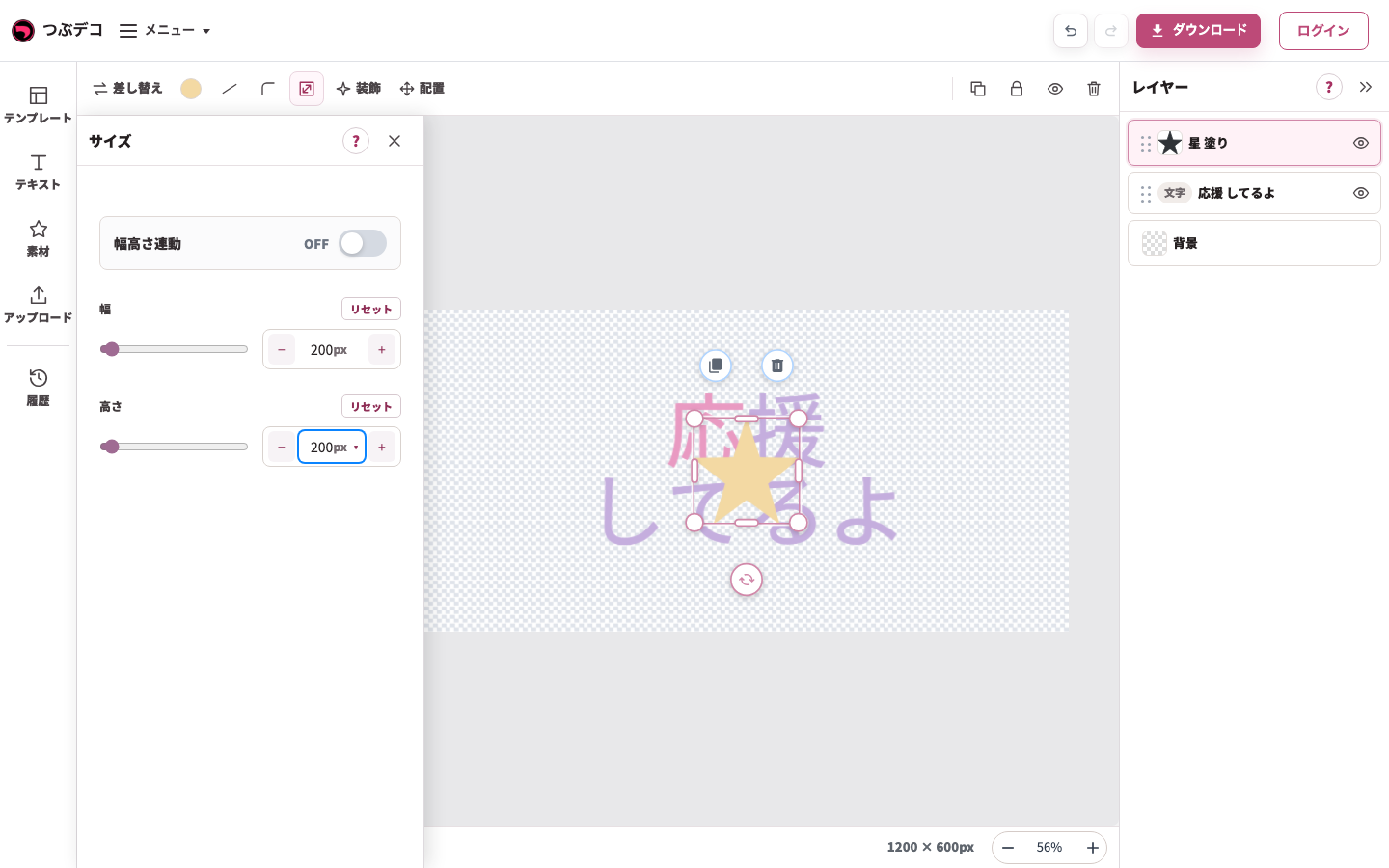
寸法変更後:幅・高さを200pxへ変更した星の選択状態。 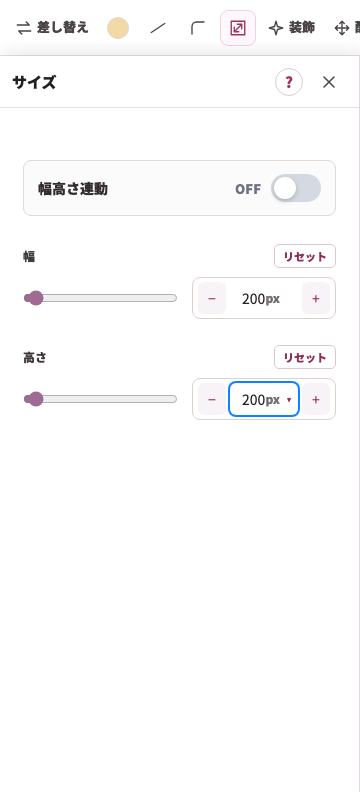
拡大:寸法変更後:幅・高さを200pxへ変更した星の選択状態。 -
複数色の素材を整える
複数色の設定例では、同じ作品に「アシスタント」を追加して色を開いています。「全体カラー」「色1」「色2」などの行を開き、中央の対応部分を確認して変えます。単色の星にはこの欄はありません。
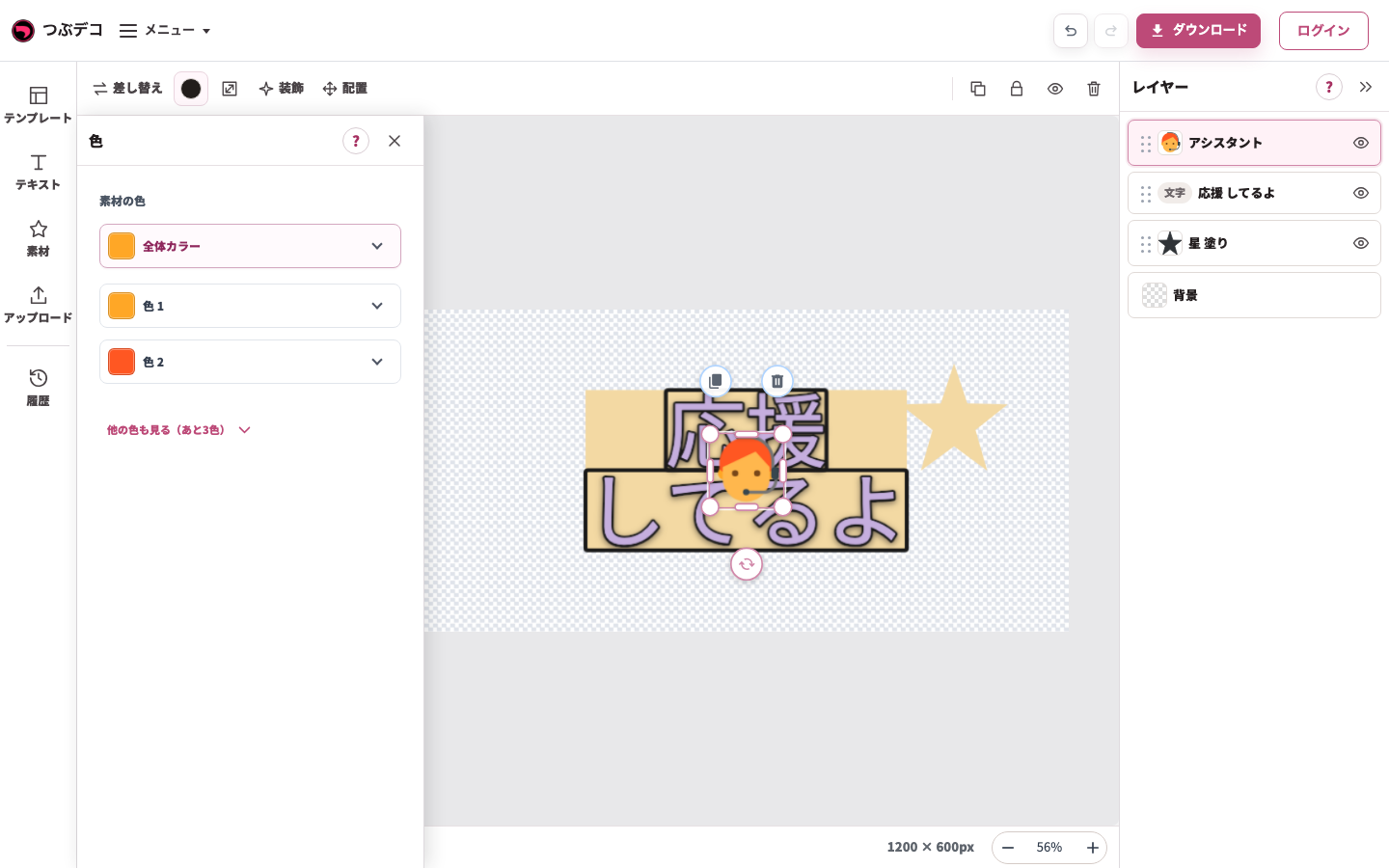
複数色の素材の設定例:アシスタントを追加し、色を開いた状態。全体カラー・色1・色2から対応部分を変えます。 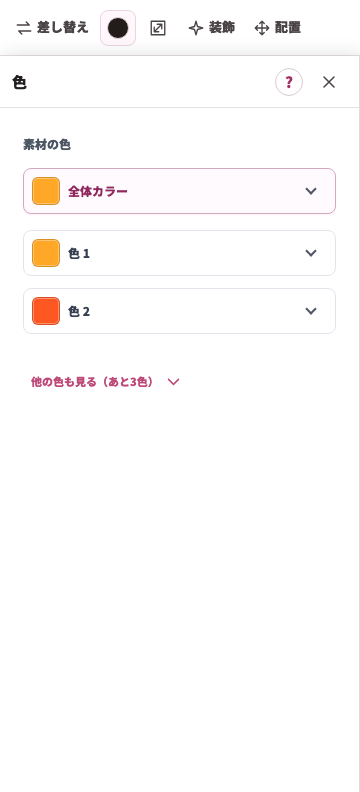
拡大:複数色の素材の設定例:アシスタントを追加し、色を開いた状態。全体カラー・色1・色2から対応部分を変えます。
設定項目一覧
| Item | Description |
|---|---|
| 塗り | 単色、グラデーション、なしから素材の色を設定します。 |
| 素材の色 | 「全体カラー」でまとまった色味を変えたり、「色 1」「色 2」などで素材内の色ごとに単色またはグラデーションを選んだりできます。変更後は「リセット」で元の色へ戻せます。 |
| 線 | 素材の線の色を設定します。 |
| 線の種類 | 実線・破線・点線から選びます。 |
| 線の太さ | 線の太さを0〜50%の範囲で調整します。0%にすると線は表示されません。 |
| 角丸 | 素材の角の丸さを0〜100%の範囲で調整します。 |
| 幅高さ連動 | 初期状態はOFFです。OFFでは幅と高さを別々に変更できます。ONにすると元の縦横比を保ってサイズ変更します。 |
| 幅 | 素材の横幅を調整します。 |
| 高さ | 素材の高さを調整します。 |
| 差し替え | 別の素材に差し替えます。 |
確認ポイント
- 「幅高さ連動」をONにすると、素材の形を崩さずに大きさを変えられます。
- 素材によっては塗りや線の変化が分かりにくい場合があります。
- 角丸の形が固定されている素材では、角丸の調整は表示されません。
- 「なし」を選ぶと、その色は透明になります。線を消したいときは線の太さを0%にします。
- 「素材の色」は、色を変更できる素材を選んだときだけ表示されます。
- 「全体カラー」が表示される素材では、関連する色をまとめて自然に変更できます。
- キャンバス上の回転ハンドルでも向きを調整できます。
困ったとき
素材が横長や縦長に崩れた場合は、「幅高さ連動」をONにしてからサイズを調整し直してください。