
This language version is being prepared. The Japanese version is shown for now.
テキスト:文字ごと装飾
文字ごと装飾を使うと、入力した文字の中から複数の文字・行・列を選び、その部分だけ色やサイズなどを変えられます。
PC画面での操作
このページの操作画像はPC版です。中央で対象を選ぶと上部ツールが切り替わり、詳しい設定は左に開きます。右のレイヤー一覧は対象の選択と重なり順、下部は保存状態・作品サイズ・表示倍率を確認する場所です。項目が見えない場合は上部の「…」を確認します。
このページでできること
入力した文字を文字・行・列から選択し、選択した部分だけに以降の設定を反映する流れを確認できます。
操作手順
-
文字全体を入力する
まず同じテキストを直接編集し、使いたい内容を入力します。Enterで行を分け、外側の灰色をクリックして終了します。例は2行の「応援/してるよ」です。
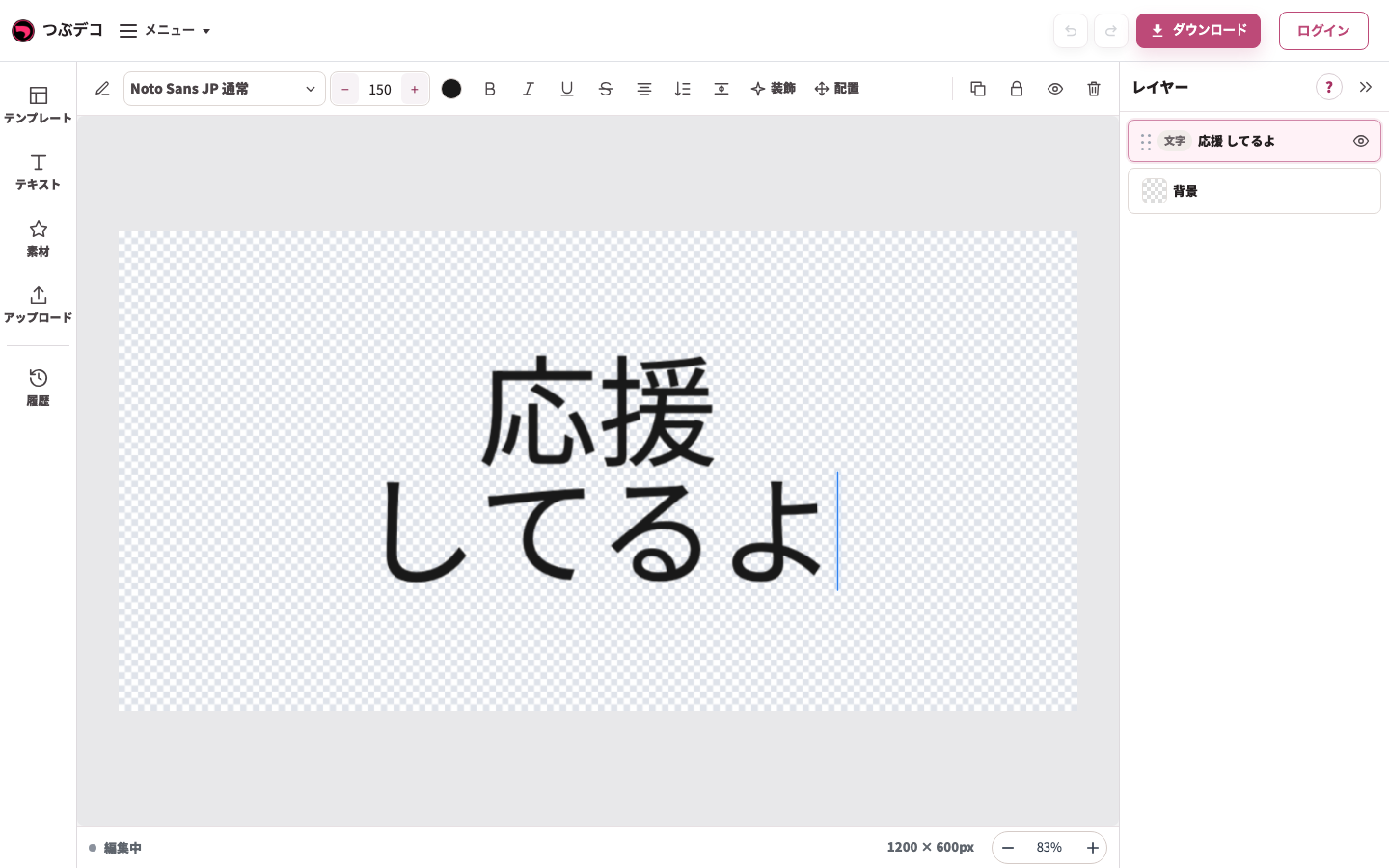
入力中:「応援」のあとにEnterで改行し、「してるよ」を入力。同じテキストの内容を変更しています。 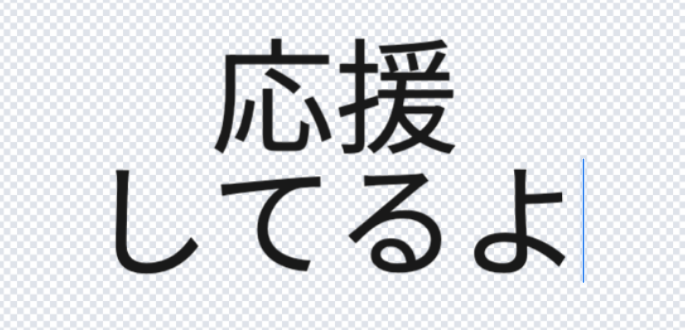
拡大:入力中:「応援」のあとにEnterで改行し、「してるよ」を入力。同じテキストの内容を変更しています。 -
個別文字の選択を開く
テキストを選び、選択枠の近くの丸いAボタンを押します。左に「文字ごと装飾」と、1文字ずつのボタンが表示されます。
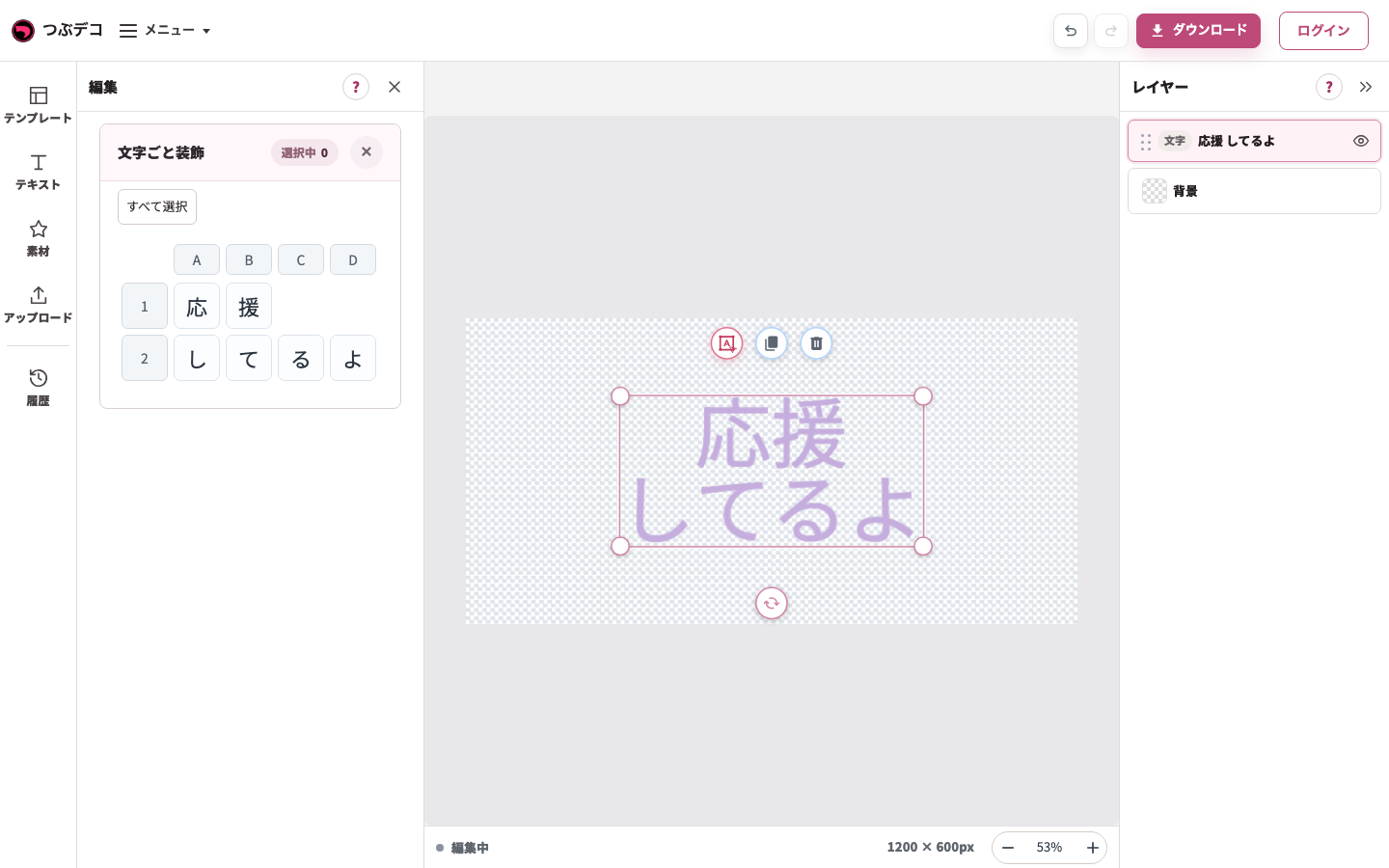
選択枠近くのAから開く文字ごと装飾。選択中0のときは、先に文字・行・列を選びます。 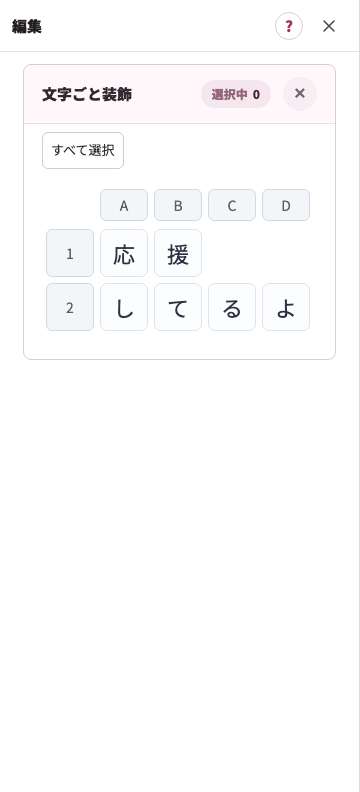
拡大:選択枠近くのAから開く文字ごと装飾。選択中0のときは、先に文字・行・列を選びます。 -
変更する文字・行・列を選ぶ
左の文字ボタンで対象を選びます。行番号や列記号、すべて選択でも範囲を選べます。選択中の数を確認し、意図した文字だけが対象になっているか見ます。
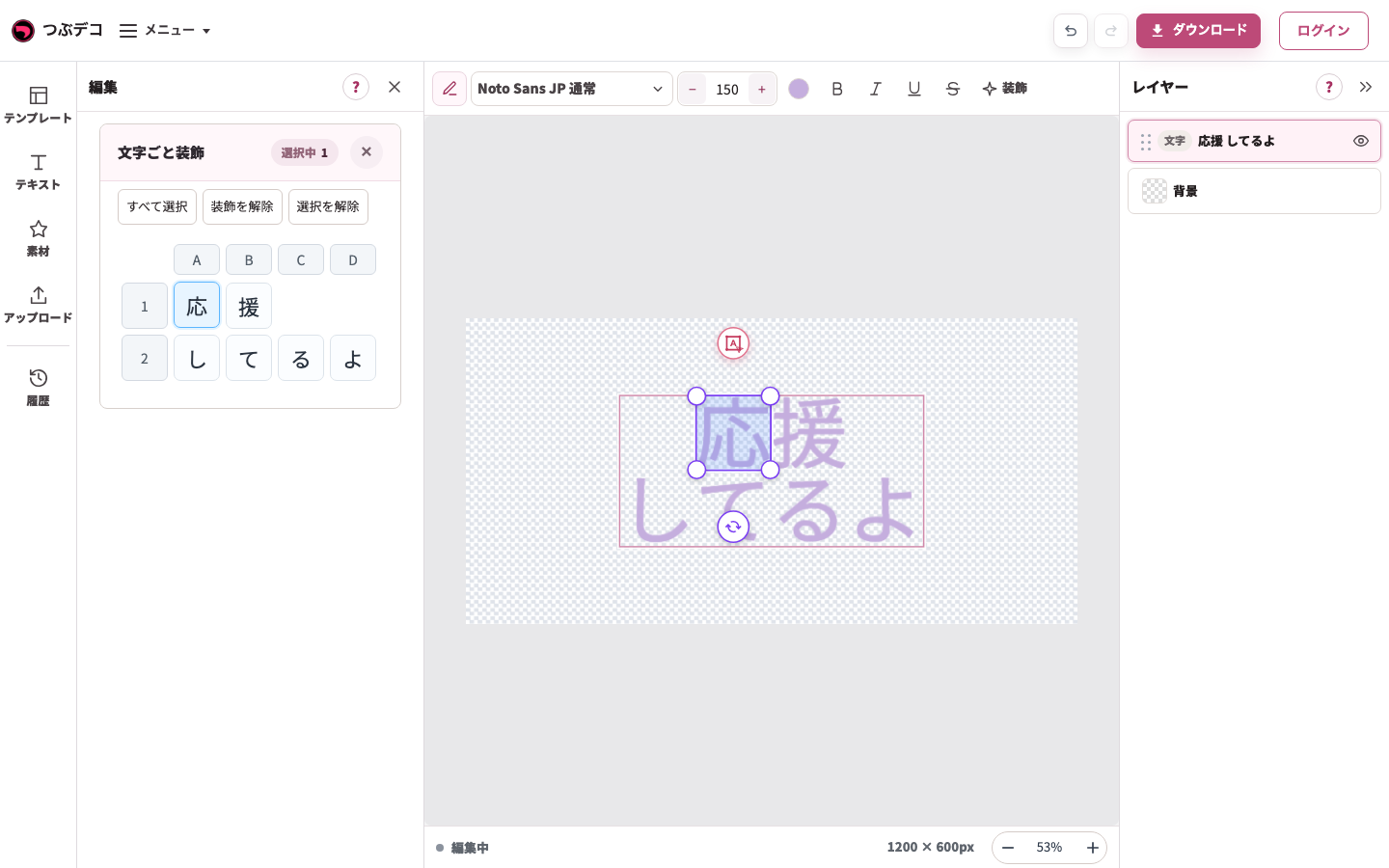
部分選択後:左の文字ボタンで「応」を選択。文字全体の選択とは対象が異なります。 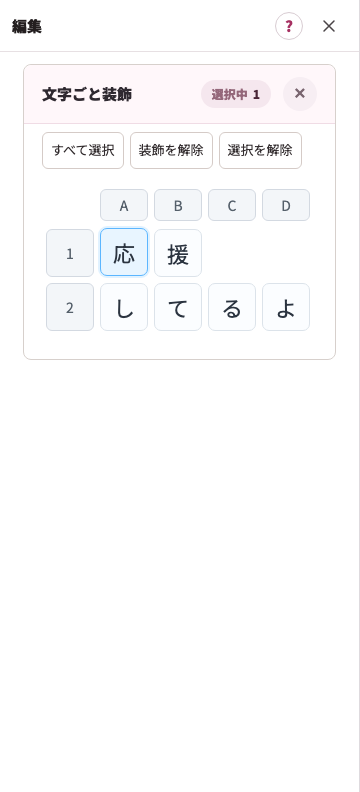
拡大:部分選択後:左の文字ボタンで「応」を選択。文字全体の選択とは対象が異なります。 -
選んだ部分だけ色やサイズを変える
上部ツールで色・文字サイズなどを変更します。例では「応」を選び、やさしいピンクへ変更しています。他の文字が変わっていないことを中央で確認します。
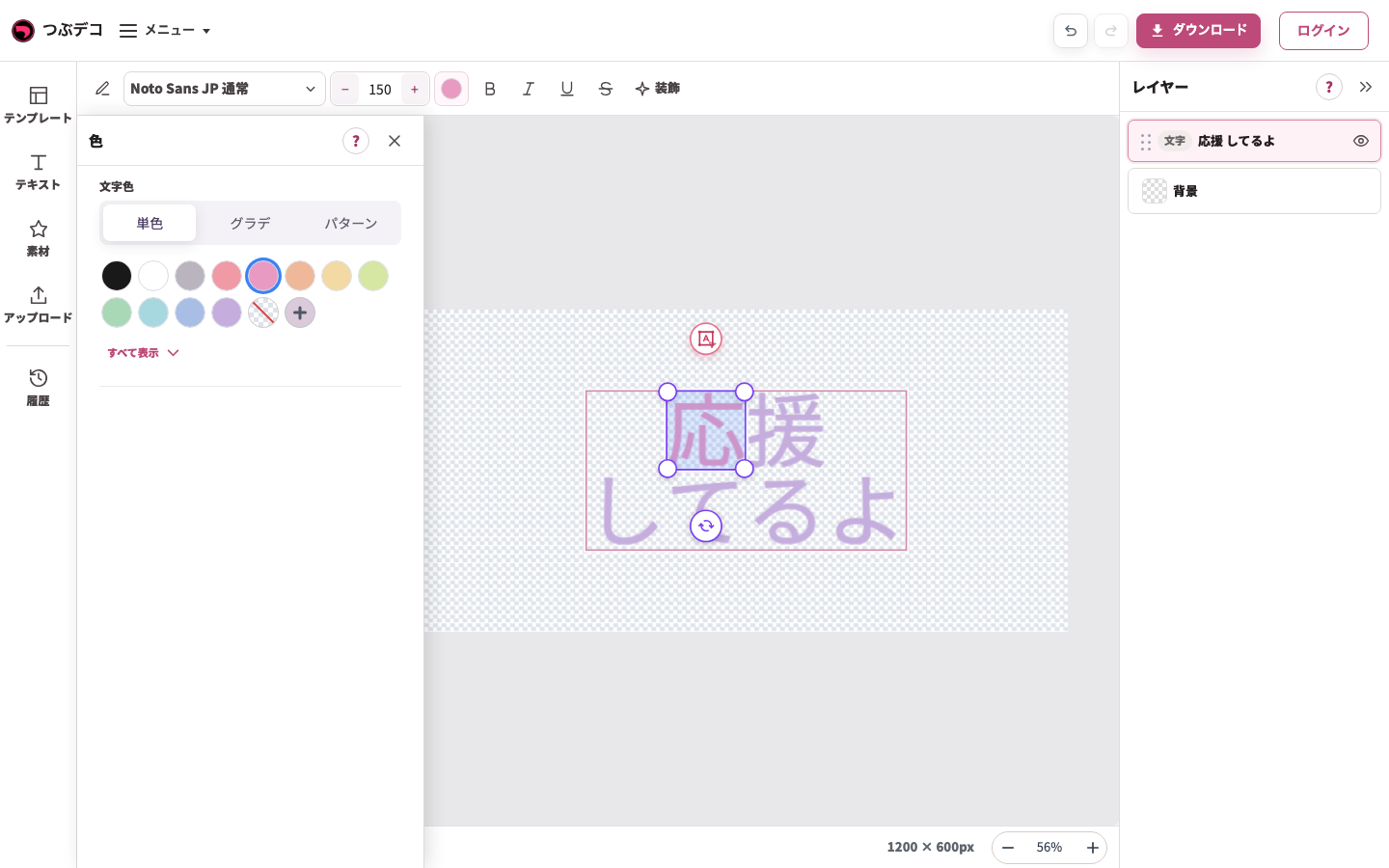
部分変更後:「応」だけがピンクになり、他の文字は紫のままです。 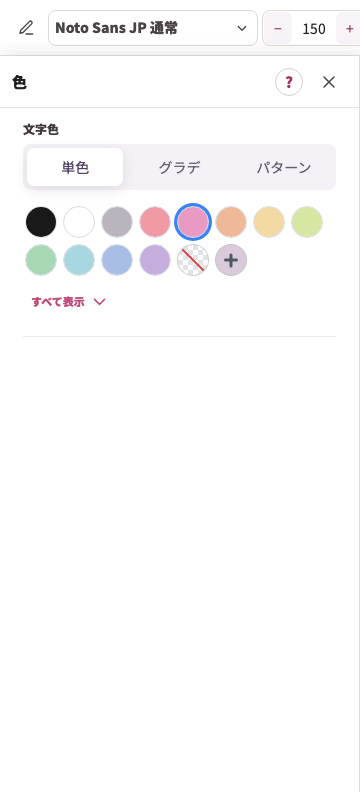
拡大:部分変更後:「応」だけがピンクになり、他の文字は紫のままです。 -
文字全体の選択に戻る
右のレイヤー一覧で文字の名前をクリックすると、文字全体の選択に戻れます。全体を整える操作と、部分を整える操作を区別して続けます。
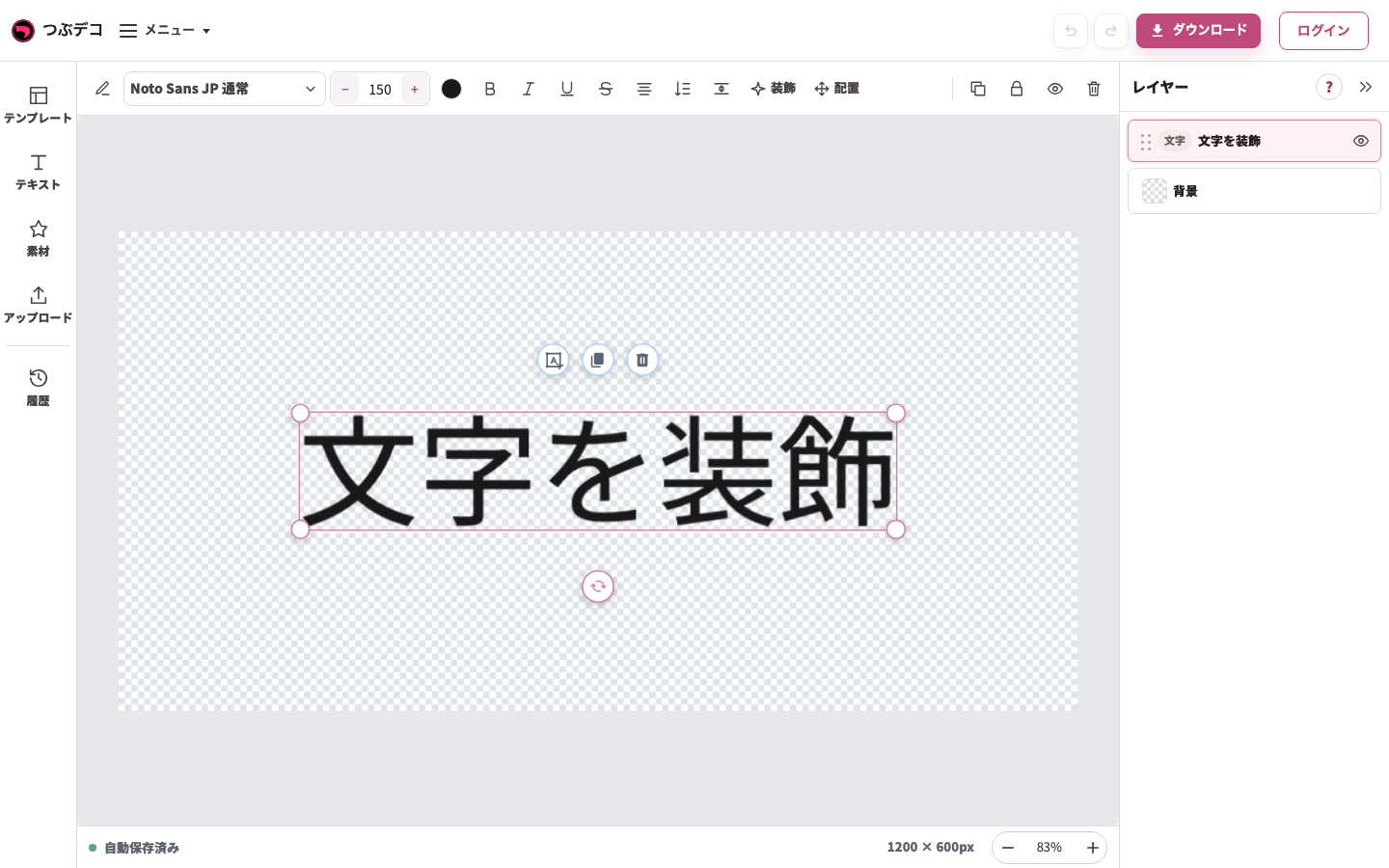
操作後:初期テキストを1回クリックして選択。中央の枠と上部の文字用ツールが現れています。 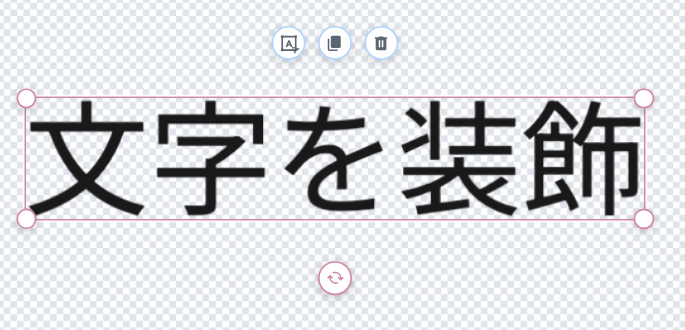
拡大:操作後:初期テキストを1回クリックして選択。中央の枠と上部の文字用ツールが現れています。
設定項目一覧
| Item | Description |
|---|---|
| 文字ボタン | 入力した文字が1文字ずつ表示されます。クリックで選択・解除できます。 |
| 行を選択 | 変更したい行を選びます。複数の行を選択できます。 |
| 列を選択 | 変更したい列を選びます。複数の列を選択できます。 |
| 選択数 | 選んだ範囲に合わせて「2文字」「2行」「2列」のように表示されます。 |
| すべて選択 | 表示されている文字をまとめて選択します。 |
| テキストを選択してください。 | テキストを選んでいない状態で個別設定が必要な操作をしたときに表示されます。 |
確認ポイント
- テキストを選択した後に変更した設定だけが、選択中の文字へ反映されます。
- 文字方向や整列など、文字全体に関わる設定は個別文字選択中に表示されない場合があります。
- 個別に変えすぎると読みにくくなるため、強調したい文字を絞ると整えやすくなります。
困ったとき
設定が変わらない場合は、対象の文字が選択されているか確認してください。「テキストを選択してください。」と表示された場合は、先に文字ボタンをクリックします。