
This language version is being prepared. The Japanese version is shown for now.
素材:追加方法
左メニューの「素材」を開いて一覧から選びます。一覧では「素材」と「パック」を切り替えて探せます。
PC画面での操作
このページの操作画像はPC版です。中央で対象を選ぶと上部ツールが切り替わり、詳しい設定は左に開きます。右のレイヤー一覧は対象の選択と重なり順、下部は保存状態・作品サイズ・表示倍率を確認する場所です。項目が見えない場合は上部の「…」を確認します。
このページでできること
左メニューの「素材」から素材単体や素材パックを探して追加する流れを確認できます。
操作手順
-
左の「素材」を開く
PC画面左の星アイコン「素材」をクリックします。左パネルに素材一覧が出ます。
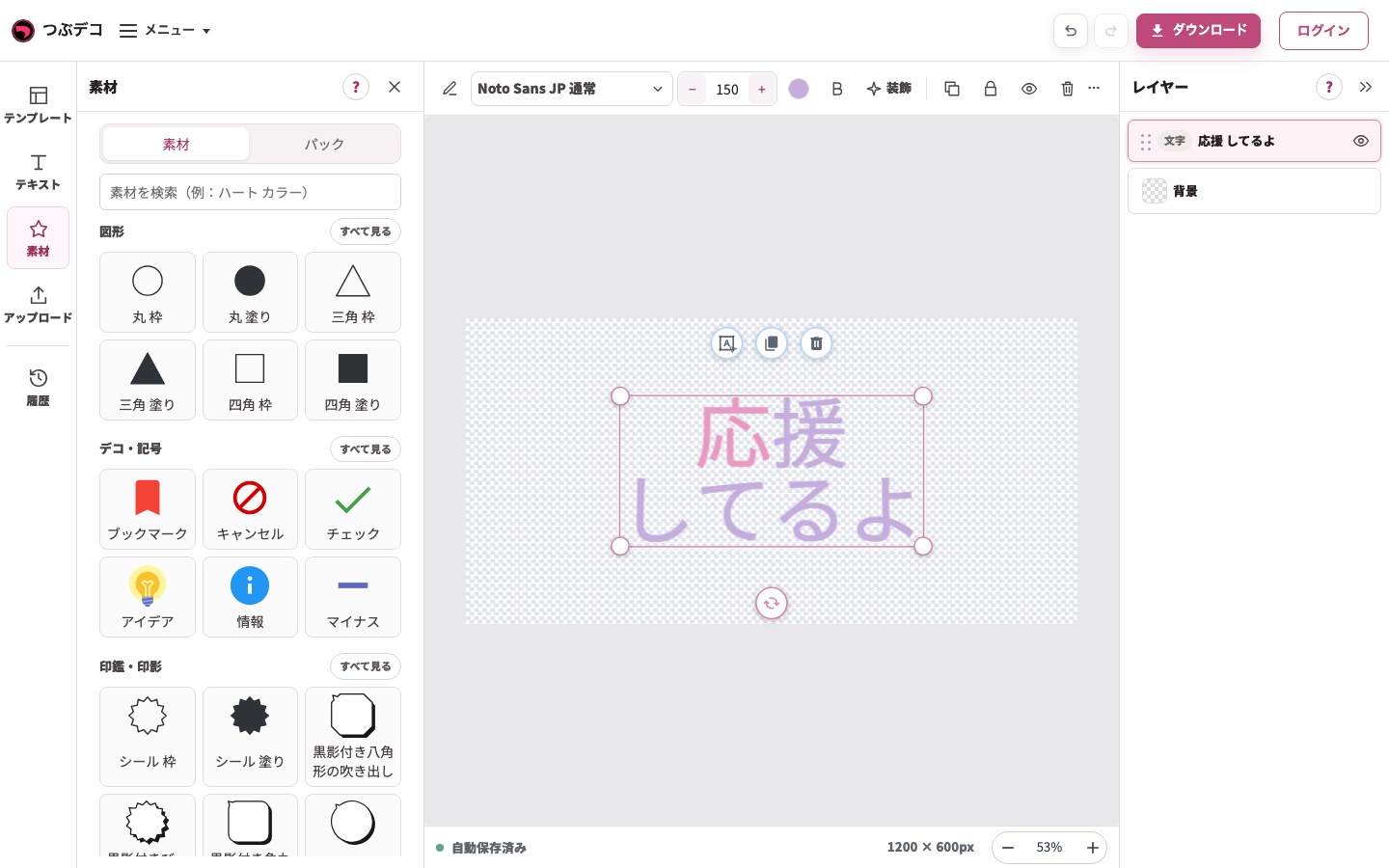
左の素材一覧。検索またはカテゴリから追加する素材を探します。 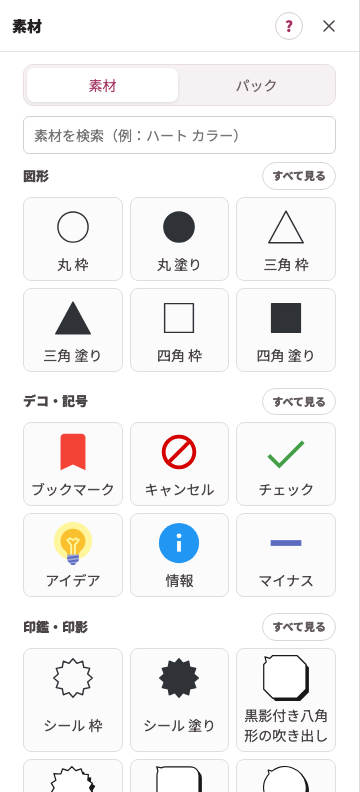
拡大:左の素材一覧。検索またはカテゴリから追加する素材を探します。 -
検索かカテゴリで探す
「素材を検索」へキーワードを入力します。例は「星」です。検索を消すとカテゴリ一覧へ戻れます。
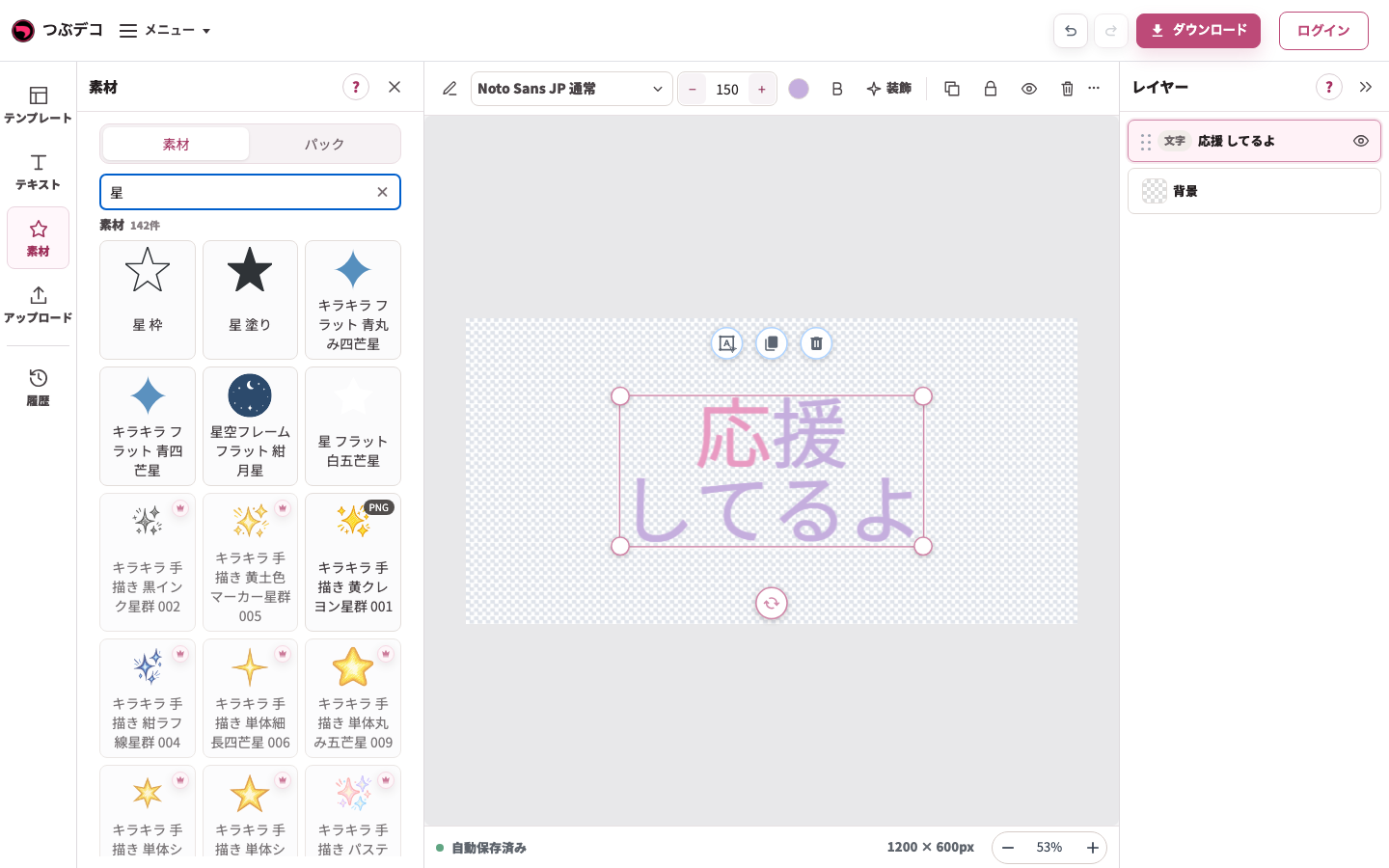
素材検索「星」の結果。中央の既存テキストを残したまま、追加する素材を選びます。 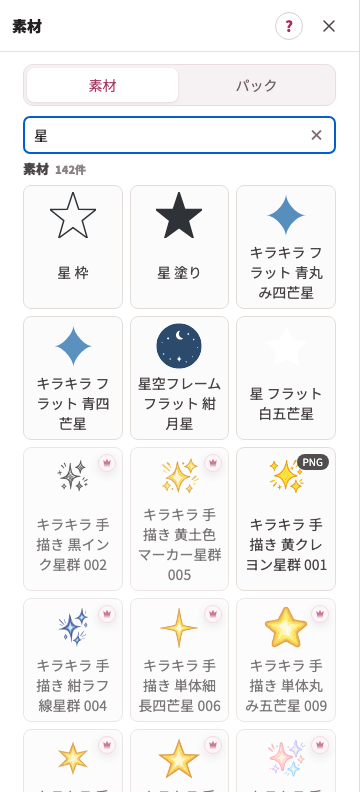
拡大:素材検索「星」の結果。中央の既存テキストを残したまま、追加する素材を選びます。 -
必要ならパックを探す
「パック」へ切り替えるとセットの一覧を探せます。パックの概要や収録素材を確認します。1点ずつ使う場合は「素材」へ戻ります。
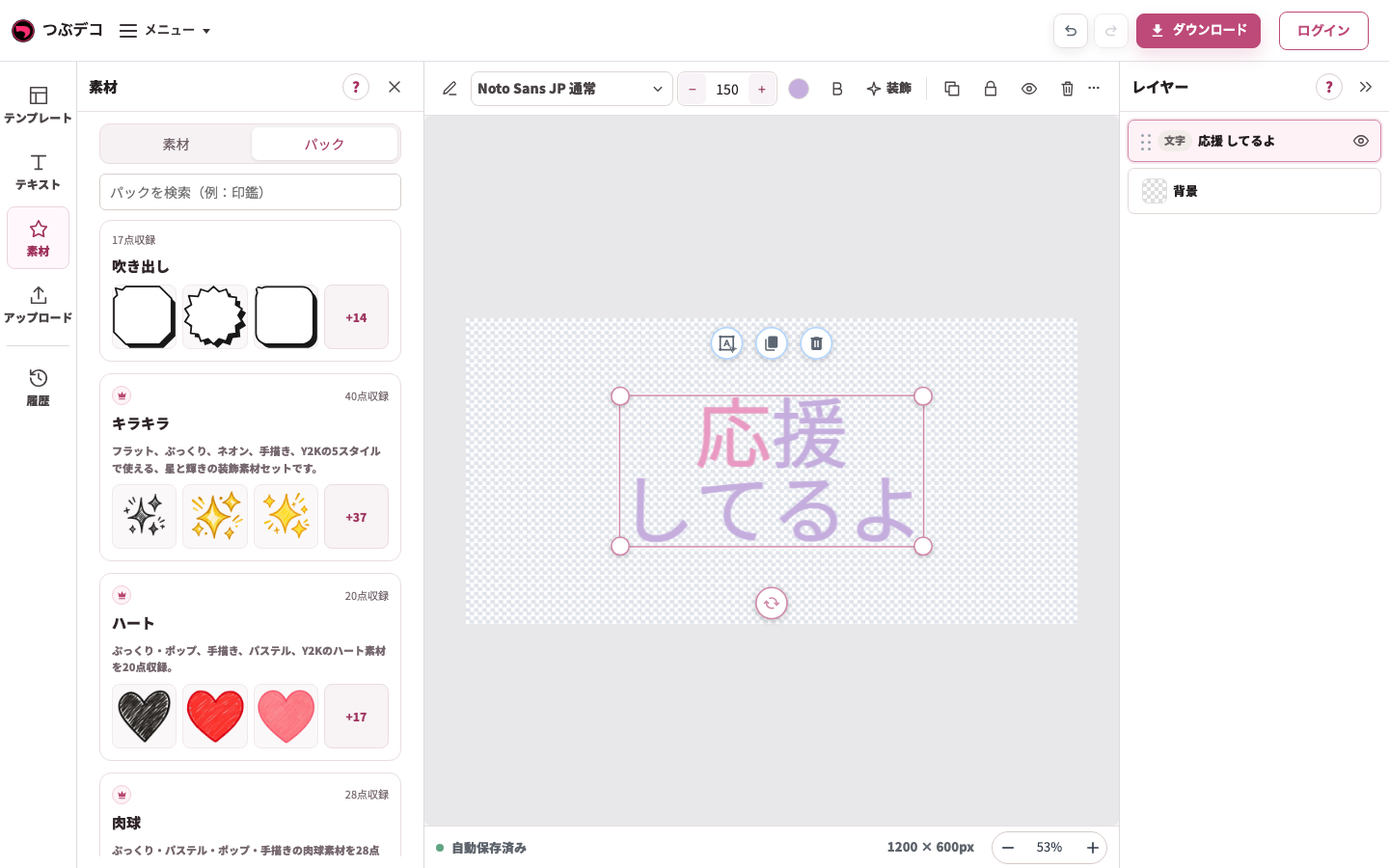
素材パネルのパック一覧。セットから探す場合に素材とパックを切り替えます。 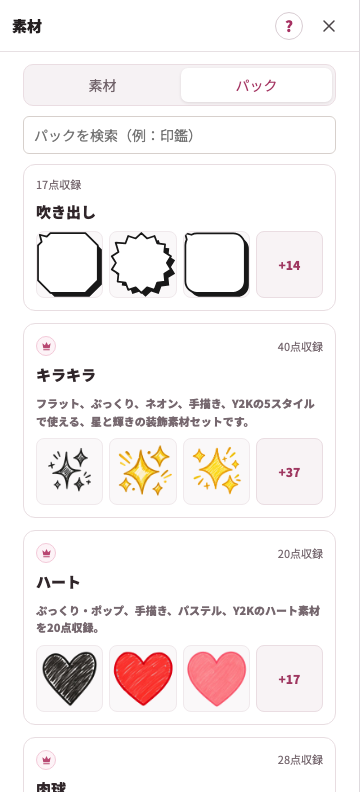
拡大:素材パネルのパック一覧。セットから探す場合に素材とパックを切り替えます。 -
素材をクリックして追加する
例では「星 塗り」をクリックします。作品上と右のレイヤー一覧に星が増えます。Pro素材は表示される利用条件を確認してください。
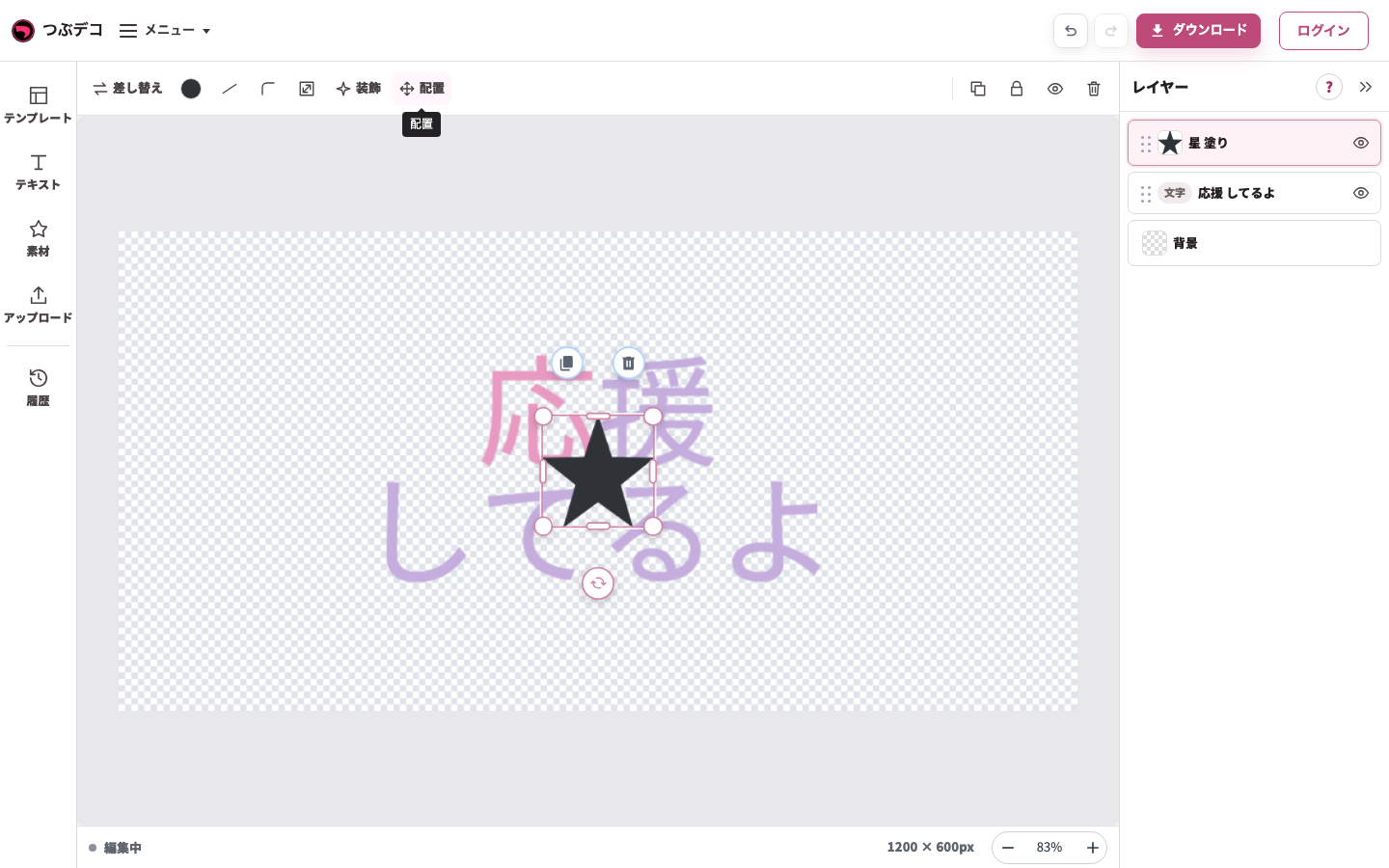
星の選択状態:上部に色・線・角丸・サイズ・装飾・配置が出ます。表示項目は素材により異なります。 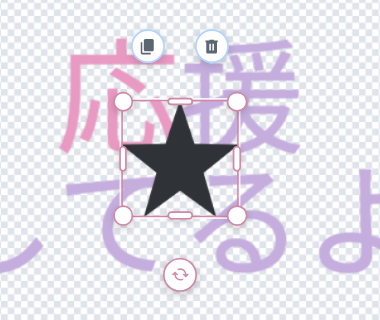
拡大:星の選択状態:上部に色・線・角丸・サイズ・装飾・配置が出ます。表示項目は素材により異なります。 -
パネルを閉じて調整する
左パネル右上の×で一覧を閉じます。素材の選択枠と上部ツールを見ながら、色・サイズを整え、ドラッグで位置を変えます。
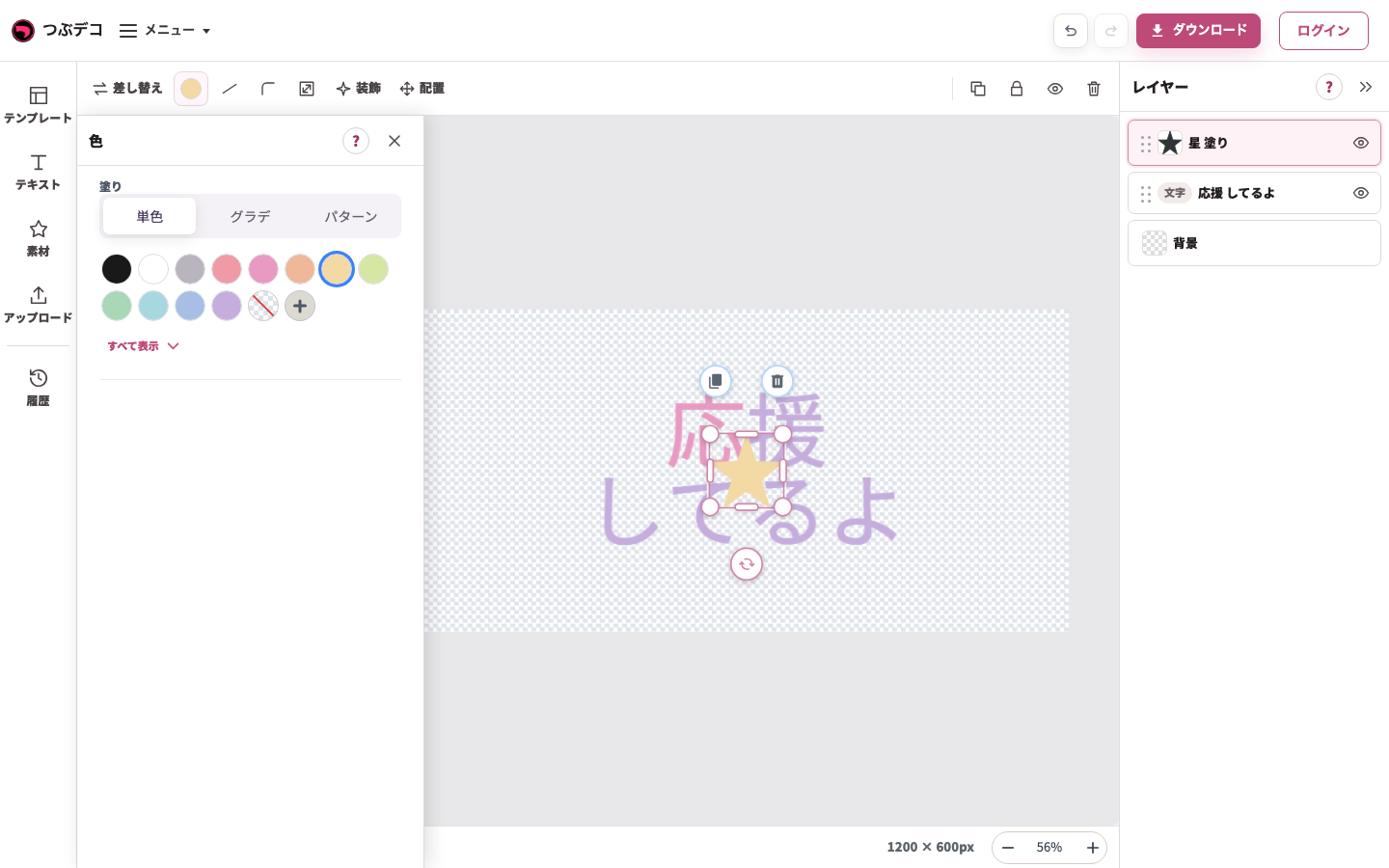
上部の素材色を開き、クリームを指定した状態。文字ではなく星が色変更の対象です。 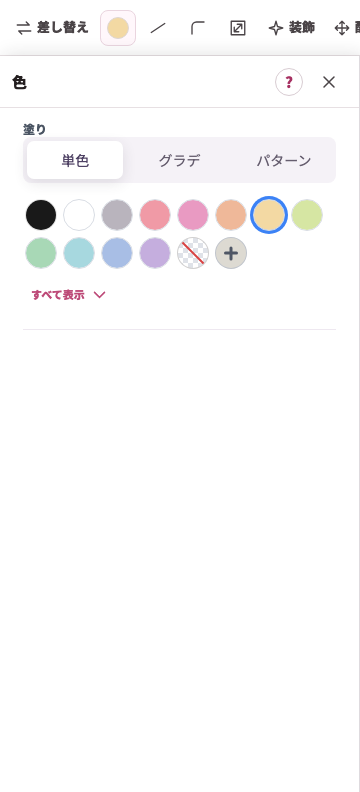
拡大:上部の素材色を開き、クリームを指定した状態。文字ではなく星が色変更の対象です。 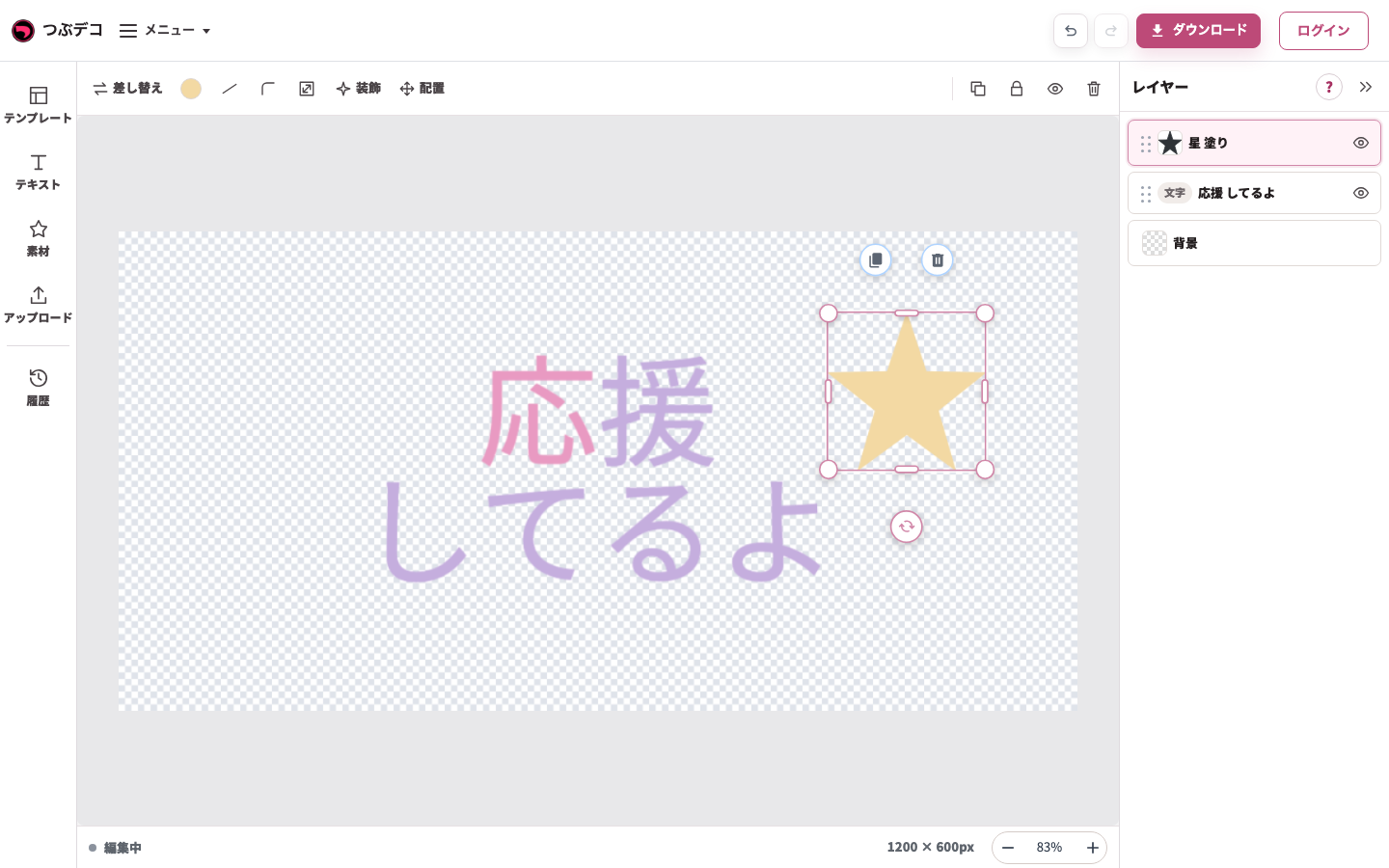
移動後:同じ星を文字の右上へドラッグしました。レイヤーの順番を変える操作とは別です。 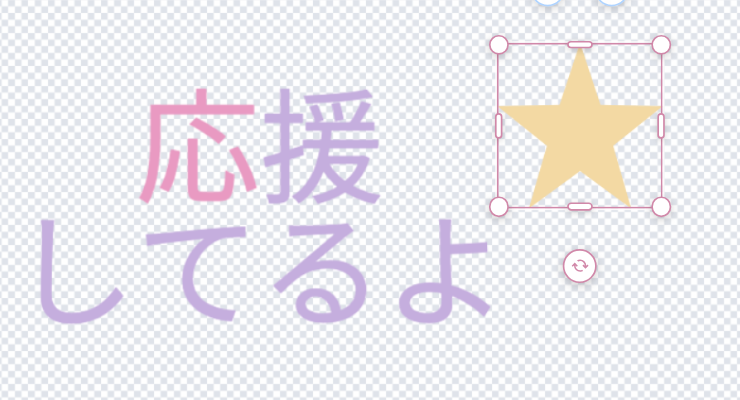
拡大:移動後:同じ星を文字の右上へドラッグしました。レイヤーの順番を変える操作とは別です。
設定項目一覧
| Item | Description |
|---|---|
| 素材 | 素材単体を検索・カテゴリから探す表示に切り替えます。 |
| パック | 素材パックを探す表示に切り替えます。 |
| 素材を検索(例:ハート カラー) | キーワードで素材を絞り込みます。検索結果は1つの一覧に表示され、色付きの素材には「カラー」と表示される場合があります。 |
| パックを検索(例:印鑑) | キーワードで素材パックを絞り込みます。 |
| カテゴリ | 「図形」「デコ・記号」など、種類ごとにまとめられた分類から探します。カテゴリを開いた後は、「素材一覧」でカテゴリ選択へ戻れます。 |
| もっと見る | 検索結果が多いとき、続きの素材を表示します。 |
| さらにパックを見る | 表示されているパックの続きがあるとき、追加で表示します。 |
| パック一覧 | パックの詳細画面から一覧へ戻ります。 |
| 概要を見る | パックの説明を開いて確認します。 |
| 全〇点を見る | パック内の収録素材をさらに表示します。 |
| 4点表示に戻す | 広げた収録素材の表示を代表的な4点に戻します。 |
| 購入内容を確認 | Proで利用できる素材パックの内容や参考換算額を確認します。実際の請求は日本円です。ログインや購入後も現在の編集内容を保ったまま作成画面へ戻れます。 |
| この素材で作る | 素材の詳細ページから作成画面を開き、その素材を配置します。 |
| 素材カード | クリックした素材をすぐにプレビューへ配置します。未利用のPro素材は透かし付きで配置されます。 |
| Pro素材を使用中 | 未利用のPro素材を配置しているときに、プレビューの下に表示されます。 |
| Proを見る | Pro素材の透かしを外して保存するための案内を開きます。 |
| 閉じる | 素材を追加せずに素材の一覧を閉じます。 |
| 差し替え | 配置済みの素材を別の素材に差し替えます。 |
確認ポイント
- 「素材一覧」の詳細ページから「この素材で作る」をクリックすると、その素材を配置した状態で作成画面を開けます。
- 素材をクリックすると、その素材がすぐにプレビューへ追加されます。
- 「素材」と「パック」は、探したい内容に合わせて切り替えられます。
- 検索結果は1つの一覧に表示されます。色付きの素材には「カラー」と表示される場合があります。
- 結果の続きがある場合は、「もっと見る」で追加表示できます。
- 未利用のPro素材も配置して編集できますが、透かし付きで表示されます。
- 追加後に別の素材へ変えたい場合は、素材を選択して編集ツールの「素材を差し替え」を使います。
- 透かしを外して保存したい場合は、「Proを見る」から内容を確認します。
困ったとき
探している素材やパックが見つからない場合は、検索語を短くするか、「素材一覧」でカテゴリ選択へ戻り、別のカテゴリから探してください。追加をやめる場合は「閉じる」をクリックします。