
This language version is being prepared. The Japanese version is shown for now.
まとめて作る
PCで同じテキストを複数のデザインへ反映し、候補を開いて編集・保存します。この操作例は「おすすめ」の文字入力です。用途別ページにだけ現れる画像・素材・デザイン設定は、下の設定項目一覧で区別して説明します。
PC画面での操作
このページの操作画像はPC版です。中央で対象を選ぶと上部ツールが切り替わり、詳しい設定は左に開きます。右のレイヤー一覧は対象の選択と重なり順、下部は保存状態・作品サイズ・表示倍率を確認する場所です。項目が見えない場合は上部の「…」を確認します。
このページでできること
入力した文字や選んだ画像、図形・アイコンをいろいろなテンプレートで試し、候補を開いて編集・ダウンロードする流れを確認できます。最初から細かく作りたい場合は「エディターで作る」から通常の編集画面へ進めます。
操作手順
-
まとめて作るを開く
/createを開きます。この例はPCの「おすすめ」です。通常のエディターから細かく作る場合は上部の「エディターで作る」を使います。
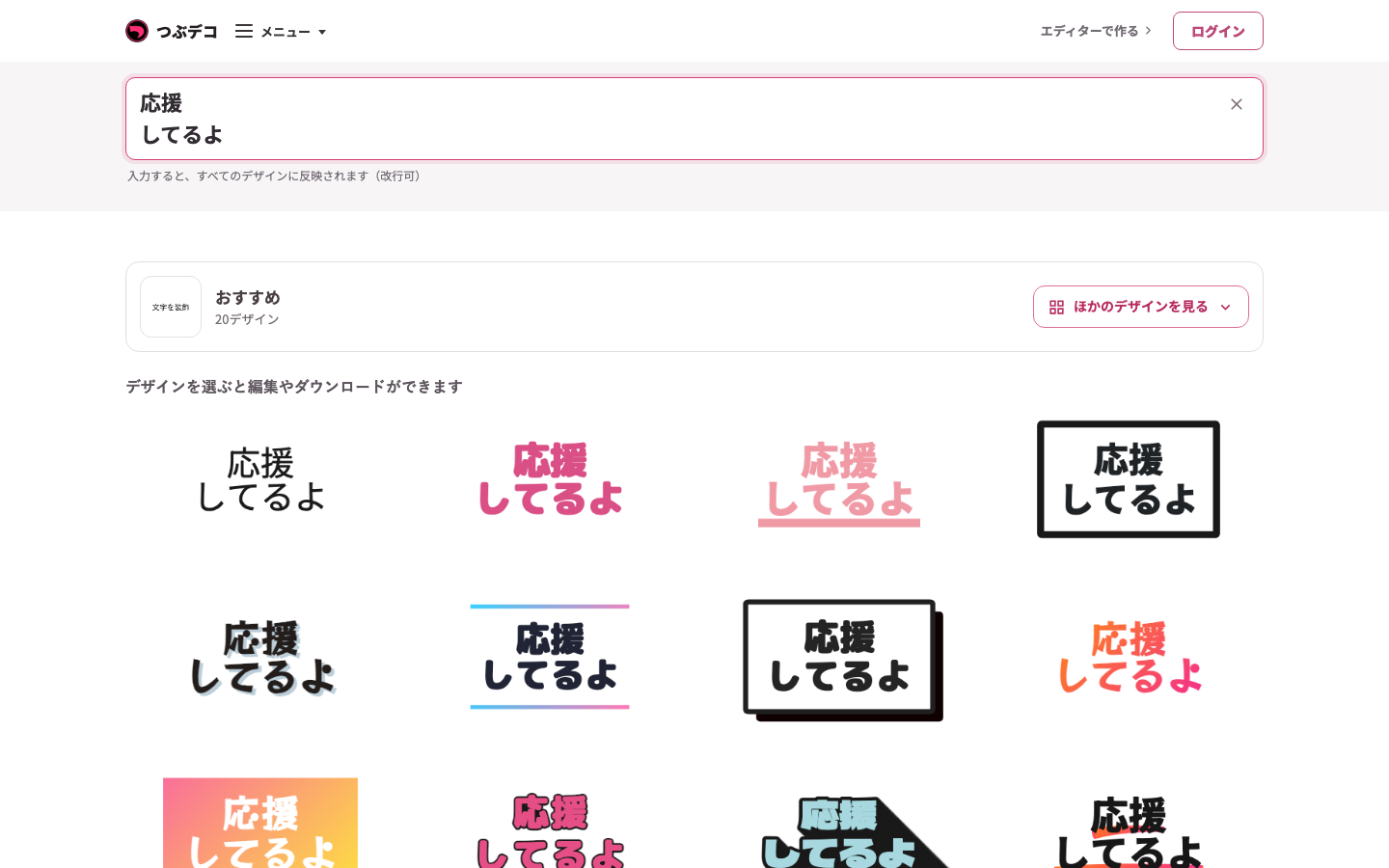
まとめて作るのPC画面。「応援/してるよ」を入力すると複数の候補へ反映されます。 
拡大:まとめて作るのPC画面。「応援/してるよ」を入力すると複数の候補へ反映されます。 -
文字を入力する
上の入力欄へ「応援」と入力し、Enterで改行して「してるよ」を入力します。候補へ同じテキストが反映されます。
まとめて作るのPC画面。「応援/してるよ」を入力すると複数の候補へ反映されます。
拡大:まとめて作るのPC画面。「応援/してるよ」を入力すると複数の候補へ反映されます。 -
候補を開く
デザイン名と見本を確認し、「黒」などの候補をクリックします。同じ画面にPC用の編集画面が開き、入力文字を引き継ぎます。
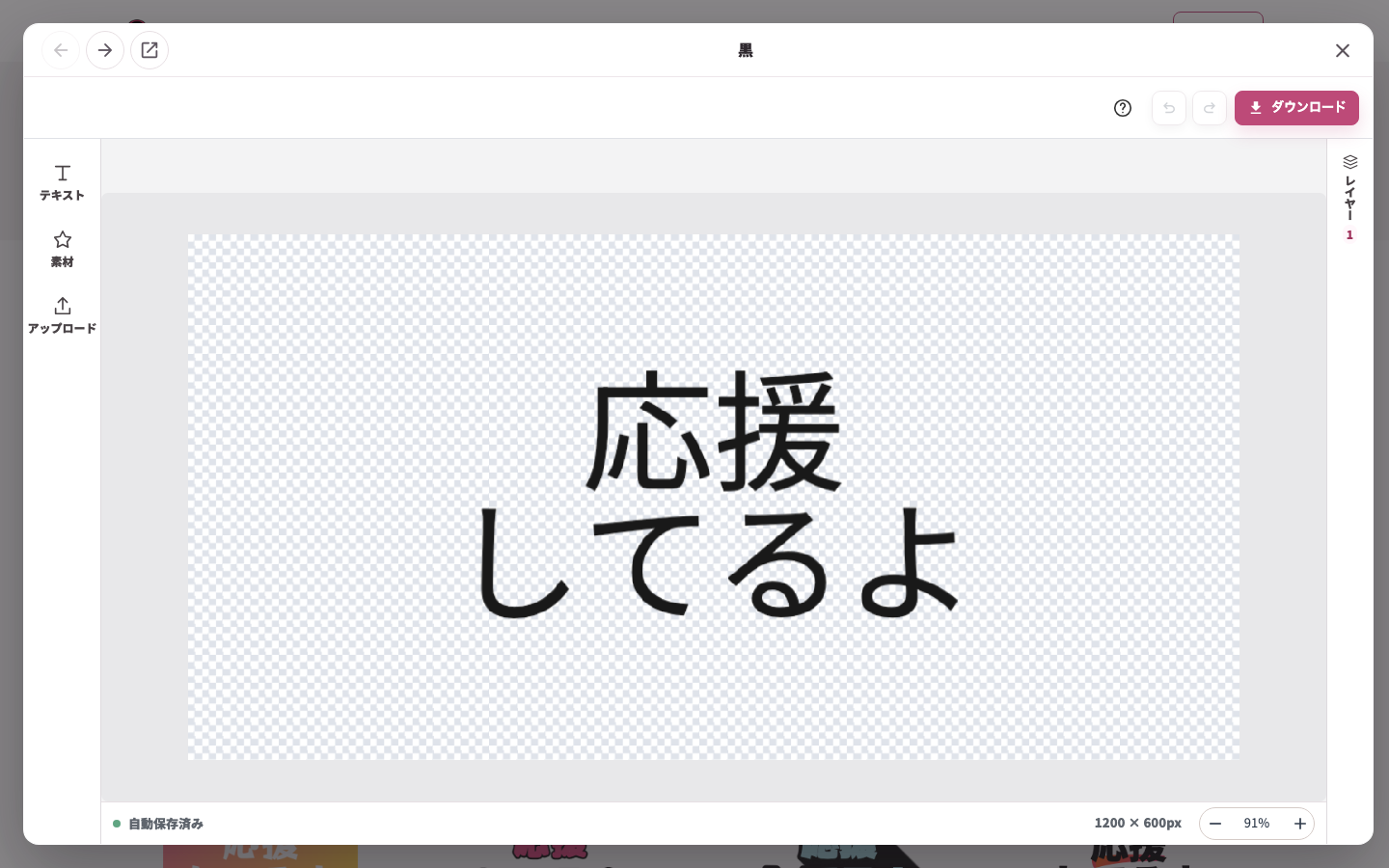
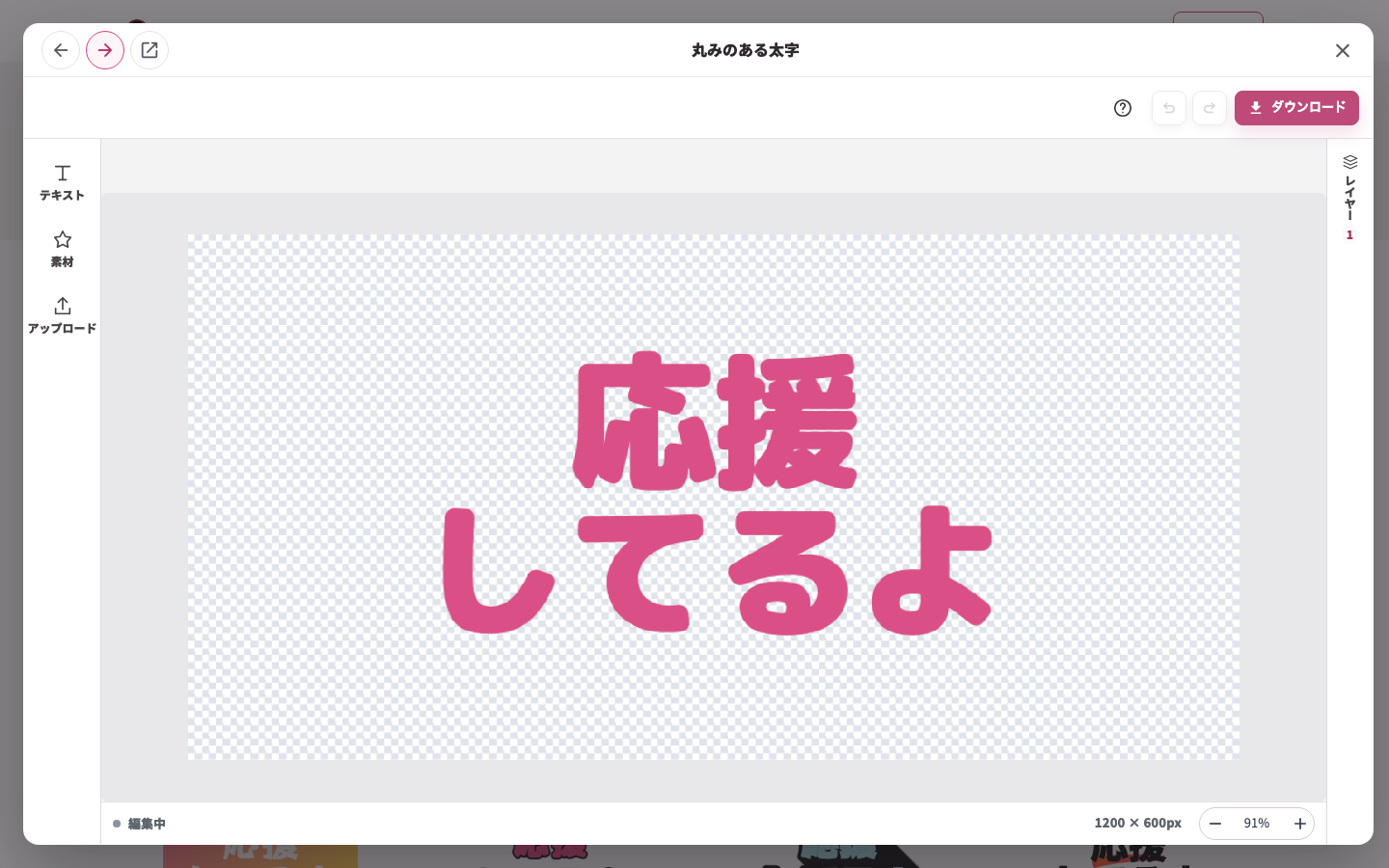
候補を開いたPC編集画面。入力した同じテキストを引き継いで調整できます。 
拡大:候補を開いたPC編集画面。入力した同じテキストを引き継いで調整できます。 -
PC編集画面で調整して保存する
中央のテキストを選び、必要なら同じテキストをクリックして直接編集します。上部のツールで見た目を整え、「ダウンロード」で形式・保存サイズを選びます。
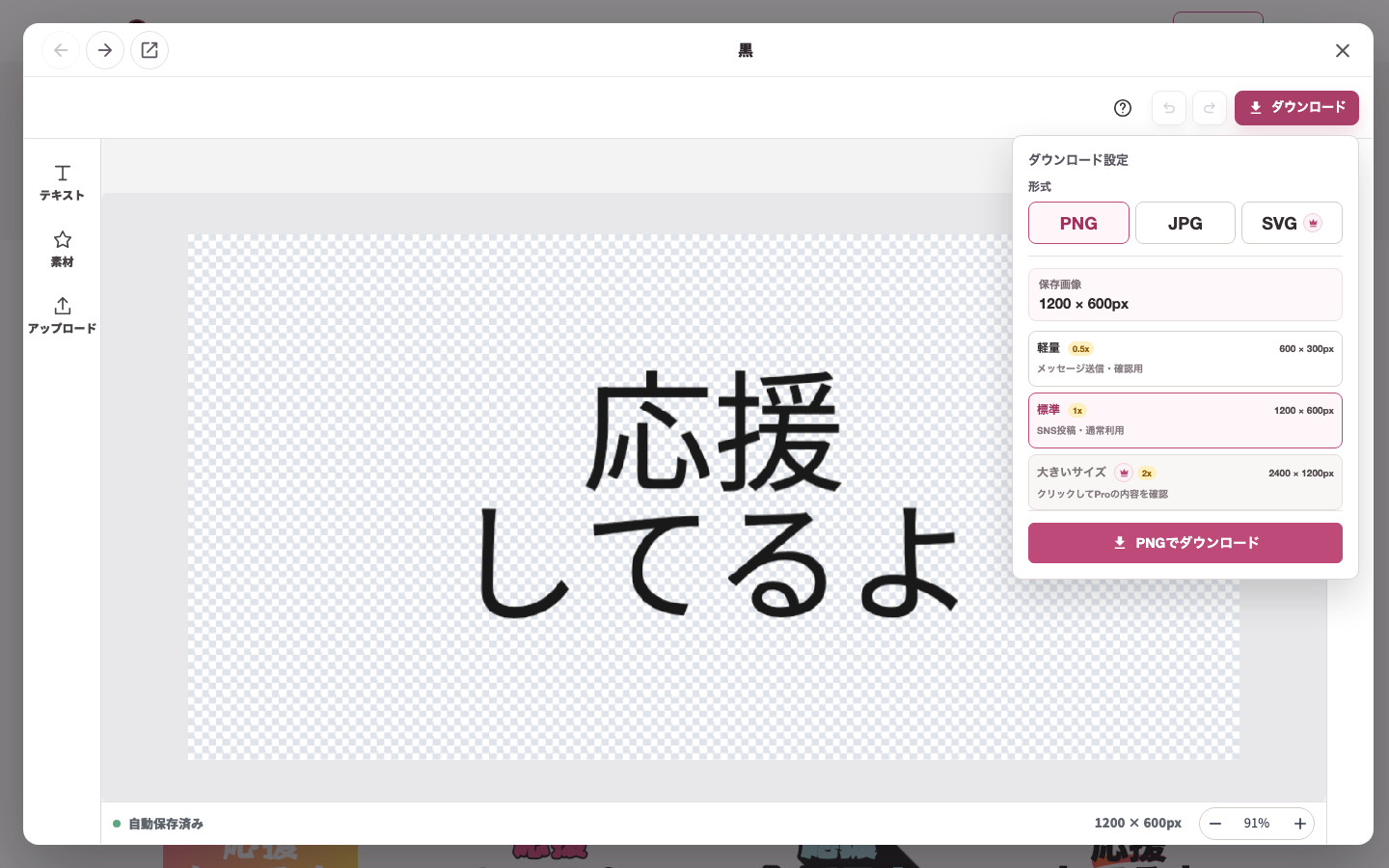
候補のPC編集画面でダウンロードを開いた状態。形式とサイズを確認して保存します。 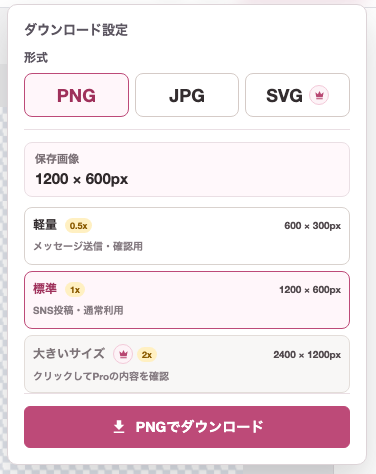
拡大:候補のPC編集画面でダウンロードを開いた状態。形式とサイズを確認して保存します。 -
前後の候補を比べる
編集画面の上部の前・次ボタンで候補を切り替えます。今の候補を残す場合は先にダウンロードしてください。
候補の前後移動ボタン。入力内容を使いながら別のデザインを確認できます。 
拡大:候補の前後移動ボタン。入力内容を使いながら別のデザインを確認できます。 -
用途別ページへ進む
編集画面を閉じ、「ほかのデザインを見る」で用途別の一覧を開きます。ページによって入力欄や候補が変わるため、移動先の表示に従います。
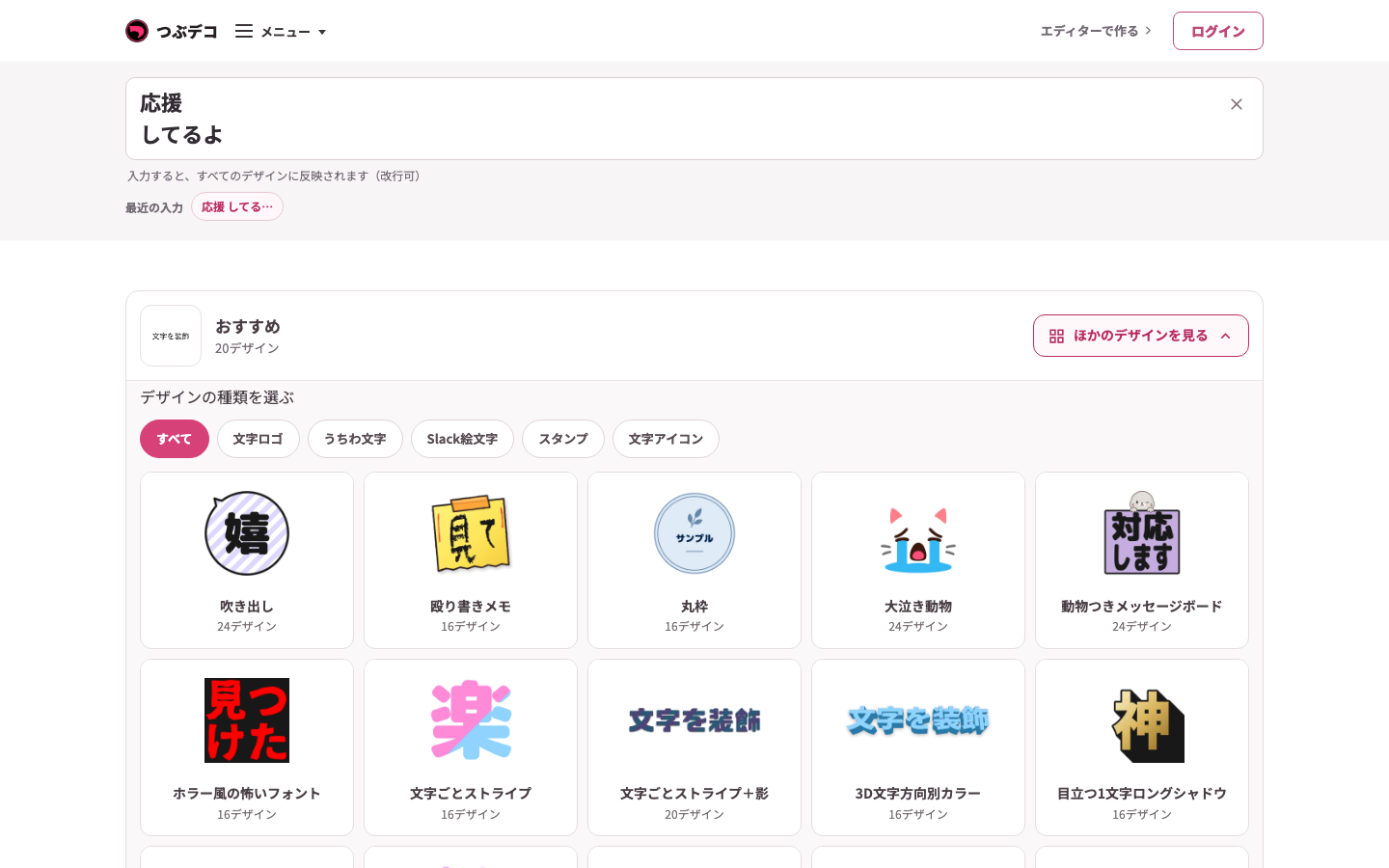
ほかのデザインを見るで用途別の一覧を開いた状態。別ページを選ぶ入口です。 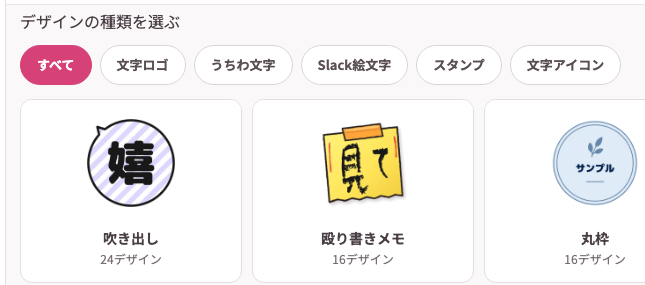
拡大:ほかのデザインを見るで用途別の一覧を開いた状態。別ページを選ぶ入口です。
設定項目一覧
| Item | Description |
|---|---|
| エディターで作る | テンプレート候補を比べず、通常の編集画面から作り始めます。 |
| 文字入力欄 | 入力した文字を、表示中のデザイン候補へまとめて反映します。改行も使えます。ページによっては2つの入力欄が表示されます。入力中は×ボタンで内容を消せます。 |
| デザイン設定 | 表示されている場合、候補を選ぶ前にフォント、文字色、共通して使える装飾の色などをまとめて変更できます。文字色や装飾色のグラデーションは線形で反映されます。 |
| 変更を元に戻す | 「デザイン設定」で変えた内容を元に戻します。 |
| 画像を選ぶ | 画像入力があるページで、端末の画像を候補へ反映します。選択後は「画像を変更」と表示されます。 |
| トリミングを調整 | 選んだ画像の表示範囲を調整します。枠をドラッグして位置を動かし、拡大率や横位置・縦位置を微調整できます。 |
| 画像を削除 | 選んだ画像を外し、文字だけの入力状態に戻します。 |
| 図形・アイコン | 表示されている場合、候補へ反映する素材を確認できます。色変更や素材変更が使えるページもあります。 |
| 素材の色 | 対応している素材で、候補に反映する素材の色を変更します。単色の素材で使えます。 |
| 素材を変更 | 候補に使う素材を別の素材へ変更します。ページによっては、文字入力欄の下に並ぶ形の絵ボタンから選びます。選んだ素材は候補一覧と編集画面へ引き継がれます。 |
| 変更する素材 | 「素材を変更」をクリックした後に、差し替える素材を選ぶ欄です。 |
| 最近の入力 | 同じブラウザで最近入力した文字を呼び出せます。長い文字は短く表示され、クリックすると入力欄に戻ります。 |
| おすすめ | 用途を指定せず、使いやすい候補を表示します。 |
| カテゴリタブ | 表示されている場合、目的に合うデザイン候補へ切り替えます。ページによっては、上段のカテゴリと下段の細かい種類を選べます。 |
| ほかのデザインを見る | 用途別ページで、別のデザインページを選ぶ一覧を開きます。移動後は移動先ページの入力欄で文字や画像を入れ直します。 |
| デザイン候補 | サムネイルとデザイン名で内容を確認できます。クリックすると「デザインを編集」画面が開きます。 |
| デザインを編集 | 選んだデザインを同じ画面内の編集画面で開き、テキスト・素材・アップロード画像・配置などを細かく直します。 |
| 前のデザイン・次のデザイン | 開いている編集画面のまま、前後の候補へ切り替えます。 |
| エディターを閉じる | 編集画面を閉じて、候補一覧へ戻ります。 |
| ダウンロード | 編集画面で仕上げたデザインを保存します。保存サイズとPNG・JPG・SVGなどの形式を選択できます。 |
| 王冠マーク | Proで利用できるデザインに表示されます。未利用の場合は購入内容やログイン案内が出る場合があります。 |
| Proを利用してダウンロード | Proデザインを選んだときに表示されます。クリックするとProの内容や参考換算額を確認できます。実際の請求は日本円です。 |
確認ポイント
- 短い言葉は正方形やスタンプ風の候補、長めの言葉は横長の候補が見やすくなります。
- 候補が見つからない場合は、文字数を減らすか、「おすすめ」や別のカテゴリで試してください。
- 画像入力があるページでは、候補ごとに画像の見え方が変わるため、気になる候補を開く前にトリミングも確認してください。
- 図形・アイコンを変更できるページでは、候補を開く前に素材の色や種類が目的に合っているか確認してください。
- 細かい色・フチ・配置を直したいときは、候補をクリックして「デザインを編集」画面で調整してから保存してください。
困ったとき
候補が読み込めない場合は、時間をおいて再度お試しください。開いたデザインの保存に失敗した場合は、もう一度「ダウンロード」を開き直してください。
関連ページ
まとめて作るページから編集画面へ進んだ後の詳しい操作は、各ページで確認できます。