
This language version is being prepared. The Japanese version is shown for now.
配置
「配置」の設定はテキスト・素材・アップロード画像で共通です。選択中のレイヤーの基準位置を選び、横移動・縦移動・回転で位置を整えます。素材・画像では左右反転も使えます。
PC画面での操作
このページの操作画像はPC版です。中央で対象を選ぶと上部ツールが切り替わり、詳しい設定は左に開きます。右のレイヤー一覧は対象の選択と重なり順、下部は保存状態・作品サイズ・表示倍率を確認する場所です。項目が見えない場合は上部の「…」を確認します。
このページでできること
選択中のテキスト・素材・アップロード画像について、基準位置、横移動、縦移動、回転、前後関係を調整できます。素材・画像では左右反転も使えます。
操作手順
-
動かす対象を選ぶ
中央のテキスト・素材・画像を1回クリックします。重なっている場合は右のレイヤー一覧から選びます。
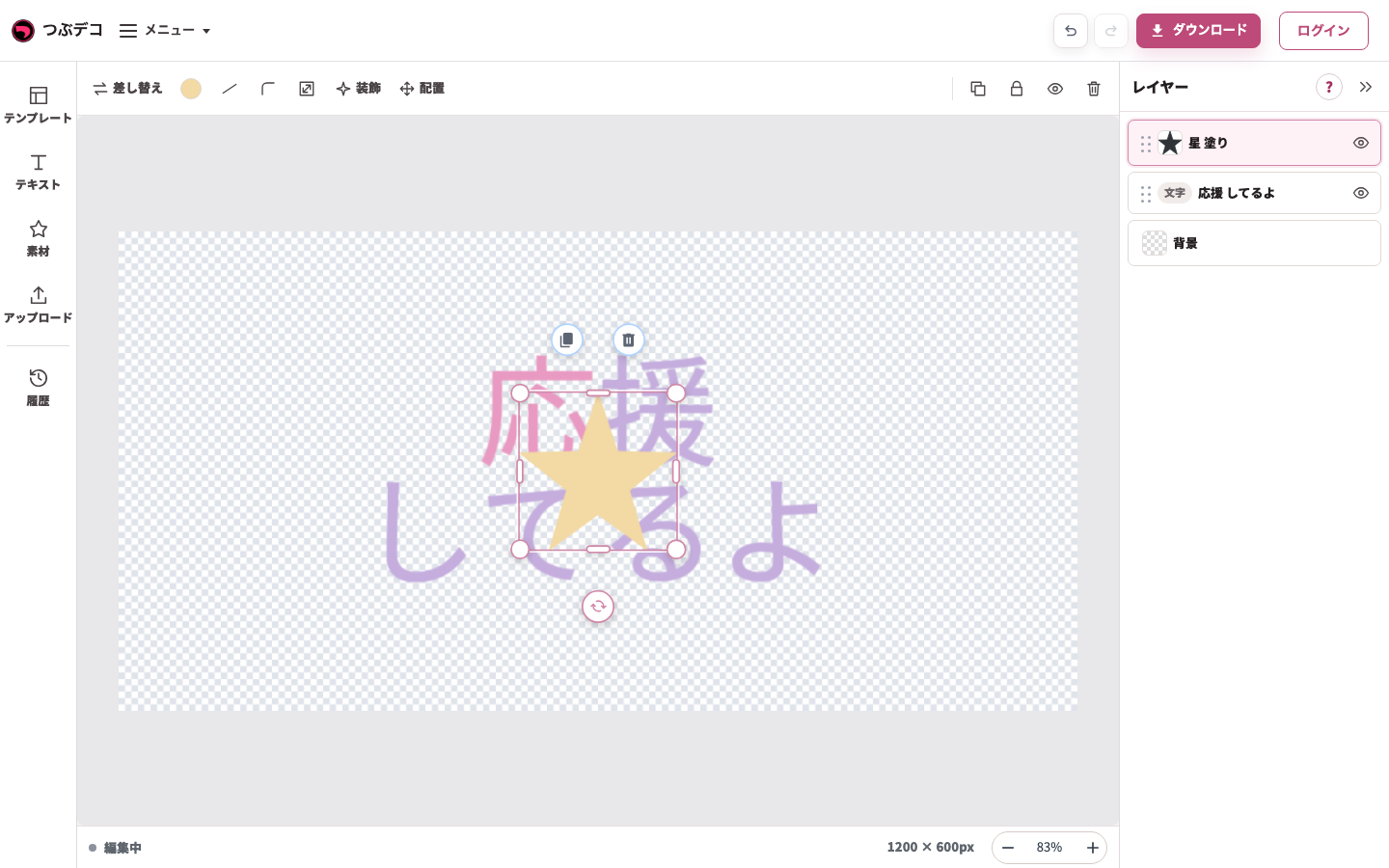
移動前:中央に重なった星を選択。枠内の星を押したまま動かします。 -
作品上でドラッグする
対象を押したまま移動し、目的の位置で離します。例では星を文字の右側へ移しています。選択した対象だけが移動することを確認します。
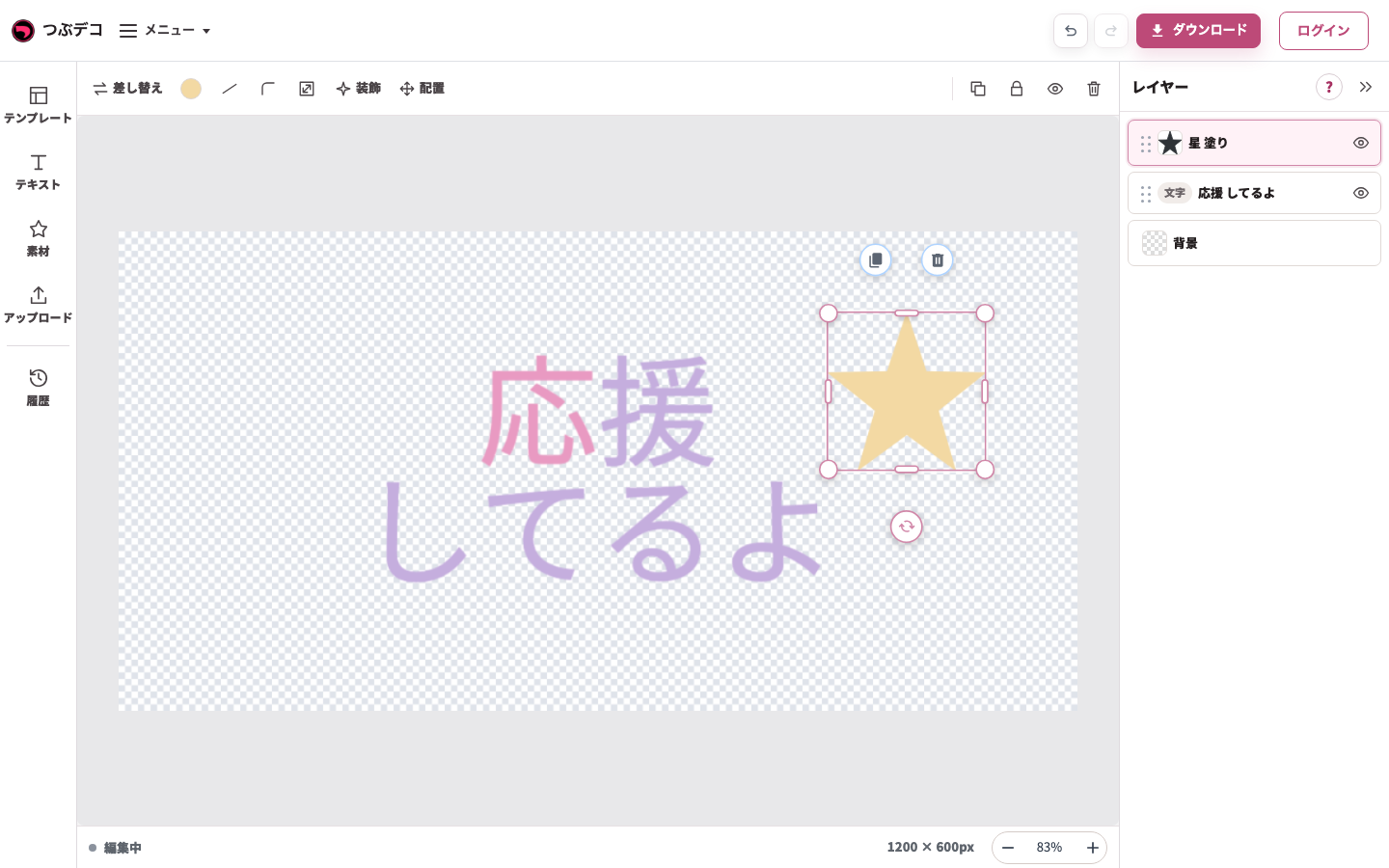
移動後:同じ星を文字の右上へドラッグしました。レイヤーの順番を変える操作とは別です。 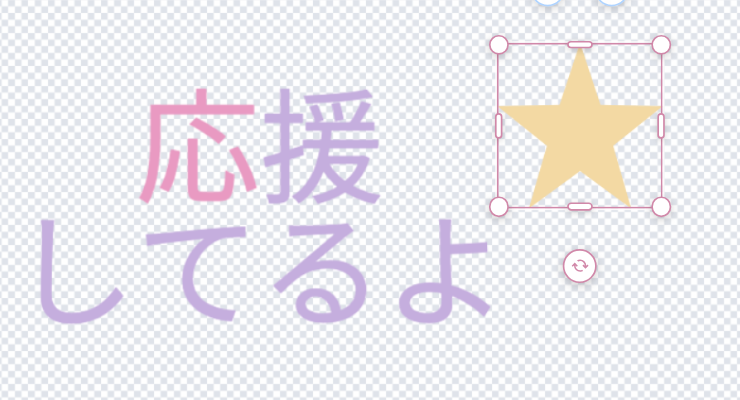
拡大:移動後:同じ星を文字の右上へドラッグしました。レイヤーの順番を変える操作とは別です。 -
上部の「配置」を確認する
上部の「配置」をクリックすると、左に基準位置・横移動・縦移動・回転・重なり順が表示されます。素材・アップロード画像では左右反転も表示されます。細かい移動は横移動・縦移動の値を変え、作品上で結果を確認します。 以下の画像は、ドラッグの手順とは別に配置パネルを確認した設定例です。
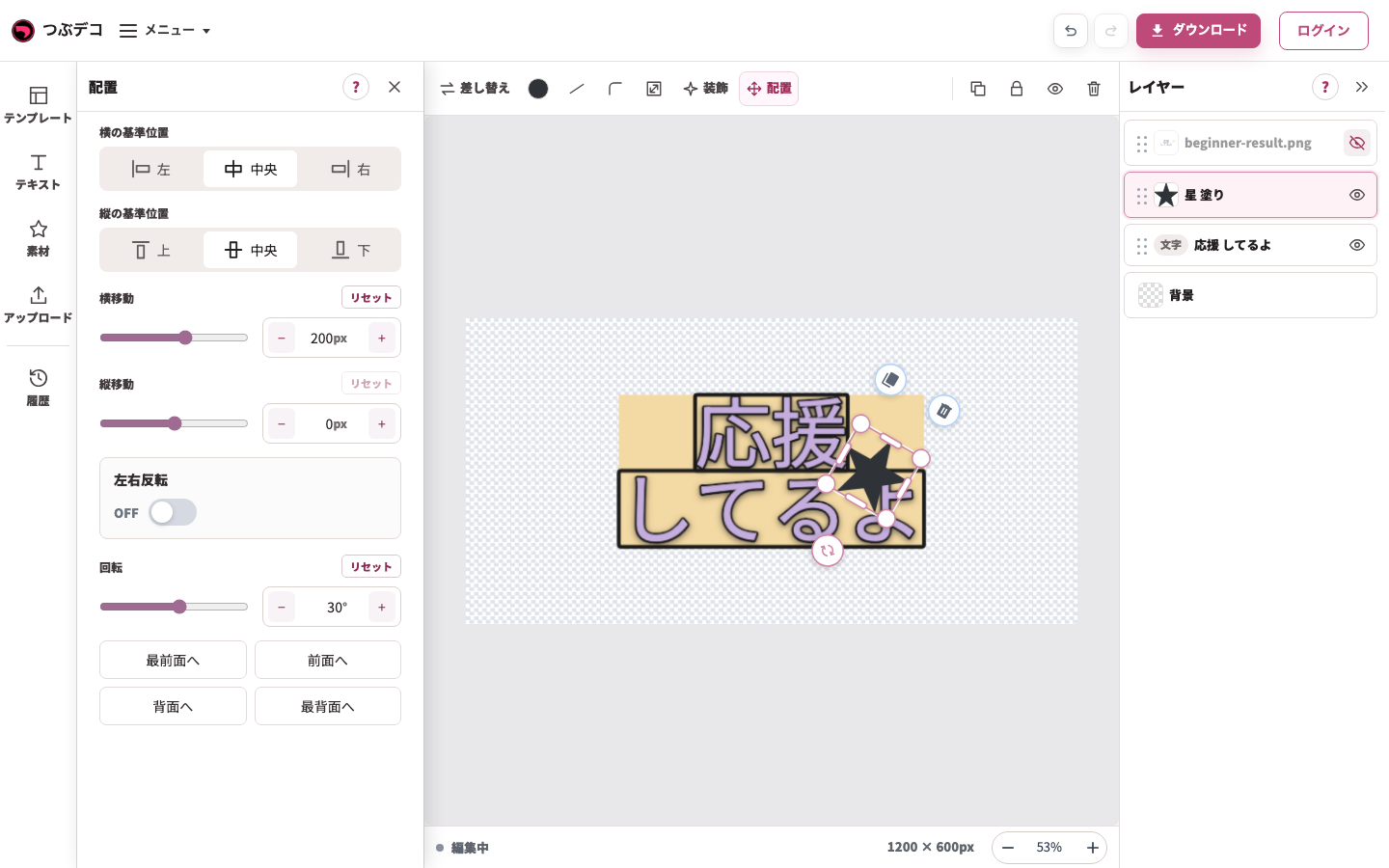
素材の配置設定例(完成手順とは別の設定確認)。左の横移動・縦移動・左右反転・回転と作品上の結果を確認します。 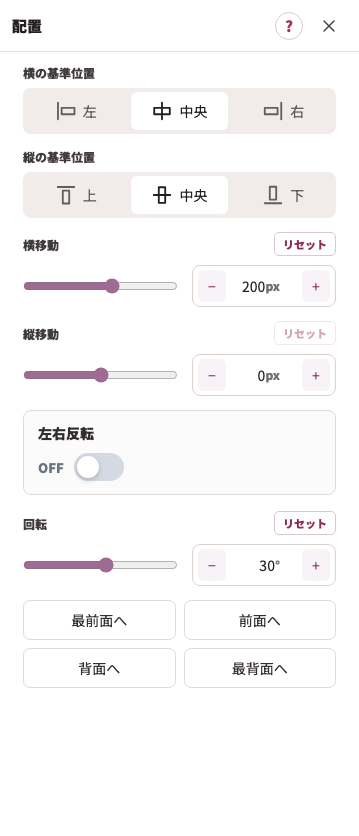
拡大:素材の配置設定例(完成手順とは別の設定確認)。左の横移動・縦移動・左右反転・回転と作品上の結果を確認します。 -
重なり順を変える
右のレイヤー一覧の左端の点々をドラッグし、上下へ並べ替えます。一覧で上にある要素が作品では前面です。
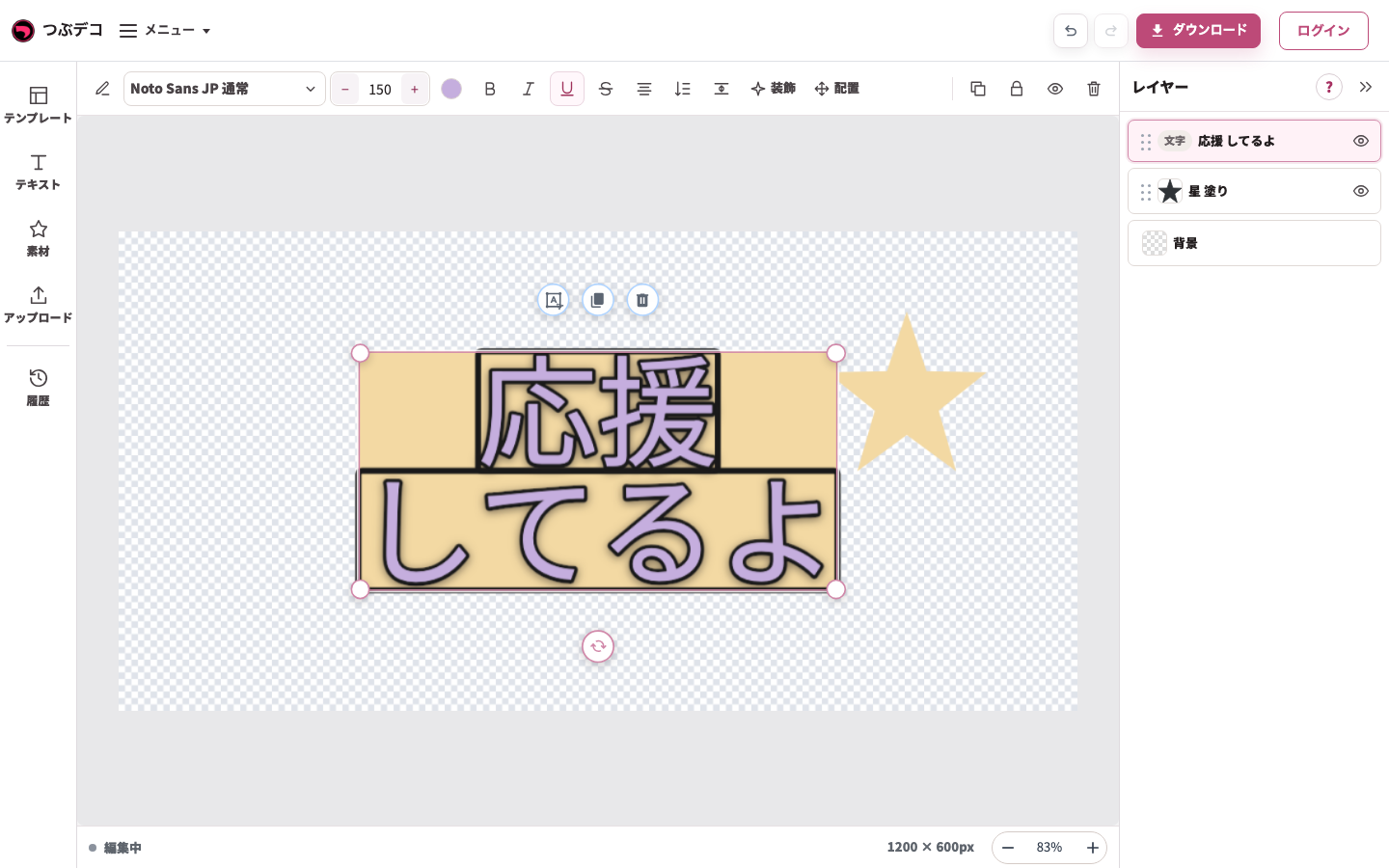
並べ替え後:右の一覧で文字が星の上へ移りました。点々をドラッグして重なり順を変更します。 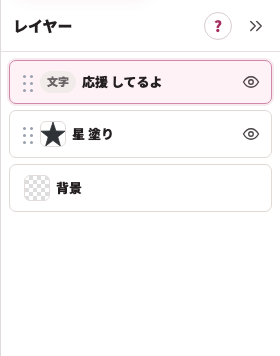
拡大:並べ替え後:右の一覧で文字が星の上へ移りました。点々をドラッグして重なり順を変更します。 -
向きや回転を整える
対象を選んだまま「配置」を開き、回転の角度を変えます。素材・アップロード画像は「左右反転」で向きも変えられます。調整後は作品全体を見て、テキストとの重なりや端の切れを確認します。 以下はアップロード画像の設定例です。同じ調査用作品のほかのレイヤーを非表示にして、反転と回転の結果を確認しています。
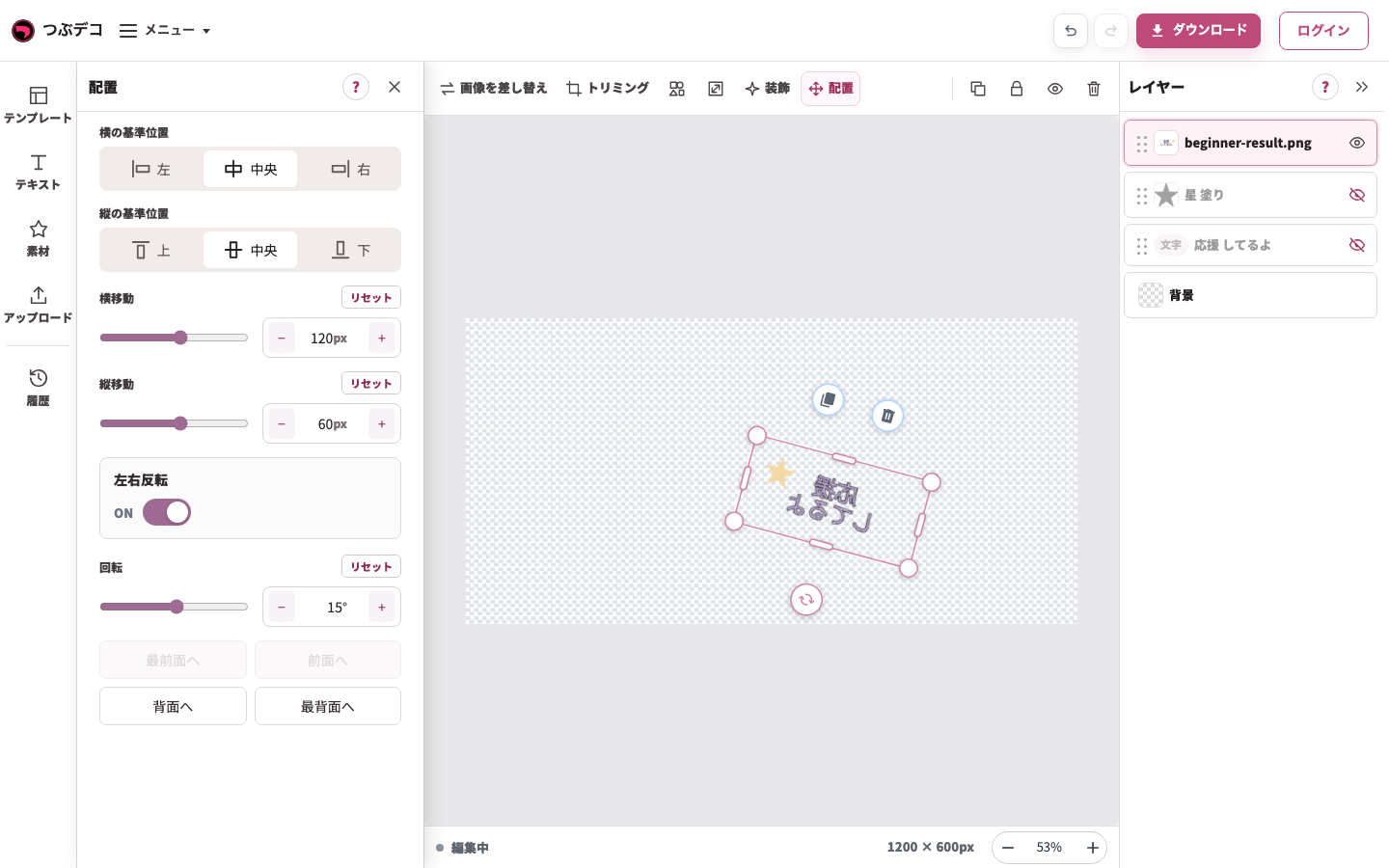
アップロード画像の配置設定例(完成手順とは別の設定確認)。左の横移動・縦移動・左右反転・回転と作品上の結果を確認します。 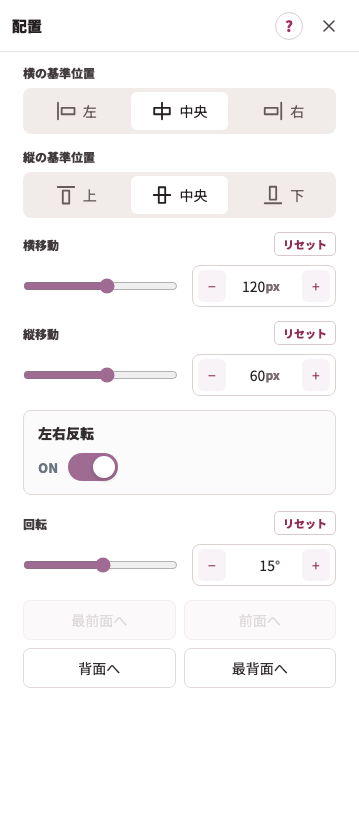
拡大:アップロード画像の配置設定例(完成手順とは別の設定確認)。左の横移動・縦移動・左右反転・回転と作品上の結果を確認します。
設定項目一覧
| Item | Description |
|---|---|
| 重なり順 | 最前面へ、前面へ、背面へ、最背面へで、選択中のレイヤーの前後関係を変更します。 |
| 横の基準位置 | 左・中央・右から、横方向の基準を選びます。 |
| 縦の基準位置 | 上・中央・下から、縦方向の基準を選びます。 |
| 左右反転 | 素材・画像の向きを左右に反転します。文字だけを選んでいるときは表示されません。 |
| 横移動 | 基準位置から左右へ移動します。 |
| 縦移動 | 基準位置から上下へ移動します。 |
| 回転 | 選択中のテキスト・素材・アップロード画像を回転します。 |
複数選択時の操作
| Item | Description |
|---|---|
| グループ化 | 選択中のレイヤーをまとめて移動・拡大縮小・回転できるようにします。 |
| グループ解除 | グループ化したレイヤーを個別に扱える状態へ戻します。 |
| 詳細設定 | 複数選択時の追加操作を開きます。切り抜き中は状態が表示されます。 |
| 形で切り抜く | 一番下の素材や図形の形に合わせて、上の素材を切り抜きます。 |
| 切り抜きを解除 | 形で切り抜いた状態を解除します。 |
| 装飾 | 選択中のテキスト・素材・アップロード画像で共通して使えるフチや影を、まとめて追加・編集・削除します。共通のフチでは「同じ色のフチをつなげる」も使えます。 |
確認ポイント
- 配置の設定はテキスト・素材・アップロード画像で共通です。
- 左右反転は素材・画像を選んでいるときに表示されます。
- 素材・画像の幅や高さは、選択後の上部「サイズ」で調整します。
- 複数レイヤーの順番を一覧で見ながら直したい場合は、レイヤー一覧を使います。
- 複数選択中の装飾の設定には、選択中の種類で共通して使える装飾だけが表示されます。
- 形で切り抜くときは、一番下にある素材や図形が切り抜きの形になります。
困ったとき
選択中のレイヤーが動かない場合は、レイヤー一覧でロックされていないか確認してください。位置が分からなくなった場合は、横移動・縦移動を0pxに戻し、基準位置を中央にしてから調整し直します。