
This language version is being prepared. The Japanese version is shown for now.
レイヤー
「レイヤー」では、現在のレイヤーを一覧で確認し、前後関係を並べ替えたり、ロック・表示切り替え・削除を行ったりできます。
PC画面での操作
このページの操作画像はPC版です。中央で対象を選ぶと上部ツールが切り替わり、詳しい設定は左に開きます。右のレイヤー一覧は対象の選択と重なり順、下部は保存状態・作品サイズ・表示倍率を確認する場所です。項目が見えない場合は上部の「…」を確認します。
このページでできること
テキスト・素材・アップロード画像の一覧を見ながら、順番の変更、選択、ロック、表示・非表示、削除を行えます。
操作手順
-
右のレイヤー一覧を開く
一覧が閉じていたら画面右端のレイヤーボタンをクリックします。上にある要素が作品の前面、背景は一番下です。
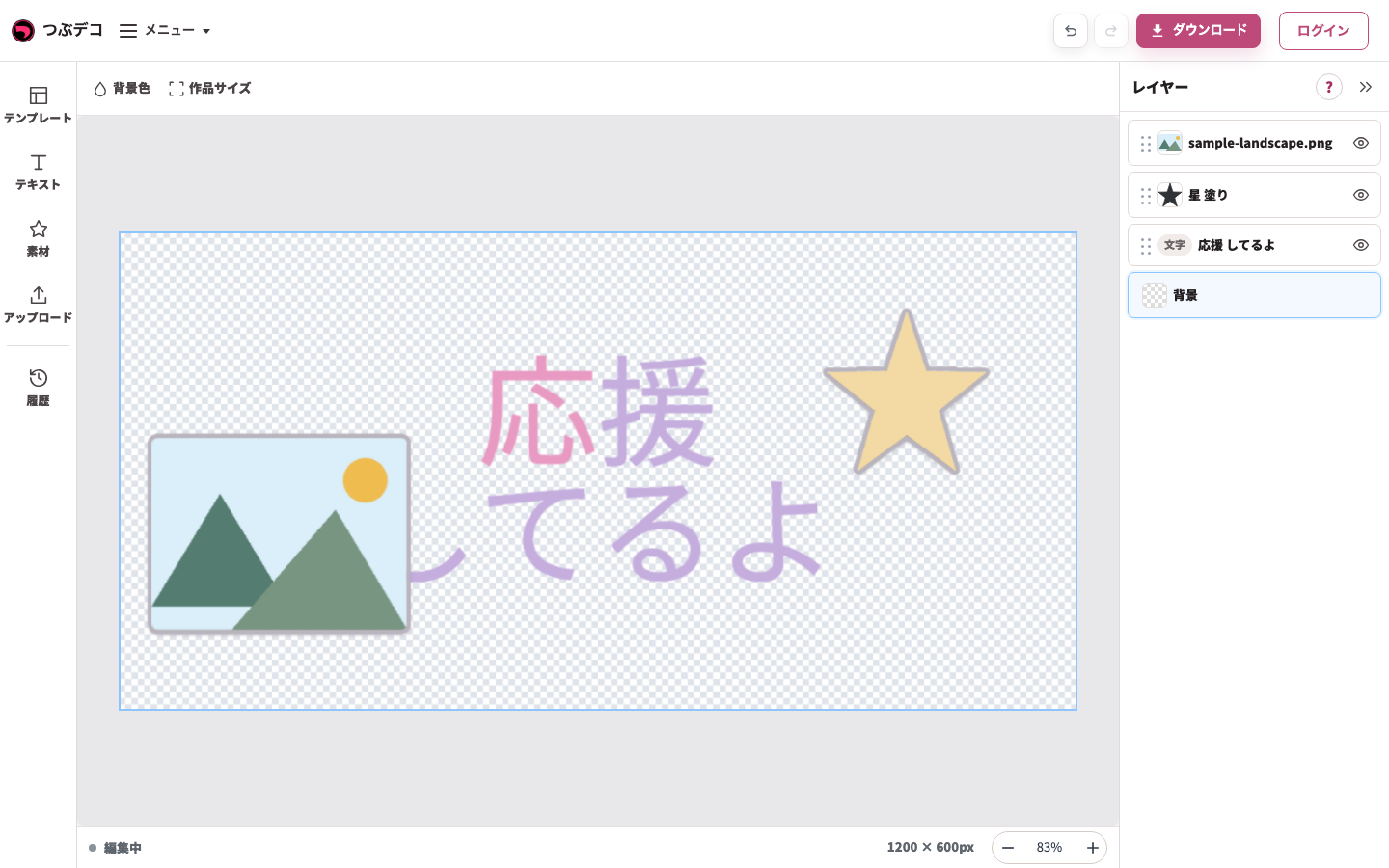
右の背景を選択した状態。上部は背景色・作品サイズへ切り替わります。 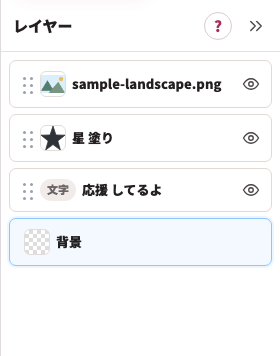
拡大:右の背景を選択した状態。上部は背景色・作品サイズへ切り替わります。 -
名前をクリックして選ぶ
テキスト・素材・アップロード画像の種類と名前を見て対象を選びます。中央の枠と上部ツールも切り替わります。
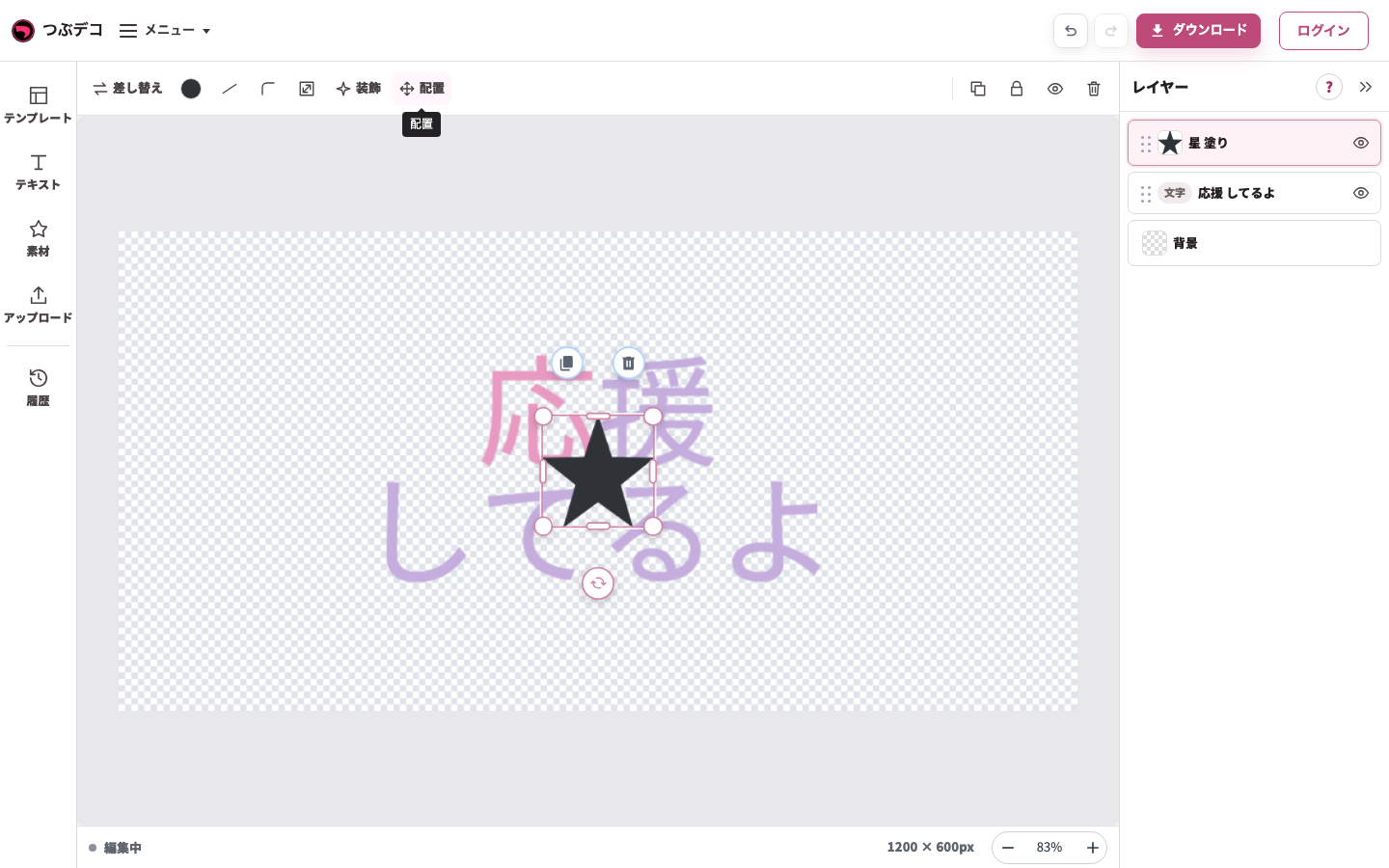
星の選択状態:上部に色・線・角丸・サイズ・装飾・配置が出ます。表示項目は素材により異なります。 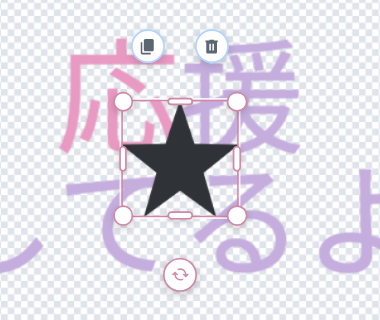
拡大:星の選択状態:上部に色・線・角丸・サイズ・装飾・配置が出ます。表示項目は素材により異なります。 -
点々をドラッグして並べ替える
対象行の左端の点々を押したまま、上または下へ動かします。位置を変えるドラッグと、重なり順を変えるドラッグを区別します。
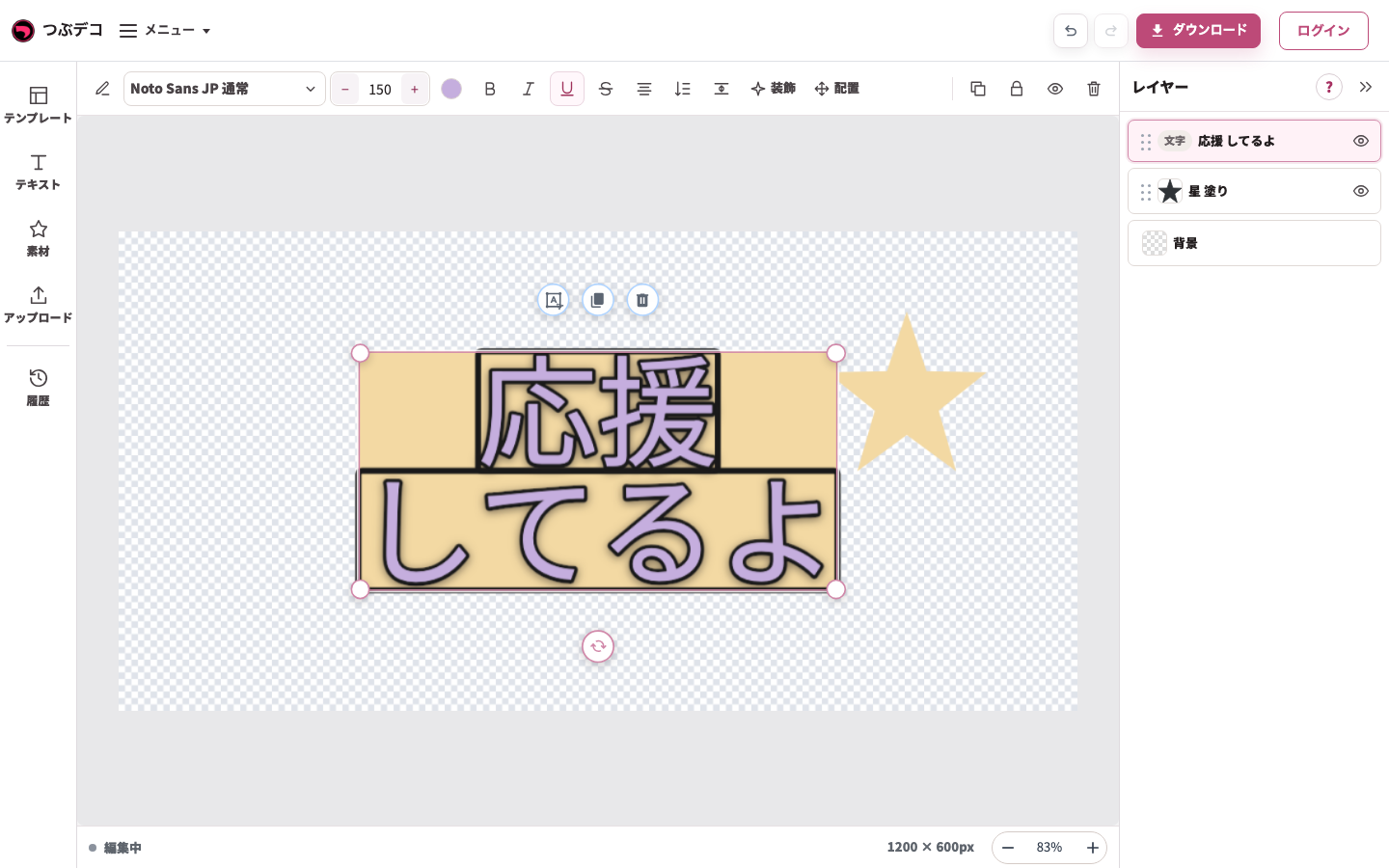
並べ替え後:右の一覧で文字が星の上へ移りました。点々をドラッグして重なり順を変更します。 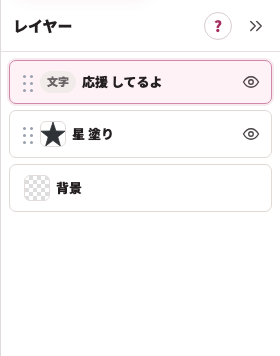
拡大:並べ替え後:右の一覧で文字が星の上へ移りました。点々をドラッグして重なり順を変更します。 -
鍵でロックする
対象を選び、上部の鍵ボタンを押します。ロックすると作品上で誤って動かすのを防げます。解除も同じ対象の鍵ボタンで行います。
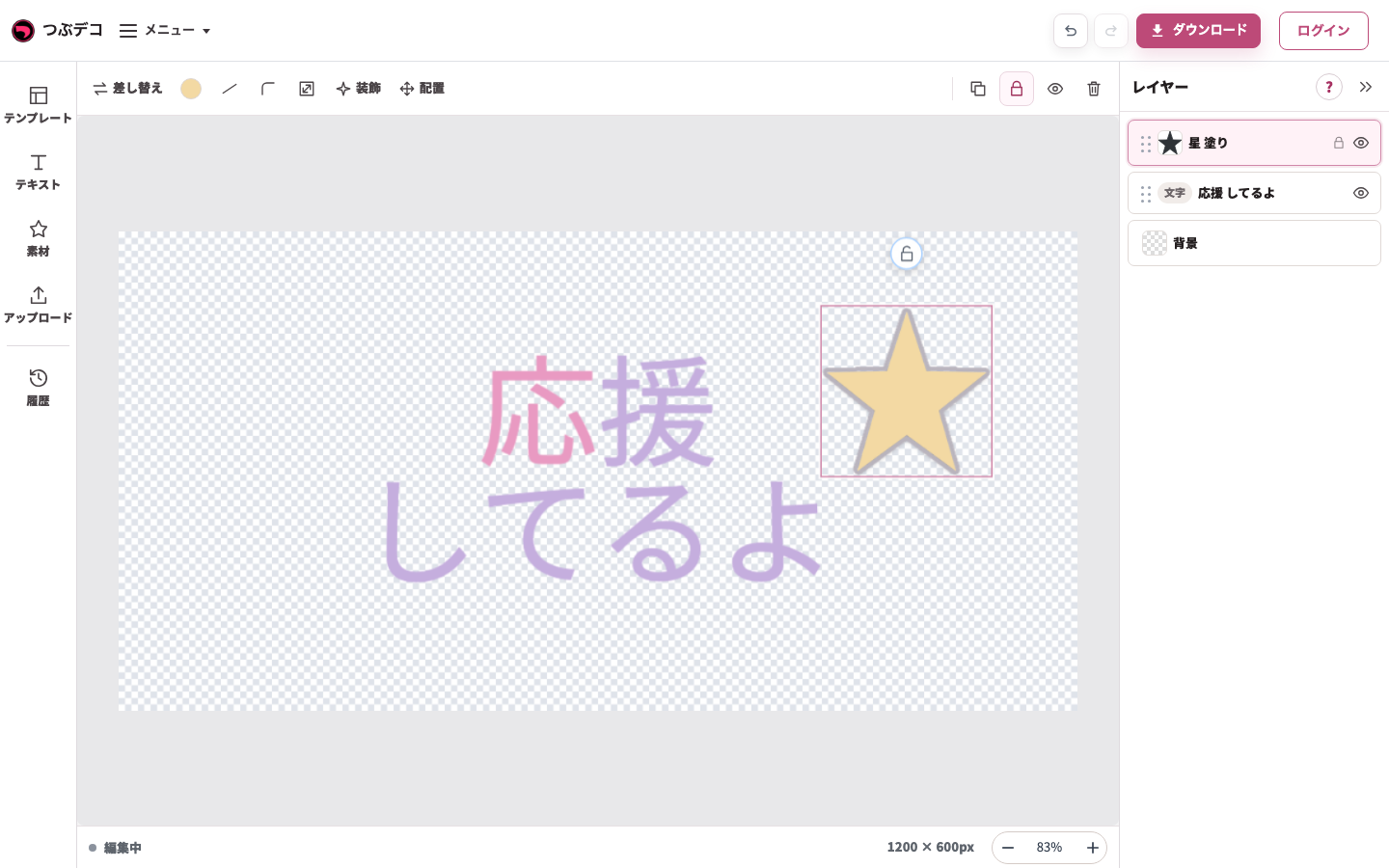
ロック後:右一覧の星に鍵の状態が付き、作品上での誤移動を防げます。 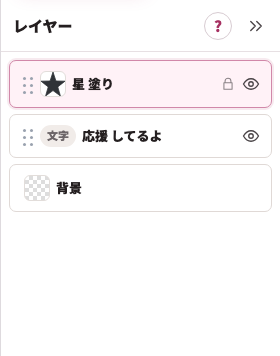
拡大:ロック後:右一覧の星に鍵の状態が付き、作品上での誤移動を防げます。 -
目のボタンで表示を切り替える
一覧の目のボタンを押すと対象が非表示になります。非表示の要素は書き出しにも含まれません。再び目のボタンを押すと表示に戻ります。
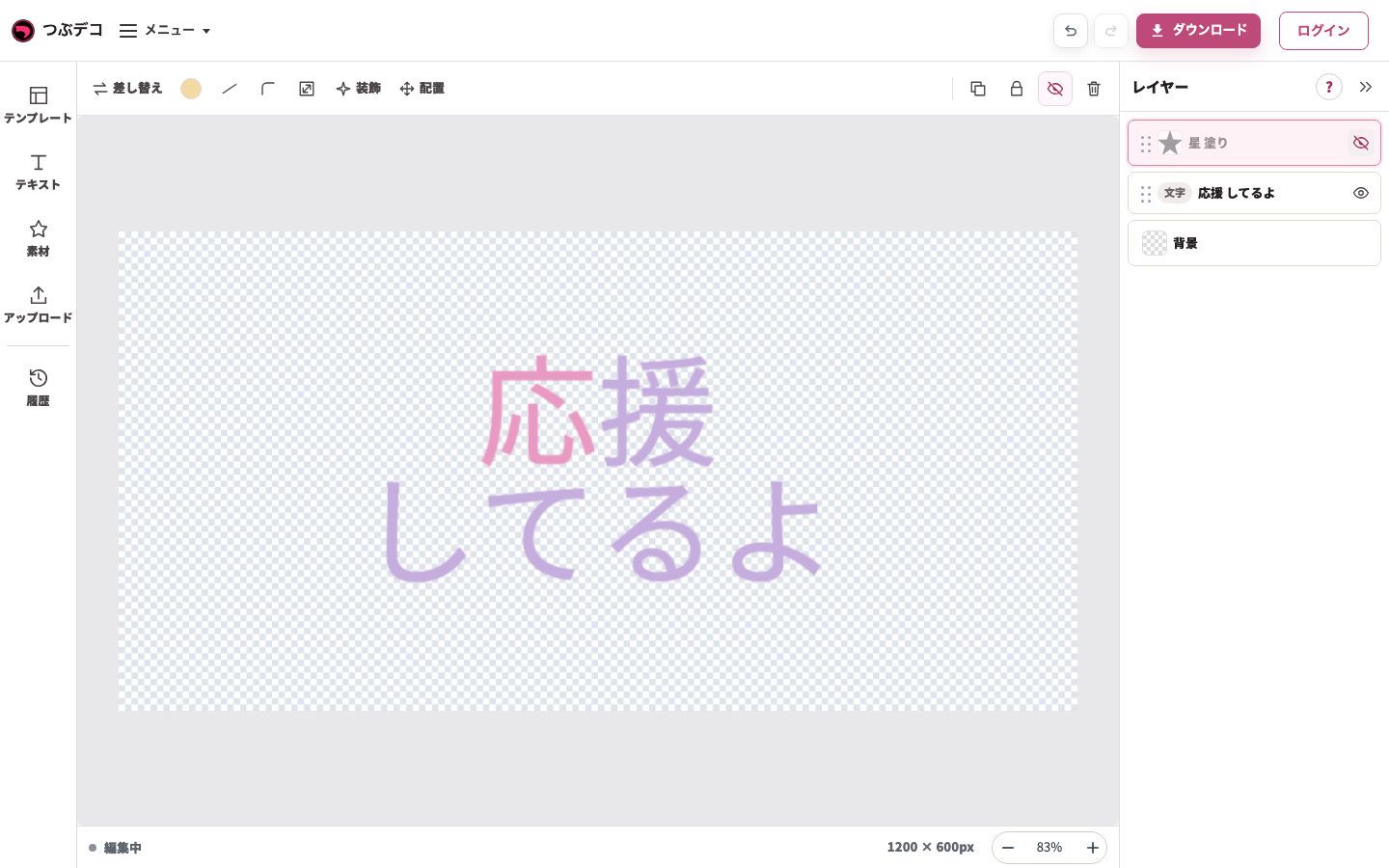
非表示後:一覧の目を切り替えると星が作品から消えます。削除とは違い、再表示できます。 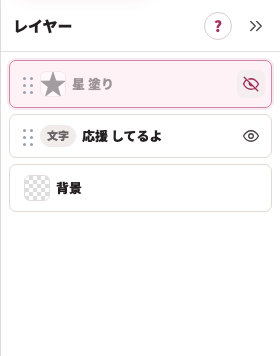
拡大:非表示後:一覧の目を切り替えると星が作品から消えます。削除とは違い、再表示できます。 -
削除し、必要なら元に戻す
不要な要素を選び、上部のごみ箱を押します。誤って削除したら画面右上の「元に戻す」で戻します。
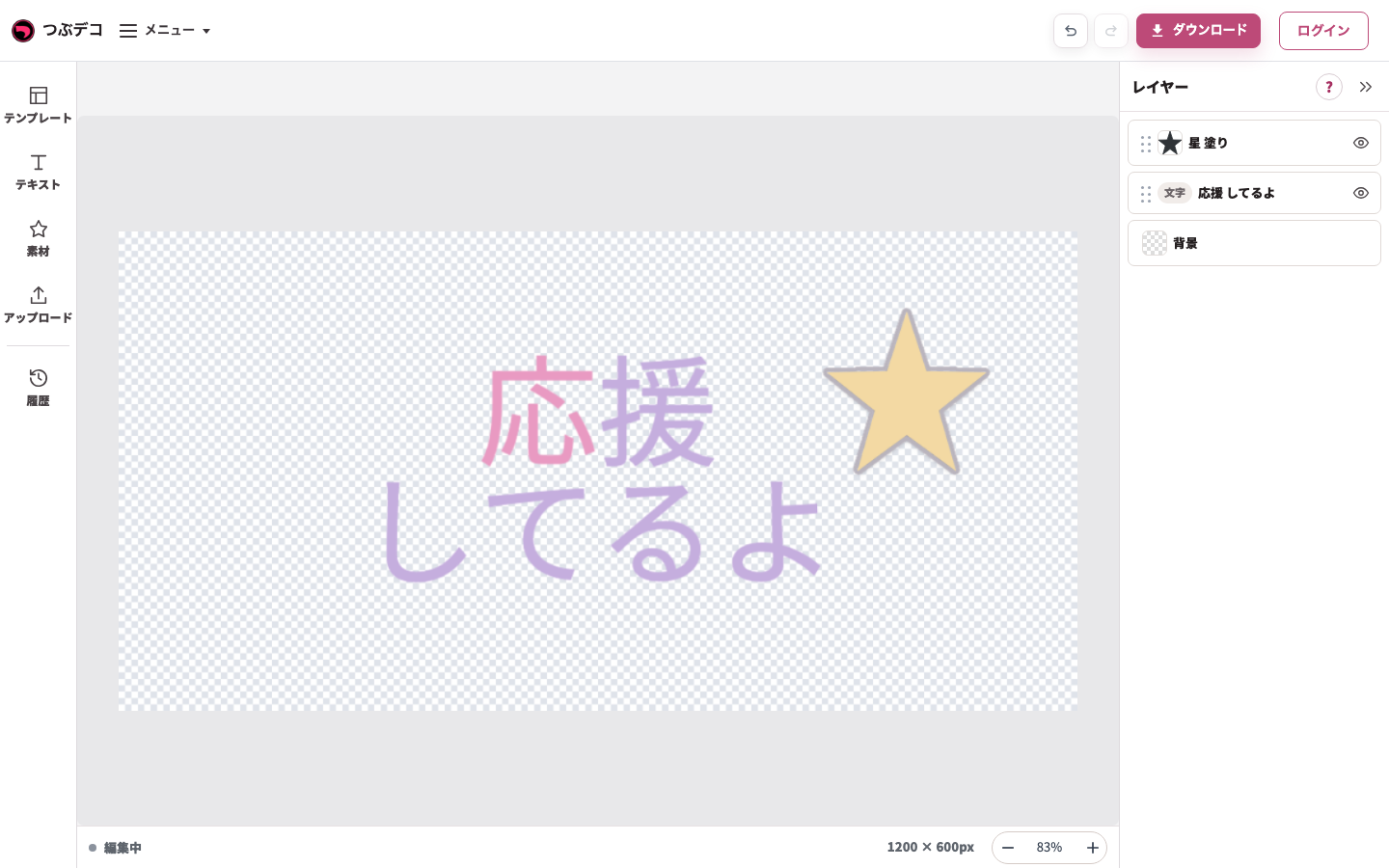
削除後:選択した複製の星が一覧から消えます。誤操作は上部の元に戻すで戻せます。 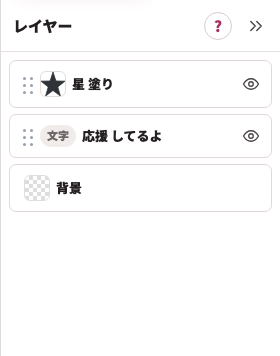
拡大:削除後:選択した複製の星が一覧から消えます。誤操作は上部の元に戻すで戻せます。 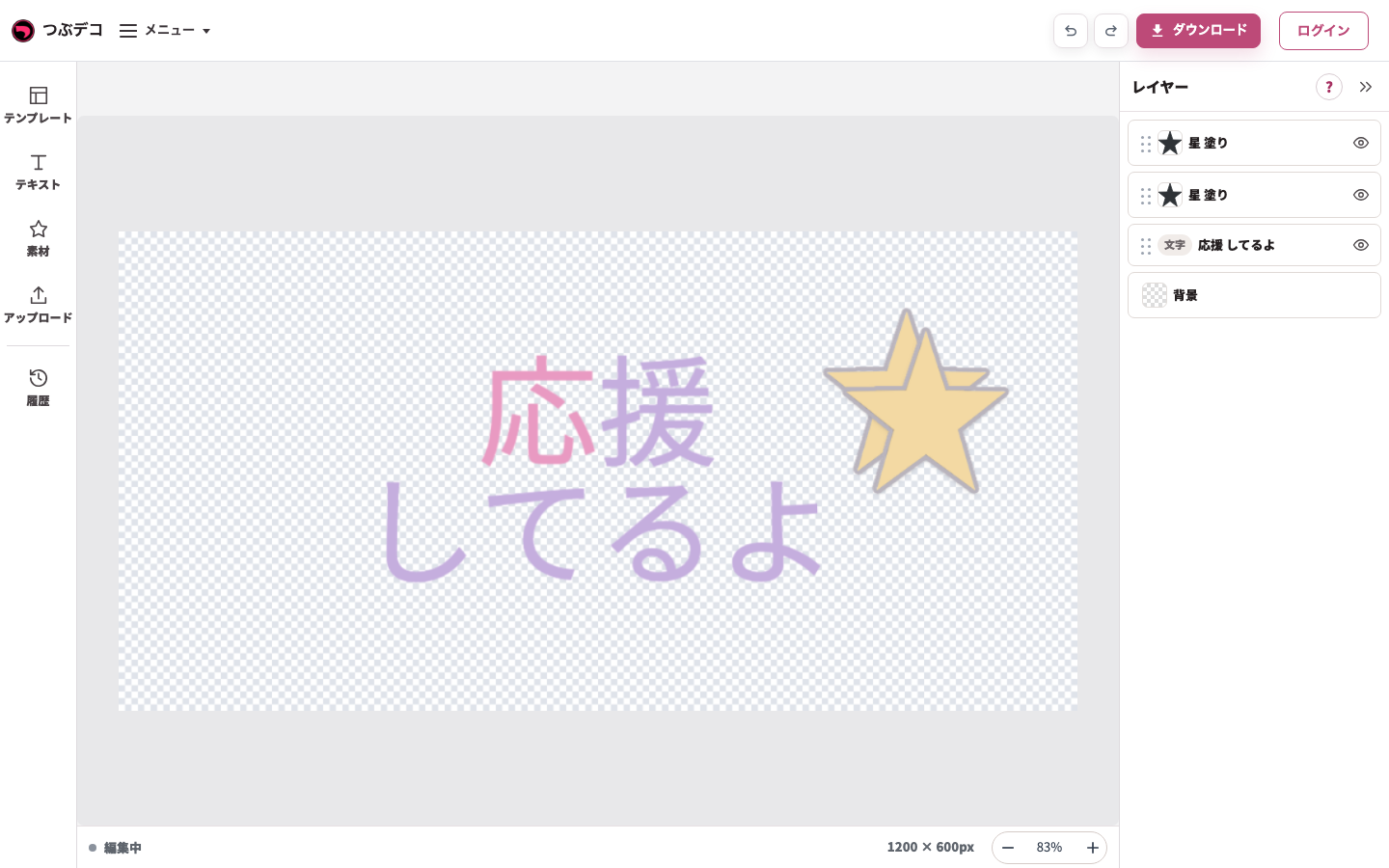
元に戻した状態:削除した星が一覧に復元されています。 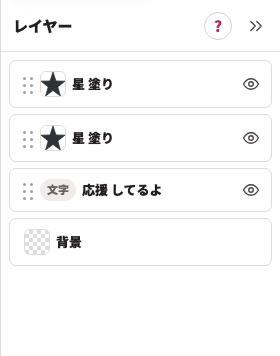
拡大:元に戻した状態:削除した星が一覧に復元されています。
設定項目一覧
| Item | Description |
|---|---|
| ドラッグハンドル | 左端の点々アイコンです。ドラッグしてレイヤーの順番を変えます。 |
| 種類ラベル | 文字、素材、画像など、レイヤーの種類を示します。 |
| レイヤー名 | クリックすると、そのレイヤーを選択できます。 |
| ↑↓ボタン | レイヤーを1つずつ前面または背面へ移動します。 |
| 鍵の印 | その要素がロック中であることを示します。ロック・解除は要素を選んで編集ツールから行います。 |
| 目のアイコン | レイヤーの表示・非表示を切り替えます。 |
| 削除 | 要素を選んで編集ツールから削除します。 |
確認ポイント
- 順番は、上にあるレイヤーほど前面、下にあるレイヤーほど背面です。
- 細かく順番を変える場合は↑↓ボタン、大きく入れ替える場合はドラッグが便利です。
- 一時的に動かしたくないレイヤーは、削除ではなくロックを使います。
- 非表示にしたレイヤーは、書き出し画像にも含まれません。
困ったとき
レイヤーが見えない場合は、目のアイコンが非表示になっていないか、一覧で他の要素より後ろになっていないか確認してください。動かせない場合は鍵アイコンでロックされていないか確認します。